> ## Documentation Index
> Fetch the complete documentation index at: https://docs.speckle.systems/llms.txt
> Use this file to discover all available pages before exploring further.
# Compare Versions
> Compare two versions of a model to see the differences.
Speckle automatically tracks every change you make to your models. Each time you send data, a new [version](/workspaces/versions) is created. This allows you to review the entire history of your model, compare changes over time, and revert to earlier versions if needed.
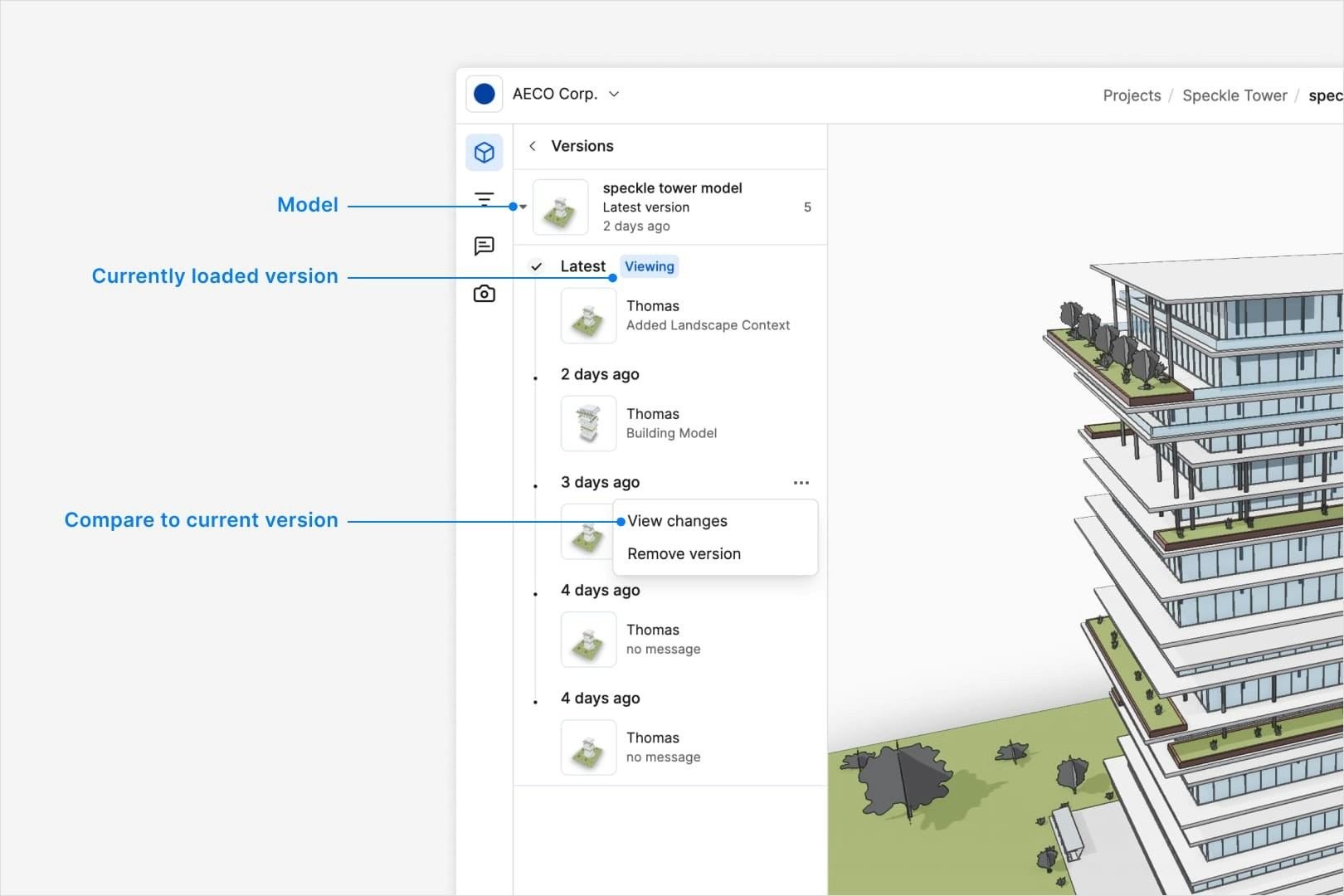
Whenever you send data from a Speckle-enabled application (like Revit, Rhino, or Grasshopper), Speckle stores that data as a new version. Each version is:
* Timestamped
* Tagged with metadata (e.g. message, source application, sender)
* Linked to previous versions, allowing for complete traceability and version comparison
Behind the scenes, Speckle breaks your model down into individual objects (such as walls, floors, meshes, or parameter sets) and gives each object a unique identifier.
Learn more about versions [here](/workspaces/versions).
## How to compare two versions
1. **Open the Models panel** on the left side and click the versions button in the top.
2. **Browse previous model versions** and identify the version you want to compare.
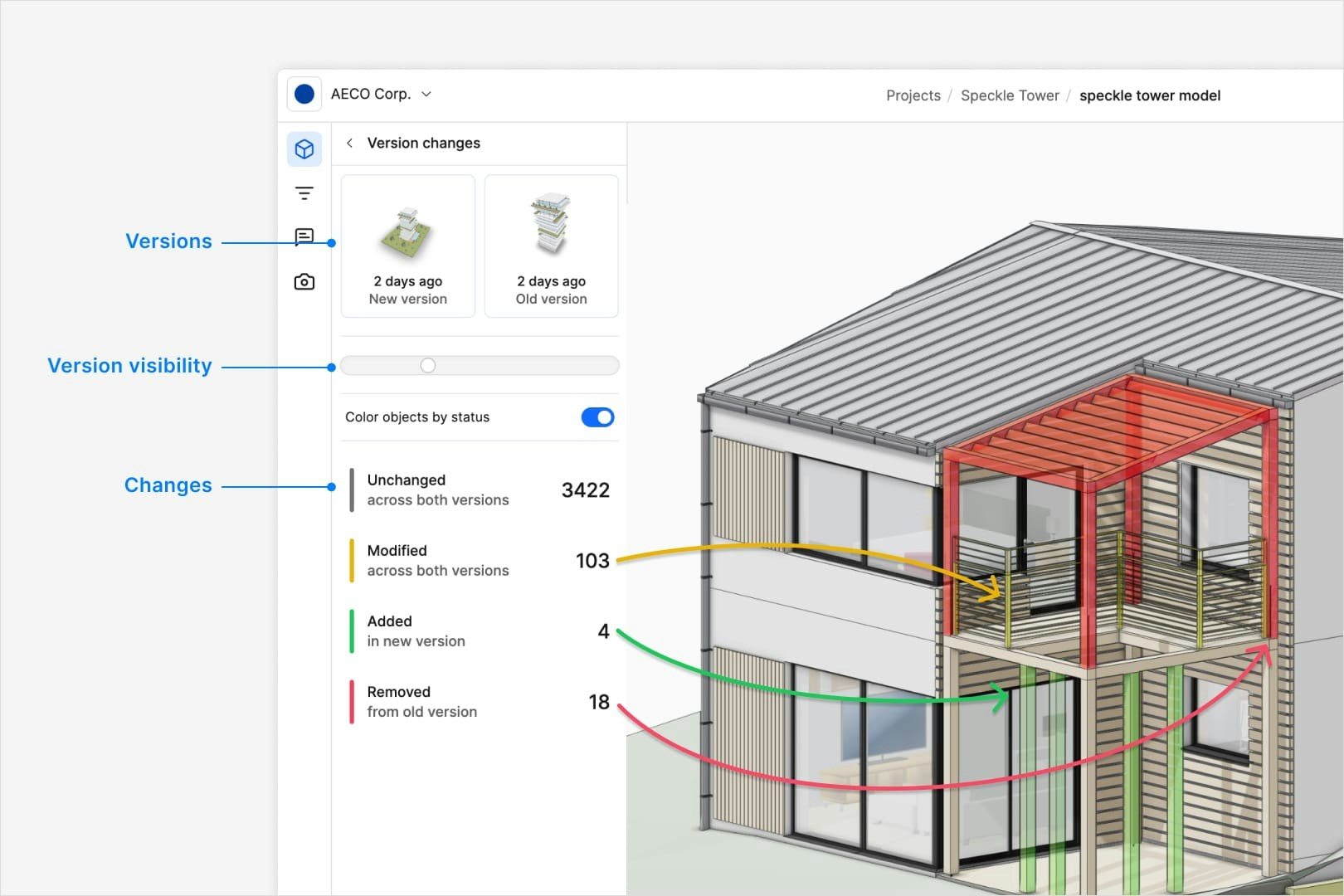
3. **Click *View changes*** in the ··· menu to see a detailed comparison.
 ## Benefits
* **Change Awareness**: Understand how your model has evolved over time.
* **Design Iteration**: Explore different design options across models without overwriting previous work.
* **Collaboration**: See who made what changes and when, helping teams stay in sync.
* **Recovery**: Roll back to a previous version if something goes wrong. **Note**: Recovery is only supported in Rhino, Autocad and Sketchup connectors.
## Tips
* Use meaningful messages when sending data to make version tracking more readable. - Create
models for separate project phases or design options to keep changes organized. - Use the diffing
feature to compare versions and spot differences in geometry, parameters, or structure.
## Benefits
* **Change Awareness**: Understand how your model has evolved over time.
* **Design Iteration**: Explore different design options across models without overwriting previous work.
* **Collaboration**: See who made what changes and when, helping teams stay in sync.
* **Recovery**: Roll back to a previous version if something goes wrong. **Note**: Recovery is only supported in Rhino, Autocad and Sketchup connectors.
## Tips
* Use meaningful messages when sending data to make version tracking more readable. - Create
models for separate project phases or design options to keep changes organized. - Use the diffing
feature to compare versions and spot differences in geometry, parameters, or structure.