> ## Documentation Index
> Fetch the complete documentation index at: https://docs.speckle.systems/llms.txt
> Use this file to discover all available pages before exploring further.
# Issues
> Track problems and manage feedback directly on your 3D models.
For end-to-end review sequences that combine Issues with other tools, see
[Review Workflows](/3d-viewer/review-workflows).
## What are issues?
Issues in Speckle let you report problems, request changes, and manage feedback tied directly to specific objects in your models. Create issues by clicking on geometry, assign them to teammates, set priorities and due dates, and track progress from creation to completion.
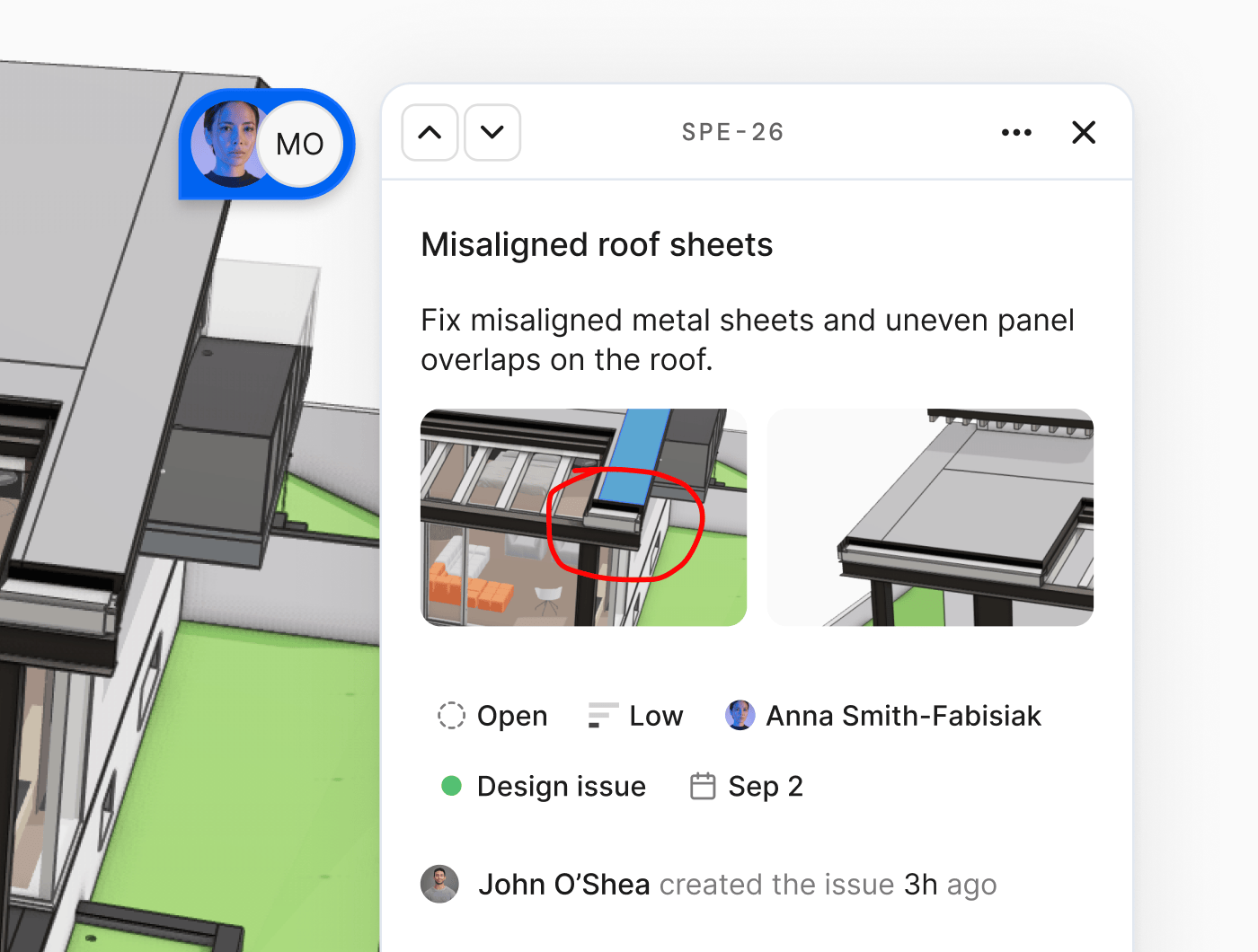 Raise an issue directly from selected geometry.
Assign owners, set priority and due dates, and discuss in-thread.
Filter by status, assignee, labels, and model version.
## Creating issues
Open a model in the 3D viewer.
Click one or more objects to link them to the issue.
Add title and description, then set status, assignee, due date, priority, or
labels as needed.
Click **Create** to save the issue.
The issue window can be repositioned by clicking and dragging its title bar anywhere on the screen.
No. Every issue must be linked to at least one object in the model. This
keeps feedback clear and easy to act on.
Select all relevant objects before creating the issue. You can select
multiple objects by holding Shift while clicking.
Yes. Tap an object to select it, then follow the same creation flow. The issue window adapts to touch interfaces.
## Issue properties
Each issue has multiple fields to help you organize and prioritize work.
Raise an issue directly from selected geometry.
Assign owners, set priority and due dates, and discuss in-thread.
Filter by status, assignee, labels, and model version.
## Creating issues
Open a model in the 3D viewer.
Click one or more objects to link them to the issue.
Add title and description, then set status, assignee, due date, priority, or
labels as needed.
Click **Create** to save the issue.
The issue window can be repositioned by clicking and dragging its title bar anywhere on the screen.
No. Every issue must be linked to at least one object in the model. This
keeps feedback clear and easy to act on.
Select all relevant objects before creating the issue. You can select
multiple objects by holding Shift while clicking.
Yes. Tap an object to select it, then follow the same creation flow. The issue window adapts to touch interfaces.
## Issue properties
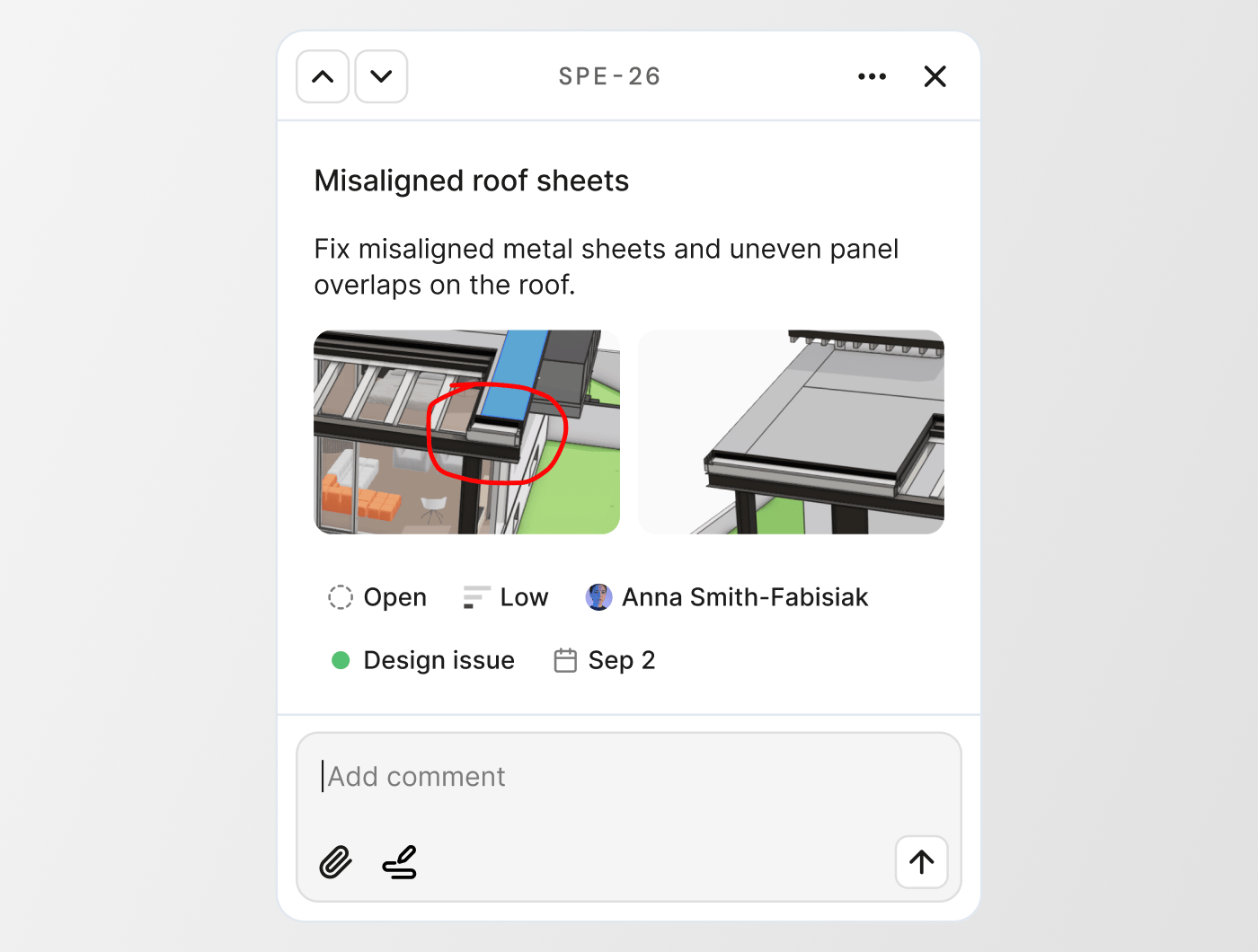
Each issue has multiple fields to help you organize and prioritize work.
 ### Title and description
Give your issue a clear title and add details in the description. Use
`cmd/ctrl`+`B` for **bold** and `cmd/ctrl`+`I` for *italics*.
### Status
Track progress with three status options:
* **Open** - Issue needs attention (default)
* **Ready for Review** - Work is complete and needs verification
* **Done** - Issue is resolved
### Assignee
Assign issues to any user in your workspace. For private projects, you can only assign users who have been explicitly added to the project as collaborators. Assigned users receive an email notification.
### Due date
Set a deadline for when the issue should be resolved. Overdue issues can be filtered and highlighted in issue lists.
### Priority
Indicate urgency with four priority levels: No priority (default), Low, Medium, High.
### Labels
Tag issues with one or multiple labels. Labels help categorize issues by discipline, phase, issue type, or any other criteria relevant to your project.
Your workspace comes with a set of default labels, but workspace admins can create custom labels from **Workspace settings > Issue labels**. Each label has a name and color, and labels are available across all projects in your workspace.
Yes. Click on any issue to open it, then modify any field. All changes are tracked in the issue activity log.
The label will be removed from all issues using it. Consider renaming or recoloring labels instead of deleting them if they're actively used.
## Collaboration
### Replies
Add comments to any issue to discuss the problem, propose solutions, or provide
updates. Replies appear chronologically below the issue description. Anyone with
the **Reviewer** project role or higher can reply to issues.
Anyone who created an issue, is assigned to it, or has previously commented will receive email notifications when new replies are added.
### Mentions
Mention specific users in issue descriptions or replies by typing @ followed by their name. Mentioned users receive an email notification directing them to the issue.
In private projects, you can only mention users who have access to the project.
### Attachments
Attach images, files, and markups to give more detail:
* Click **Attach image or file** to upload from your device
* Drag and drop files directly into the issue window
* Click **Attach markup** to create an annotated screenshot using Speckle's markup tools
Attachments help clarify problems visually and provide reference materials for resolution.
Individual attachments are limited to a reasonable file size to ensure performance. If you need to share large files, consider linking to them in cloud storage.
Not directly from the connector. Attachments can only be added through the
web viewer.
Most common file types are supported, including images (PNG, JPG, etc.), PDFs, and office documents.
### Issue activity
Below the replies, the issue activity log shows all changes over time. You can
see who changed status, priority, labels, and due dates.
## Managing issues
### Issues panel in the viewer
### Title and description
Give your issue a clear title and add details in the description. Use
`cmd/ctrl`+`B` for **bold** and `cmd/ctrl`+`I` for *italics*.
### Status
Track progress with three status options:
* **Open** - Issue needs attention (default)
* **Ready for Review** - Work is complete and needs verification
* **Done** - Issue is resolved
### Assignee
Assign issues to any user in your workspace. For private projects, you can only assign users who have been explicitly added to the project as collaborators. Assigned users receive an email notification.
### Due date
Set a deadline for when the issue should be resolved. Overdue issues can be filtered and highlighted in issue lists.
### Priority
Indicate urgency with four priority levels: No priority (default), Low, Medium, High.
### Labels
Tag issues with one or multiple labels. Labels help categorize issues by discipline, phase, issue type, or any other criteria relevant to your project.
Your workspace comes with a set of default labels, but workspace admins can create custom labels from **Workspace settings > Issue labels**. Each label has a name and color, and labels are available across all projects in your workspace.
Yes. Click on any issue to open it, then modify any field. All changes are tracked in the issue activity log.
The label will be removed from all issues using it. Consider renaming or recoloring labels instead of deleting them if they're actively used.
## Collaboration
### Replies
Add comments to any issue to discuss the problem, propose solutions, or provide
updates. Replies appear chronologically below the issue description. Anyone with
the **Reviewer** project role or higher can reply to issues.
Anyone who created an issue, is assigned to it, or has previously commented will receive email notifications when new replies are added.
### Mentions
Mention specific users in issue descriptions or replies by typing @ followed by their name. Mentioned users receive an email notification directing them to the issue.
In private projects, you can only mention users who have access to the project.
### Attachments
Attach images, files, and markups to give more detail:
* Click **Attach image or file** to upload from your device
* Drag and drop files directly into the issue window
* Click **Attach markup** to create an annotated screenshot using Speckle's markup tools
Attachments help clarify problems visually and provide reference materials for resolution.
Individual attachments are limited to a reasonable file size to ensure performance. If you need to share large files, consider linking to them in cloud storage.
Not directly from the connector. Attachments can only be added through the
web viewer.
Most common file types are supported, including images (PNG, JPG, etc.), PDFs, and office documents.
### Issue activity
Below the replies, the issue activity log shows all changes over time. You can
see who changed status, priority, labels, and due dates.
## Managing issues
### Issues panel in the viewer
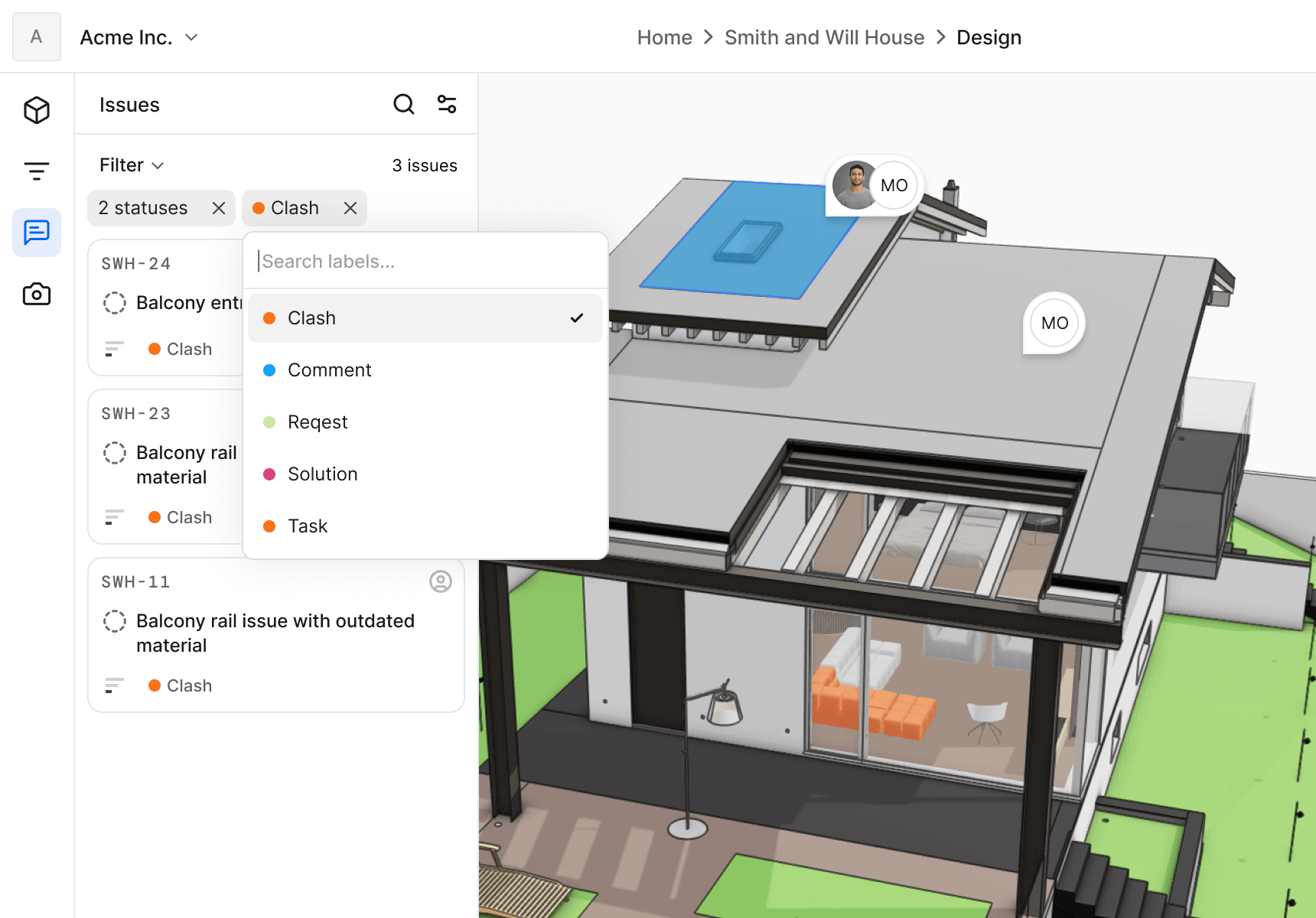 Access all issues for the currently loaded models from the Issues panel in the viewer. The panel shows issue titles, status, priority, labels, and assignees at a glance.
By default, issues marked as **Done** are hidden to keep the list focused on active work.
**Filter issues by:**
* Status
* Assignee
* Due date
* Priority
* Labels
* Overdue status
* Current version only (show only issues created on the loaded model version)
Click any issue in the list to open it and see the associated objects highlighted in the model.
Yes. If you've loaded multiple models into the viewer, the Issues panel shows issues from all loaded models.
Check your filters. Issues with status **Done** are hidden by default, and other filters may be excluding the issue you're looking for.
### Issues tab in the project
Access all issues for the currently loaded models from the Issues panel in the viewer. The panel shows issue titles, status, priority, labels, and assignees at a glance.
By default, issues marked as **Done** are hidden to keep the list focused on active work.
**Filter issues by:**
* Status
* Assignee
* Due date
* Priority
* Labels
* Overdue status
* Current version only (show only issues created on the loaded model version)
Click any issue in the list to open it and see the associated objects highlighted in the model.
Yes. If you've loaded multiple models into the viewer, the Issues panel shows issues from all loaded models.
Check your filters. Issues with status **Done** are hidden by default, and other filters may be excluding the issue you're looking for.
### Issues tab in the project
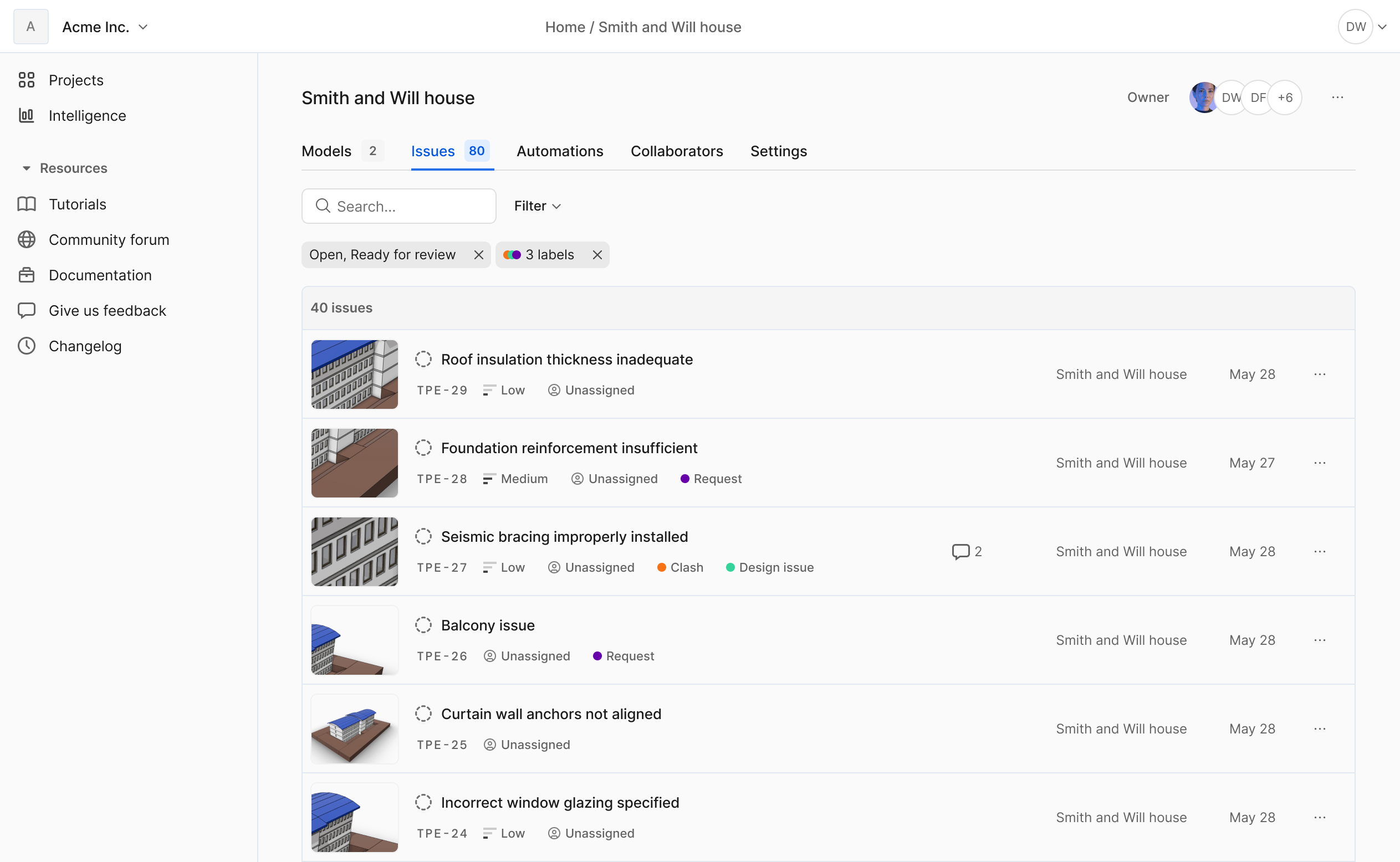 From the project's Issues tab, view all issues across all models in the project. This gives you a project-wide view of outstanding work.
Filter the list by status, assignee, due date, priority, labels, or use the search box to find issues by text.
The Issues panel in the viewer shows issues for the specific models currently loaded. The Issues tab in the project page shows all issues across all models in the project.
Not directly, but you can use the Issues widgets in Intelligence dashboards to create custom reports and visualizations of your issues.
We plan to add support for exporting issues.
### Issues in connectors
Issues are accessible directly in your desktop applications through Speckle connectors for Revit, Rhino, SketchUp, Navisworks, and other supported applications.
When you load a model in a connector, you'll see an issue icon with the count of open issues. Click it to view the full list of issues for that model, complete with all properties like labels, priority, and assignees.
Click any issue to see the associated object highlighted in your host application. This lets you address problems without switching between your desktop app and the web interface.
Connectors currently show highlighted objects but do not automatically move
the camera to focus on them. You may need to navigate manually to see
highlighted geometry.
Not yet. Creating new issues is currently only available through the web app.
Not yet. Issue creation is currently only available through the web app.
Not yet. Marking an issue as Done, including editing any other issue
property, is currently only available through the web app.
No. You'll need to refresh the connector to see the latest issues.
### Issues in Speckle Intelligence
From the project's Issues tab, view all issues across all models in the project. This gives you a project-wide view of outstanding work.
Filter the list by status, assignee, due date, priority, labels, or use the search box to find issues by text.
The Issues panel in the viewer shows issues for the specific models currently loaded. The Issues tab in the project page shows all issues across all models in the project.
Not directly, but you can use the Issues widgets in Intelligence dashboards to create custom reports and visualizations of your issues.
We plan to add support for exporting issues.
### Issues in connectors
Issues are accessible directly in your desktop applications through Speckle connectors for Revit, Rhino, SketchUp, Navisworks, and other supported applications.
When you load a model in a connector, you'll see an issue icon with the count of open issues. Click it to view the full list of issues for that model, complete with all properties like labels, priority, and assignees.
Click any issue to see the associated object highlighted in your host application. This lets you address problems without switching between your desktop app and the web interface.
Connectors currently show highlighted objects but do not automatically move
the camera to focus on them. You may need to navigate manually to see
highlighted geometry.
Not yet. Creating new issues is currently only available through the web app.
Not yet. Issue creation is currently only available through the web app.
Not yet. Marking an issue as Done, including editing any other issue
property, is currently only available through the web app.
No. You'll need to refresh the connector to see the latest issues.
### Issues in Speckle Intelligence
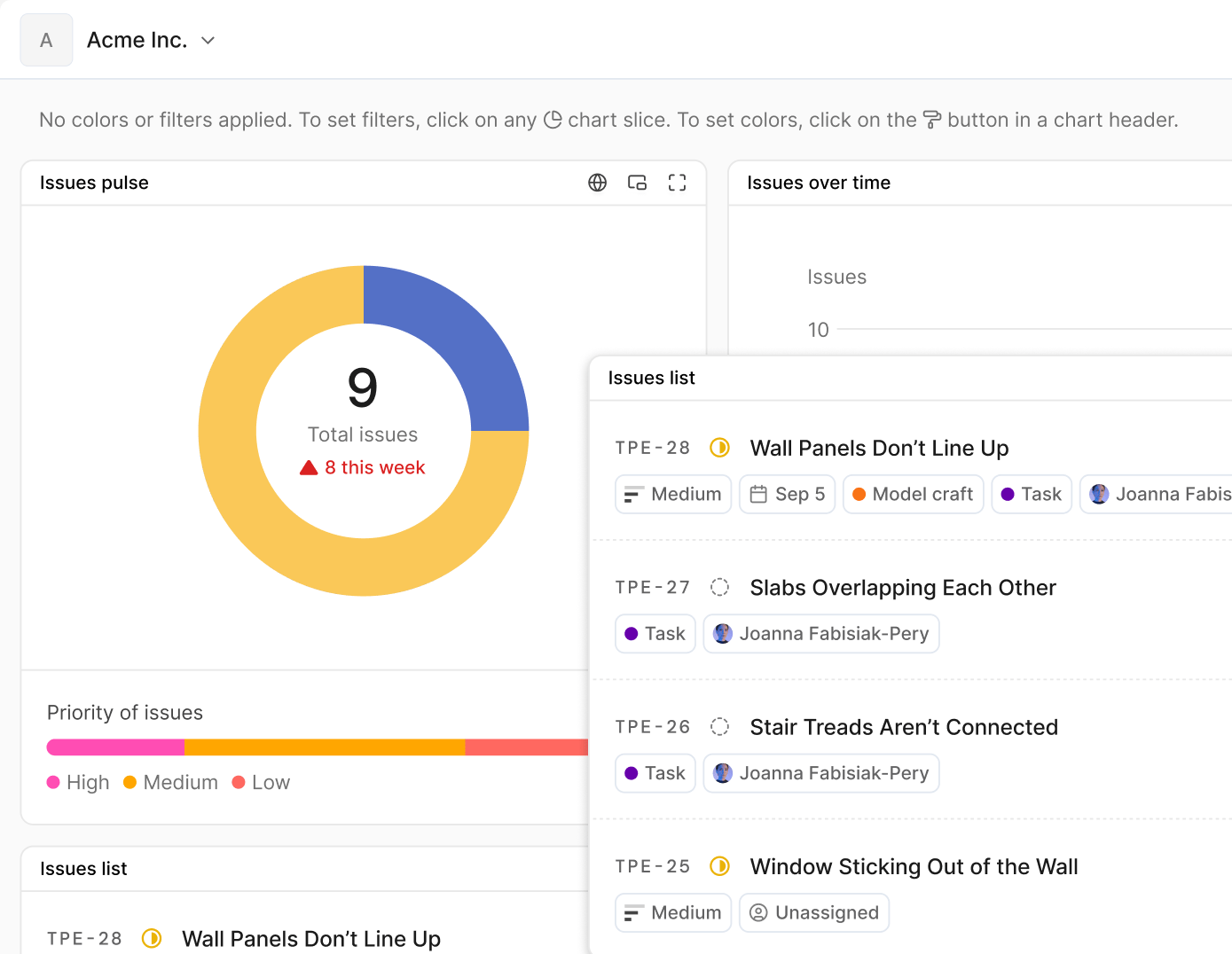 Issues integrate with Speckle Intelligence dashboards, allowing you to create custom visualizations and reports.
Add Issues widgets to your dashboards to:
* List all issues for loaded models
* Filter by label, assignee, or other properties
* Track issue counts over time by model version
* Visualize issue distribution across your project
This is useful for project managers tracking team progress or identifying bottlenecks in the review process.
We are working on more detailed docs and examples for how to manage and
interact with your issues in Speckle Intelligence.
## Version tracking
Issues are tied to the model version they were created on. This ensures you can always see the exact state of the model when the problem was identified.
When you open an issue, it shows the latest model version by default. To see the
original model state:
1. Open the issue
2. Click the **···** menu on the issue in the Issues panel
3. Select **Load with original version**
The viewer will load the model version that existed when the issue was created.
You can also filter the Issues panel to show only issues created on the currently loaded version using the "Is from current version" filter.
The issue remains accessible, but the referenced object won't be visible in newer versions. Loading the original version will show the object as it was when the issue was created.
It depends on your workflow. Some teams close issues after publishing fixes, others mark them as **Ready for Review** and wait for verification before marking them **Done**.
## Notifications
You receive email notifications when:
* An issue is assigned to you
* Someone mentions you in an issue or reply
* Someone replies to an issue you created, are assigned to, or have previously commented on
## Permissions
Issue permissions depend on your project role and whether you created or are assigned to a specific issue.
| | Reviewer | Contributor | Owner | Public users |
| ----------------------------------------------------- | ---------------------------------- | ---------------------------------- | ----- | --------------------------- |
| **View issues** | Yes | Yes | Yes | Yes – if public project |
| **Create issues** | Yes | Yes | Yes | Yes – if allowed on project |
| **Edit title and description** | Yes – if issue creator or assignee | Yes – if issue creator or assignee | Yes | Yes – if issue creator |
| **Add/Edit status, assignee, labels, date, priority** | Yes – if issue creator or assignee | Yes – if issue creator or assignee | Yes | No |
| **Get assigned an issue** | Yes | Yes | Yes | No |
| **Delete issues** | Yes – if issue creator | Yes – if issue creator | Yes | Yes – if issue creator |
| **Comment on issues** | Yes | Yes | Yes | Yes – if enabled on project |
| **Edit comments** | No | No | No | No |
### Important notes
* Nobody can edit issue comments after posting, including project owners
* You must have a Speckle account to create issues or comment, even in public projects
* Anyone in the workspace can be assigned to an issue, regardless of their project role
* Being assigned to an issue grants you edit permissions for that issue's title, description, and properties
* Configure external user permissions from **Project settings > Visibility**
## If an issue action is blocked
Check these conditions:
* Cannot create issue -> confirm at least one object is selected.
* Cannot edit issue -> only issue creator, assignee, or owner can edit.
* Cannot comment -> confirm user has project access and signed-in account.
* Cannot see expected issue -> check filters and include **Done** if needed.
* Cannot assign user -> confirm user has access to that project.
You can only edit issues you created or are assigned to. This prevents accidental changes to issues you're not actively working on. Project owners have full access to all issues.
Yes. If you're assigned to an issue, you have permission to modify all its
properties, including changing or removing the assignee.
Comments cannot be edited by anyone once posted. This maintains a clear
record of communication. If you need to correct or clarify something, add a
new reply.
Yes, but they cannot assign issues or modify assignments. They can only view this information.
## Availability
The Issues feature is fully available without limits in all Speckle plans, including Free.
For self-hosted Speckle servers, the core Issues functionality is available including issue title, description, status tracking, attachments, and replies.
Additional features like labels, priority, assignee, due dates, and markup
attachments are available only in hosted Speckle workspaces.
Some features are tied to hosted workspace systems and are not included in
the self-hosted package.
This is not currently planned.
Issues integrate with Speckle Intelligence dashboards, allowing you to create custom visualizations and reports.
Add Issues widgets to your dashboards to:
* List all issues for loaded models
* Filter by label, assignee, or other properties
* Track issue counts over time by model version
* Visualize issue distribution across your project
This is useful for project managers tracking team progress or identifying bottlenecks in the review process.
We are working on more detailed docs and examples for how to manage and
interact with your issues in Speckle Intelligence.
## Version tracking
Issues are tied to the model version they were created on. This ensures you can always see the exact state of the model when the problem was identified.
When you open an issue, it shows the latest model version by default. To see the
original model state:
1. Open the issue
2. Click the **···** menu on the issue in the Issues panel
3. Select **Load with original version**
The viewer will load the model version that existed when the issue was created.
You can also filter the Issues panel to show only issues created on the currently loaded version using the "Is from current version" filter.
The issue remains accessible, but the referenced object won't be visible in newer versions. Loading the original version will show the object as it was when the issue was created.
It depends on your workflow. Some teams close issues after publishing fixes, others mark them as **Ready for Review** and wait for verification before marking them **Done**.
## Notifications
You receive email notifications when:
* An issue is assigned to you
* Someone mentions you in an issue or reply
* Someone replies to an issue you created, are assigned to, or have previously commented on
## Permissions
Issue permissions depend on your project role and whether you created or are assigned to a specific issue.
| | Reviewer | Contributor | Owner | Public users |
| ----------------------------------------------------- | ---------------------------------- | ---------------------------------- | ----- | --------------------------- |
| **View issues** | Yes | Yes | Yes | Yes – if public project |
| **Create issues** | Yes | Yes | Yes | Yes – if allowed on project |
| **Edit title and description** | Yes – if issue creator or assignee | Yes – if issue creator or assignee | Yes | Yes – if issue creator |
| **Add/Edit status, assignee, labels, date, priority** | Yes – if issue creator or assignee | Yes – if issue creator or assignee | Yes | No |
| **Get assigned an issue** | Yes | Yes | Yes | No |
| **Delete issues** | Yes – if issue creator | Yes – if issue creator | Yes | Yes – if issue creator |
| **Comment on issues** | Yes | Yes | Yes | Yes – if enabled on project |
| **Edit comments** | No | No | No | No |
### Important notes
* Nobody can edit issue comments after posting, including project owners
* You must have a Speckle account to create issues or comment, even in public projects
* Anyone in the workspace can be assigned to an issue, regardless of their project role
* Being assigned to an issue grants you edit permissions for that issue's title, description, and properties
* Configure external user permissions from **Project settings > Visibility**
## If an issue action is blocked
Check these conditions:
* Cannot create issue -> confirm at least one object is selected.
* Cannot edit issue -> only issue creator, assignee, or owner can edit.
* Cannot comment -> confirm user has project access and signed-in account.
* Cannot see expected issue -> check filters and include **Done** if needed.
* Cannot assign user -> confirm user has access to that project.
You can only edit issues you created or are assigned to. This prevents accidental changes to issues you're not actively working on. Project owners have full access to all issues.
Yes. If you're assigned to an issue, you have permission to modify all its
properties, including changing or removing the assignee.
Comments cannot be edited by anyone once posted. This maintains a clear
record of communication. If you need to correct or clarify something, add a
new reply.
Yes, but they cannot assign issues or modify assignments. They can only view this information.
## Availability
The Issues feature is fully available without limits in all Speckle plans, including Free.
For self-hosted Speckle servers, the core Issues functionality is available including issue title, description, status tracking, attachments, and replies.
Additional features like labels, priority, assignee, due dates, and markup
attachments are available only in hosted Speckle workspaces.
Some features are tied to hosted workspace systems and are not included in
the self-hosted package.
This is not currently planned.