> ## Documentation Index
> Fetch the complete documentation index at: https://docs.speckle.systems/llms.txt
> Use this file to discover all available pages before exploring further.
# Markups
> Draw and annotate your models to give clear feedback.
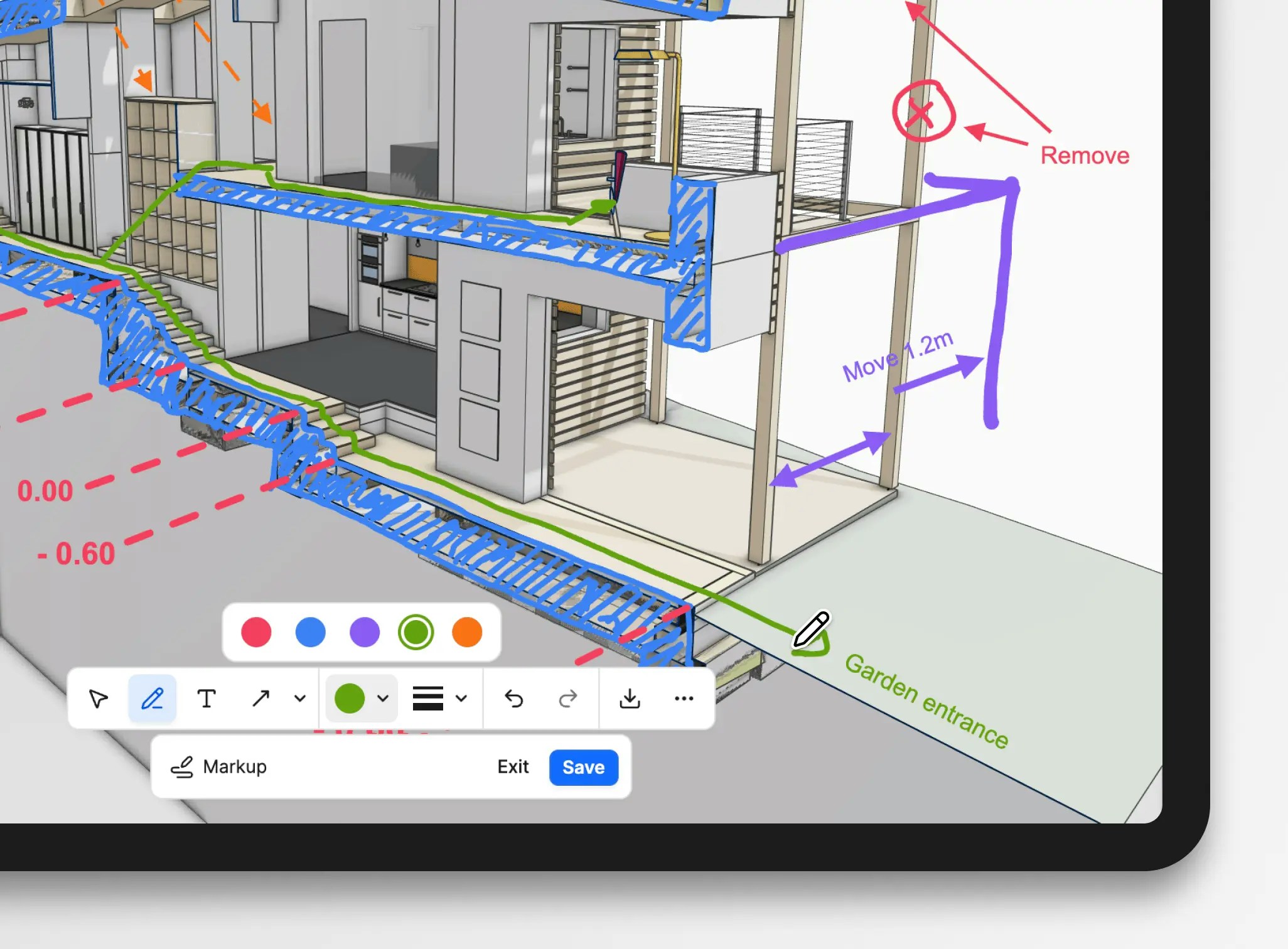 ## What are markups?
The Markup tool lets you sketch, draw shapes, and add text notes directly on your model in the Speckle 3D viewer. Circle problem areas, add arrows to show where things should move, or write quick notes, all without leaving Speckle.
Markups are available in all Speckle plans, including Free.
## Creating a markup
Open a model in the 3D viewer and position the camera.
Click the Markup button in the bottom toolbar.
Use pen, shapes, and text tools to capture feedback.
Adjust color, stroke width, and line style as needed.
Save as a view for collaboration, or export as an image immediately.
Freehand sketching and circling.
Rectangle, circle, arrow, line, and polyline.
Place written notes directly in the view.
## What are markups?
The Markup tool lets you sketch, draw shapes, and add text notes directly on your model in the Speckle 3D viewer. Circle problem areas, add arrows to show where things should move, or write quick notes, all without leaving Speckle.
Markups are available in all Speckle plans, including Free.
## Creating a markup
Open a model in the 3D viewer and position the camera.
Click the Markup button in the bottom toolbar.
Use pen, shapes, and text tools to capture feedback.
Adjust color, stroke width, and line style as needed.
Save as a view for collaboration, or export as an image immediately.
Freehand sketching and circling.
Rectangle, circle, arrow, line, and polyline.
Place written notes directly in the view.
Yes. You can draw as many shapes, lines, and text notes as needed before saving or exporting.
Yes. The markup tools work on touchscreen devices. Drawing and text entry use your device’s native touch and keyboard input.
## Saving markups as views
When you save a markup, it's stored as a [Saved view](/3d-viewer/saved-views). This captures:
* Your annotations
* Camera angle and position
* Visible objects and filters
* Complete model state
Saved views are accessible from the Views panel on the left. By default, saved views are visible to anyone with access to the model, so your markups are instantly accessible to others.
You can organize your saved markup views into folders by review round, discipline, or topic for more straightforward navigation.
Saving a markup requires the **Contributor** project role or higher. Users
with the **Reviewer** project role can still use Markup tools, but can only
export as an image.
Saved markup views restore the viewer configuration that was saved, including camera, visibility, and annotations. If the underlying model changes between versions, the view will still open, but what you see may differ from what it was when the markup was created.
No. Markups are stored as overlays on top of the viewer. They never modify
model geometry or properties.
Markups are stored inside the saved view. If you delete the view, its annotations are removed as well.
## Exporting markups as images
You can export a markup without saving it to the project:
* **Download as image:** Get a PNG file for sharing outside Speckle.
* **Copy image to clipboard:** In the ··· menu, there's an action to copy the markup to your clipboard to paste directly into emails, Microsoft Teams, or other tools.
These export options work whether you have edit permissions on the project or not.
## Permissions
**Anyone viewing a model** can:
* Use the markup tool
* Export markups as images or to the clipboard
**Users with the Contributor project role** can also:
* Save markups to the model as saved views
No. Unsaved markups are only visible in your current browser session. Other
users will not see them unless you save the view.