> ## Documentation Index
> Fetch the complete documentation index at: https://docs.speckle.systems/llms.txt
> Use this file to discover all available pages before exploring further.
# Presentation
> View your 3D Model anywhere
For a decision guide across inspection, feedback, and stakeholder delivery, see [Review
Workflows](/workflows/review-workflows).
Configure view modes, edges, and line treatment.
Use sectioning, explode, and camera controls to guide attention.
Tune lighting and projection for review and presentation clarity.
## Share presentations securely
Presentations can be shared with a tokenized link from the **Share** button.
* **Expiry:** Set an expiration date so access ends automatically.
* **Password:** Add a password to require an unlock step before viewing.
* **Revocation:** Revoke issued links from **Project settings > Tokens**.
This is useful for external reviews where recipients should not join your
workspace.
## View modes
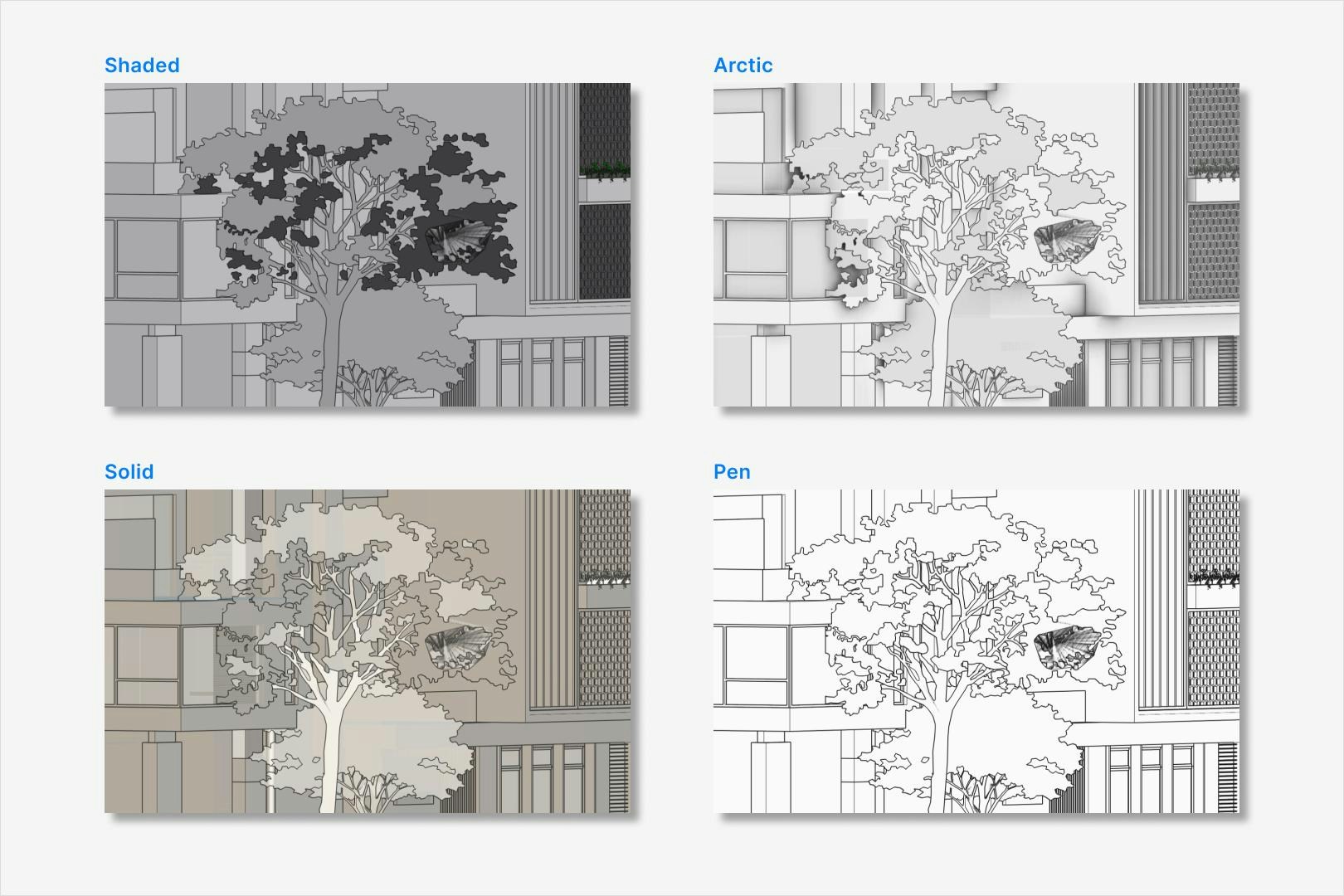
Use view modes to find the perfect visual setup for presenting, reviewing, or working on your model.
 ### View mode settings
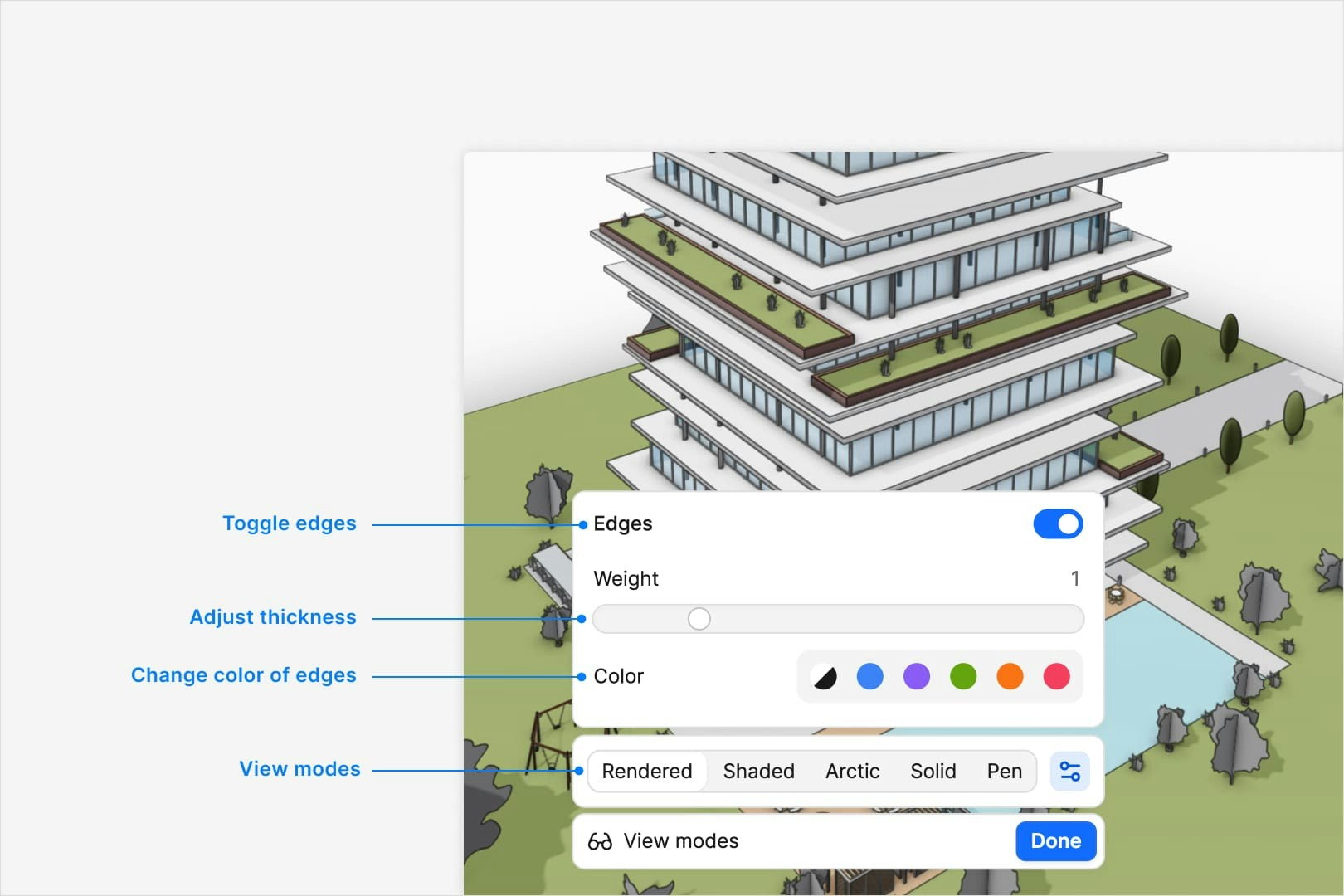
Speckle's view modes let you switch visual styles and tweak display settings to suit your needs:
* **Pick a style.** Pick from Pen, Arctic, Shaded and more styles.
* **Edge toggle.** Turn edge lines on or off to highlight or simplify your view.
* **Line thickness.** Easily make lines thicker or thinner for clearer outlines and emphasis.
* **Change color.** Change the color of the model outlines to match your presentation or for clarity.
### View mode settings
Speckle's view modes let you switch visual styles and tweak display settings to suit your needs:
* **Pick a style.** Pick from Pen, Arctic, Shaded and more styles.
* **Edge toggle.** Turn edge lines on or off to highlight or simplify your view.
* **Line thickness.** Easily make lines thicker or thinner for clearer outlines and emphasis.
* **Change color.** Change the color of the model outlines to match your presentation or for clarity.
 No, the view mode is set on a view by view basis at view time. You can lock in a view mode by
creating a comment and all viewer settings are locked in if you review that comment.
No, edges start on by default.
No, the line thickness is a setting relative the view. As you zoom in and out the line thickness
will maintain a consistent size.
There is some clever rendering going on to ensure that edges are visible even on very detailed
models without becoming too busy.
## Sectioning
The Section box lets you carve out a 3D region in your model to reveal and inspect its interior geometry.
Simply position and resize the box to slice through walls, floors, or any elements, exposing hidden details for
review or presentation without permanently altering your model.
No, the view mode is set on a view by view basis at view time. You can lock in a view mode by
creating a comment and all viewer settings are locked in if you review that comment.
No, edges start on by default.
No, the line thickness is a setting relative the view. As you zoom in and out the line thickness
will maintain a consistent size.
There is some clever rendering going on to ensure that edges are visible even on very detailed
models without becoming too busy.
## Sectioning
The Section box lets you carve out a 3D region in your model to reveal and inspect its interior geometry.
Simply position and resize the box to slice through walls, floors, or any elements, exposing hidden details for
review or presentation without permanently altering your model.
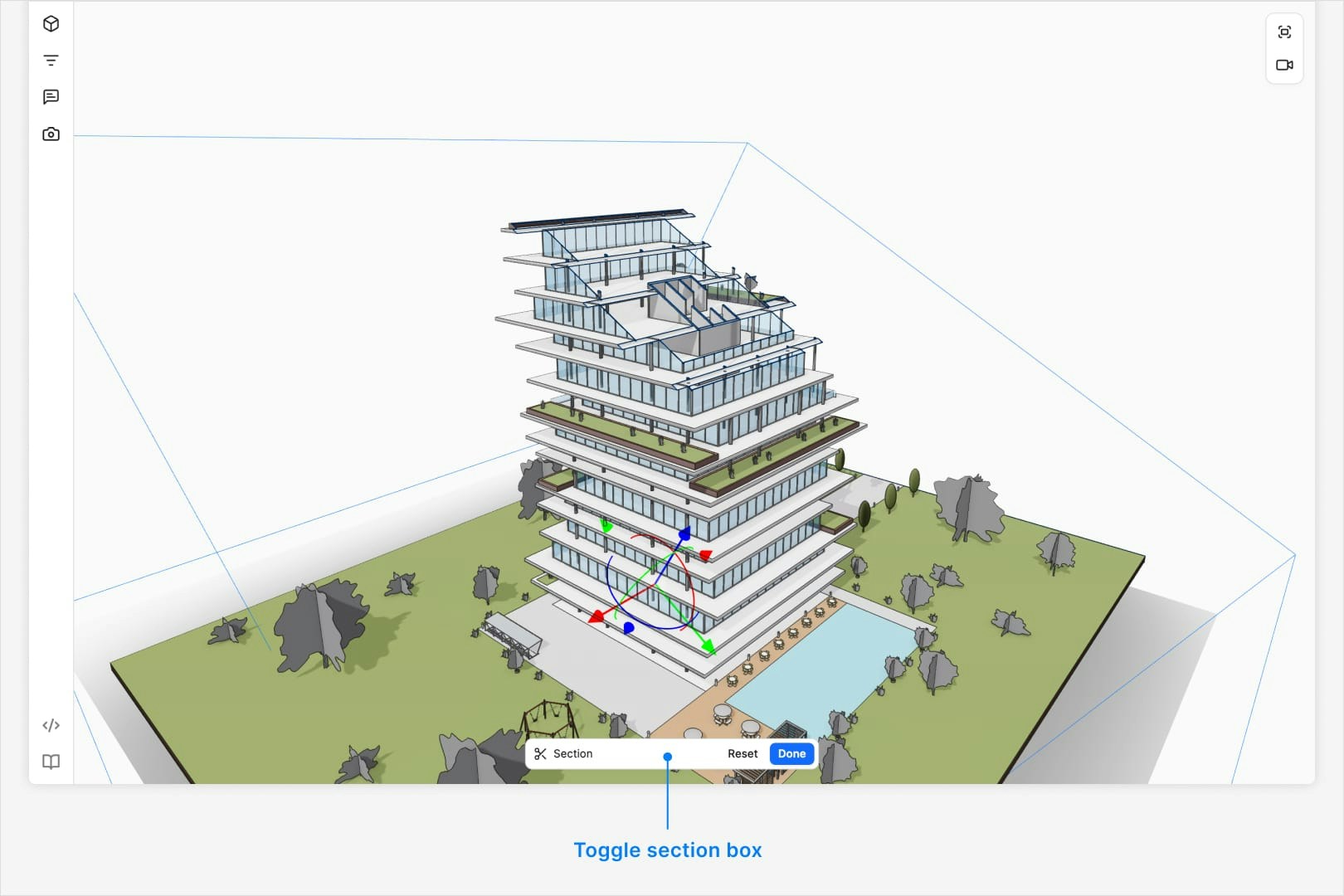 The section tool can be used to create unique views of the model for presentations or design review. You can control:
* **Position**: Use the translation gizmo at the center of the section box to move in the direction of each axis.
* **Rotation**: Use the rotation gizmo at the center of the section box to rotate in the direction of each axis.
* **Size**: Select a virtual face of the section box and then use the translation gizmo at the center of the face to move it in the perpendicular direction.
No, the section tool defaults to a 3D region encompassing the bounding box of the model or
selected elements. You can lock in a section by creating a comment and all viewer settings are
locked in if you review that comment.
No, the section tool defaults to a single cuboid region encompassing the bounding box of the
model or selected elements.
No, the section tool defaults to a single cuboid region encompassing the bounding box of the
model or selected elements.
## Lighting controls
Use Light Controls to make sure every part of your model is clearly visible, whether you're inspecting fine details or presenting to stakeholders.
The section tool can be used to create unique views of the model for presentations or design review. You can control:
* **Position**: Use the translation gizmo at the center of the section box to move in the direction of each axis.
* **Rotation**: Use the rotation gizmo at the center of the section box to rotate in the direction of each axis.
* **Size**: Select a virtual face of the section box and then use the translation gizmo at the center of the face to move it in the perpendicular direction.
No, the section tool defaults to a 3D region encompassing the bounding box of the model or
selected elements. You can lock in a section by creating a comment and all viewer settings are
locked in if you review that comment.
No, the section tool defaults to a single cuboid region encompassing the bounding box of the
model or selected elements.
No, the section tool defaults to a single cuboid region encompassing the bounding box of the
model or selected elements.
## Lighting controls
Use Light Controls to make sure every part of your model is clearly visible, whether you're inspecting fine details or presenting to stakeholders.
 ### Light controls settings
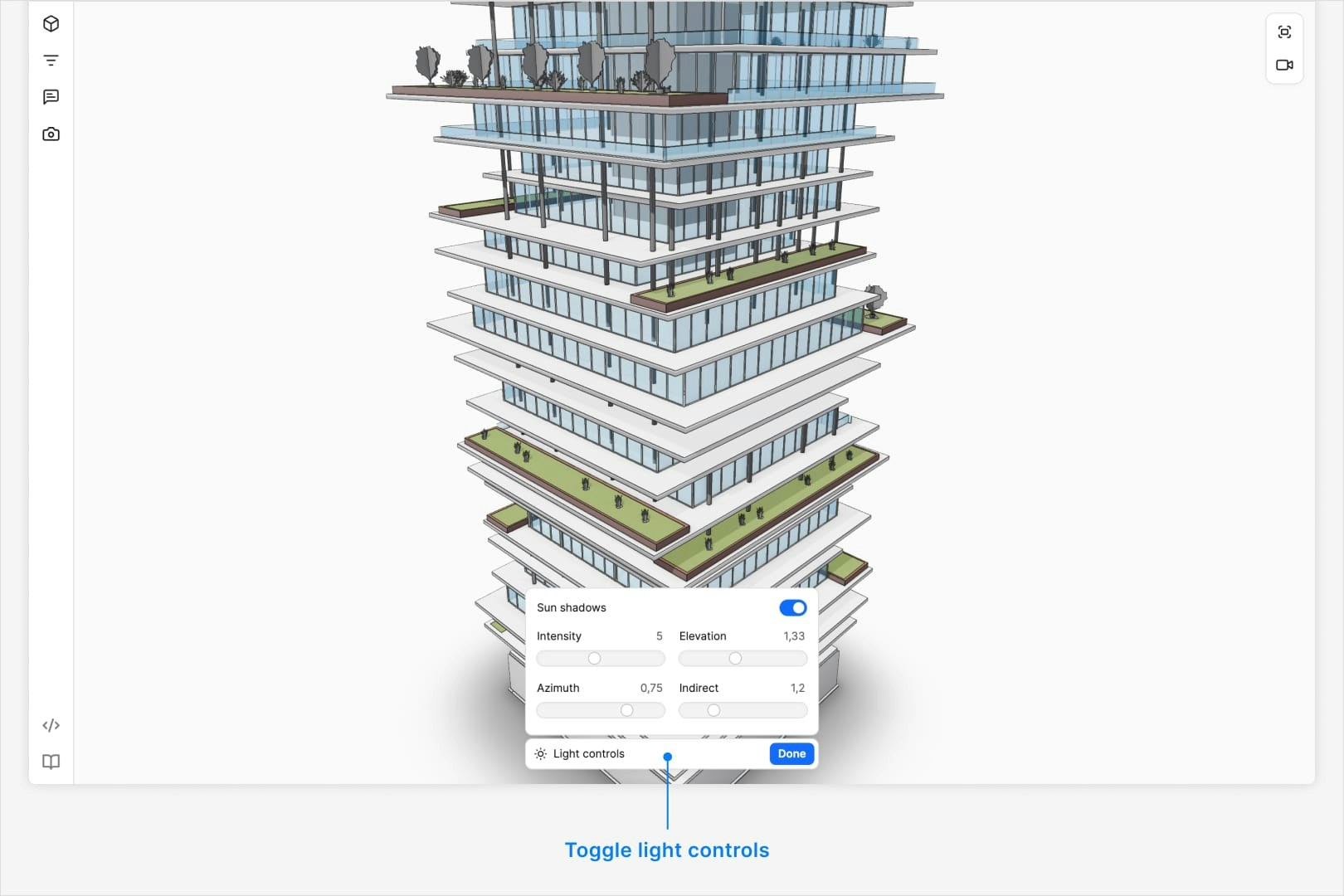
Speckle's lighting controls let you tweak how your model is lit to improve visibility and contrast:
* **Intensity.** Increase or decrease overall brightness to suit your environment.
* **Elevation.** Adjust the vertical angle of the light source to highlight different surfaces.
* **Azimuth.** Change the horizontal rotation of the light to control shadow direction.
* **Indirect.** Modify the amount of ambient or bounced light for softer, more realistic shading.
No, the light control is set on a view by view basis at view time. You can lock in a light
control by creating a comment and all viewer settings are locked in if you review that comment.
No, the lighting is quasi-real-world relative to model space.
No, the lighting is relative to the model space and doesn't have a world location.
No, the shadows are only visible in the viewer.
## Explode
The Explode tool breaks your model into its individual components, spreading them apart in the 3D space. This works best for small details or products to understand how they come together.
### Light controls settings
Speckle's lighting controls let you tweak how your model is lit to improve visibility and contrast:
* **Intensity.** Increase or decrease overall brightness to suit your environment.
* **Elevation.** Adjust the vertical angle of the light source to highlight different surfaces.
* **Azimuth.** Change the horizontal rotation of the light to control shadow direction.
* **Indirect.** Modify the amount of ambient or bounced light for softer, more realistic shading.
No, the light control is set on a view by view basis at view time. You can lock in a light
control by creating a comment and all viewer settings are locked in if you review that comment.
No, the lighting is quasi-real-world relative to model space.
No, the lighting is relative to the model space and doesn't have a world location.
No, the shadows are only visible in the viewer.
## Explode
The Explode tool breaks your model into its individual components, spreading them apart in the 3D space. This works best for small details or products to understand how they come together.
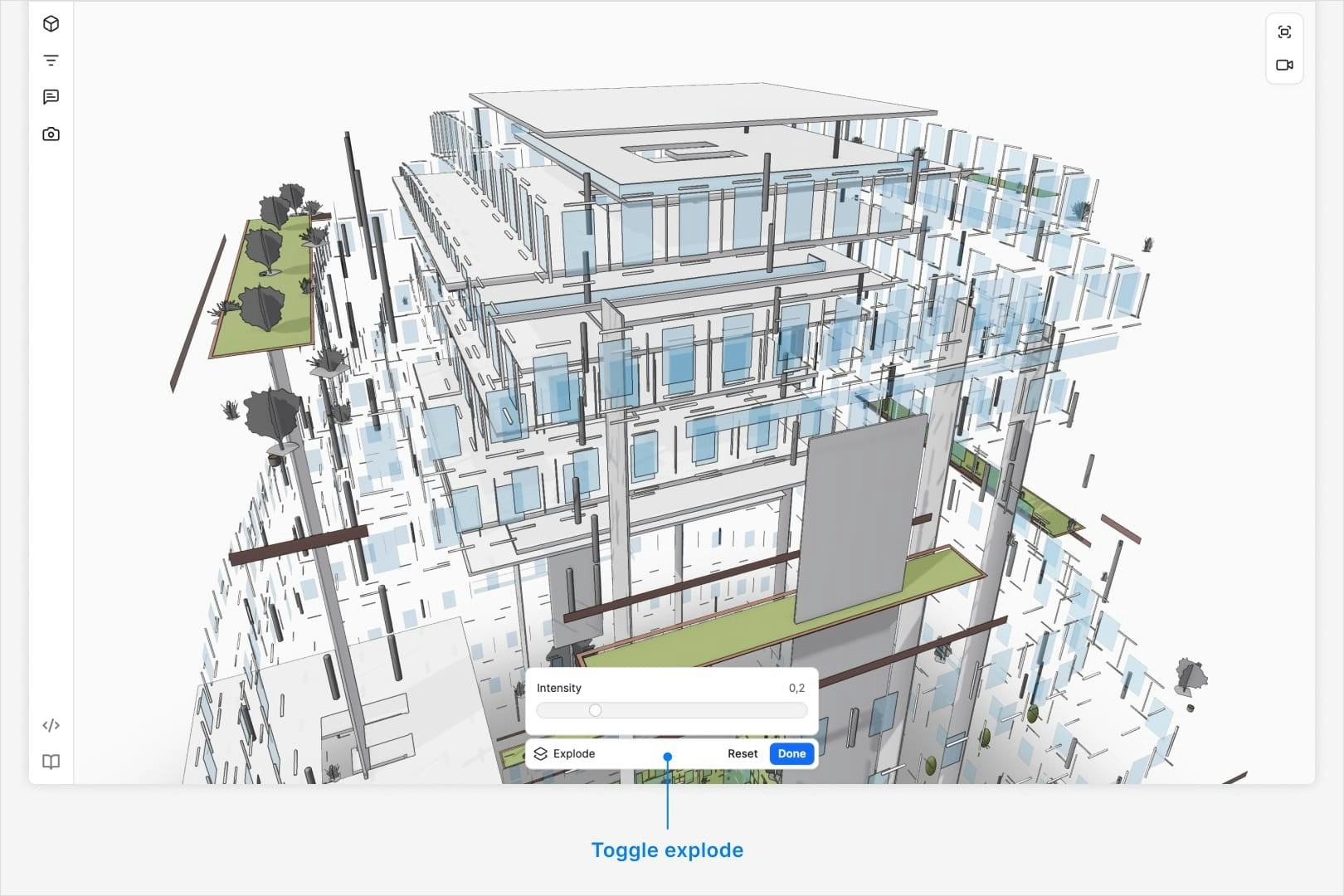 The elements that are exploding are determined by the source data from the host application. i.e.
If an element is aggregated as a composite in one object, it may not explode into its components.
No, the explode is radial from the center of the model.
No the explode is only available for the model as a whole.
Yes, you can explode the model while a section is active.
The explode is a radial operation from the center of the model. Elements that are closer to the
center of the model explode more than elements that are further away.
## Camera controls
The elements that are exploding are determined by the source data from the host application. i.e.
If an element is aggregated as a composite in one object, it may not explode into its components.
No, the explode is radial from the center of the model.
No the explode is only available for the model as a whole.
Yes, you can explode the model while a section is active.
The explode is a radial operation from the center of the model. Elements that are closer to the
center of the model explode more than elements that are further away.
## Camera controls
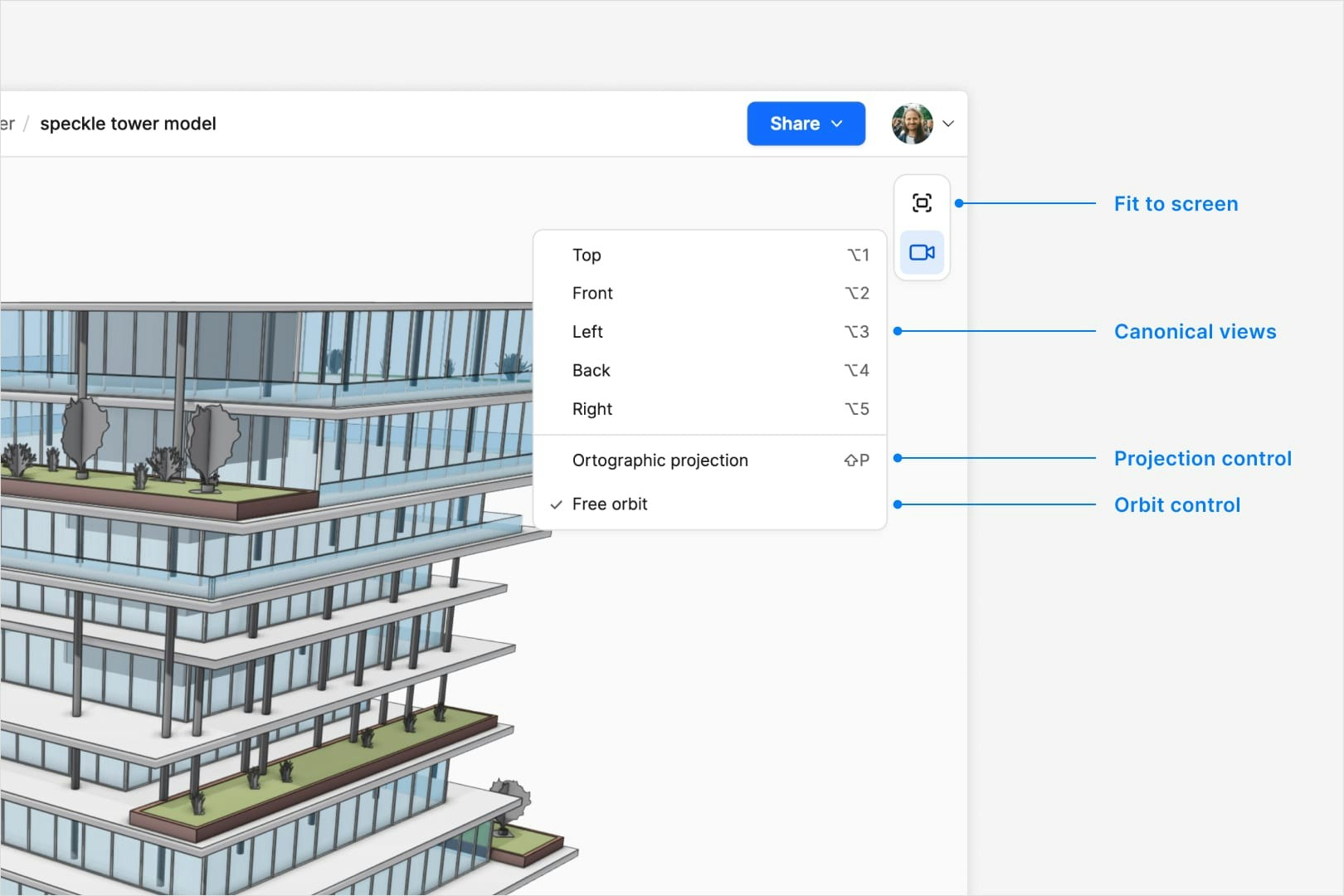 ### Fit to screen
The Fit button adjusts the camera to fit the entire model in the view. If an object or objects are selected, clicking the button will fit the camera to the selected objects.
### Canonical views
You can set the camera position and view to a canonical view: Top, Front, Left, Right, and Back.
No, the canonical view defaults to a perspective top down from left to right. You can lock in a
canonical view by creating a comment and all viewer settings are locked in if you review that
comment.
No, the canonical views are predefined. Connectors may publish additional views that will be
displayed in the canonical views dropdown.
No, the canonical views are 3d views of model data. 2D data may be included in the models sent
to Speckle, but not added to the canonical views.
No, the canonical views are 3d views of model data. Levels, grids, and other 2d data may be
included in the models sent to Speckle, but not added to the canonical views.
### Projection
Speckle's Projection settings let you switch between different camera views:
* **Perspective.** A realistic view with vanishing points, perfect for presentations and spatial understanding.
* **Orthographic.** A flat, scale-accurate view without perspective distortion, ideal for precise measurement and technical review.
No, the projection defaults to perspective. You can lock in a projection by creating a comment
and all viewer settings are locked in if you review that comment.
No, the fov and aspect ratio are fixed. It is approximately equivalent to a 50mm lens on a full
frame camera.
### Fit to screen
The Fit button adjusts the camera to fit the entire model in the view. If an object or objects are selected, clicking the button will fit the camera to the selected objects.
### Canonical views
You can set the camera position and view to a canonical view: Top, Front, Left, Right, and Back.
No, the canonical view defaults to a perspective top down from left to right. You can lock in a
canonical view by creating a comment and all viewer settings are locked in if you review that
comment.
No, the canonical views are predefined. Connectors may publish additional views that will be
displayed in the canonical views dropdown.
No, the canonical views are 3d views of model data. 2D data may be included in the models sent
to Speckle, but not added to the canonical views.
No, the canonical views are 3d views of model data. Levels, grids, and other 2d data may be
included in the models sent to Speckle, but not added to the canonical views.
### Projection
Speckle's Projection settings let you switch between different camera views:
* **Perspective.** A realistic view with vanishing points, perfect for presentations and spatial understanding.
* **Orthographic.** A flat, scale-accurate view without perspective distortion, ideal for precise measurement and technical review.
No, the projection defaults to perspective. You can lock in a projection by creating a comment
and all viewer settings are locked in if you review that comment.
No, the fov and aspect ratio are fixed. It is approximately equivalent to a 50mm lens on a full
frame camera.