> ## Documentation Index
> Fetch the complete documentation index at: https://docs.speckle.systems/llms.txt
> Use this file to discover all available pages before exploring further.
# Saved views
> Save views, organize them into groups, and share them with others.
## What are saved views?
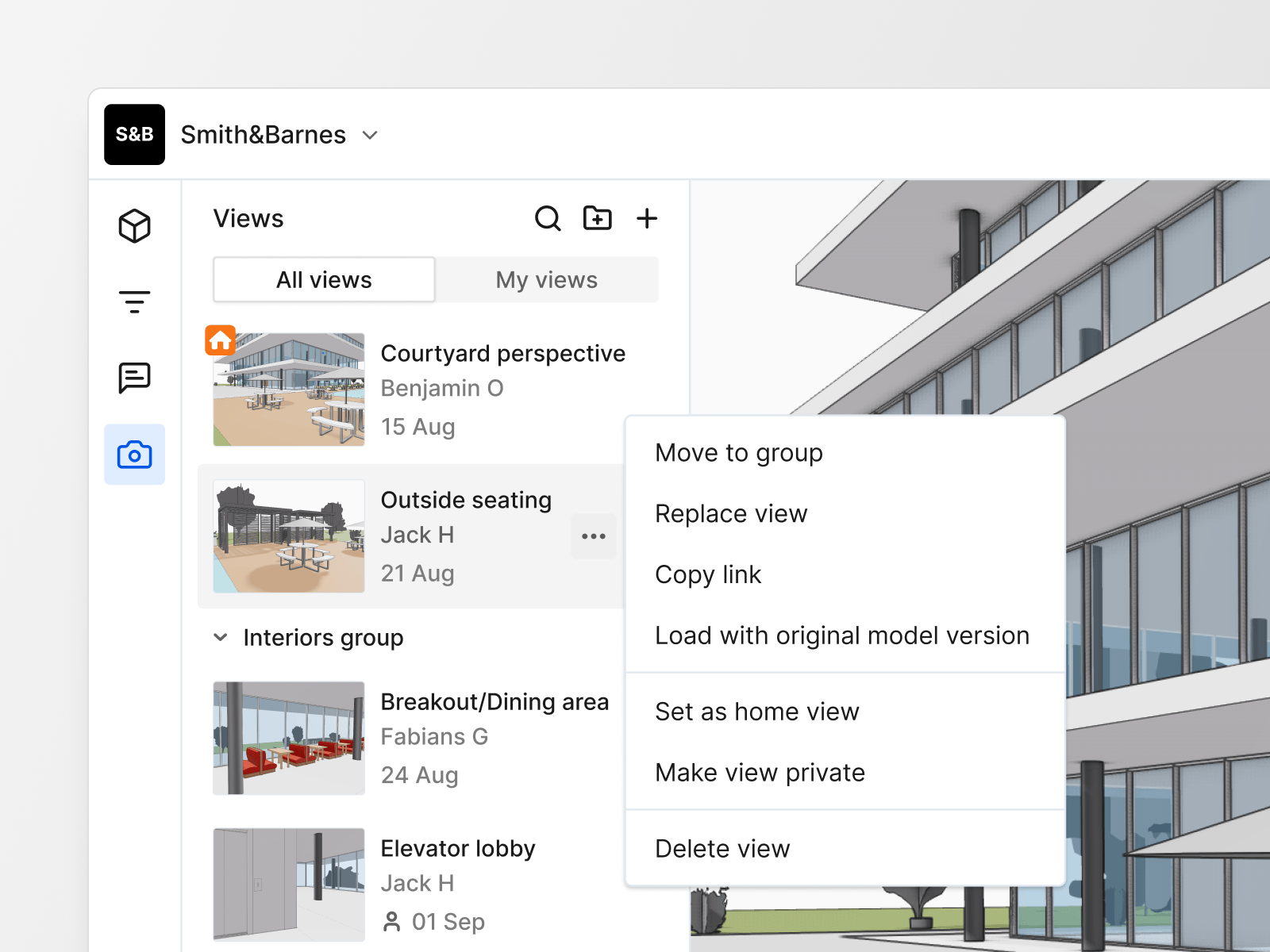
Saved views capture the exact state of a 3D model in the web viewer, including
camera position, object visibility, filters, section boxes, and measurements.
You can save, organize, and share these views for repeatable review.
 ## Who can create saved views?
Saved views are available on all Speckle plans, including Free. Creating and
managing views requires the **Contributor** project role or higher. Learn more
in [Roles and Permissions](/workspaces/roles-and-seats).
## Creating views
Adjust the model as needed. Camera, visibility, filters, sectioning, and measurements are all
included.
Click the **+** button at the top of the Views panel, or inside a target group.
Save the view and continue organizing, sharing, or replacing it as needed.
## Edit views
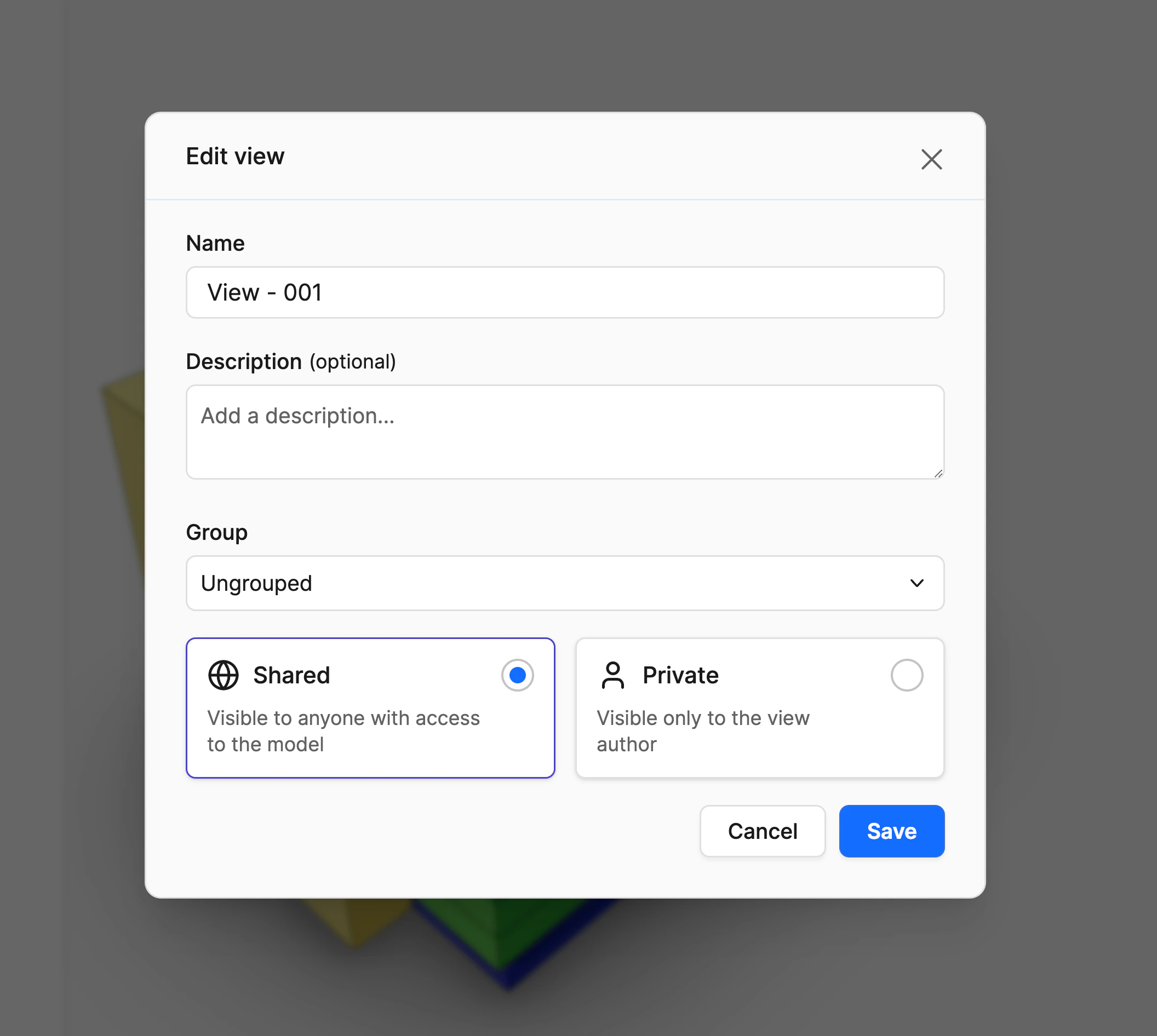
Click the Edit icon on a view to edit its name, description and visibility. Many of these actions can also be done directly by clicking the options menu (···) on a view.
## Who can create saved views?
Saved views are available on all Speckle plans, including Free. Creating and
managing views requires the **Contributor** project role or higher. Learn more
in [Roles and Permissions](/workspaces/roles-and-seats).
## Creating views
Adjust the model as needed. Camera, visibility, filters, sectioning, and measurements are all
included.
Click the **+** button at the top of the Views panel, or inside a target group.
Save the view and continue organizing, sharing, or replacing it as needed.
## Edit views
Click the Edit icon on a view to edit its name, description and visibility. Many of these actions can also be done directly by clicking the options menu (···) on a view.
 ## View visibility: Shared vs. Private
Views are shared by default, meaning anyone with access to the model or project will see them in the Views panel.
If you want to keep a view private, you can change its visibility to private after saving. Private views are only visible to you, making them ideal for personal review or work-in-progress configurations.
You can update a view's visibility to private at any time from the Saved Views panel.
## Replacing views
You can replace a saved view with a new one by clicking the options menu (···) on a view and selecting **Replace view**. This overwrites the view's saved configuration.
## Grouping views
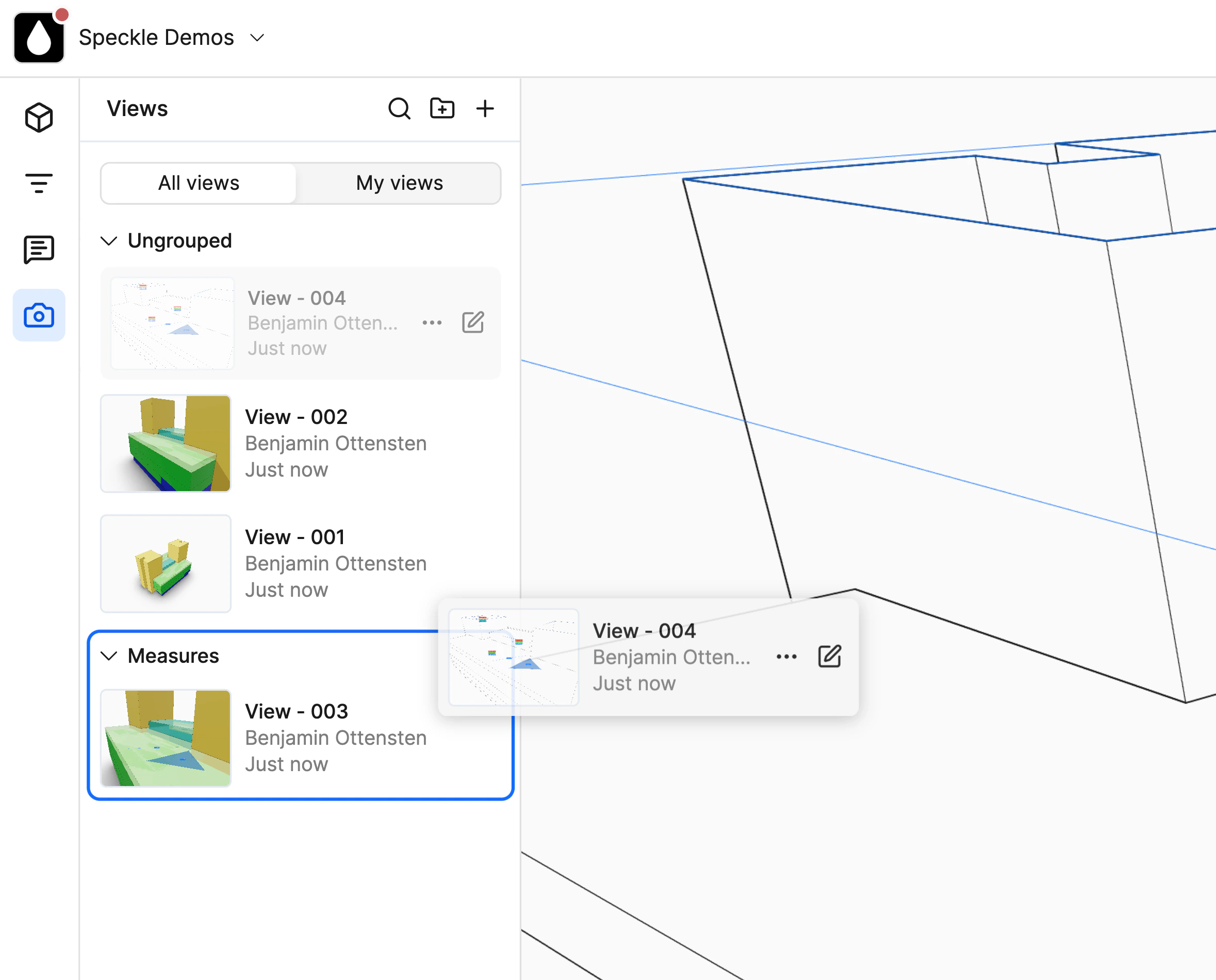
Organize your saved views into groups for easier navigation and project management. Simply create a group, name it, and drag and drop views into it within the Views panel.
Anyone who has permission to create views can also move and group views, including views made by other users.
## View visibility: Shared vs. Private
Views are shared by default, meaning anyone with access to the model or project will see them in the Views panel.
If you want to keep a view private, you can change its visibility to private after saving. Private views are only visible to you, making them ideal for personal review or work-in-progress configurations.
You can update a view's visibility to private at any time from the Saved Views panel.
## Replacing views
You can replace a saved view with a new one by clicking the options menu (···) on a view and selecting **Replace view**. This overwrites the view's saved configuration.
## Grouping views
Organize your saved views into groups for easier navigation and project management. Simply create a group, name it, and drag and drop views into it within the Views panel.
Anyone who has permission to create views can also move and group views, including views made by other users.
 ## Setting a home view
You can designate any shared saved view as the “Home view” for your model. The Home view acts as the default starting point when anyone opens the model in the viewer. To set a Home view, select a saved view and choose **Set as home view** from its option menu (···).
## Sharing links to views
You can share a direct link to any saved view by clicking **Copy link** from the options menu (···) on a view. This link allows anyone with access to the model to open the viewer directly at that specific view.
Note that sharing a link does not change the visibility of the view – *private views* remain private, and *shared views* are only visible to users with project access.
## Setting a home view
You can designate any shared saved view as the “Home view” for your model. The Home view acts as the default starting point when anyone opens the model in the viewer. To set a Home view, select a saved view and choose **Set as home view** from its option menu (···).
## Sharing links to views
You can share a direct link to any saved view by clicking **Copy link** from the options menu (···) on a view. This link allows anyone with access to the model to open the viewer directly at that specific view.
Note that sharing a link does not change the visibility of the view – *private views* remain private, and *shared views* are only visible to users with project access.