> ## Documentation Index
> Fetch the complete documentation index at: https://docs.speckle.systems/llms.txt
> Use this file to discover all available pages before exploring further.
# Filters
> Filter levels, operators, and property behaviour for Intelligence dashboards.
Filters let you focus on specific parts of your data. This page covers filter levels, operators, and property
behaviour. Chart and table widgets drive both page-level filters and optional widget-level filters.
In this section:
* [Filter levels](#filter-levels) — Page-level vs widget-level
* [How page-level filters interact](#how-page-level-filters-interact) — OR within a chip, AND across chips
* [Operators and data types](#operators-and-data-types) — Text, number, list, and special operators
* [Properties and the data model](#properties-and-the-data-model) — Nested properties, type coercion, and edge cases
### Page-level filters
When you apply a filter from a widget (for example by clicking a value in a chart), it becomes a **page-level filter**
that affects all widgets on the dashboard.
* Multiple filters can be active at once
* Active filters appear at the top of the dashboard as chips; click the X on a chip to remove it
* Individual widgets can opt out of page-level filters in their settings
### Widget-level filters
Many widgets have **local filters** that affect only that widget. Use them to focus a single widget on a subset of
data without changing the rest of the dashboard.
### Filter levels
**Page-level (data-source-level) filters** affect what data is used across the dashboard. They apply to all widgets
unless a widget opts out. Use page-level filters when you want the whole dashboard to focus on the same subset (e.g.
one category, one floor).
**Widget-level filters** affect only the displayed results in that widget. They do not change the data sent to other
widgets or the model viewer. Use widget-level filters when one chart or table should show a different slice of the
same data.
### How page-level filters interact
Clicking a value in a chart or table adds a **page-level filter** (shown as a chip at the top of the dashboard). How
filters combine:
* **Within one filter (one chip)**: If you select multiple values for the same property (e.g. Category = Walls and
Floors), they combine as **OR**—objects matching any of those values are included.
* **Across filters (multiple chips)**: Each chip is a separate filter (e.g. one for Category, one for Level). Multiple
chips combine as **AND**—only objects that match every active filter are included.
Example: a chip "Category: Walls, Floors" and a chip "Level: 01" together show only elements that are (Walls or
Floors) **and** on Level 01. Widget-level filters apply on top of page-level filters for that widget only.
Use page filters when you want to focus the entire dashboard on specific data. Use
widget filters when you want one widget to show different data than the rest of the
dashboard.
Filters are part of the dashboard state. When you save or share a dashboard, the
active filters are saved with it.
The widget may be set to opt out of page-level filters. Check the widget settings
for "Apply page filters."
Yes. The filter applies only to objects that have that property; objects without it
are excluded.
Yes, but only via the filter UI, not by clicking a chart. Use **Does not contain**,
**Does not equal**, or **Is not one of** in a widget's filter settings to exclude
values (e.g. "Category **Does not equal** Walls"). Chart-triggered filters (clicking
a value in a chart to add a chip) are always inclusive—they restrict to the clicked
value(s). You cannot click a chart slice to exclude it; use the filter UI for "show
everything except X."
No. Remove each filter chip with the X on the chip. There is no "clear all" action
for page-level filters in the current UI.
### Operators and data types
The **predicate** menu is the same in **dashboard filters** and in **validation rules** (Property Checker and Model
Validation). Which predicates appear depends on the property type (text, number, or boolean). Use the filter or rule UI
to choose a property first; invalid predicates for that type are not offered.
#### Text (string) properties
For string properties, the picker groups predicates like this:
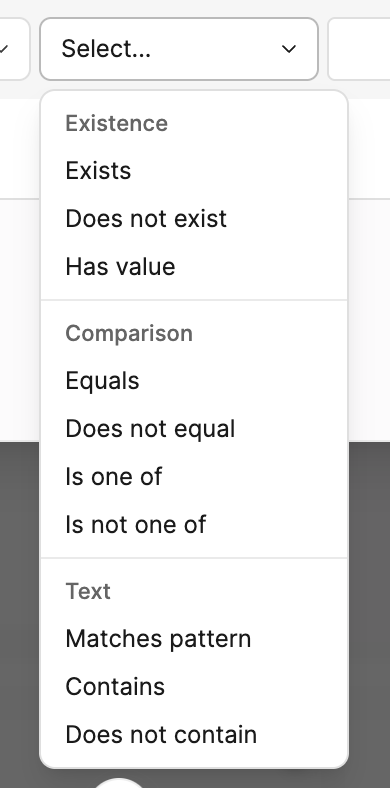 | Group | Predicate | Description |
| -------------- | ---------------- | ------------------------------------- |
| **Existence** | Exists | The property is present on the object |
| **Existence** | Does not exist | The property is not present |
| **Existence** | Has value | The property is present and not empty |
| **Comparison** | Equals | Exact match to one value |
| **Comparison** | Does not equal | Excludes one exact match |
| **Comparison** | Is one of | Matches any of the selected values |
| **Comparison** | Is not one of | Matches none of the selected values |
| **Text** | Matches pattern | Wildcard or regex pattern (see below) |
| **Text** | Contains | Value contains the given text |
| **Text** | Does not contain | Value does not contain the text |
Ruleset **TSV** is a legacy interchange format; Speckle is moving away from it. If you
still use TSV files, their **Predicate** column uses different wording than the UI
(for example `equal to` instead of **Equals**, `in list` instead of **Is one of**, `is
like` instead of **Matches pattern**). See
[Checks](/analytics/data-validation/checks#predicates-and-matching).
#### Numeric properties
For number properties, the picker groups predicates like this:
| Group | Predicate | Description |
| -------------- | ---------------- | ------------------------------------- |
| **Existence** | Exists | The property is present on the object |
| **Existence** | Does not exist | The property is not present |
| **Existence** | Has value | The property is present and not empty |
| **Comparison** | Equals | Exact match to one value |
| **Comparison** | Does not equal | Excludes one exact match |
| **Comparison** | Is one of | Matches any of the selected values |
| **Comparison** | Is not one of | Matches none of the selected values |
| **Text** | Matches pattern | Wildcard or regex pattern (see below) |
| **Text** | Contains | Value contains the given text |
| **Text** | Does not contain | Value does not contain the text |
Ruleset **TSV** is a legacy interchange format; Speckle is moving away from it. If you
still use TSV files, their **Predicate** column uses different wording than the UI
(for example `equal to` instead of **Equals**, `in list` instead of **Is one of**, `is
like` instead of **Matches pattern**). See
[Checks](/analytics/data-validation/checks#predicates-and-matching).
#### Numeric properties
For number properties, the picker groups predicates like this:
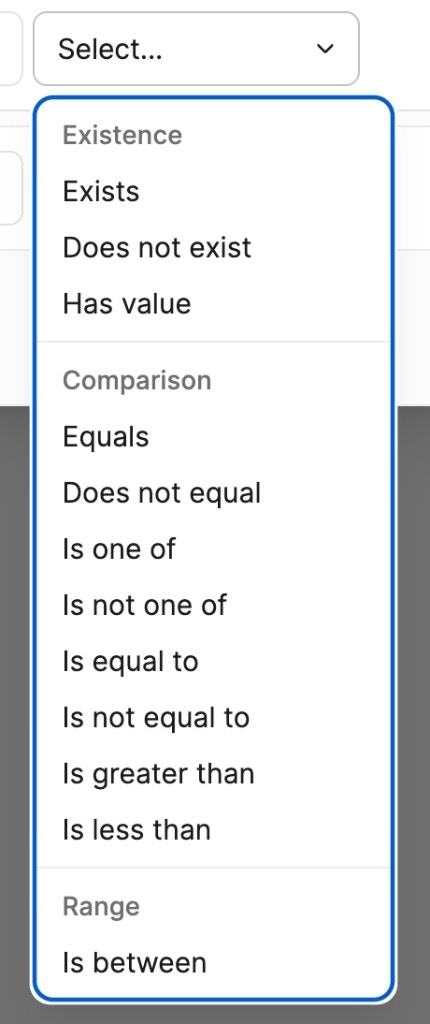 | Group | Predicate | Description |
| -------------- | --------------- | ----------------------------------------------- |
| **Existence** | Exists | The property is present on the object |
| **Existence** | Does not exist | The property is not present |
| **Existence** | Has value | The property is present and not empty |
| **Comparison** | Equals | Exact match to one value |
| **Comparison** | Does not equal | Not equal to one value |
| **Comparison** | Is one of | Matches any of the chosen values |
| **Comparison** | Is not one of | Matches none of the chosen values |
| **Comparison** | Is equal to | Exact match to one numeric value |
| **Comparison** | Is not equal to | Not equal to one numeric value |
| **Comparison** | Is greater than | Value is strictly above the threshold |
| **Comparison** | Is less than | Value is strictly below the threshold |
| **Range** | Is between | Value is within minimum and maximum (inclusive) |
For numbers, the menu lists both **Equals** / **Does not equal** and **Is equal to** /
**Is not equal to**. All are equality-style checks; use the option that matches how
the UI asks for values for your rule or filter.
#### Boolean properties
For boolean properties, use **Is true** or **Is false**.
#### Matches pattern
**Matches pattern** supports two modes: **wildcard** matching and **regex** matching. In **TSV** ruleset files, the same
predicate is written as `is like` in the Predicate column.
##### Wildcard mode (default)
Use SQL-style wildcards for simple pattern matching:
* `%` — matches any sequence of characters (including none)
* `_` — matches a single character (when supported)
Examples:
* `door%` — matches "door\_01", "door\_a", "doorway"
* `%window%` — matches any value containing "window"
* `Wall%` — matches values that start with "Wall"
##### Regex mode
Wrap your pattern in forward slashes to use full regular expression matching:
* `/pattern/` — treats the content between slashes as a regular expression
Examples:
* `/^D\d{3}$/` — matches "D001", "D123" (exactly D followed by three digits)
* `/^(Wall|Door)/` — matches values starting with "Wall" or "Door"
* `/\d{4}-\d{2}-\d{2}/` — matches date format "YYYY-MM-DD"
Matching is **case-insensitive** in both modes. Use pattern matching when you need to match a family of values (e.g. all doors, all elements on a level) without listing each one.
To use regex mode, the pattern value must start and end with `/`. Without the slashes,
the value is treated as a wildcard pattern with `%` and `_` placeholders.
### Quick reference by property type
* **Text**: Existence (**Exists**, **Does not exist**, **Has value**), comparison (**Equals**, **Does not equal**, **Is one of**, **Is not one of**), and text (**Matches pattern**, **Contains**, **Does not contain**)
* **Number**: **Existence** (same labels as text), **Comparison** (equality, list-style options, **Is greater than**, **Is less than**), and **Range** (**Is between**)
* **Boolean**: **Is true**, **Is false**
The UI only shows predicates that apply to the selected property type.
### Properties and the data model
**Nested properties**: You can filter on nested or computed fields when the widget exposes them (e.g. a path like
`element.material.name`). Select the property from the widget's filter dropdown; the exact path depends on how the
model and widget expose properties. If a property does not exist on some objects, those objects are excluded when the
filter is applied.
**Type coercion**: Values are compared using the property type. If a number is stored as a string, the filter may treat
it as text (for example **Contains** or **Equals**). For numeric comparisons (**Is greater than**, **Is less than**,
**Is between**), the value is interpreted as a number when possible. Boolean properties use **Is true** and **Is false**.
**Multi-value comparison**: **Is one of** and **Is not one of** let you choose multiple values for the same property.
They apply to that property only. Add multiple filter rules if you need to combine conditions across properties.
**When filtering becomes rules**: If you need reusable rules, pass/fail checks, or
rulesets (e.g. "all doors must have a fire rating"), use the **Property Checker** or
**Model Validation** widgets and define rules in the widget or in a ruleset. For rule
syntax, rulesets, and automated validation, see [Data
Validation](/analytics/data-validation/overview).
| Group | Predicate | Description |
| -------------- | --------------- | ----------------------------------------------- |
| **Existence** | Exists | The property is present on the object |
| **Existence** | Does not exist | The property is not present |
| **Existence** | Has value | The property is present and not empty |
| **Comparison** | Equals | Exact match to one value |
| **Comparison** | Does not equal | Not equal to one value |
| **Comparison** | Is one of | Matches any of the chosen values |
| **Comparison** | Is not one of | Matches none of the chosen values |
| **Comparison** | Is equal to | Exact match to one numeric value |
| **Comparison** | Is not equal to | Not equal to one numeric value |
| **Comparison** | Is greater than | Value is strictly above the threshold |
| **Comparison** | Is less than | Value is strictly below the threshold |
| **Range** | Is between | Value is within minimum and maximum (inclusive) |
For numbers, the menu lists both **Equals** / **Does not equal** and **Is equal to** /
**Is not equal to**. All are equality-style checks; use the option that matches how
the UI asks for values for your rule or filter.
#### Boolean properties
For boolean properties, use **Is true** or **Is false**.
#### Matches pattern
**Matches pattern** supports two modes: **wildcard** matching and **regex** matching. In **TSV** ruleset files, the same
predicate is written as `is like` in the Predicate column.
##### Wildcard mode (default)
Use SQL-style wildcards for simple pattern matching:
* `%` — matches any sequence of characters (including none)
* `_` — matches a single character (when supported)
Examples:
* `door%` — matches "door\_01", "door\_a", "doorway"
* `%window%` — matches any value containing "window"
* `Wall%` — matches values that start with "Wall"
##### Regex mode
Wrap your pattern in forward slashes to use full regular expression matching:
* `/pattern/` — treats the content between slashes as a regular expression
Examples:
* `/^D\d{3}$/` — matches "D001", "D123" (exactly D followed by three digits)
* `/^(Wall|Door)/` — matches values starting with "Wall" or "Door"
* `/\d{4}-\d{2}-\d{2}/` — matches date format "YYYY-MM-DD"
Matching is **case-insensitive** in both modes. Use pattern matching when you need to match a family of values (e.g. all doors, all elements on a level) without listing each one.
To use regex mode, the pattern value must start and end with `/`. Without the slashes,
the value is treated as a wildcard pattern with `%` and `_` placeholders.
### Quick reference by property type
* **Text**: Existence (**Exists**, **Does not exist**, **Has value**), comparison (**Equals**, **Does not equal**, **Is one of**, **Is not one of**), and text (**Matches pattern**, **Contains**, **Does not contain**)
* **Number**: **Existence** (same labels as text), **Comparison** (equality, list-style options, **Is greater than**, **Is less than**), and **Range** (**Is between**)
* **Boolean**: **Is true**, **Is false**
The UI only shows predicates that apply to the selected property type.
### Properties and the data model
**Nested properties**: You can filter on nested or computed fields when the widget exposes them (e.g. a path like
`element.material.name`). Select the property from the widget's filter dropdown; the exact path depends on how the
model and widget expose properties. If a property does not exist on some objects, those objects are excluded when the
filter is applied.
**Type coercion**: Values are compared using the property type. If a number is stored as a string, the filter may treat
it as text (for example **Contains** or **Equals**). For numeric comparisons (**Is greater than**, **Is less than**,
**Is between**), the value is interpreted as a number when possible. Boolean properties use **Is true** and **Is false**.
**Multi-value comparison**: **Is one of** and **Is not one of** let you choose multiple values for the same property.
They apply to that property only. Add multiple filter rules if you need to combine conditions across properties.
**When filtering becomes rules**: If you need reusable rules, pass/fail checks, or
rulesets (e.g. "all doors must have a fire rating"), use the **Property Checker** or
**Model Validation** widgets and define rules in the widget or in a ruleset. For rule
syntax, rulesets, and automated validation, see [Data
Validation](/analytics/data-validation/overview).