> ## Documentation Index
> Fetch the complete documentation index at: https://docs.speckle.systems/llms.txt
> Use this file to discover all available pages before exploring further.
> ## Agent Instructions
> These docs describe Speckle as it works today, including everything released in 2026.9. Treat page content as current unless the page or section says it applies only to versions published before 2026.9.
> Content scoped to versions published before 2026.9 (the object graph and root object, Proxies, Receive2, operations.receive, object.children) applies only to model versions in that earlier data format. For versions published in 2026.9, answer from the Object model pages and the SDK migration guides.
> The What's new pages summarise what changed in 2026.9 and link to the page that documents each change. Answer from the linked page rather than from the summary. Legacy (v2) connectors are retired; send questions about them to the community help forum.
> Match guidance to the customer's deployment, model data format, connector, plan and permissions. Self-hosted servers on a release before 2026.9 and compatibility-mode workflows follow the Compatibility mode page. If an unknown version or data format changes the answer, ask one focused question; do not infer the deployment version from the date alone.
# Ask questions about your models with Speckle Intelligence
> Ask project-scale questions from Chat, ask about the model from the 3D viewer sparkle, and reuse organisation playbooks as skills.
Speckle Intelligence is the assistant in the Speckle web app. You ask in plain language. It reads
the models you have published and replies with answers, charts, and — in the 3D viewer — changes to
what you are looking at.
Use **Chat** in the project sidebar for project-scale questions. It is part of the default project
navigation, so it is available from most screens in a project: the project, models, a model page,
versions, issues, and similar. Use the sparkle in the main 3D viewer when you are looking at models
and want to ask about those loaded models. Reuse organisation playbooks — colour legends, cost and
carbon methods, formulas, house style — as [skills](/analytics/intelligence-skills).
Dashboards are documented on [Intelligence Dashboards](/analytics/intelligence-dashboards); this
page does not cover them.
On a self-hosted Speckle Enterprise Server, your server administrator turns on Intelligence and
connects it to your organisation's AI provider. See [Enable
Intelligence](/developers/server/deployment/enterprise-license#enable-intelligence).
## How it works
Speckle Intelligence does not upload a Revit, Rhino, Tekla, or other host file to an AI so the AI
can rebuild the model in memory. You publish to Speckle as usual. The assistant then runs read-only
queries against the Speckle data already stored for those published versions.
That small payload is deliberate. Speckle does not send the whole model into the AI as a giant
blob of text, because that would spend your AI credit — and Speckle's — on tokens the assistant
does not need. It asks for the facts it needs, keeps those results compact, and writes the reply
from them. The goal is to answer from your data without burning budget on a full-model dump.
Those queries can cover:
* Object properties on published models
* How parts relate to each other (containment, connectivity, levels, systems, materials)
* Where a model was published from (the source application on the version, and types in the
published data)
* How the project has been updated (who published which version, and what changed between
versions)
* Files in the workspace library, and registered tables such as CSV or XLSX uploads and
warehouse connections (Snowflake, Databricks, Microsoft Fabric), when those exist
The assistant can still be wrong if it skips a query or misreads a result. If the data is not
there, it is instructed to say so rather than invent structure from a host file.
The assistant reads versions in the data format introduced in 2026.9. Versions published in the
earlier format cannot be queried, so the assistant says there is no queryable data rather than
giving partial answers. Publish a new version after the project uses the new format, and
questions about properties and about what connects to what or what contains what both work. See
[Speckle's new data model](/workspaces/data-model-migration).
This page does not cover how Speckle handles AI providers or data security.
## Where to ask
Speckle Intelligence has two entry points. They are not the same job.
* **Chat** is in the default project navigation, next to **Browse** at the top of the project
sidebar. Use it from the project, models, a model page, versions, issues, or another project
screen for project-scale questions: the project as a whole, not only the model you have open.
* The sparkle at the top right of the main 3D viewer is for questions about the models loaded in
that viewer.
The **Intelligence** item in the project or workspace sidebar opens dashboards, not Chat.
### Ask about the project
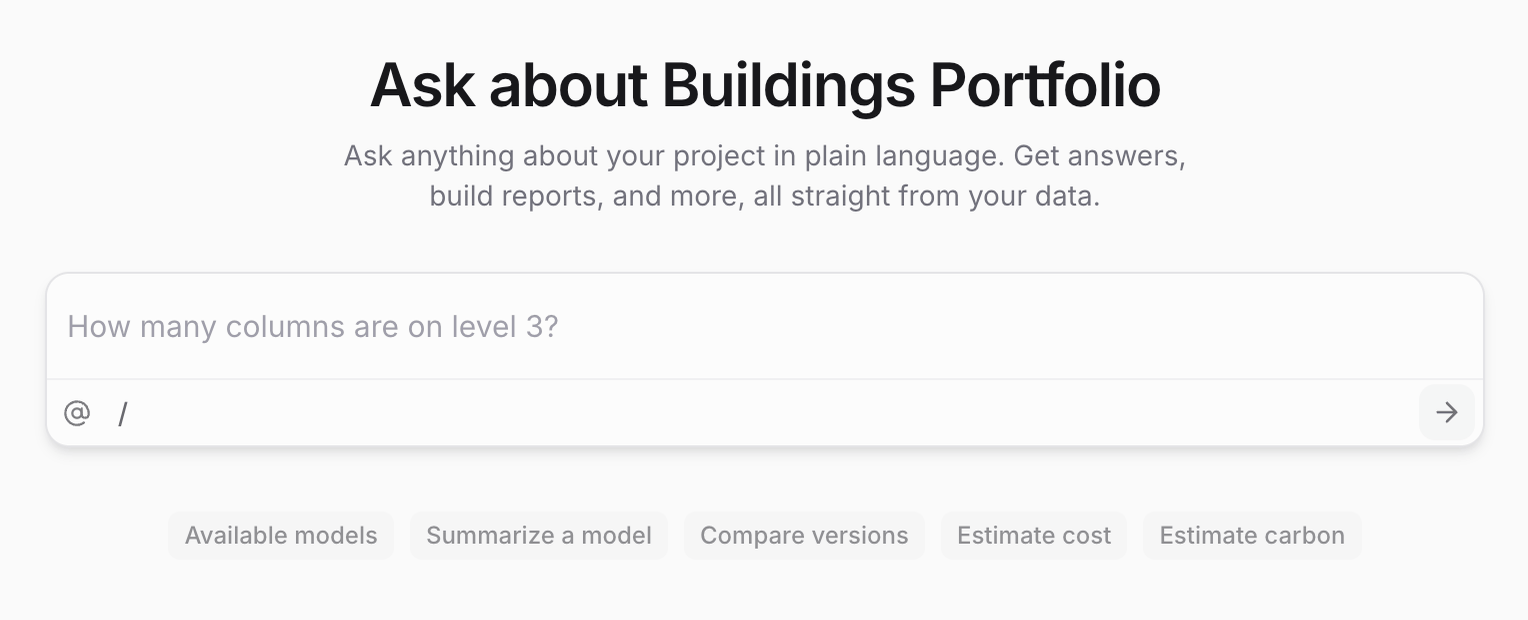 Open any screen in the project you want to ask about. You should see **Browse** and **Chat** at
the top of the project sidebar when Chat is available for the workspace.
Select **Chat**. The page title is **Chat**. The empty state reads **Ask about** your project
name, with the prompt to ask in plain language.
Type a question about the project, or pick a suggested starter if one is shown. You can attach a
published model from the composer when the question needs a specific version.
Wait for the reply. You should see a conversation in the Chat history, titled from your
question, and an answer that uses that project's data.
### Ask about the model in the viewer
Open any screen in the project you want to ask about. You should see **Browse** and **Chat** at
the top of the project sidebar when Chat is available for the workspace.
Select **Chat**. The page title is **Chat**. The empty state reads **Ask about** your project
name, with the prompt to ask in plain language.
Type a question about the project, or pick a suggested starter if one is shown. You can attach a
published model from the composer when the question needs a specific version.
Wait for the reply. You should see a conversation in the Chat history, titled from your
question, and an answer that uses that project's data.
### Ask about the model in the viewer
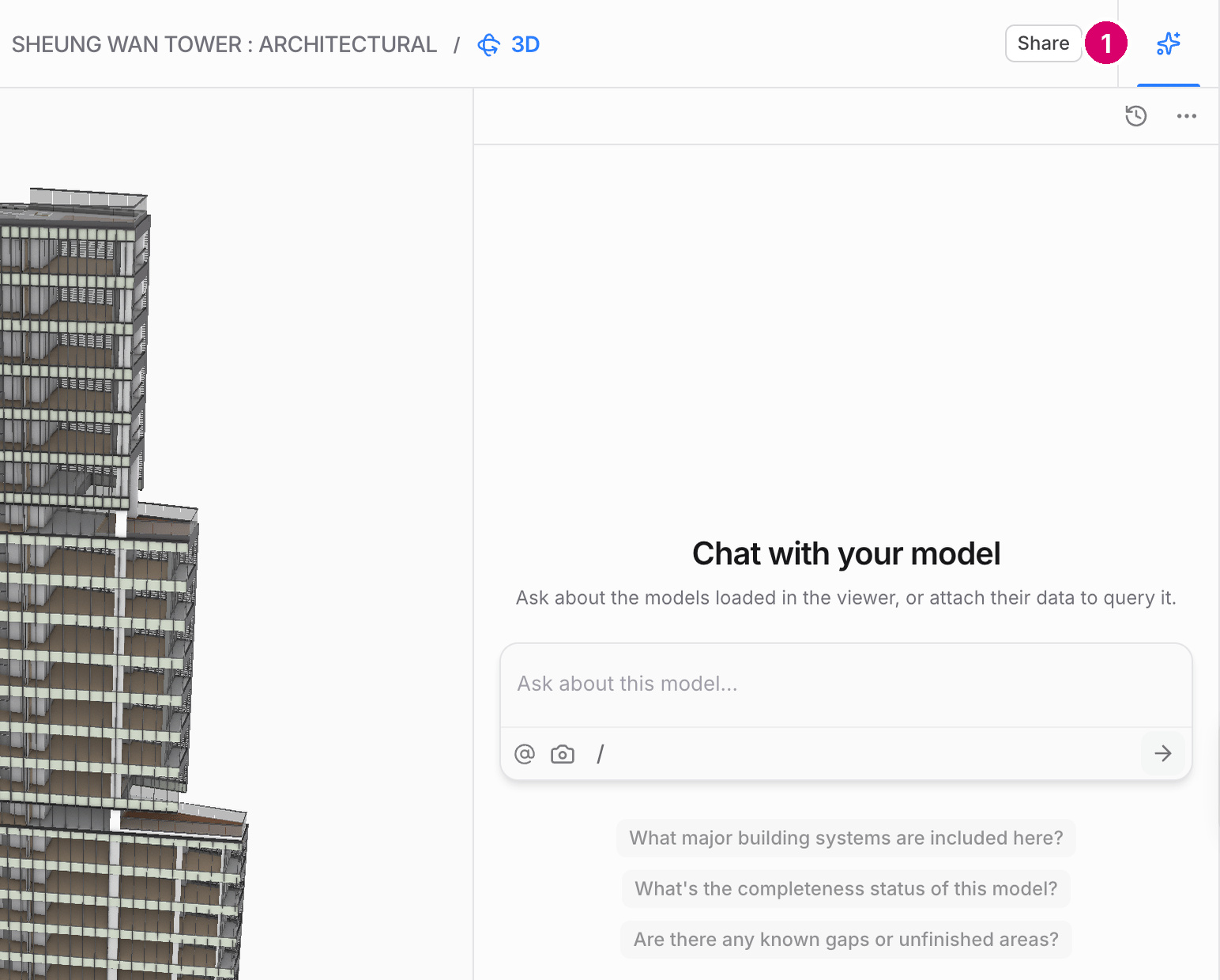 Open the model in the main 3D viewer. You should see the sparkle control at the top right of the
viewer window when Chat is available.
Select the sparkle. Chat opens beside the model. The empty state reads **Chat with your model**.
The description is **Ask about the models loaded in the viewer, or attach their data to query
it.** The composer placeholder is **Ask about this model…**
Type a question about the models in front of you, or pick a suggested starter. The reply can
change what you see in the viewer as well as answering in the conversation.
To point Chat at particular objects, right-click them in the viewer and choose **Add to chat**. See
[Interface and navigation](/3d-viewer/interface-nav#right-click-the-canvas).
If **Chat** or the viewer sparkle is missing, your workspace may not include Speckle Intelligence,
a workspace admin may have turned **AI features** off in workspace settings, or you may need to
choose **Enable AI for this workspace** when the **Enable AI** dialog appears. For the admin
switch, see [Turn AI features off for the
workspace](/it-admin/setup#turn-ai-features-off-for-the-workspace).
## What you can ask
Ask in the same language you would use with a colleague. If you type a question in a given
language, Speckle Intelligence usually keeps replying in that language for the conversation. Use
a [skill](/analytics/intelligence-skills) or an [AI Rule](/analytics/intelligence-rules) when the
language or dialect must stay fixed even if someone asks in another language.
In **Chat**, ask at project scale: the project as a whole, not only one open model. Chat can
build a **Report** from a conversation. The viewer sparkle does not create a saved Report. It
answers beside the model with charts and changes to the view. After you save a report, edit
sources, tabs, version comparison, and share links on [Create and share Intelligence
Reports](/analytics/reports).
You can share a chat with people on the project so they can view it. They cannot continue that
conversation.
In the **3D viewer**, ask about the model in front of you. Starters can include **What's in this
model?**, **Give me a tour**, **What changed recently?**, and **Color it by category**. If you have
an object selected, you may also see **What is this?**
You can go further than a first overview. Try asks like:
* What models are in this project, and who published recently?
* Compare the two most recent versions and summarise what was added, removed, or changed
* What sits on this level, and what contains those objects?
* What connects to this system?
* Give me a report of quantities by category and level (use **Chat**, not the viewer sparkle)
* How do the models loaded in this viewer relate to each other?
* What is the history of the object I have selected?
* Make this a validation rule: the ratio must be at most 20 (after colouring the model by a
calculated value)
Model questions need a version in the new data format. Those asks use properties and the
relational layer in the new format.
For worked examples end to end, see:
* [Assess model changes with Speckle Intelligence](/workflows/assess-model-changes) — ask what
changed between two versions, then filter and colour the model by how significant each change
is.
* [Take off quantities and cost with Speckle Intelligence](/workflows/take-off-quantities) — a
priced takeoff against your own rate card.
* [Benchmark a project against your portfolio](/workflows/benchmark-against-your-portfolio) —
compare the open project against a pinned benchmark library.
Data Validation has its own assistant in the check editor; that flow stays on the [Data
Validation](/analytics/data-validation/checks#check-a-calculated-value) guides.
## Skills
A **skill** is a reusable playbook you invoke with `/skill-name`. Use one for model-aware methods
(colour, cost, carbon, formulas) and for the same kinds of custom instructions you would save in
a generic AI chat tool — tone of voice, meeting notes, non-AEC analysis. Tuned to how your company
works, a skill also spends fewer AI tokens reinventing that wheel on every turn. Create skills in
workspace **Settings**, then **Skills** — including **Draft with AI** when you want Speckle
Intelligence to write the first draft. Arm them in Chat or in the viewer sparkle.
See [Reuse organisation playbooks with Intelligence skills](/analytics/intelligence-skills) for
how to create and share a skill, and a catalogue of playbooks teams put in them.
## AI Rules
An **AI Rule** is a standing instruction workspace admins set for every conversation. It applies
without a slash command — currency, language, disclosure, or any must-follow constraint. Members
can read the rules; only admins change them. In Chat, **Workspace rules** shows which enabled
rules apply.
See [Set standing AI Rules for the workspace](/analytics/intelligence-rules).
## FAQ
Use **Chat** in the project sidebar for project-scale questions, including building a saved
**Report**. It stays in that navigation on most project screens. Use the sparkle when a model is
open in the 3D viewer and you want to ask about the models loaded there. The sparkle does not
create a saved Report. After you save one, see [Create and share Intelligence
Reports](/analytics/reports).
**Intelligence** in the workspace and project sidebars opens dashboards. Speckle Intelligence
Chat is a separate surface: **Chat** next to **Browse** in the project sidebar for project-scale
questions, or the sparkle at the top right of the main 3D viewer for the model in front of you.
Dashboards are documented on [Intelligence Dashboards](/analytics/intelligence-dashboards).
No. You publish to Speckle as usual, from Revit, Rhino, Tekla, or another supported host.
Intelligence queries that Speckle data. It does not send the host file, or the whole model as a
giant blob of text, to an AI so the AI can rebuild the model from scratch. Keeping what the AI
sees compact is deliberate: it protects your workspace AI credit, and Speckle's cost, instead of
spending tokens on a full-model dump.
Versions in the earlier format cannot be queried, so the assistant says there is no queryable
data rather than giving partial answers. After the project uses the new format, publish a new
version. See [Speckle's new data model](/workspaces/data-model-migration).
Use **New chat** in the Chat history. That starts an empty conversation so the next question is
not mixed with an earlier thread.
No. Viewing a saved report, or changing its interactive inputs, does not spend AI credit. Chat
turns that create or edit the report do. See [Create and share Intelligence
Reports](/analytics/reports).
Actions that require **AI credit**, such as conversations, AI-based report editing, and document
parsing, are blocked when the workspace credit has been used up. Stored conversations remain
available. The composer shows that the workspace credit has been used up. To restore access, a
workspace admin must update the workspace plan or contact us.
Put that playbook in a **skill**, share it with **Workspace** visibility, and invoke it with
`/skill-name`. See [Reuse organisation playbooks with Intelligence
skills](/analytics/intelligence-skills).
Use an **AI Rule** so the constraint applies on every turn without arming a skill. See [Set
standing AI Rules for the workspace](/analytics/intelligence-rules). If you only need that
language for one conversation, ask in that language — Speckle Intelligence usually keeps it.
A workspace admin turns **AI features** off in workspace **Settings**, then **General**. Chat
and the viewer sparkle then disappear for everyone in the workspace until an admin turns the
switch back on. See [Turn AI features off for the
workspace](/it-admin/setup#turn-ai-features-off-for-the-workspace).
This documentation is built and hosted on [Mintlify](https://mintlify.com), a developer documentation platform.
Open the model in the main 3D viewer. You should see the sparkle control at the top right of the
viewer window when Chat is available.
Select the sparkle. Chat opens beside the model. The empty state reads **Chat with your model**.
The description is **Ask about the models loaded in the viewer, or attach their data to query
it.** The composer placeholder is **Ask about this model…**
Type a question about the models in front of you, or pick a suggested starter. The reply can
change what you see in the viewer as well as answering in the conversation.
To point Chat at particular objects, right-click them in the viewer and choose **Add to chat**. See
[Interface and navigation](/3d-viewer/interface-nav#right-click-the-canvas).
If **Chat** or the viewer sparkle is missing, your workspace may not include Speckle Intelligence,
a workspace admin may have turned **AI features** off in workspace settings, or you may need to
choose **Enable AI for this workspace** when the **Enable AI** dialog appears. For the admin
switch, see [Turn AI features off for the
workspace](/it-admin/setup#turn-ai-features-off-for-the-workspace).
## What you can ask
Ask in the same language you would use with a colleague. If you type a question in a given
language, Speckle Intelligence usually keeps replying in that language for the conversation. Use
a [skill](/analytics/intelligence-skills) or an [AI Rule](/analytics/intelligence-rules) when the
language or dialect must stay fixed even if someone asks in another language.
In **Chat**, ask at project scale: the project as a whole, not only one open model. Chat can
build a **Report** from a conversation. The viewer sparkle does not create a saved Report. It
answers beside the model with charts and changes to the view. After you save a report, edit
sources, tabs, version comparison, and share links on [Create and share Intelligence
Reports](/analytics/reports).
You can share a chat with people on the project so they can view it. They cannot continue that
conversation.
In the **3D viewer**, ask about the model in front of you. Starters can include **What's in this
model?**, **Give me a tour**, **What changed recently?**, and **Color it by category**. If you have
an object selected, you may also see **What is this?**
You can go further than a first overview. Try asks like:
* What models are in this project, and who published recently?
* Compare the two most recent versions and summarise what was added, removed, or changed
* What sits on this level, and what contains those objects?
* What connects to this system?
* Give me a report of quantities by category and level (use **Chat**, not the viewer sparkle)
* How do the models loaded in this viewer relate to each other?
* What is the history of the object I have selected?
* Make this a validation rule: the ratio must be at most 20 (after colouring the model by a
calculated value)
Model questions need a version in the new data format. Those asks use properties and the
relational layer in the new format.
For worked examples end to end, see:
* [Assess model changes with Speckle Intelligence](/workflows/assess-model-changes) — ask what
changed between two versions, then filter and colour the model by how significant each change
is.
* [Take off quantities and cost with Speckle Intelligence](/workflows/take-off-quantities) — a
priced takeoff against your own rate card.
* [Benchmark a project against your portfolio](/workflows/benchmark-against-your-portfolio) —
compare the open project against a pinned benchmark library.
Data Validation has its own assistant in the check editor; that flow stays on the [Data
Validation](/analytics/data-validation/checks#check-a-calculated-value) guides.
## Skills
A **skill** is a reusable playbook you invoke with `/skill-name`. Use one for model-aware methods
(colour, cost, carbon, formulas) and for the same kinds of custom instructions you would save in
a generic AI chat tool — tone of voice, meeting notes, non-AEC analysis. Tuned to how your company
works, a skill also spends fewer AI tokens reinventing that wheel on every turn. Create skills in
workspace **Settings**, then **Skills** — including **Draft with AI** when you want Speckle
Intelligence to write the first draft. Arm them in Chat or in the viewer sparkle.
See [Reuse organisation playbooks with Intelligence skills](/analytics/intelligence-skills) for
how to create and share a skill, and a catalogue of playbooks teams put in them.
## AI Rules
An **AI Rule** is a standing instruction workspace admins set for every conversation. It applies
without a slash command — currency, language, disclosure, or any must-follow constraint. Members
can read the rules; only admins change them. In Chat, **Workspace rules** shows which enabled
rules apply.
See [Set standing AI Rules for the workspace](/analytics/intelligence-rules).
## FAQ
Use **Chat** in the project sidebar for project-scale questions, including building a saved
**Report**. It stays in that navigation on most project screens. Use the sparkle when a model is
open in the 3D viewer and you want to ask about the models loaded there. The sparkle does not
create a saved Report. After you save one, see [Create and share Intelligence
Reports](/analytics/reports).
**Intelligence** in the workspace and project sidebars opens dashboards. Speckle Intelligence
Chat is a separate surface: **Chat** next to **Browse** in the project sidebar for project-scale
questions, or the sparkle at the top right of the main 3D viewer for the model in front of you.
Dashboards are documented on [Intelligence Dashboards](/analytics/intelligence-dashboards).
No. You publish to Speckle as usual, from Revit, Rhino, Tekla, or another supported host.
Intelligence queries that Speckle data. It does not send the host file, or the whole model as a
giant blob of text, to an AI so the AI can rebuild the model from scratch. Keeping what the AI
sees compact is deliberate: it protects your workspace AI credit, and Speckle's cost, instead of
spending tokens on a full-model dump.
Versions in the earlier format cannot be queried, so the assistant says there is no queryable
data rather than giving partial answers. After the project uses the new format, publish a new
version. See [Speckle's new data model](/workspaces/data-model-migration).
Use **New chat** in the Chat history. That starts an empty conversation so the next question is
not mixed with an earlier thread.
No. Viewing a saved report, or changing its interactive inputs, does not spend AI credit. Chat
turns that create or edit the report do. See [Create and share Intelligence
Reports](/analytics/reports).
Actions that require **AI credit**, such as conversations, AI-based report editing, and document
parsing, are blocked when the workspace credit has been used up. Stored conversations remain
available. The composer shows that the workspace credit has been used up. To restore access, a
workspace admin must update the workspace plan or contact us.
Put that playbook in a **skill**, share it with **Workspace** visibility, and invoke it with
`/skill-name`. See [Reuse organisation playbooks with Intelligence
skills](/analytics/intelligence-skills).
Use an **AI Rule** so the constraint applies on every turn without arming a skill. See [Set
standing AI Rules for the workspace](/analytics/intelligence-rules). If you only need that
language for one conversation, ask in that language — Speckle Intelligence usually keeps it.
A workspace admin turns **AI features** off in workspace **Settings**, then **General**. Chat
and the viewer sparkle then disappear for everyone in the workspace until an admin turns the
switch back on. See [Turn AI features off for the
workspace](/it-admin/setup#turn-ai-features-off-for-the-workspace).
This documentation is built and hosted on [Mintlify](https://mintlify.com), a developer documentation platform.