> ## Documentation Index
> Fetch the complete documentation index at: https://docs.speckle.systems/llms.txt
> Use this file to discover all available pages before exploring further.
# Snowflake
> Register read-only Snowflake tables and views as data sources in Speckle for the AI chat and data tools.
The Snowflake integration is in **Beta** and is enabled per workspace. Before you can register
tables or views, an IT administrator must prepare Snowflake and connect the warehouse in Speckle.
If your project's **Integrations** does not show Snowflake, ask your IT administrator to follow
[Enable Snowflake integration](/workspaces/it-admin-snowflake-integration).
## Setup
These steps assume an IT administrator has already connected a Snowflake warehouse in Speckle. If it hasn't, your IT administrator must complete [Enable Snowflake integration](/workspaces/it-admin-snowflake-integration) first.
In Speckle, open your project's **Integrations > Snowflake**, expand **database > schema**, and find the table or view you want. Only databases, schemas, tables, and views your IT administrator has granted access to will appear. Select a table or view to preview its rows.
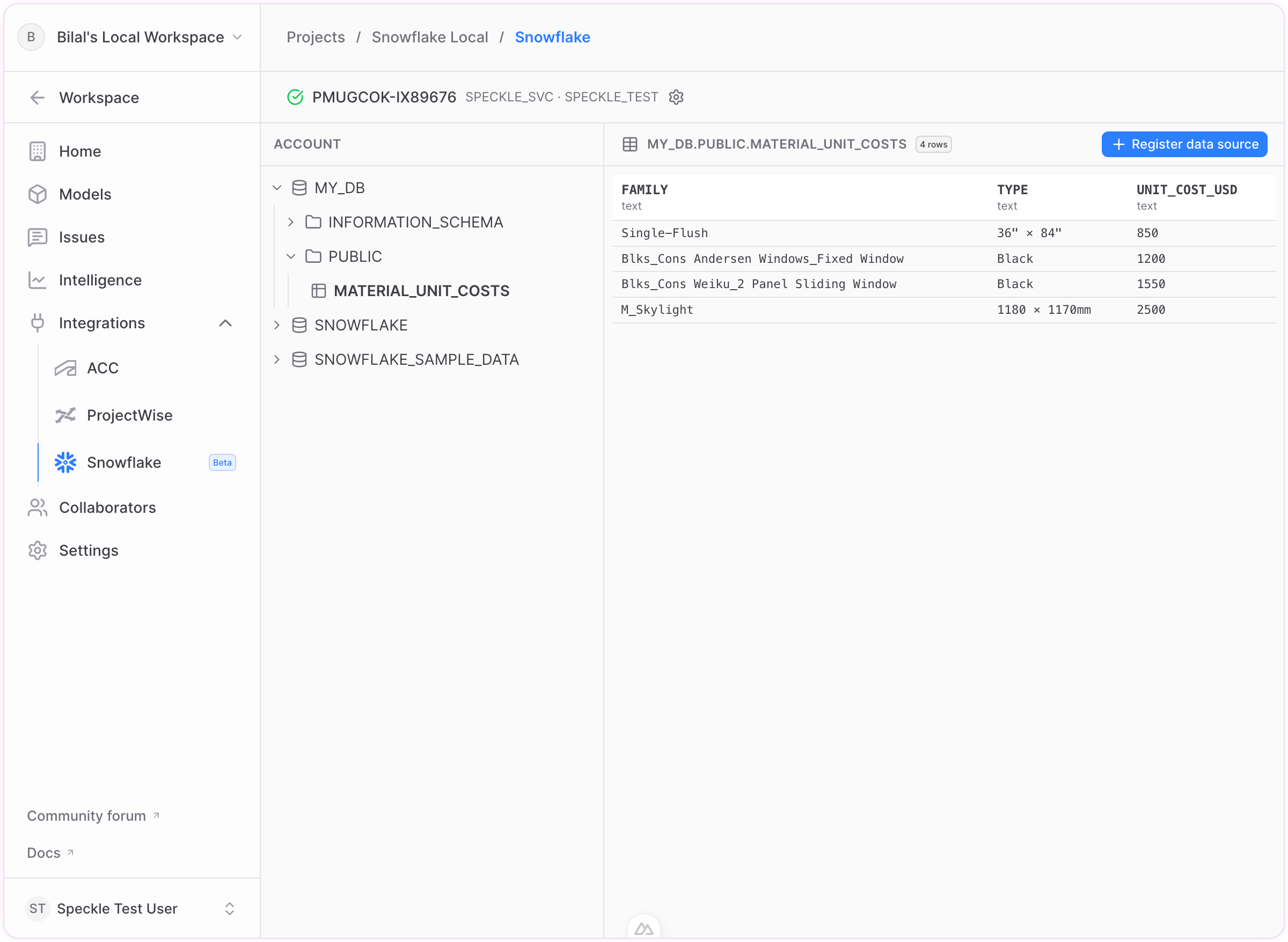 You can preview the rows before registering.
Select **Register data source**, pick the **columns** to include — only the columns you choose are ever read or cached — then choose a short **Name** for the data source. You can also adjust the **Snapshot TTL** (time to live) if the default freshness window does not fit your workflow. The TTL controls how long Speckle reuses the cached snapshot before it is considered stale. Select **Register data source** to finish. Speckle validates access and the table now appears as a registered data source.
You can preview the rows before registering.
Select **Register data source**, pick the **columns** to include — only the columns you choose are ever read or cached — then choose a short **Name** for the data source. You can also adjust the **Snapshot TTL** (time to live) if the default freshness window does not fit your workflow. The TTL controls how long Speckle reuses the cached snapshot before it is considered stale. Select **Register data source** to finish. Speckle validates access and the table now appears as a registered data source.
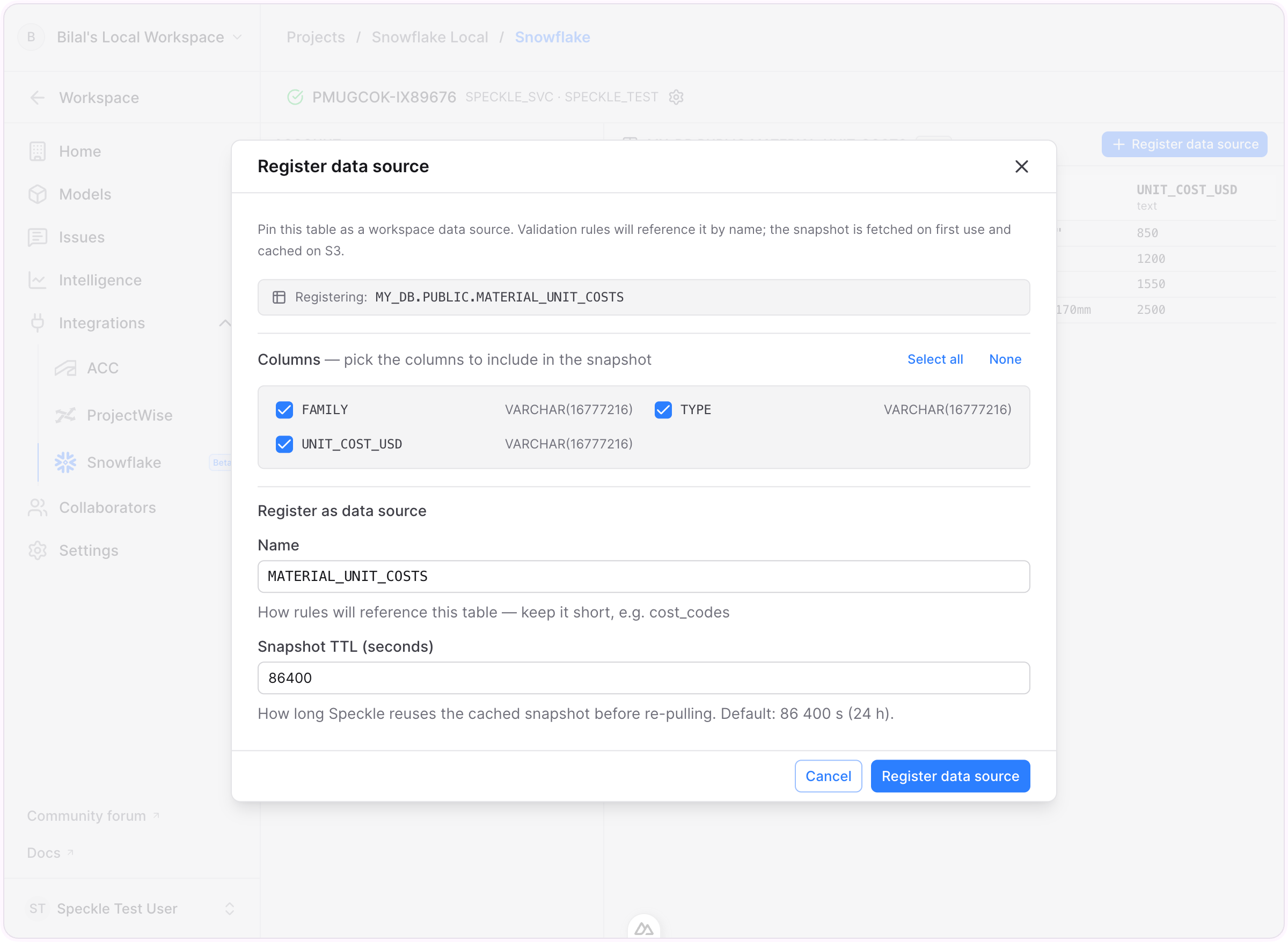 The table or view appears as a registered data source in your project.
Registered data sources are available to Speckle tools such as the **AI chat**, where you can query the table and combine it with your model data. See [Intelligence Dashboards](/analytics/intelligence-dashboards) for analytics and data tools.
## How snapshots are stored and refreshed
When you register a table or view, Speckle stores the selected columns as a cached **snapshot** in your workspace's object storage. Tools query the snapshot rather than your live warehouse.
* **Snapshot TTL.** TTL means **time to live**. It is the freshness window for the cached snapshot. The default is 24 hours.
* **Automatic refresh.** After the TTL expires, the snapshot is marked stale. Speckle rebuilds it from Snowflake the next time a tool uses that registered data source.
* **Manual refresh.** You can force an immediate refresh from the registered table's controls — useful right after the source data changes.
* **Disconnecting.** If your IT administrator removes the Snowflake connection, registered sources keep serving their **last snapshot read-only**. Reconnecting the same warehouse relinks them and resumes refreshing.
## FAQ
Only the columns you select when registering a table or view. Columns you don't include are
never queried or cached.
Speckle stores a snapshot of your registered columns and refreshes it on a schedule. See [How
snapshots are stored and refreshed](#how-snapshots-are-stored-and-refreshed).
TTL means **time to live**. It controls how long Speckle treats the cached snapshot as fresh.
After that time passes, Speckle refreshes the snapshot from Snowflake the next time it is used.
Your registered sources keep serving their last cached snapshot read-only, so existing tools
don't break. If your IT administrator reconnects the same warehouse, refreshing resumes.
No. The integration is **read-only** — Speckle issues read-only queries only and never writes,
updates, or deletes data in Snowflake.
The table or view appears as a registered data source in your project.
Registered data sources are available to Speckle tools such as the **AI chat**, where you can query the table and combine it with your model data. See [Intelligence Dashboards](/analytics/intelligence-dashboards) for analytics and data tools.
## How snapshots are stored and refreshed
When you register a table or view, Speckle stores the selected columns as a cached **snapshot** in your workspace's object storage. Tools query the snapshot rather than your live warehouse.
* **Snapshot TTL.** TTL means **time to live**. It is the freshness window for the cached snapshot. The default is 24 hours.
* **Automatic refresh.** After the TTL expires, the snapshot is marked stale. Speckle rebuilds it from Snowflake the next time a tool uses that registered data source.
* **Manual refresh.** You can force an immediate refresh from the registered table's controls — useful right after the source data changes.
* **Disconnecting.** If your IT administrator removes the Snowflake connection, registered sources keep serving their **last snapshot read-only**. Reconnecting the same warehouse relinks them and resumes refreshing.
## FAQ
Only the columns you select when registering a table or view. Columns you don't include are
never queried or cached.
Speckle stores a snapshot of your registered columns and refreshes it on a schedule. See [How
snapshots are stored and refreshed](#how-snapshots-are-stored-and-refreshed).
TTL means **time to live**. It controls how long Speckle treats the cached snapshot as fresh.
After that time passes, Speckle refreshes the snapshot from Snowflake the next time it is used.
Your registered sources keep serving their last cached snapshot read-only, so existing tools
don't break. If your IT administrator reconnects the same warehouse, refreshing resumes.
No. The integration is **read-only** — Speckle issues read-only queries only and never writes,
updates, or deletes data in Snowflake.