> ## Documentation Index
> Fetch the complete documentation index at: https://docs.speckle.systems/llms.txt
> Use this file to discover all available pages before exploring further.
# Direct uploads
> Upload files directly to your Speckle projects and view them in your browser—no desktop software or connector needed.
## When to use file uploads
Upload files directly when you:
* Need to convert IFC data to Speckle format
* Don't have the source application or license
* Want to view a model quickly in your browser
* Receive files from collaborators who don't use Speckle connectors
* Work with file formats that don't have a dedicated Speckle connector
## Upload a file
**Upload limits:** Maximum file size is 1000 MB for all plans and formats
If your file is in a cloud-synced folder (for example Google Drive, OneDrive,
Dropbox, or iCloud Drive), make sure the file is fully downloaded to local
disk before you upload.
Some cloud clients show placeholder files before full local sync is complete.
In that case, Speckle can read the file faster than the cloud client can
finish downloading it, which can cause upload failures.
Select the option to upload a file.
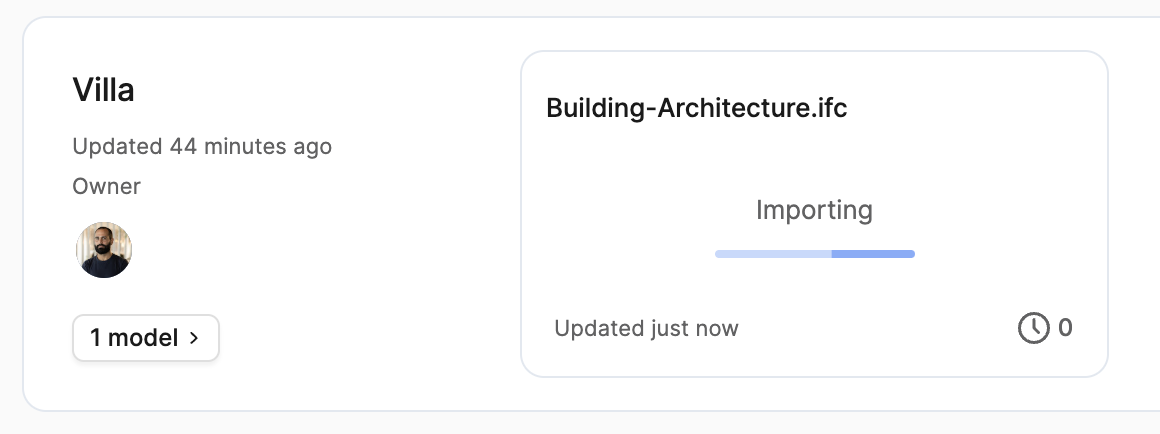
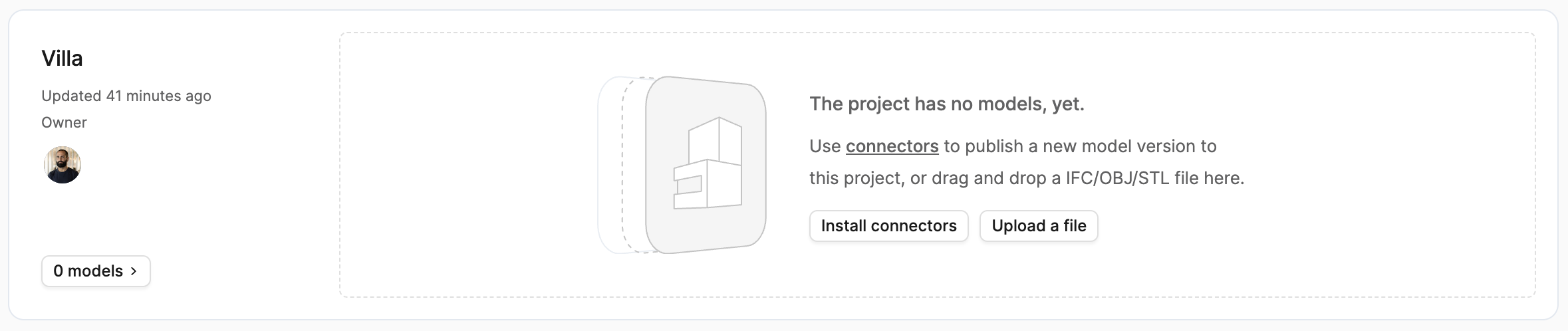 Drag and drop your file into the project. Speckle creates a new model with the file name.
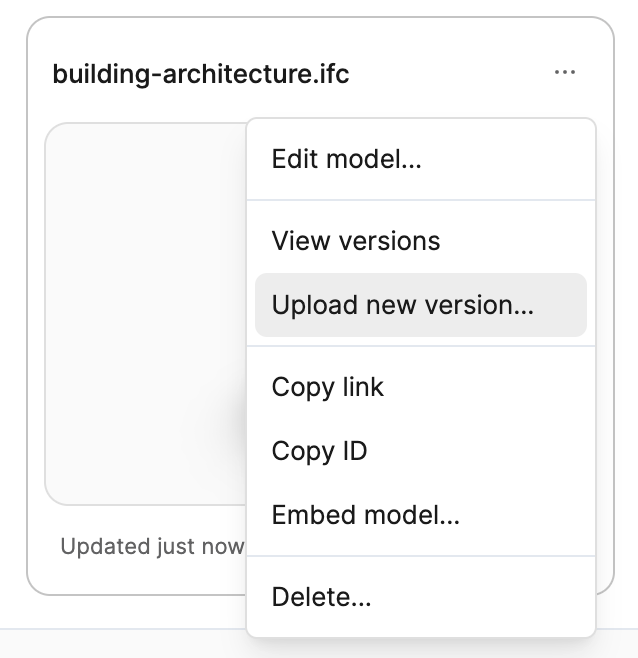
 To upload updated versions, select the dropdown menu on the model.
 ## Supported file formats
Speckle supports the following file formats:
If your Autodesk (or other) software can export a Navisworks Cache file
(`.nwc`) or a Navisworks Document file (`.nwd`), you can upload it to Speckle
without owning a Navisworks license.
Want to help improve this flow? Join the user testing study for NWC and NWD
uploads with ACC sync on the [User testing opportunities
page](/get-involved/user-testing#nwc-nwd-acc-sync).
While the Navisworks parser is in Beta if the file size is over 200MB, the
sync may not always succeed. Treat Navisworks sync as a beta release and
expect occasional failures, especially for very large files.
| Format | Extension | Status |
| ----------------------------- | --------- | ------ |
| IFC | .ifc | ✔︎ |
| Rhinoceros 3D | .3dm | ✔︎ |
| SketchUp | .skp | ✔︎ |
| AutoCAD | .dwg | ✔︎ |
| Drawing Exchange Format | .dxf | ✔︎ |
| MicroStation | .dgn | ✔︎ |
| 3D Studio | .3ds | ✔︎ |
| SolidWorks Part | .sldprt | ✔︎ |
| STEP | .stp | ✔︎ |
| STEP | .step | ✔︎ |
| Point Cloud | .e57 | ✔︎ |
| 3D Manufacturing Format | .3mf | ✔︎ |
| Additive Manufacturing Format | .amf | ✔︎ |
| Filmbox | .fbx | ✔︎ |
| IGES | .igs | ✔︎ |
| IGES | .iges | ✔︎ |
| Wavefront | .obj | ✔︎ |
| Polygon File Format | .ply | ✔︎ |
| DirectX | .x | ✔︎ |
| Revit | .rvt | ✔︎ |
| Navisworks Cache | .nwc | ✔︎ |
| Navisworks Document | .nwd | ✔︎ |
In Forma Data Management (ACC) sync, coordination system and reference point selection apply **only** to **Revit** (`.rvt`) files. IFC and Navisworks ACC syncs do not use those controls. If you do not change the Revit setting, the default behaviour still applies. For coordination workflows that rely on specific Revit coordinate handling and connector-level control, use the [Revit connector](/connectors/revit/revit).
### Unit Conversion
For several file formats, the Unit system of the source file will be automatically detected and preserved when sending through Speckle.
* IFC ✔︎
* 3dm ✔︎
* DGN ✔︎
* SKP ✔︎
* STP ✔︎
* FBX ✔︎
Other formats have a different behaviour:
| **Format** | **Behaviour** |
| ---------- | ---------------------------- |
| DWG | Geometry is scaled to meters |
| 3DS | Assuming file is in cm |
| OBJ | Assuming file is in mm |
## File format details
### IFC
IFC files are converted to Speckle format with support for attributes, property sets, and quantities.
**Supported versions:** IFC2x3, IFC4, IFC4x1, IFC4x2, IFC4x3
**Features**
* Element and element type attributes
* Property sets
* Element quantities
* **IFCSpaces** are published as volumetric geometry
**Known limitations**
* IFC2x2\_FINAL and Release Candidate versions aren't supported
* Alternative formats such as XML, ZIP, and databases aren't supported
* 2D types like IfcAnnotation aren't currently supported
### Rhino (3DM)
Rhino files maintain geometry and layer structure when uploaded.
For better results with 3dm files, use the [Rhino
connector](/connectors/rhino) when possible.
**Known limitations**
* Rhino 9 files aren't supported
* Dynamic text isn't supported
### SketchUp (SKP)
SketchUp models are converted with geometry and basic organization preserved.
For better results with SketchUp files, use the [SketchUp
connector](/connectors/sketchup) when possible.
**Known limitations**
* Attributes aren't imported
* Dynamic components may not transfer correctly
### DWG and DXF
Upload AutoCAD drawing files directly. Results may vary depending on file complexity.
For better results with DWG files, use the [AutoCAD
connector](/connectors/autocad) when possible.
**Known limitations**
* Large files may take longer to process
* Dynamic text isn't supported
### Wavefront (OBJ)
OBJ files are converted with geometry preserved.
**Known limitations**
* Materials aren't supported
## FAQ
Direct uploads convert models using Internal Origin and do not apply Revit Shared Coordinates. Uploaded models are not placed in a coordinated space. For coordination workflows that rely on Shared Coordinates, use the [Revit connector](/connectors/revit/revit) to publish and load models so coordinate modifications are preserved.
Yes, file downloads are available. To download a file
1. Select the dropdown menu (**...**) on the model.
2. Select **View uploads**.
3. Select **Download** next to the version you want.
The limits on file uploads are currently **1000MB** for all plans and all formats.
We use a queue system to process files, so it can take awhile to generate the Speckle model after you upload your file. If you do not see your model after a long time, this may be caused by faulty items inside your file. Please report your problem in our [Community Forum](https://speckle.community/c/help) and include the following information:
* Your file type and version
* Your failed file
We're always looking to expand format support. Let us know which formats you'd like to see in future releases.
## Supported file formats
Speckle supports the following file formats:
If your Autodesk (or other) software can export a Navisworks Cache file
(`.nwc`) or a Navisworks Document file (`.nwd`), you can upload it to Speckle
without owning a Navisworks license.
Want to help improve this flow? Join the user testing study for NWC and NWD
uploads with ACC sync on the [User testing opportunities
page](/get-involved/user-testing#nwc-nwd-acc-sync).
While the Navisworks parser is in Beta if the file size is over 200MB, the
sync may not always succeed. Treat Navisworks sync as a beta release and
expect occasional failures, especially for very large files.
| Format | Extension | Status |
| ----------------------------- | --------- | ------ |
| IFC | .ifc | ✔︎ |
| Rhinoceros 3D | .3dm | ✔︎ |
| SketchUp | .skp | ✔︎ |
| AutoCAD | .dwg | ✔︎ |
| Drawing Exchange Format | .dxf | ✔︎ |
| MicroStation | .dgn | ✔︎ |
| 3D Studio | .3ds | ✔︎ |
| SolidWorks Part | .sldprt | ✔︎ |
| STEP | .stp | ✔︎ |
| STEP | .step | ✔︎ |
| Point Cloud | .e57 | ✔︎ |
| 3D Manufacturing Format | .3mf | ✔︎ |
| Additive Manufacturing Format | .amf | ✔︎ |
| Filmbox | .fbx | ✔︎ |
| IGES | .igs | ✔︎ |
| IGES | .iges | ✔︎ |
| Wavefront | .obj | ✔︎ |
| Polygon File Format | .ply | ✔︎ |
| DirectX | .x | ✔︎ |
| Revit | .rvt | ✔︎ |
| Navisworks Cache | .nwc | ✔︎ |
| Navisworks Document | .nwd | ✔︎ |
In Forma Data Management (ACC) sync, coordination system and reference point selection apply **only** to **Revit** (`.rvt`) files. IFC and Navisworks ACC syncs do not use those controls. If you do not change the Revit setting, the default behaviour still applies. For coordination workflows that rely on specific Revit coordinate handling and connector-level control, use the [Revit connector](/connectors/revit/revit).
### Unit Conversion
For several file formats, the Unit system of the source file will be automatically detected and preserved when sending through Speckle.
* IFC ✔︎
* 3dm ✔︎
* DGN ✔︎
* SKP ✔︎
* STP ✔︎
* FBX ✔︎
Other formats have a different behaviour:
| **Format** | **Behaviour** |
| ---------- | ---------------------------- |
| DWG | Geometry is scaled to meters |
| 3DS | Assuming file is in cm |
| OBJ | Assuming file is in mm |
## File format details
### IFC
IFC files are converted to Speckle format with support for attributes, property sets, and quantities.
**Supported versions:** IFC2x3, IFC4, IFC4x1, IFC4x2, IFC4x3
**Features**
* Element and element type attributes
* Property sets
* Element quantities
* **IFCSpaces** are published as volumetric geometry
**Known limitations**
* IFC2x2\_FINAL and Release Candidate versions aren't supported
* Alternative formats such as XML, ZIP, and databases aren't supported
* 2D types like IfcAnnotation aren't currently supported
### Rhino (3DM)
Rhino files maintain geometry and layer structure when uploaded.
For better results with 3dm files, use the [Rhino
connector](/connectors/rhino) when possible.
**Known limitations**
* Rhino 9 files aren't supported
* Dynamic text isn't supported
### SketchUp (SKP)
SketchUp models are converted with geometry and basic organization preserved.
For better results with SketchUp files, use the [SketchUp
connector](/connectors/sketchup) when possible.
**Known limitations**
* Attributes aren't imported
* Dynamic components may not transfer correctly
### DWG and DXF
Upload AutoCAD drawing files directly. Results may vary depending on file complexity.
For better results with DWG files, use the [AutoCAD
connector](/connectors/autocad) when possible.
**Known limitations**
* Large files may take longer to process
* Dynamic text isn't supported
### Wavefront (OBJ)
OBJ files are converted with geometry preserved.
**Known limitations**
* Materials aren't supported
## FAQ
Direct uploads convert models using Internal Origin and do not apply Revit Shared Coordinates. Uploaded models are not placed in a coordinated space. For coordination workflows that rely on Shared Coordinates, use the [Revit connector](/connectors/revit/revit) to publish and load models so coordinate modifications are preserved.
Yes, file downloads are available. To download a file
1. Select the dropdown menu (**...**) on the model.
2. Select **View uploads**.
3. Select **Download** next to the version you want.
The limits on file uploads are currently **1000MB** for all plans and all formats.
We use a queue system to process files, so it can take awhile to generate the Speckle model after you upload your file. If you do not see your model after a long time, this may be caused by faulty items inside your file. Please report your problem in our [Community Forum](https://speckle.community/c/help) and include the following information:
* Your file type and version
* Your failed file
We're always looking to expand format support. Let us know which formats you'd like to see in future releases.