> ## Documentation Index
> Fetch the complete documentation index at: https://docs.speckle.systems/llms.txt
> Use this file to discover all available pages before exploring further.
# SketchUp
> Manual installation instructions for Speckle SketchUp connector via ZIP
**This guide is for IT administrators only.** If you are a regular user, see our [SketchUp
installation guide](/connectors/sketchup) instead.
**Install separately for each version**: Repeat these steps for each application version you want
to use with Speckle.
All versions of this connector require the Speckle Desktop Services background service. [Learn more about Desktop Services](/connectors/manual-installation/desktop-services).
## Windows Installation
### Install for a single user
1. Extract the downloaded ZIP file.
2. Copy both the `speckle_connector_3` folder and `speckle_connector_3.rb` file to `%AppData%\SketchUp\SketchUp {VERSION}\SketchUp\Plugins\`
* Replace `{VERSION}` with your SketchUp version (example: `2025`)
* Create the Plugins directory if it doesn't exist
### Install for all users
Use `%ProgramData%` instead of `%AppData%` in all file paths above.
### Update the connector
To update to a new version, download the latest ZIP file and repeat the installation steps above. The new files will replace the existing ones.
### Uninstall the connector
Delete the `speckle_connector_3` folder and the `speckle_connector_3.rb` file from your installation location.
To remove all Speckle products, delete the `%AppData%\Speckle\` folder.
## macOS Installation
### Installing the connector
1. Extract the downloaded ZIP file.
2. Copy both the `speckle_connector_3` folder and `speckle_connector_3.rb` file to `~/Library/Application Support/SketchUp {VERSION}/SketchUp/Plugins/`
* Replace `{VERSION}` with your SketchUp version (example: `2025`)
* Create the Plugins directory if it doesn't exist
### Fix macOS security warning for sqlite3\_32.bundle
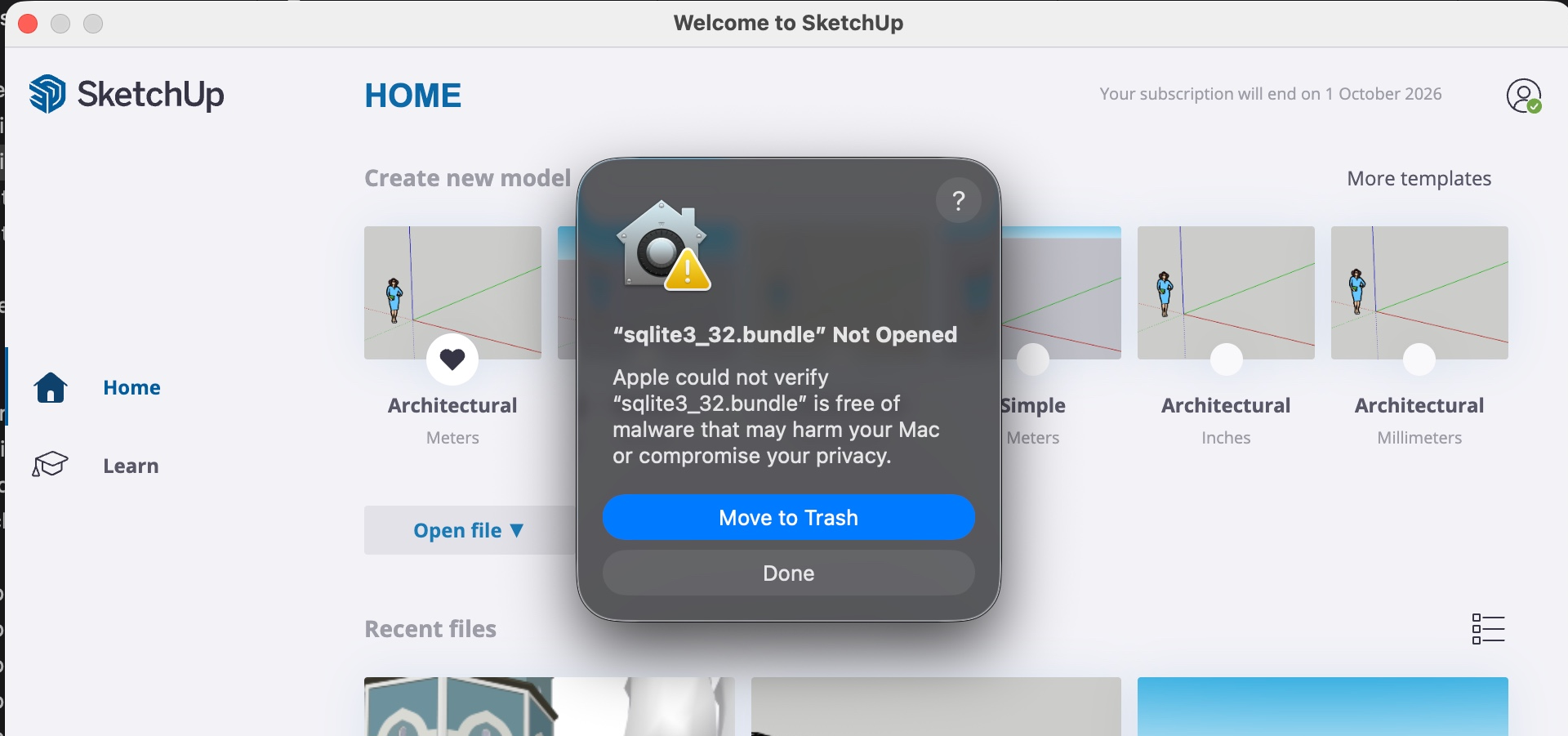
macOS Gatekeeper might block `sqlite3_32.bundle` the first time you open SketchUp after installing the connector.
1. In SketchUp, when the **“sqlite3\_32.bundle Not Opened”** dialog appears, choose **Done**.
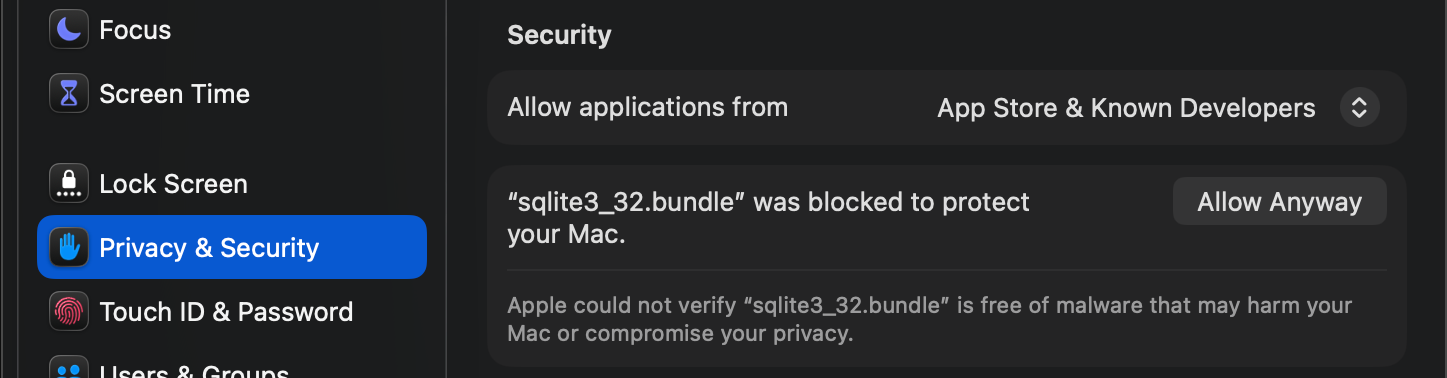
 2. Open **System Settings** → **Privacy & Security** and scroll down to the **Security** section.
3. Next to **"sqlite3\_32.bundle" was blocked to protect your Mac**, select **Allow Anyway**.
2. Open **System Settings** → **Privacy & Security** and scroll down to the **Security** section.
3. Next to **"sqlite3\_32.bundle" was blocked to protect your Mac**, select **Allow Anyway**.
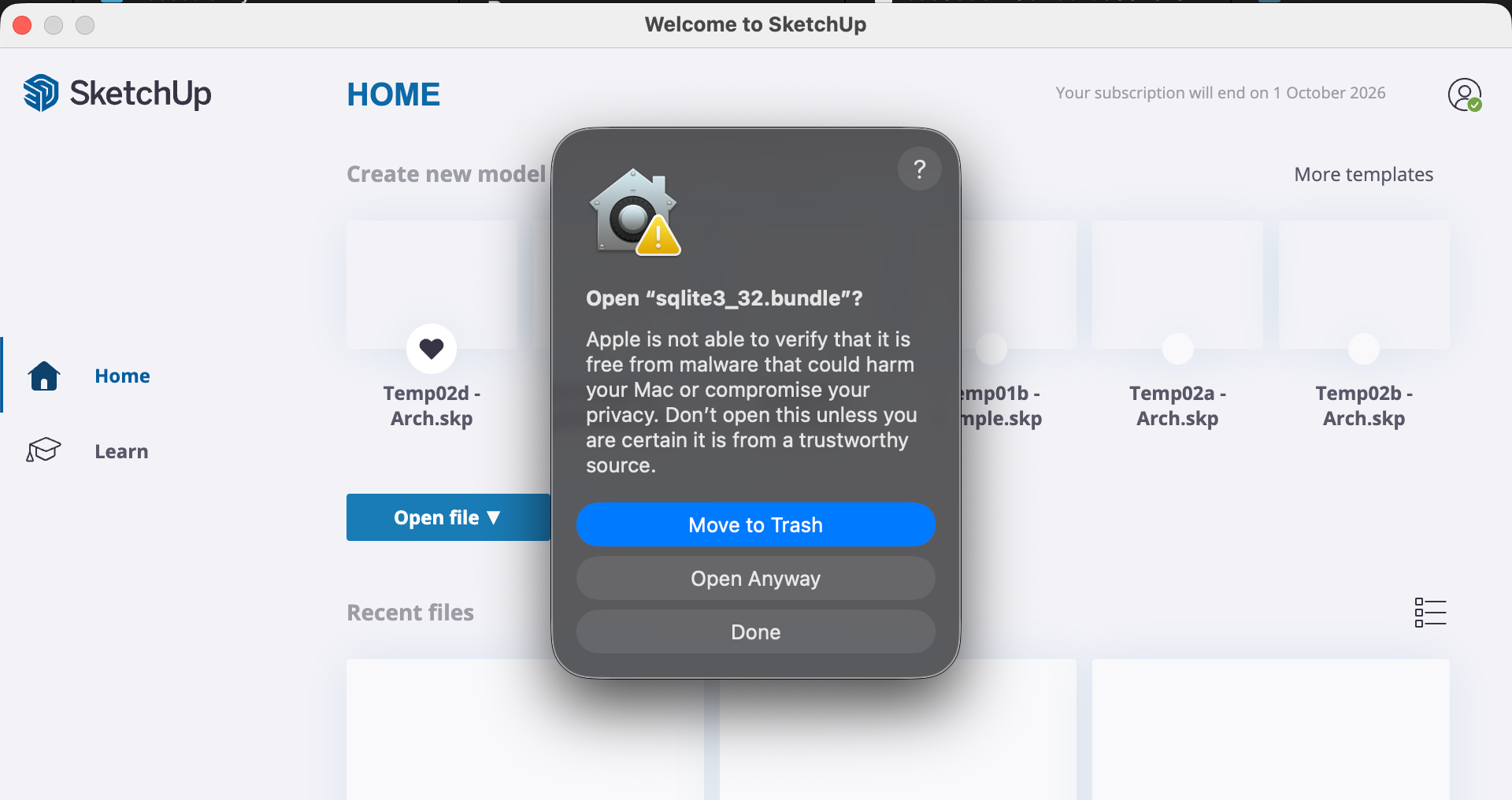
 4. Open SketchUp again. When the warning appears with an **Open Anyway** button, select **Open Anyway** to allow the plugin to run.
 You only need to allow `sqlite3_32.bundle` once per SketchUp version on each Mac.
Only follow these steps if you downloaded the SketchUp connector from official Speckle sources.
### Update the connector
To update to a new version, download the latest ZIP file and repeat the installation steps above. The new files will replace the existing ones.
### Uninstall the connector
Delete the `speckle_connector_3` folder and the `speckle_connector_3.rb` file from your installation location.
To remove all Speckle products, also delete the `~/Library/Application Support/Speckle/` folder.
## Disable update notifications
To prevent update checks, contact [support@speckle.systems](mailto:support@speckle.systems) for more information.
Return to connector selection
You only need to allow `sqlite3_32.bundle` once per SketchUp version on each Mac.
Only follow these steps if you downloaded the SketchUp connector from official Speckle sources.
### Update the connector
To update to a new version, download the latest ZIP file and repeat the installation steps above. The new files will replace the existing ones.
### Uninstall the connector
Delete the `speckle_connector_3` folder and the `speckle_connector_3.rb` file from your installation location.
To remove all Speckle products, also delete the `~/Library/Application Support/Speckle/` folder.
## Disable update notifications
To prevent update checks, contact [support@speckle.systems](mailto:support@speckle.systems) for more information.
Return to connector selection