> ## Documentation Index
> Fetch the complete documentation index at: https://docs.speckle.systems/llms.txt
> Use this file to discover all available pages before exploring further.
# Connectors, cloud integrations, and file uploads
> Publish and load 3D models using connectors, cloud integrations, or file uploads.
## Ways to Get Data Into Speckle
* **Connectors** - Plugins inside your design tools for meaningful exchanges
* **Cloud integrations** - Automatic sync from platforms like Autodesk Forma Data Management and Bentley ProjectWise
* **File uploads** - Direct uploads when a connector is not available
Only connectors support loading data back into your design tools.
## Connectors
Connectors integrate directly with design tools like Revit, Rhino, Blender, and Grasshopper. They enable meaningful exchanges—you choose what to share based on the task at hand, including just the element properties, hierarchy, materials, and metadata that matter to downstream workflows. Loading data preserves design intent where possible, not just geometry.
### What You Can Do
* Publish selected objects or filter by category
* Load models from other tools as reference geometry
* Track changes and sync only updated objects between versions
* Manage projects, models, and versions without leaving your application
* Access settings for detail level, reference points, and geometry optimization
* Build custom workflows in Grasshopper and Blender
Need a connector we don't have? [Request it on our forum](https://speckle.community/)
## Cloud Integrations
Cloud integrations connect Speckle directly to another data service. ProjectWise can connect through Bentley Cloud or a supported on-premises WSG server.
### What You Can Do
* Sync models automatically when source files change
* Access data without installing plugins or desktop software
* Keep teams up to date with continuous synchronization
### Available Integrations
* **[Autodesk Forma Data Management (ACC)](/connectors/cloud-integrations/acc)** — Sync Revit files from Autodesk cloud projects (still often called ACC)
* **[Bentley ProjectWise](/connectors/cloud-integrations/projectwise)** — Sync supported files from Bentley Cloud or an on-premises WSG server
Forma Data Management and ProjectWise integrations are available on **Team** and **Enterprise**
plans. See each integration guide for setup details.
## File Uploads
Upload files directly when a connector is not available or you do not have access to the source software.
### Supported Formats
* **IFC** (IFC2x3, IFC4)
* **CAD**: DWG, DXF, DGN
* **3D modeling**: 3DM (Rhino), SKP (SketchUp), SLDPRT (SolidWorks)
* **Mesh**: 3MF, 3DS, AMF, OBJ, PLY, STL
* **Interchange**: E57, IGES, FBX, STEP
* **Coming soon**: RVT (Revit), NWD (Navisworks)
### How It Works
Each file upload creates a new version of your model, preserving complete version history. Upload new versions from the model's dropdown menu.
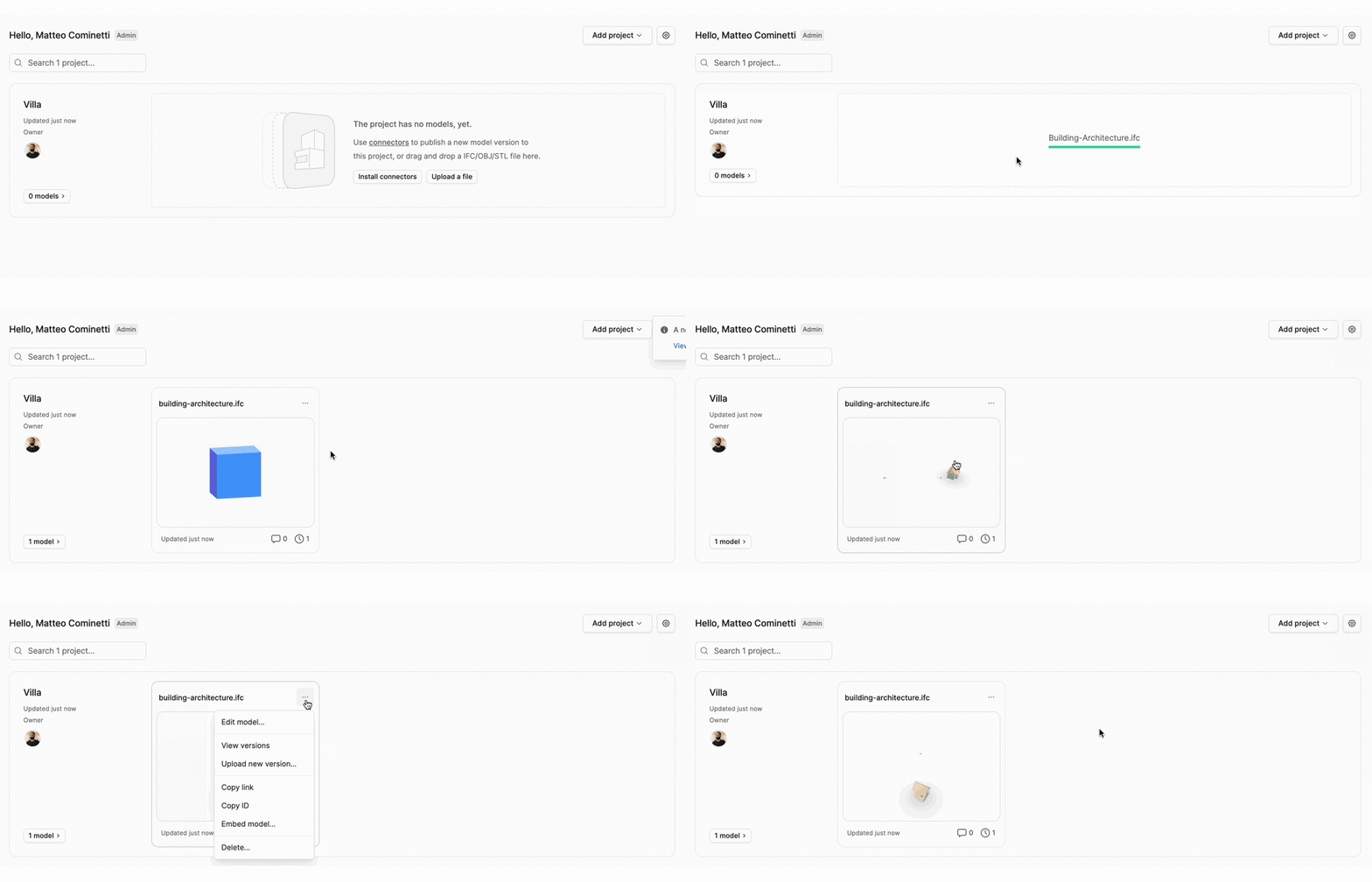 Learn more in [File Uploads](/connectors/direct-uploads/introduction).