> ## Documentation Index
> Fetch the complete documentation index at: https://docs.speckle.systems/llms.txt
> Use this file to discover all available pages before exploring further.
# How to use Speckle for Revit
> Step-by-step guide for using the Revit connector
export const app_4 = "Revit"
export const app_3 = "Revit"
export const app_2 = "Revit"
export const app_1 = "Revit"
export const app_0 = "Revit"
export const versions_0 = "2022, 2023, 2024, 2025 & 🆕2026"
export const os_0 = "Windows"
Speckle currently supports {app_0} versions: **{versions_0}**.
The {app_0} connector works on **{os_0}** only.
## Setup
Install your [{app_1} connector](/connectors/installation)
1. In Revit, select the **Speckle** tab in the ribbon.
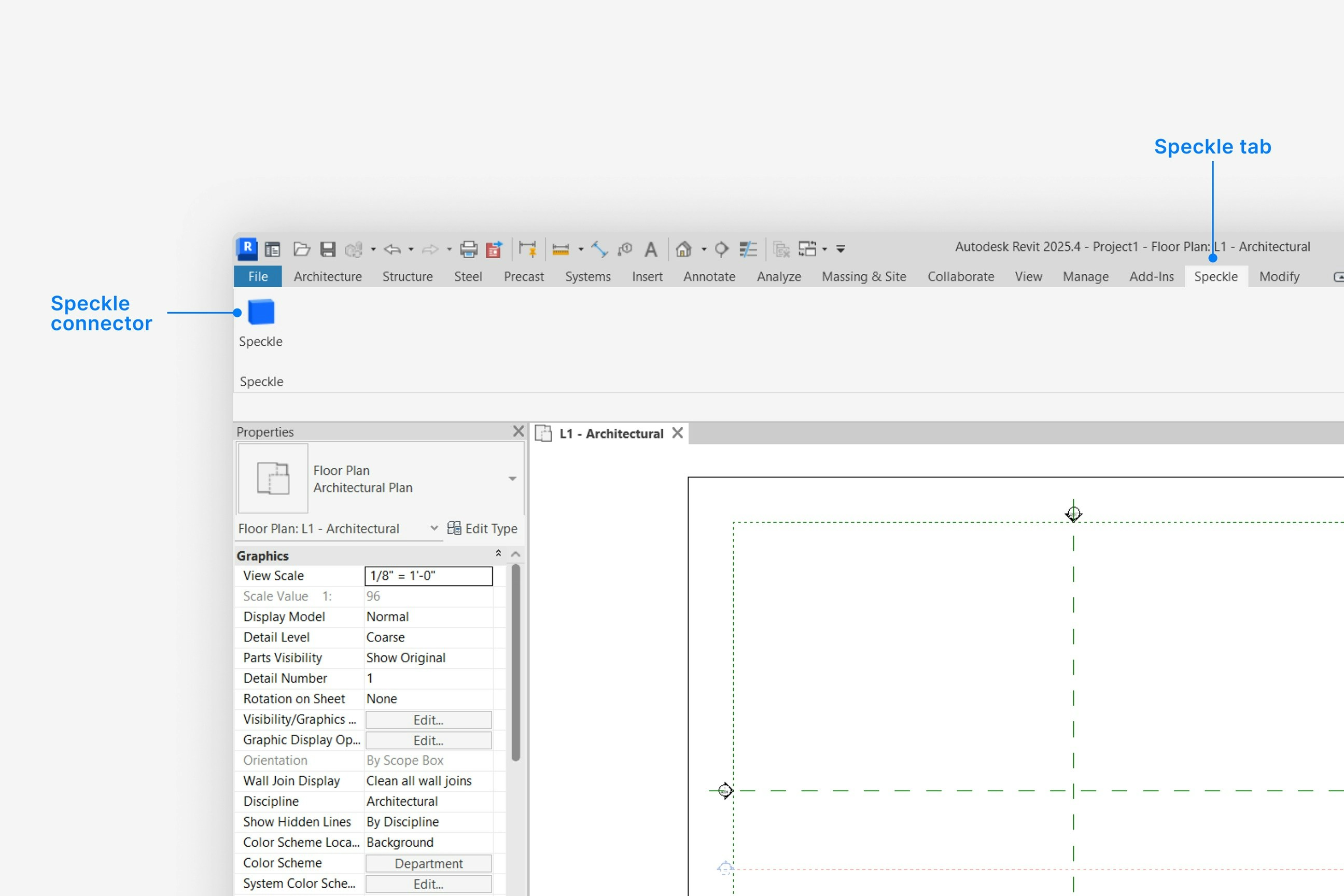 2. Select **Speckle** to open the Revit connector.
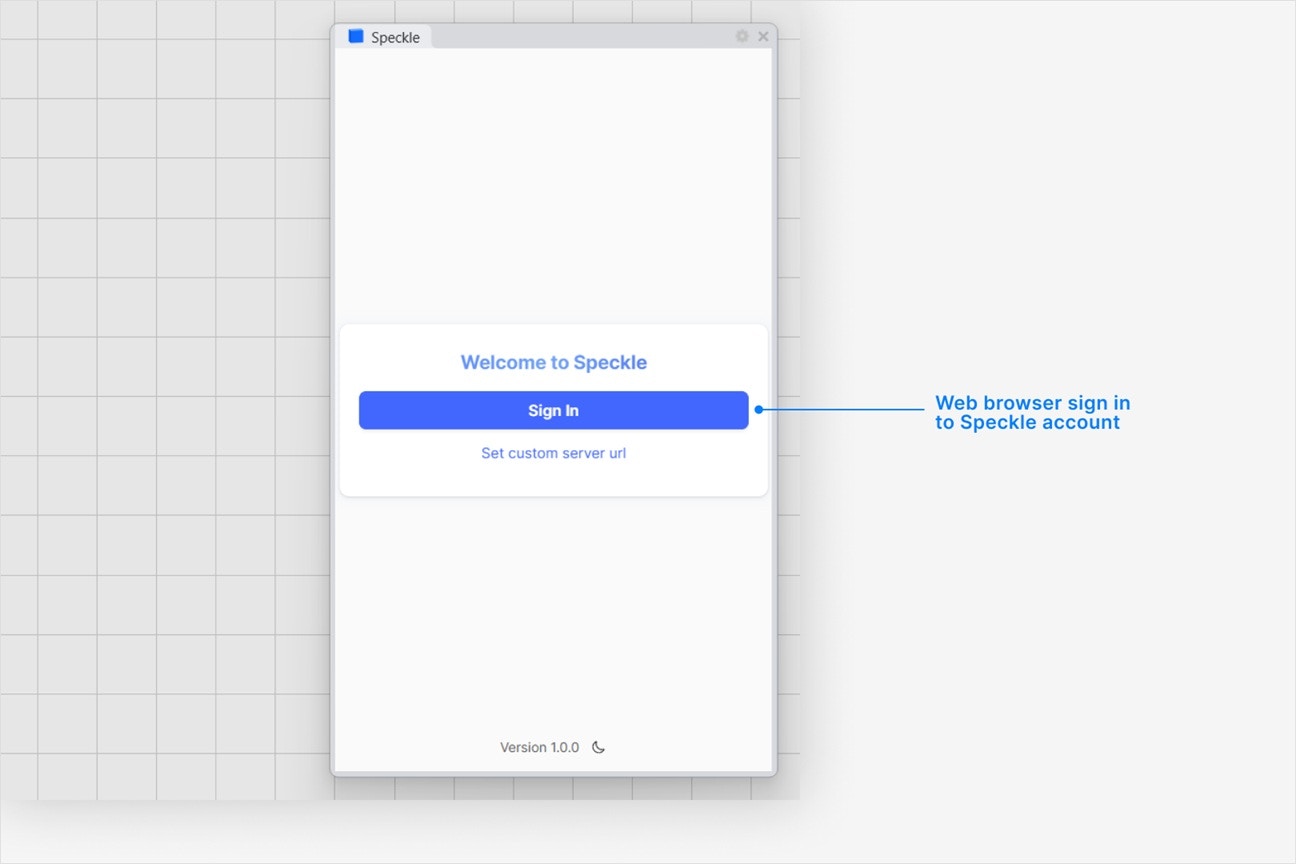
3) Select **Sign in** if you haven't linked your Speckle account.
2. Select **Speckle** to open the Revit connector.
3) Select **Sign in** if you haven't linked your Speckle account.
 1. Make sure your version of {app_2} is one of the supported versions.
2. Uninstall and [reinstall your connector](/connectors/installation).
Note: Make sure you are **not** selecting **Run as administrator** when installing - this will install for the administrator user, and not your own user.
Instead, double-click the `.exe` or right-clicking and then selecting `Open` to run the installer.
Installation issues can also be caused by conflicting plugins.
If you're still experiencing problems, please report it in our [Community Forum](https://speckle.community/c/help) and include the following information:
* Your application version
* Your Speckle connector version
If your connector window is floating, **try docking it to your application** to fix blank UI issues.
For major issues, you can sometimes find a `log` file in your directory at `AppData\Roaming\Speckle\Logs`.
Please report your problem in our [Community Forum](https://speckle.community/c/help) and include the following information:
* Your application version
* Your Speckle connector version
* A copy of the log
This can happen if our **desktop service** isn't running. Desktop Service is used for authenticating new accounts. If it's not running, search for **Speckle Desktop Services** in Windows search and run it.
All Speckle connectors are installed like any other program. You can uninstall them directly from your system's `Applications`. For a full uninstall, you should also remove **Speckle Desktop Services** as well as your Speckle connector.
You can always download the latest version of the connector [in the web app](https://app.speckle.systems/connectors).
If a new version of the connector is available, you will also see a notification in your connector UI.
## Publishing a Model
1. Make sure your version of {app_2} is one of the supported versions.
2. Uninstall and [reinstall your connector](/connectors/installation).
Note: Make sure you are **not** selecting **Run as administrator** when installing - this will install for the administrator user, and not your own user.
Instead, double-click the `.exe` or right-clicking and then selecting `Open` to run the installer.
Installation issues can also be caused by conflicting plugins.
If you're still experiencing problems, please report it in our [Community Forum](https://speckle.community/c/help) and include the following information:
* Your application version
* Your Speckle connector version
If your connector window is floating, **try docking it to your application** to fix blank UI issues.
For major issues, you can sometimes find a `log` file in your directory at `AppData\Roaming\Speckle\Logs`.
Please report your problem in our [Community Forum](https://speckle.community/c/help) and include the following information:
* Your application version
* Your Speckle connector version
* A copy of the log
This can happen if our **desktop service** isn't running. Desktop Service is used for authenticating new accounts. If it's not running, search for **Speckle Desktop Services** in Windows search and run it.
All Speckle connectors are installed like any other program. You can uninstall them directly from your system's `Applications`. For a full uninstall, you should also remove **Speckle Desktop Services** as well as your Speckle connector.
You can always download the latest version of the connector [in the web app](https://app.speckle.systems/connectors).
If a new version of the connector is available, you will also see a notification in your connector UI.
## Publishing a Model
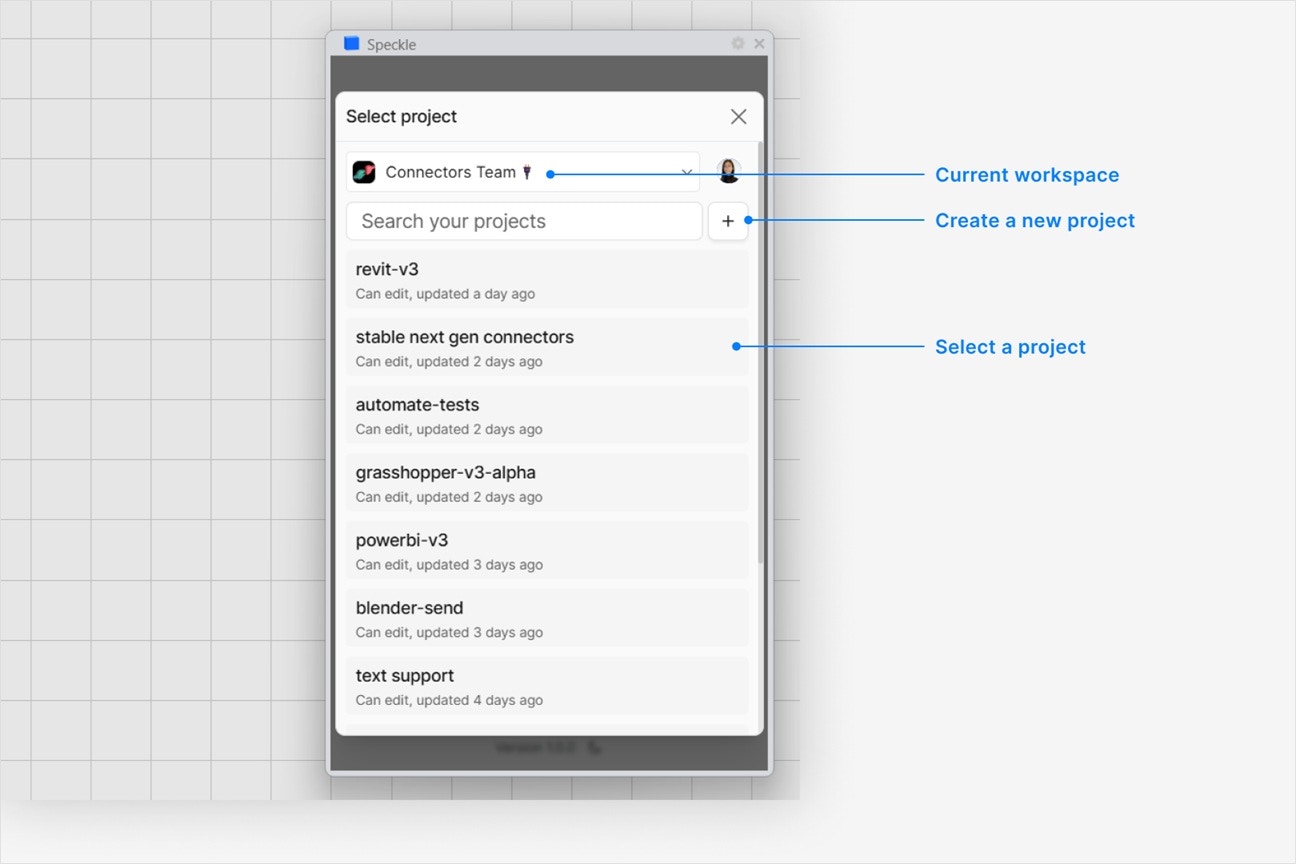
 * Select an existing project
* or select **New Project** to create one
* Select an existing project
* or select **New Project** to create one
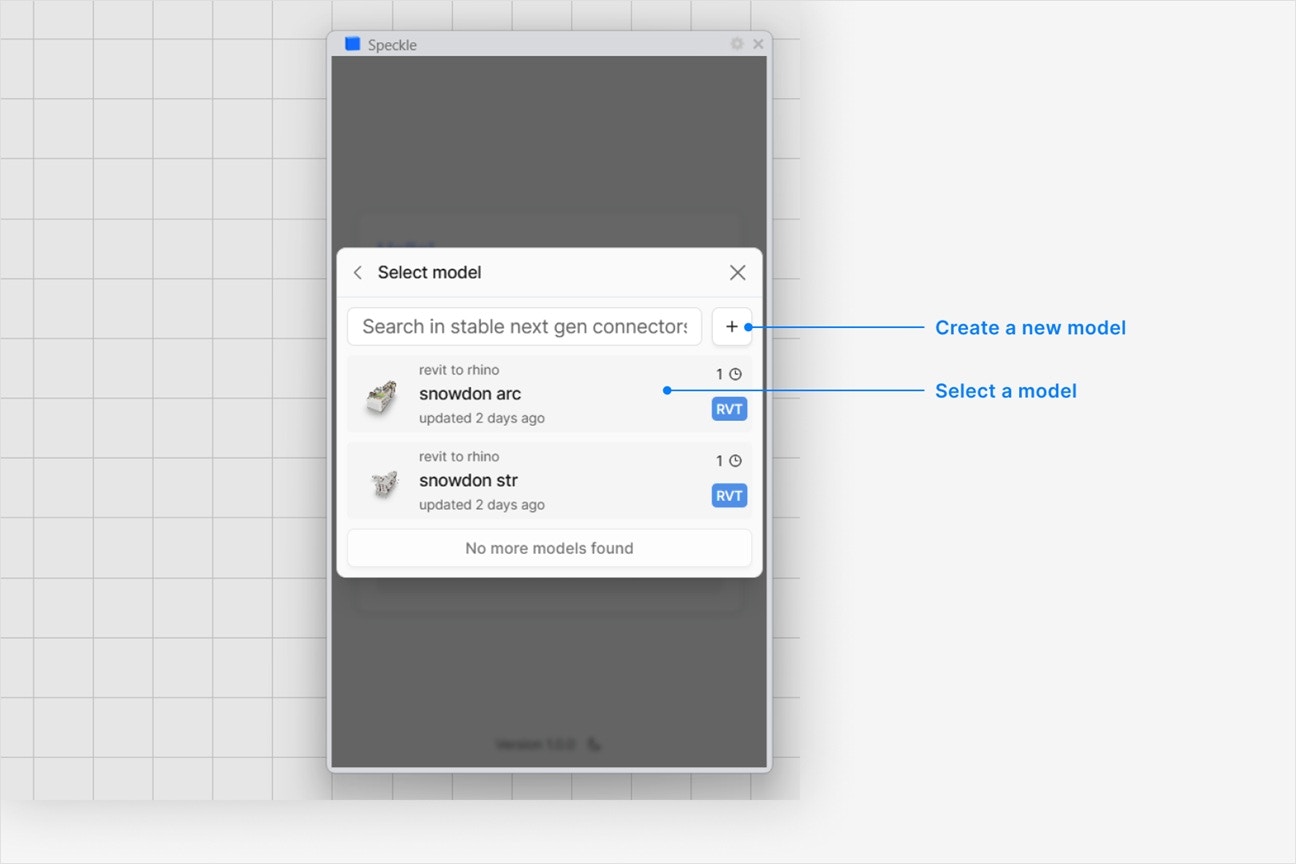
 * Select an existing model
* or select **New Model** to create one
* Select an existing model
* or select **New Model** to create one
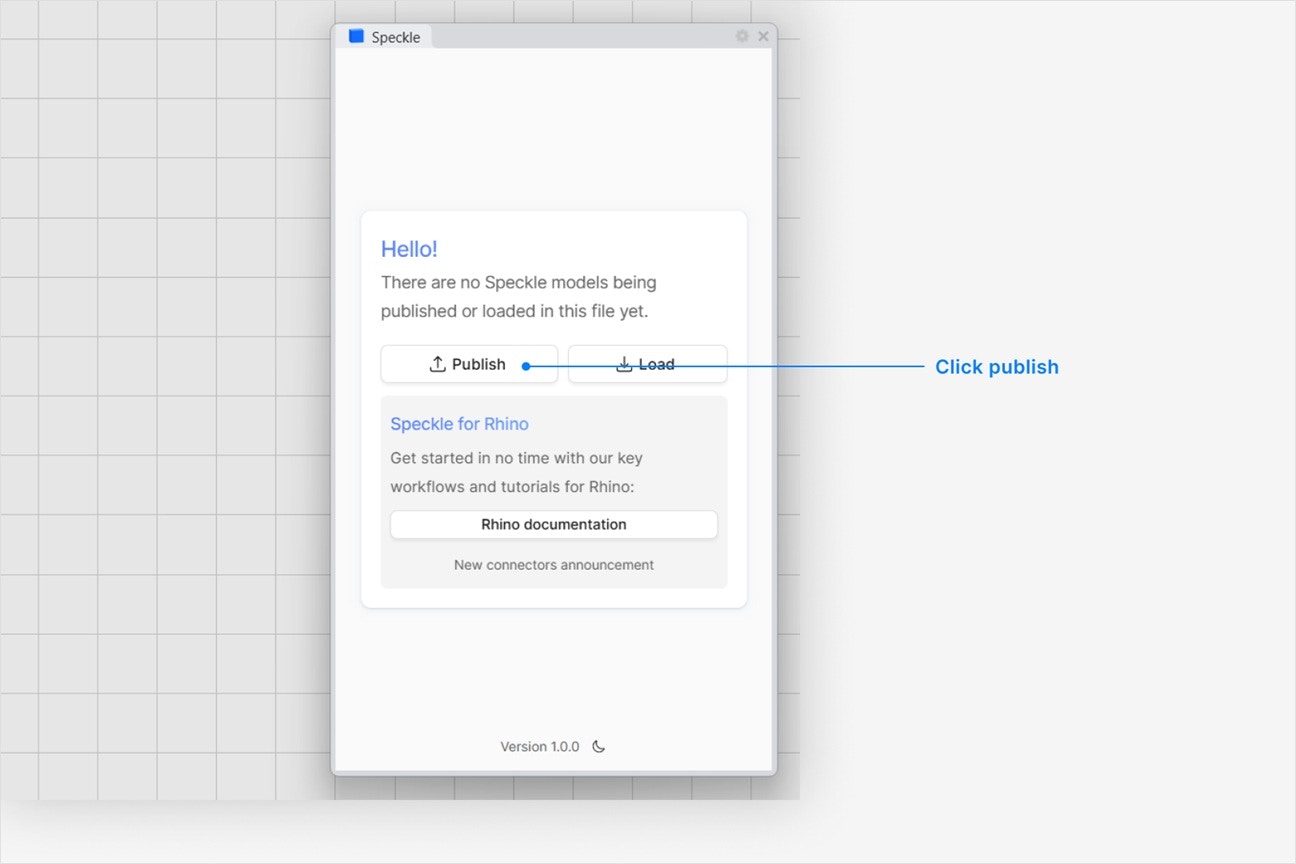
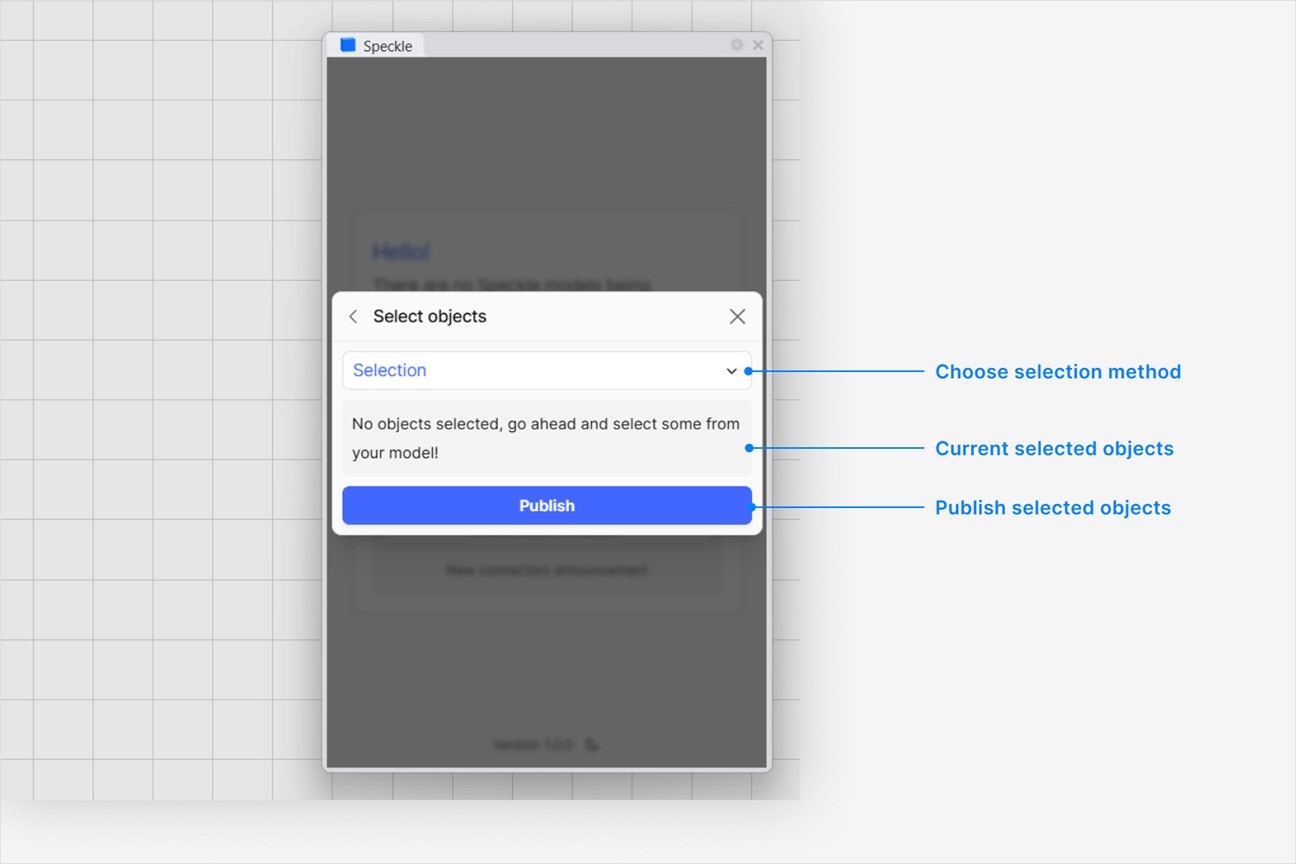
 1. In your application viewport, select the elements you want to publish.
2. Select **Publish**.
1. In your application viewport, select the elements you want to publish.
2. Select **Publish**.
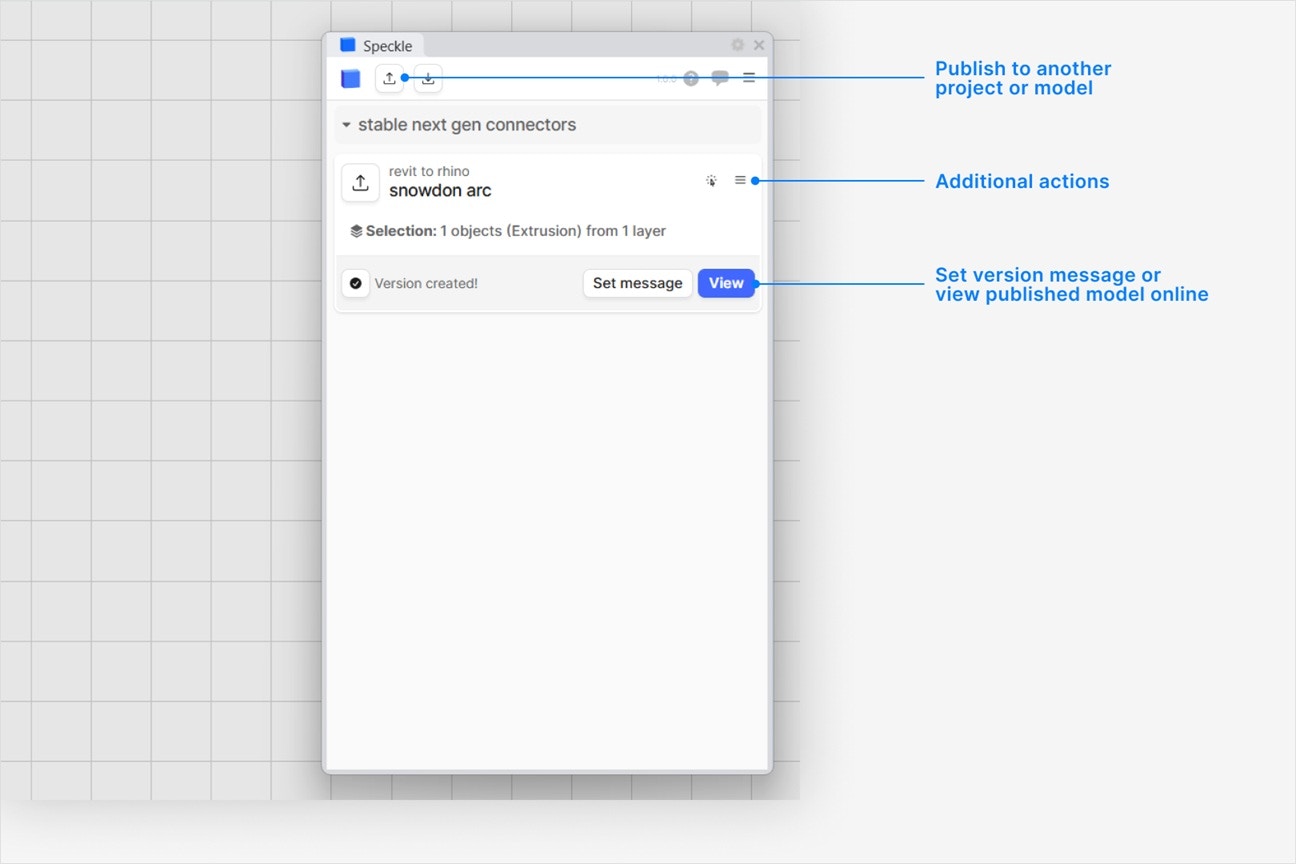 3. Your model is now published to Speckle and is available to the rest of your team.
The Revit connector preserves Shared Coordinates and reference points (Internal Origin by default) when you publish and load. For coordination workflows that rely on aligned models, use the Revit connector rather than ACC sync or direct upload.
All visible elements in the Model category (such as walls, floors, beams, and columns) can be published. In the Annotation category, only visible gridlines can be published. Each element contains the following information:
* category, family, and type
* level
* location curve (if any)
* Mesh (solid elements), Curve (model curves), or Pointcloud geometry
* custom properties
* render material
1. Click the blue **filter** field at the top of **Select objects** dialog while publishing a new version.
3. Your model is now published to Speckle and is available to the rest of your team.
The Revit connector preserves Shared Coordinates and reference points (Internal Origin by default) when you publish and load. For coordination workflows that rely on aligned models, use the Revit connector rather than ACC sync or direct upload.
All visible elements in the Model category (such as walls, floors, beams, and columns) can be published. In the Annotation category, only visible gridlines can be published. Each element contains the following information:
* category, family, and type
* level
* location curve (if any)
* Mesh (solid elements), Curve (model curves), or Pointcloud geometry
* custom properties
* render material
1. Click the blue **filter** field at the top of **Select objects** dialog while publishing a new version.
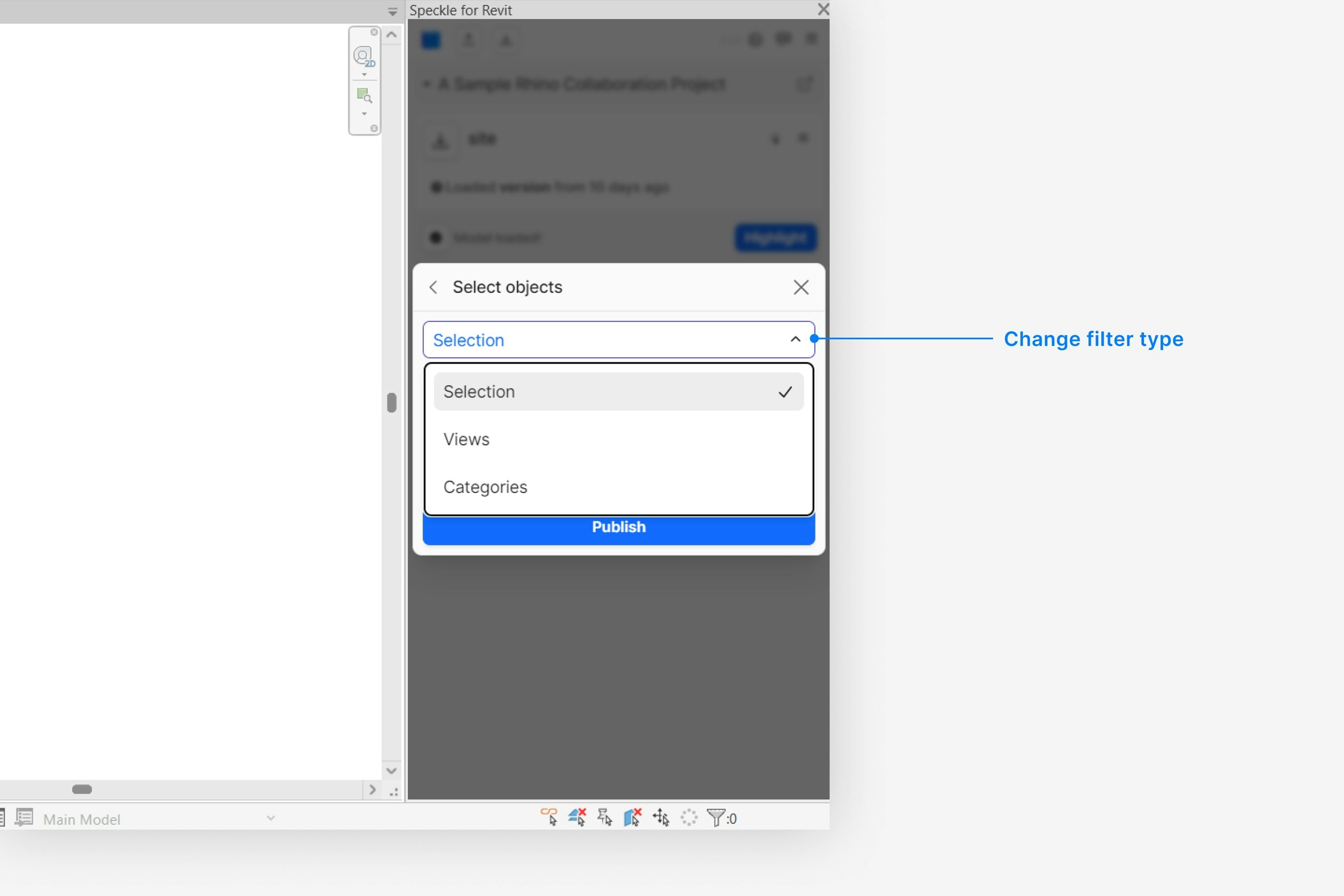 2. Select **Views**, and then select the view you would like to publish from.
1. Click the blue **filter** field at the top of **Select objects** dialog while publishing a new version.
2. Select **Categories**, and then click on any number of categories you would like to add to the filter.
Linked models are supported by default when publishing. If they are not included in your published version:
1. Expand the **Settings** field at the bottom of the **Select objects** dialog while publishing a new version.
2. Select **Views**, and then select the view you would like to publish from.
1. Click the blue **filter** field at the top of **Select objects** dialog while publishing a new version.
2. Select **Categories**, and then click on any number of categories you would like to add to the filter.
Linked models are supported by default when publishing. If they are not included in your published version:
1. Expand the **Settings** field at the bottom of the **Select objects** dialog while publishing a new version.
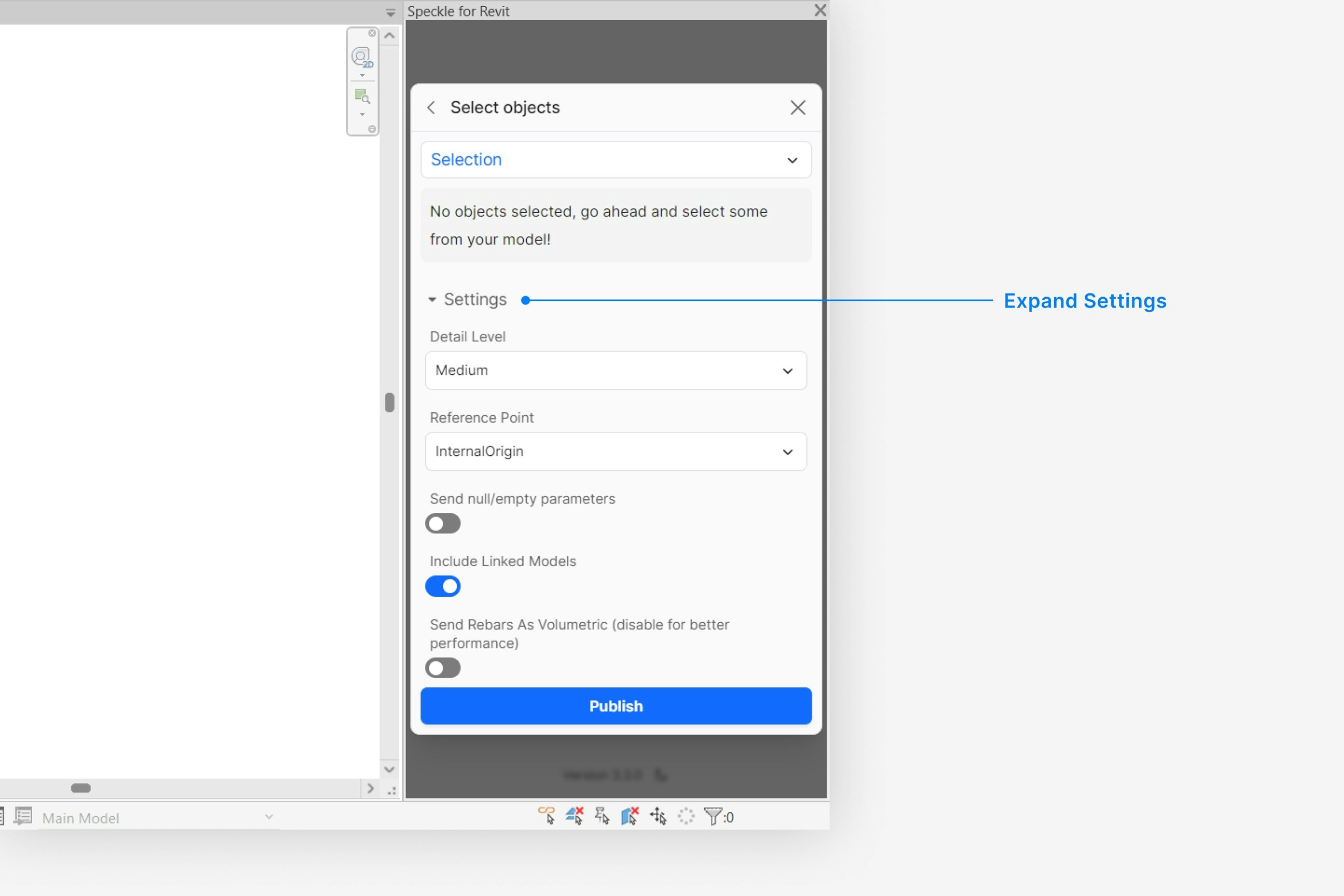 2. Check that the **Include linked models** toggle is turned on.
If you are using reference points to coordinate your project, you can publish your Revit model according to a specific reference point:
1. Expand the **Settings** field at the bottom of the **Select objects** dialog while publishing a new version.
2. Set the **Reference Point** setting to your desired reference point.
Your published model will now be oriented according to your specified reference point.
All custom properties can be found under the `properties` field when you select and view a Revit object in your browser.
Custom properties vary depending on the type of Revit element, and can include:
* element id, built-in category, and workset properties
* material quantities
* parameters
* structural material properties (such as density and compressive strength)
1. Expand the **Settings** field at the bottom of the **Select objects** dialog while publishing a new version.
2. Toggle the **Send Rebars As Volumetric** setting to true.
Caution: publishing all rebars as their volumetric representations can significantly slow down publishing speed.
Yes. When you publish a model, all your **3D perspective views** are automatically included, no extra steps needed.
**Note:** Only 3D perspective views are published. Plan/section/elevation views and orthographic 3D views are not included.
In the viewer, select the **View Modes** button in the side bar, and switch the view mode to **Shaded**. If you still don't see your object colors, let us know in our [Community Forum](https://speckle.community/c/help)
After you publish a Speckle model, click on the **Report** button to see any errors that may have occurred.
Click on any item in the report to highlight that item in your application. Some objects may not be supported for publishing.
## Loading a Model
2. Check that the **Include linked models** toggle is turned on.
If you are using reference points to coordinate your project, you can publish your Revit model according to a specific reference point:
1. Expand the **Settings** field at the bottom of the **Select objects** dialog while publishing a new version.
2. Set the **Reference Point** setting to your desired reference point.
Your published model will now be oriented according to your specified reference point.
All custom properties can be found under the `properties` field when you select and view a Revit object in your browser.
Custom properties vary depending on the type of Revit element, and can include:
* element id, built-in category, and workset properties
* material quantities
* parameters
* structural material properties (such as density and compressive strength)
1. Expand the **Settings** field at the bottom of the **Select objects** dialog while publishing a new version.
2. Toggle the **Send Rebars As Volumetric** setting to true.
Caution: publishing all rebars as their volumetric representations can significantly slow down publishing speed.
Yes. When you publish a model, all your **3D perspective views** are automatically included, no extra steps needed.
**Note:** Only 3D perspective views are published. Plan/section/elevation views and orthographic 3D views are not included.
In the viewer, select the **View Modes** button in the side bar, and switch the view mode to **Shaded**. If you still don't see your object colors, let us know in our [Community Forum](https://speckle.community/c/help)
After you publish a Speckle model, click on the **Report** button to see any errors that may have occurred.
Click on any item in the report to highlight that item in your application. Some objects may not be supported for publishing.
## Loading a Model
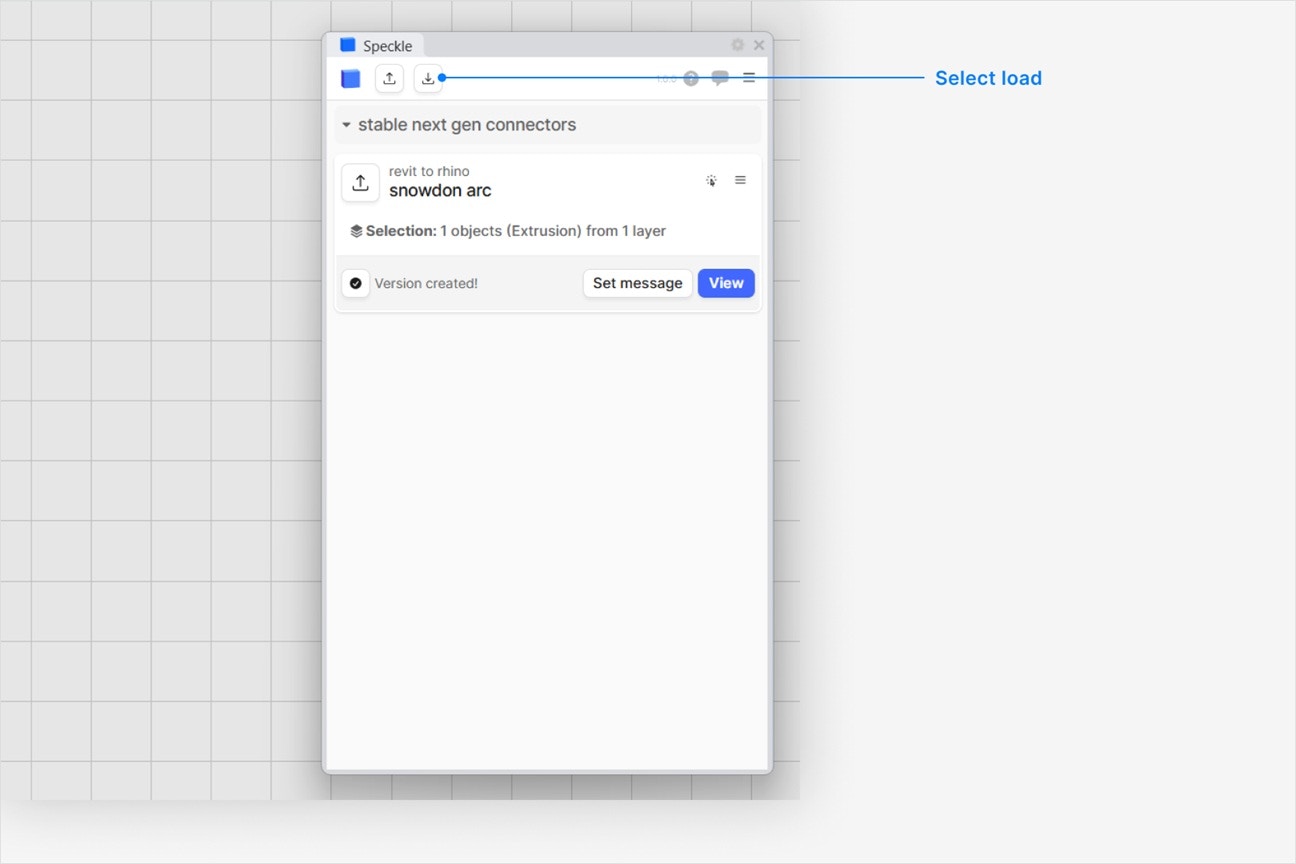
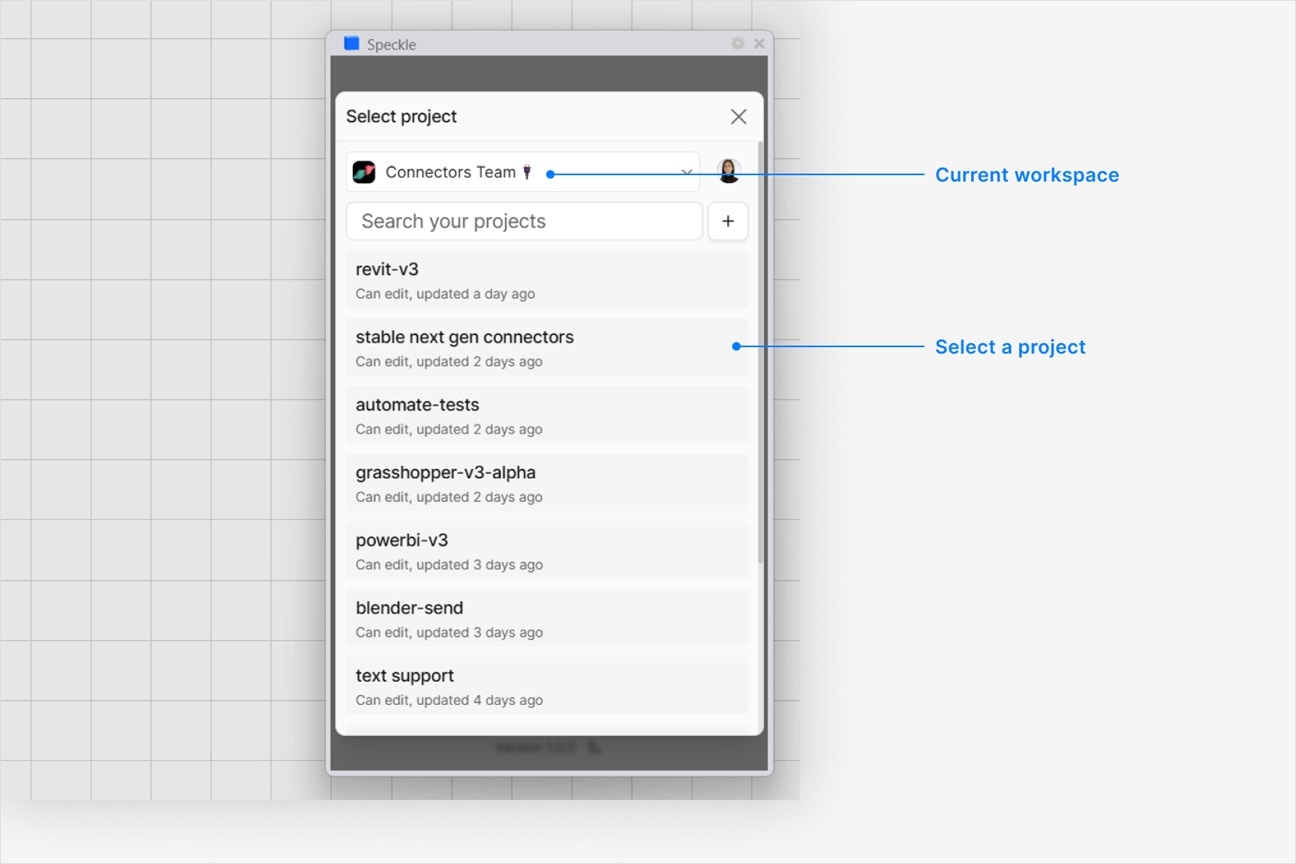
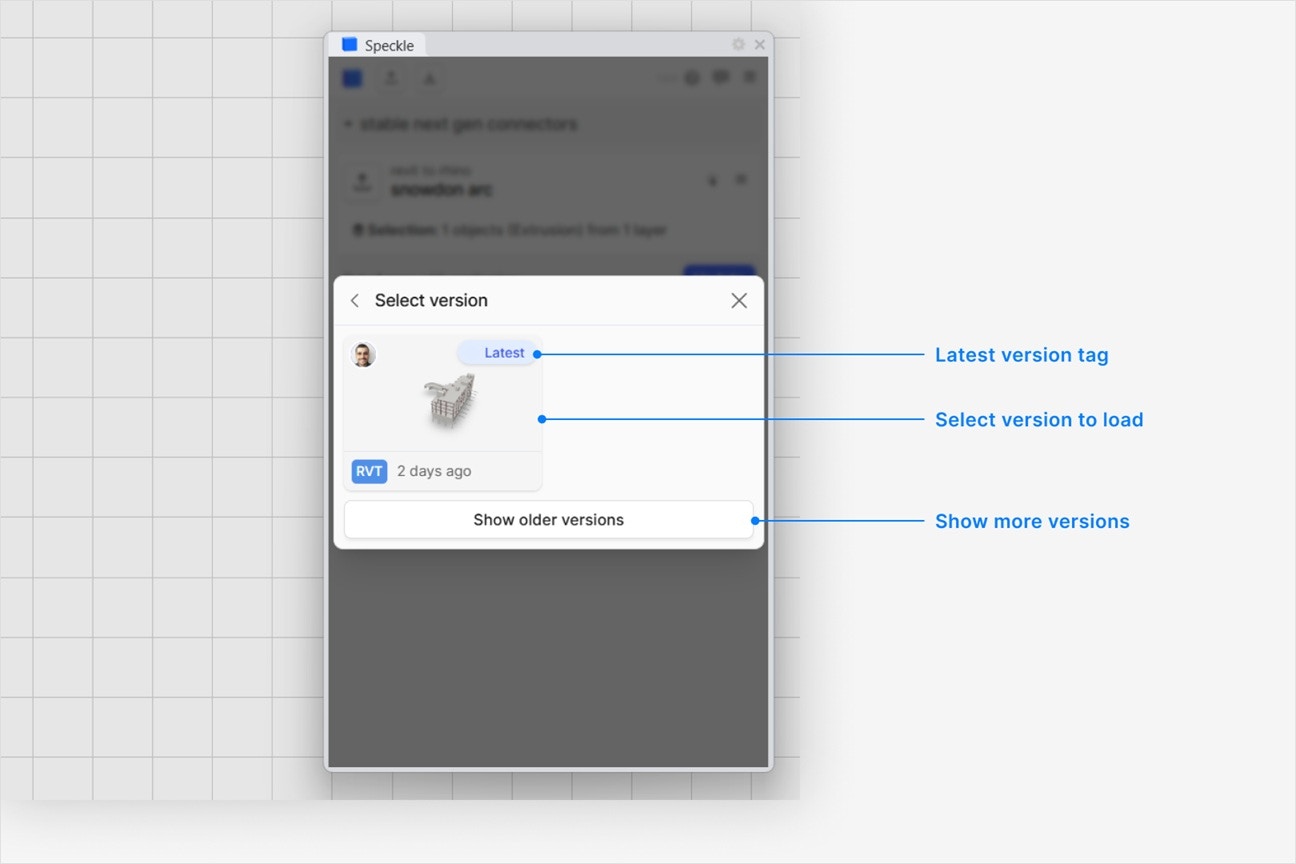
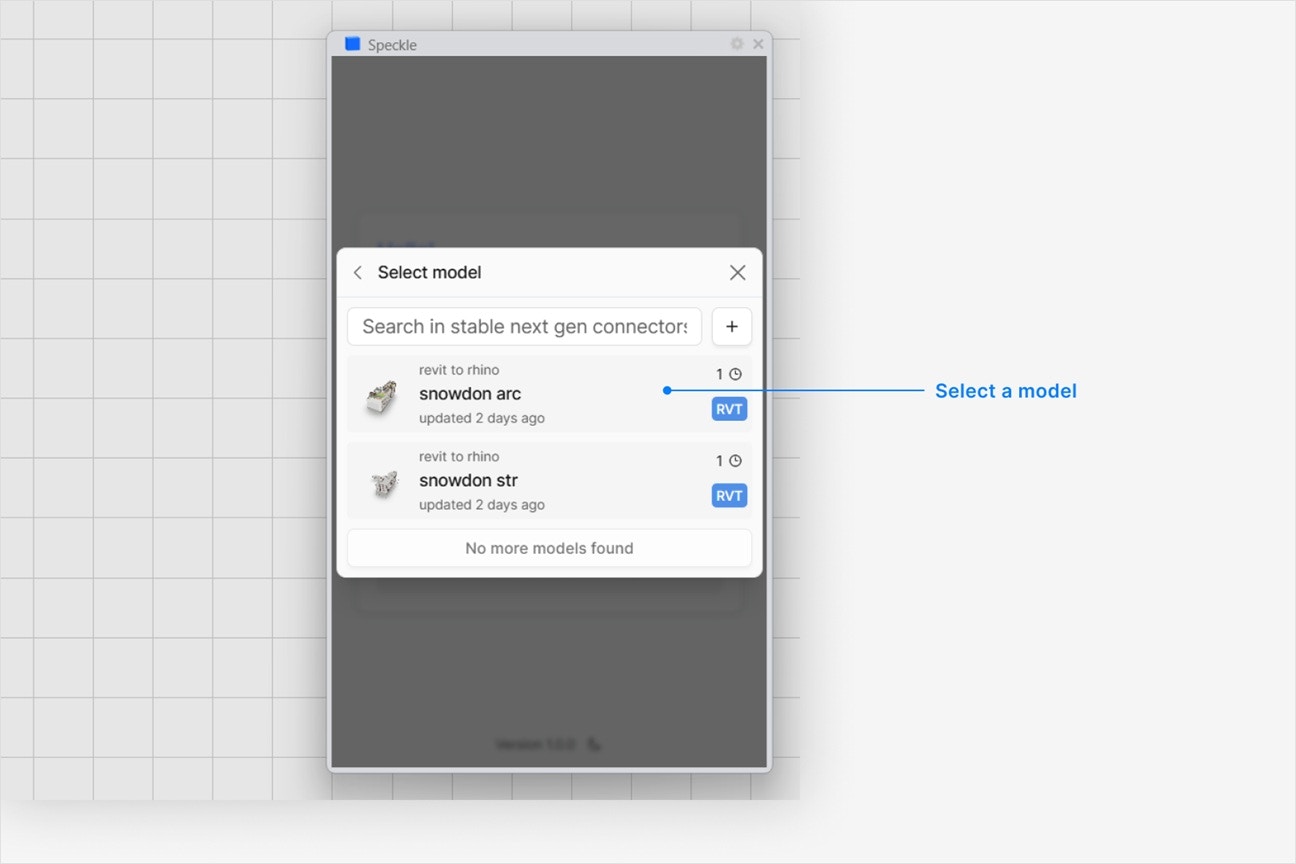 * Latest version is always first.
* To load a specific version, select it from the UI.
* Latest version is always first.
* To load a specific version, select it from the UI.
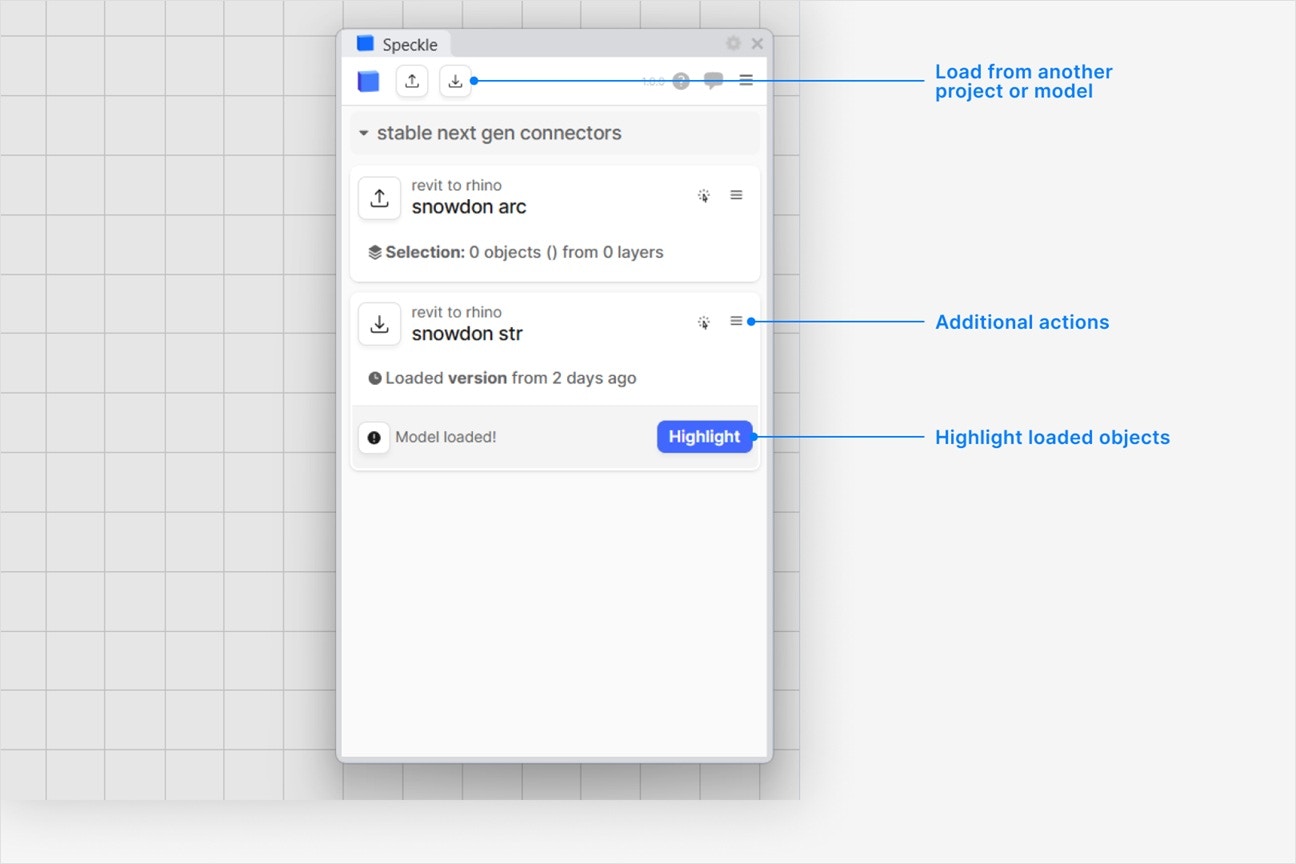 Your selected model is now loaded in {app_3}.
All objects in Speckle models are loaded as Direct Shapes (generic models) with a default category in Revit. Each object will be loaded with:
* render material (if any)
* `Mesh`, `Curve`, or `Solid` (only from Rhino and Grasshopper) geometry.
If your model contains block instances, each instance is loaded as its own generic model by default. You can instead load them as Revit families by enabling the **Receive Blocks as Families** setting. See [Blocks as Families](/connectors/revit/blocks-to-families) for details.
Currently, you can not load any custom properties on your Speckle model objects into Revit.
If you are using reference points to coordinate your project, you can load your Revit model according to a specific reference point:
1. Expand the **Settings** field at the bottom of the **Select objects** dialog while publishing a new version.
Your selected model is now loaded in {app_3}.
All objects in Speckle models are loaded as Direct Shapes (generic models) with a default category in Revit. Each object will be loaded with:
* render material (if any)
* `Mesh`, `Curve`, or `Solid` (only from Rhino and Grasshopper) geometry.
If your model contains block instances, each instance is loaded as its own generic model by default. You can instead load them as Revit families by enabling the **Receive Blocks as Families** setting. See [Blocks as Families](/connectors/revit/blocks-to-families) for details.
Currently, you can not load any custom properties on your Speckle model objects into Revit.
If you are using reference points to coordinate your project, you can load your Revit model according to a specific reference point:
1. Expand the **Settings** field at the bottom of the **Select objects** dialog while publishing a new version.
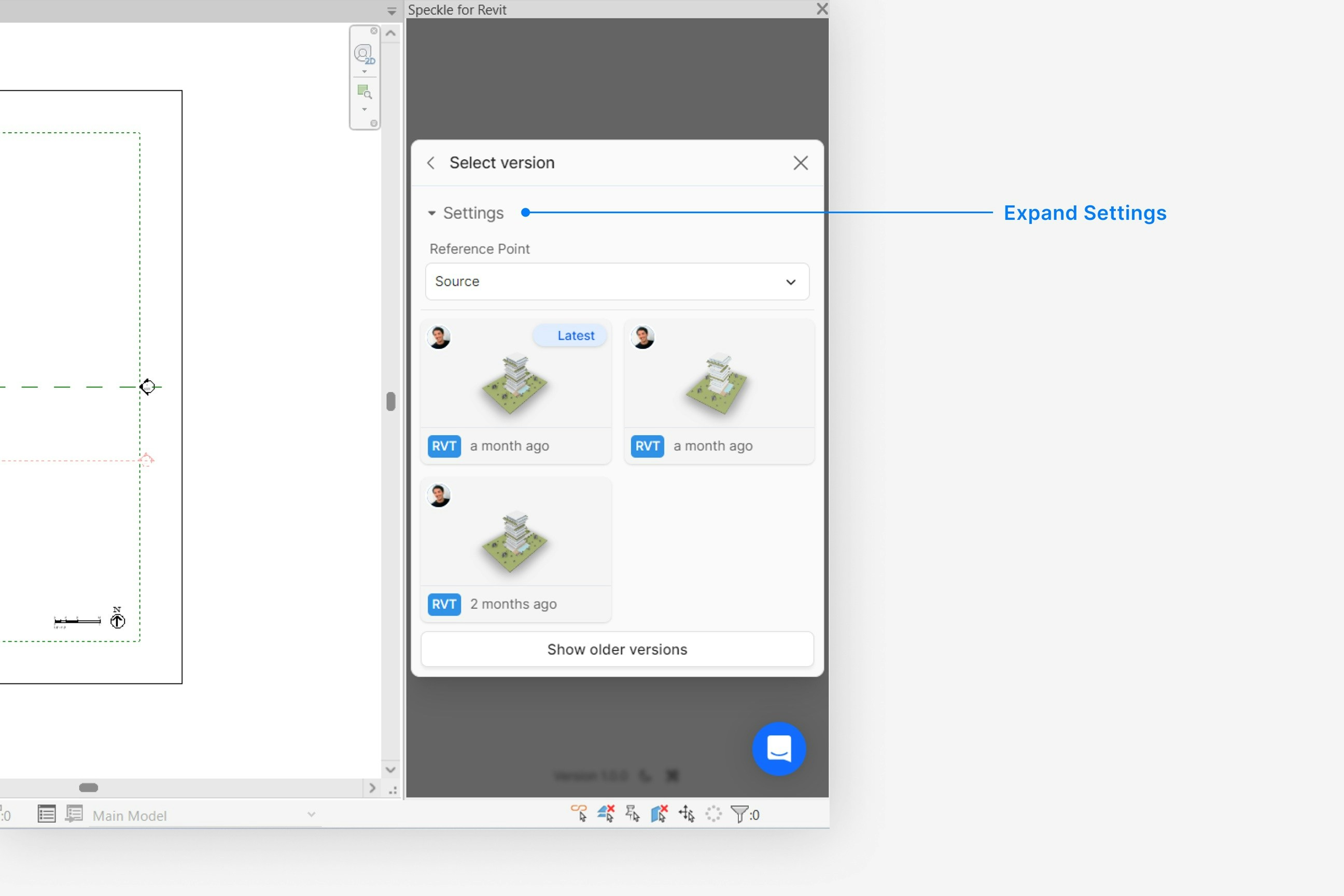 2. Set the **Reference Point** setting to **source** if you want to load your model according to the incoming model coordinate system.
3. Set the **Reference Point** setting to **InternalOrigin** if you want to load your model according to your current document's internal origin.
4. Set the **Reference Point** setting to **ProjectBase** if you want to load your model according to your current document's project base point.
5. Set the **Reference Point** setting to **Survey** if you want to load your model according to your current document's survey point.
It depends on how the model was loaded:
* **Loaded as direct shapes from Rhino or Grasshopper:** the object contains solid geometry, so you can edit the material directly on the direct shape.
* **Loaded as families using Receive Blocks as Families:** a material type parameter is created on each family, so you can change the material from the project without editing the family definition.
* **All other cases:** changing the applied material is not currently supported.
Existing material will be used instead of creating a new one.
Currently, you can not change the category of a loaded object.
Yes. When you load a model that contains views, they are automatically
created as **3D views** in Revit — no extra steps needed.
**Notes:**
* If a 3D view with the same name already exists in Revit, it will be skipped
and not overwritten.
* Views published from other connectors (e.g., Rhino named views) are also
received as 3D views in Revit.
After you load a Speckle model, click on the **Report** button to see any errors that may have occurred.
Click on any item in the report to highlight that item in your application. Some objects may not be supported for loading in {app_4}.
This happens when you don't have permissions to load a project. Contact the project owner to change your role.
Yes. Next to the search box in the project selection dialog, there's an **Add model by URL** option. Paste the model URL there.
2. Set the **Reference Point** setting to **source** if you want to load your model according to the incoming model coordinate system.
3. Set the **Reference Point** setting to **InternalOrigin** if you want to load your model according to your current document's internal origin.
4. Set the **Reference Point** setting to **ProjectBase** if you want to load your model according to your current document's project base point.
5. Set the **Reference Point** setting to **Survey** if you want to load your model according to your current document's survey point.
It depends on how the model was loaded:
* **Loaded as direct shapes from Rhino or Grasshopper:** the object contains solid geometry, so you can edit the material directly on the direct shape.
* **Loaded as families using Receive Blocks as Families:** a material type parameter is created on each family, so you can change the material from the project without editing the family definition.
* **All other cases:** changing the applied material is not currently supported.
Existing material will be used instead of creating a new one.
Currently, you can not change the category of a loaded object.
Yes. When you load a model that contains views, they are automatically
created as **3D views** in Revit — no extra steps needed.
**Notes:**
* If a 3D view with the same name already exists in Revit, it will be skipped
and not overwritten.
* Views published from other connectors (e.g., Rhino named views) are also
received as 3D views in Revit.
After you load a Speckle model, click on the **Report** button to see any errors that may have occurred.
Click on any item in the report to highlight that item in your application. Some objects may not be supported for loading in {app_4}.
This happens when you don't have permissions to load a project. Contact the project owner to change your role.
Yes. Next to the search box in the project selection dialog, there's an **Add model by URL** option. Paste the model URL there.