> ## Documentation Index
> Fetch the complete documentation index at: https://docs.speckle.systems/llms.txt
> Use this file to discover all available pages before exploring further.
# How to use Speckle for Vectorworks
> Publish and load Vectorworks models to boost design coordination and business intelligence workflows.
This connector is developed and maintained by Vectorworks Inc., not Speckle. For support, bug
reports, or feature requests, contact [Vectorworks support](https://www.vectorworks.net/support)
directly.
Compatible with Vectorworks 2026 Update 3 for Architect, Landmark, and Design Suite on macOS and
Windows.
## What This Connector Provides
* Publish your Vectorworks model to the Speckle web viewer to accelerate BIM collaboration workflows.
* Maintain element properties and hierarchy for coordination and analysis.
* Enable coordination with other BIM software using the Speckle open-standard data hub and connector ecosystem.
* Load model geometry from Speckle into Vectorworks as a reference while you design.
## Installation
In Vectorworks, go to **Help** > **Install Partner Products**. Select the Speckle Connector and restart Vectorworks.
 Go to **Tools** > **Partner Products** > **Speckle** to open the Speckle Connector palette.
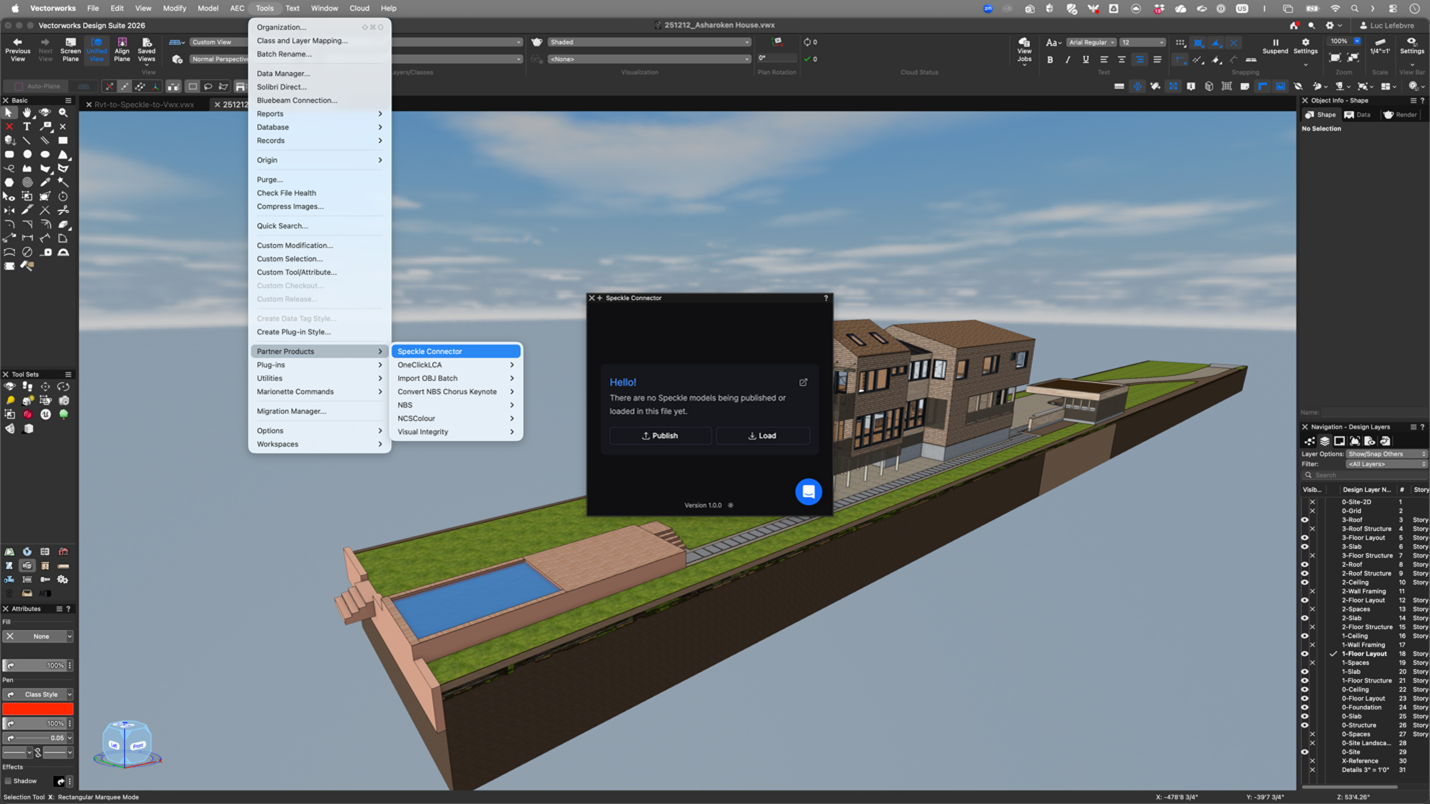 Follow the prompts in the Speckle Connector palette to sign in to your Speckle account and authorize the connector.
 ## Publishing a Model
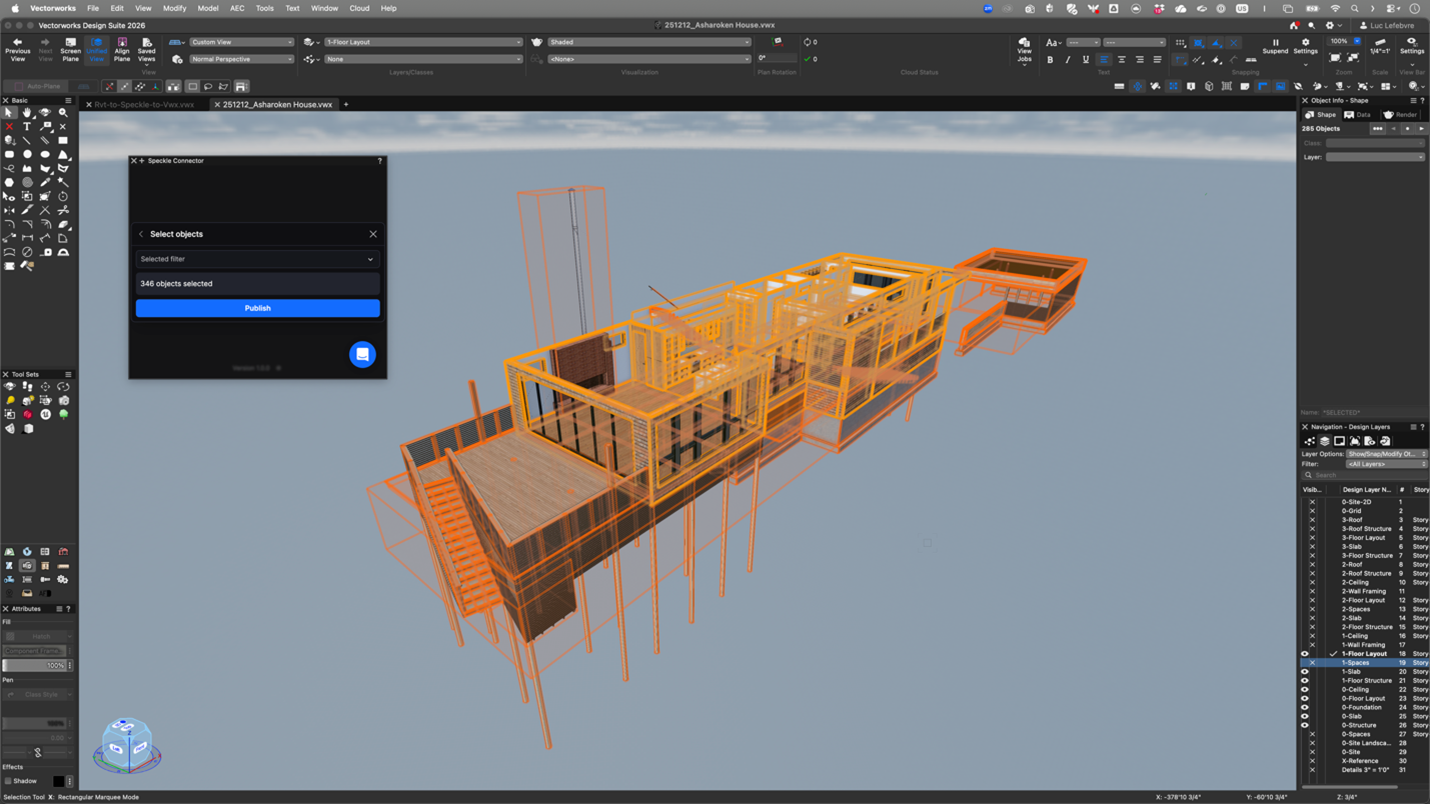
Select the elements you want to publish in your Vectorworks document.
In the Speckle Connector palette, click **Publish**.
If this is your first upload, you will be prompted to create a project. For existing projects,
select the project and specify a version number.
Geometry, object data, and metadata from your selected objects are sent to Speckle.
The Vectorworks connector only supports publishing selected objects. Category or view-based
filtering is not available.
## Loading a Model
In the Speckle Connector palette, click **Load**.
Choose a Speckle project and the 3D model you want to load.
The loaded geometry appears in your Vectorworks document. Use it as a reference while you
design.
## View Your Model on Speckle
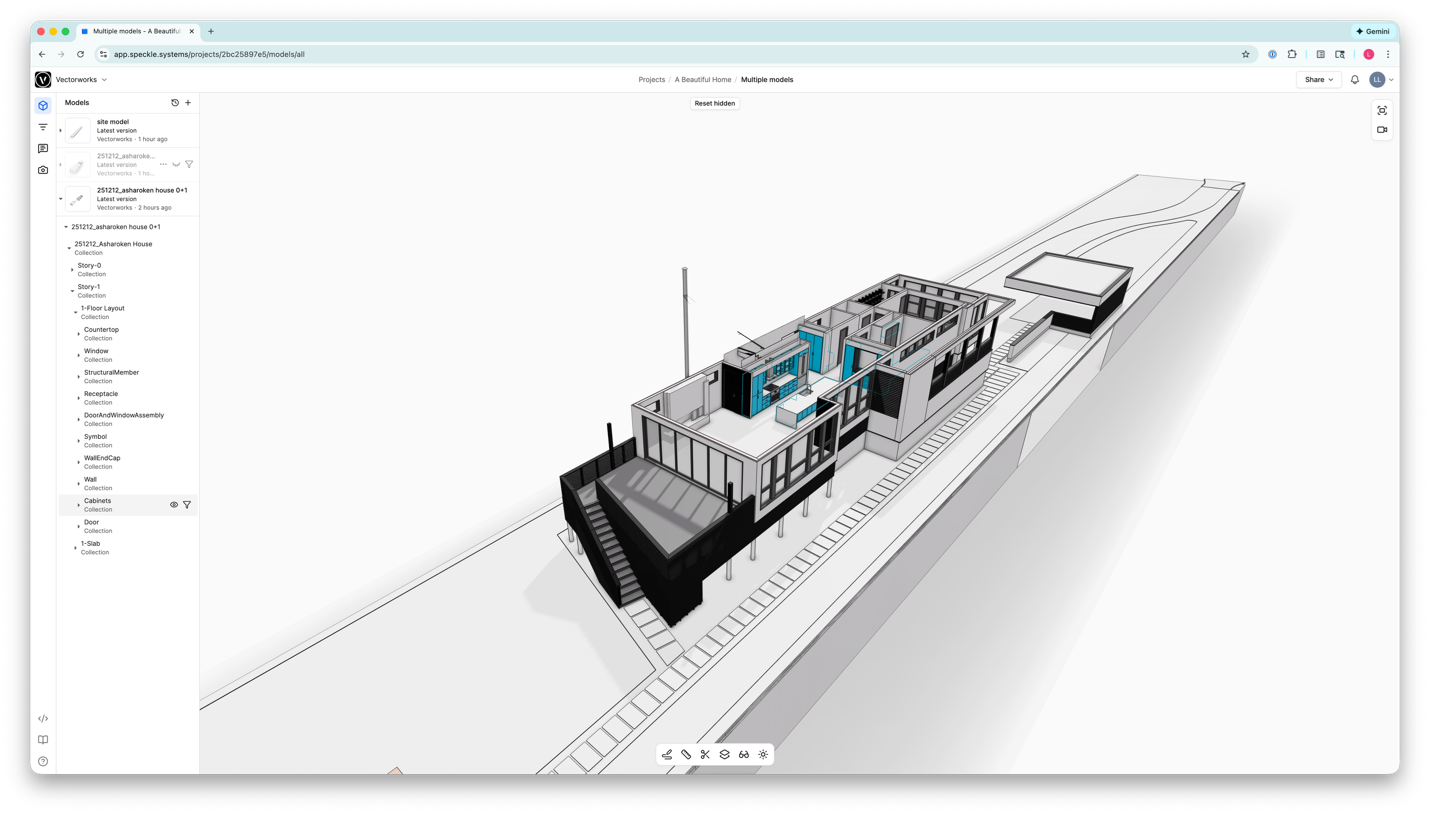
To manage, view, collaborate, and coordinate your project using Speckle, go to the Speckle web viewer.
## Publishing a Model
Select the elements you want to publish in your Vectorworks document.
In the Speckle Connector palette, click **Publish**.
If this is your first upload, you will be prompted to create a project. For existing projects,
select the project and specify a version number.
Geometry, object data, and metadata from your selected objects are sent to Speckle.
The Vectorworks connector only supports publishing selected objects. Category or view-based
filtering is not available.
## Loading a Model
In the Speckle Connector palette, click **Load**.
Choose a Speckle project and the 3D model you want to load.
The loaded geometry appears in your Vectorworks document. Use it as a reference while you
design.
## View Your Model on Speckle
To manage, view, collaborate, and coordinate your project using Speckle, go to the Speckle web viewer.
 ## Support
Speckle does not provide support for this integration. For issues, questions, or feature requests,
contact the developer directly.
## Using Third-Party Connectors
Third-party connectors typically use the same Desktop UI (DUI) interface as Speckle's official connectors. This means the publish and load workflows are similar across applications.
For general discussions about how this integrates with the Speckle ecosystem, visit the [Speckle community forum](https://speckle.community/).
* **Vectorworks support**: [vectorworks.net/support](https://www.vectorworks.net/support)
* **Vectorworks community**: [forum.vectorworks.net](https://forum.vectorworks.net/)
## Support
Speckle does not provide support for this integration. For issues, questions, or feature requests,
contact the developer directly.
## Using Third-Party Connectors
Third-party connectors typically use the same Desktop UI (DUI) interface as Speckle's official connectors. This means the publish and load workflows are similar across applications.
For general discussions about how this integrates with the Speckle ecosystem, visit the [Speckle community forum](https://speckle.community/).
* **Vectorworks support**: [vectorworks.net/support](https://www.vectorworks.net/support)
* **Vectorworks community**: [forum.vectorworks.net](https://forum.vectorworks.net/)