> ## Documentation Index
> Fetch the complete documentation index at: https://docs.speckle.systems/llms.txt
> Use this file to discover all available pages before exploring further.
# Creating Automations
> Guide to creating automations that apply functions to Speckle models. Learn how to select functions, configure parameters and inputs, choose trigger models, and set up automated workflows that run whenever your models are updated.
## What is an Automation?
* Automations allow you to perform a wide variety of tasks efficiently.
* Automations apply a function to a Speckle model.
* Automations enable you to configure a function to meet your specific requirements.
For example, a function might render a photograph-quality image of a model. Automation allows you to specify parameters such as the camera position, lighting, and other settings to customise the output for your particular Speckle model.
## Creating an Automation
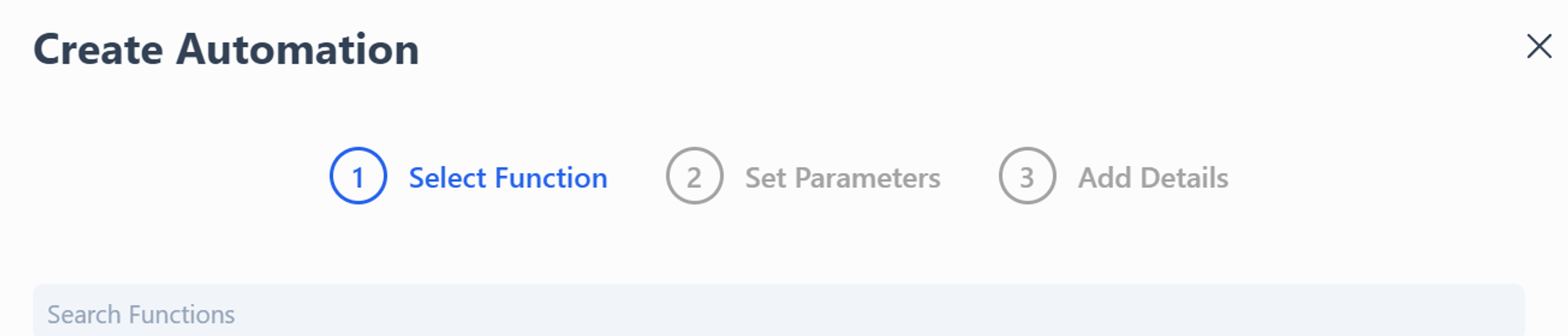
Automations are created from the **Automations** tab within a project.
 💡 **Function Availability**
The library view includes both public functions \[Coming Soon] and any private functions created for the Workspace if the project is a Workspace project created for your team. This ensures all team-specific and public resources are accessible during automation setup.
Choose a function from the list in the Automations tab and click **Next**.
💡 **Function Availability**
The library view includes both public functions \[Coming Soon] and any private functions created for the Workspace if the project is a Workspace project created for your team. This ensures all team-specific and public resources are accessible during automation setup.
Choose a function from the list in the Automations tab and click **Next**.
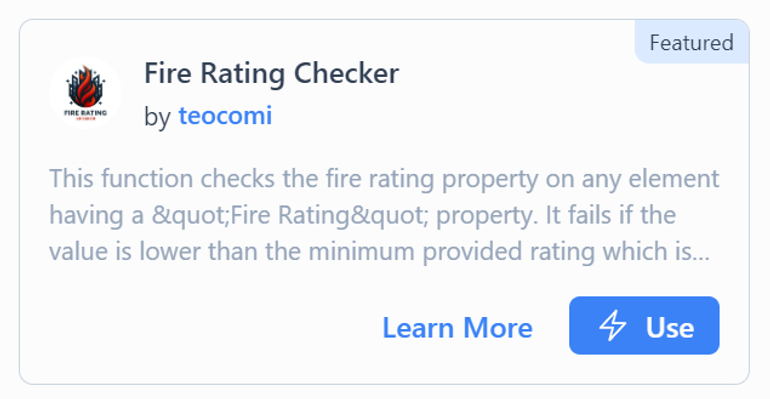 If the function has defined inputs, configure them now.
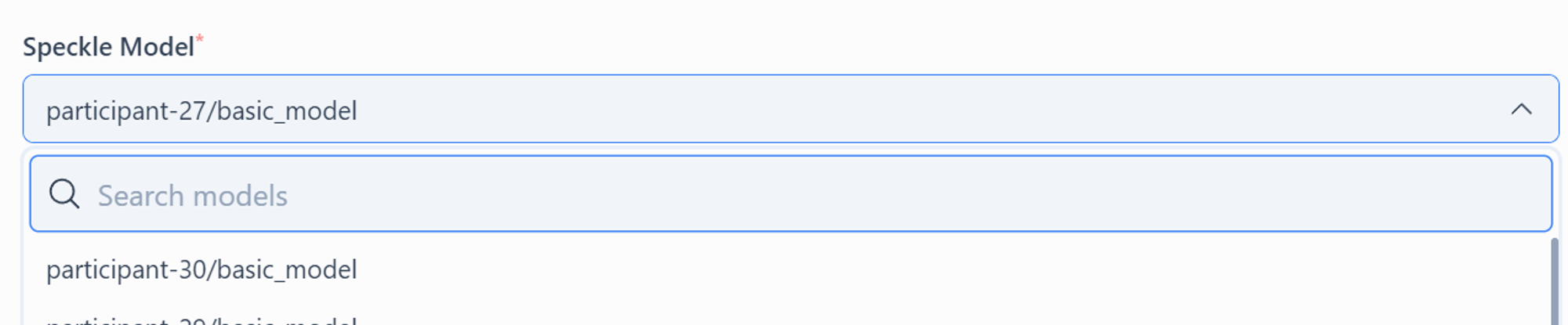
 **Choose a Speckle Model**: Select a model from the current project that will trigger your automation.
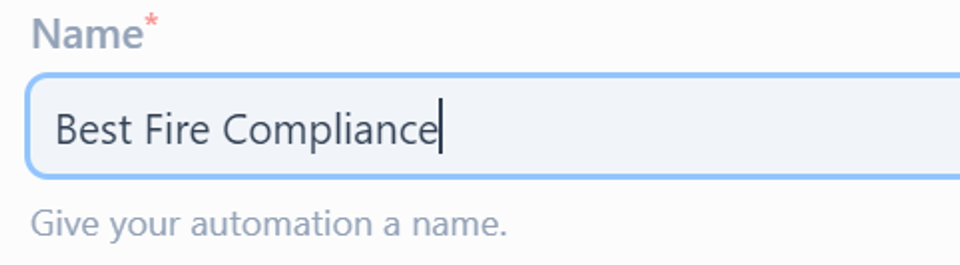
 **Name Your Automation**: Provide a meaningful name for reference (uniqueness is not required).
 Click **Create** to finalise the setup.
 Your automation is now ready to view and manage.