> ## Documentation Index
> Fetch the complete documentation index at: https://docs.speckle.systems/llms.txt
> Use this file to discover all available pages before exploring further.
# Viewing Automation Results
> Learn how to view and interpret automation results in Speckle Automate. Discover how to access results from the model scene view and project dashboard, understand status messages, view artifacts, and interact with result reports.
There are two entry points to view Automate results:
## From the Model Scene View
A results "doughnut" icon will appear if automation registered against that model is running or has been completed. Clicking on this icon reveals all the automations that have reported results for the currently viewed version.
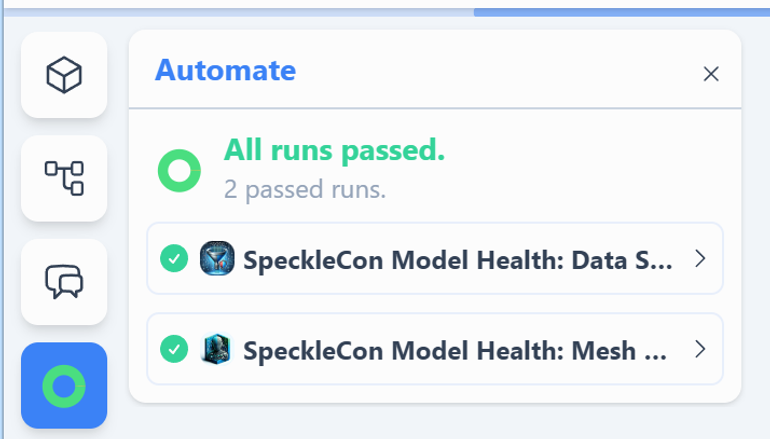 Clicking on any of the run cards expands to show details:
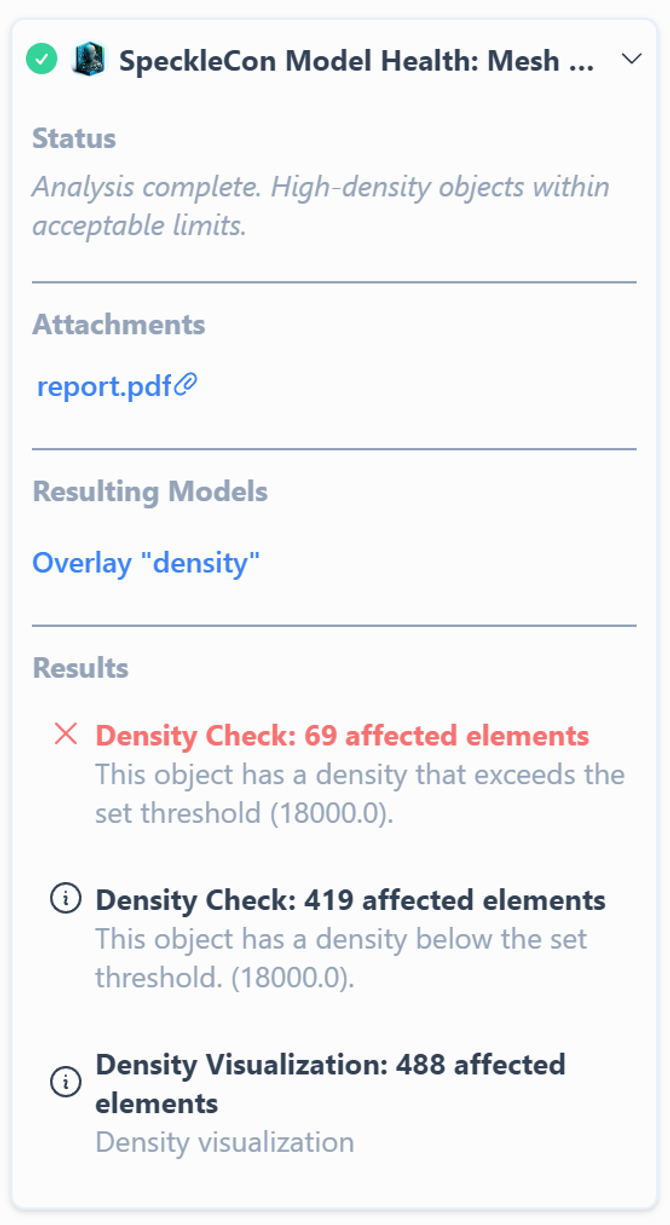 * **Status**: Displays the message included with a Fail or Success result.
* **Attachments**: Lists any artefacts uploaded by the function.
* **Resulting Models**: Provides the option to add any model version produced by the function.
* **Results**: Displays each result report, including:
* Status, category, object count, and message as reported by the function.
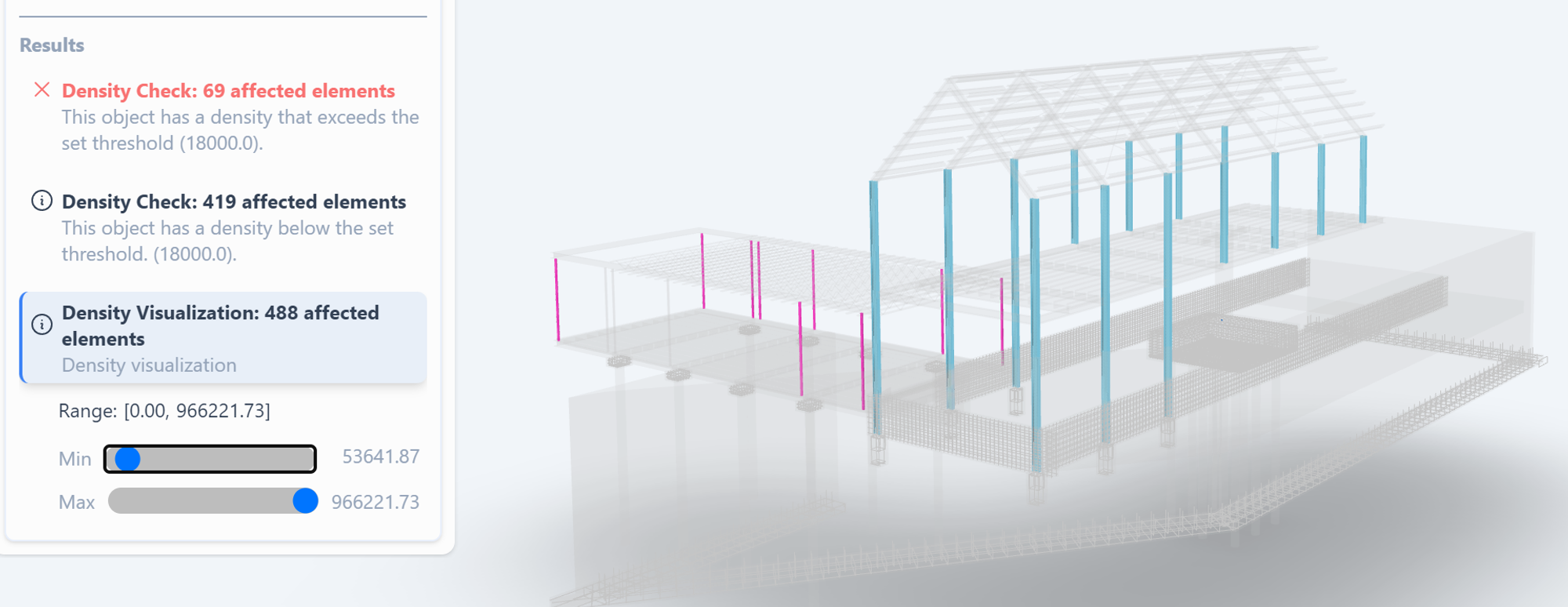
* Clicking on a results card isolates the objects reported by that card.
* A filter function may highlight specific outcomes if the result includes metadata.
* **Status**: Displays the message included with a Fail or Success result.
* **Attachments**: Lists any artefacts uploaded by the function.
* **Resulting Models**: Provides the option to add any model version produced by the function.
* **Results**: Displays each result report, including:
* Status, category, object count, and message as reported by the function.
* Clicking on a results card isolates the objects reported by that card.
* A filter function may highlight specific outcomes if the result includes metadata.
 ## From the Project Dashboard
In the model list or card view, any model with completed automation runs will display the same doughnut icon.
## From the Project Dashboard
In the model list or card view, any model with completed automation runs will display the same doughnut icon.
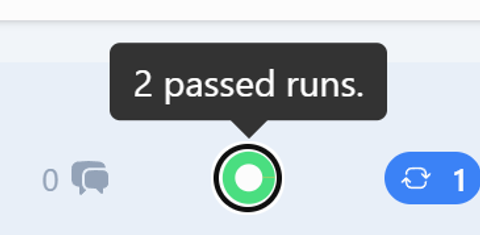 Clicking the doughnut icon in the model list provides a summary similar to the model scene view, with additional options:
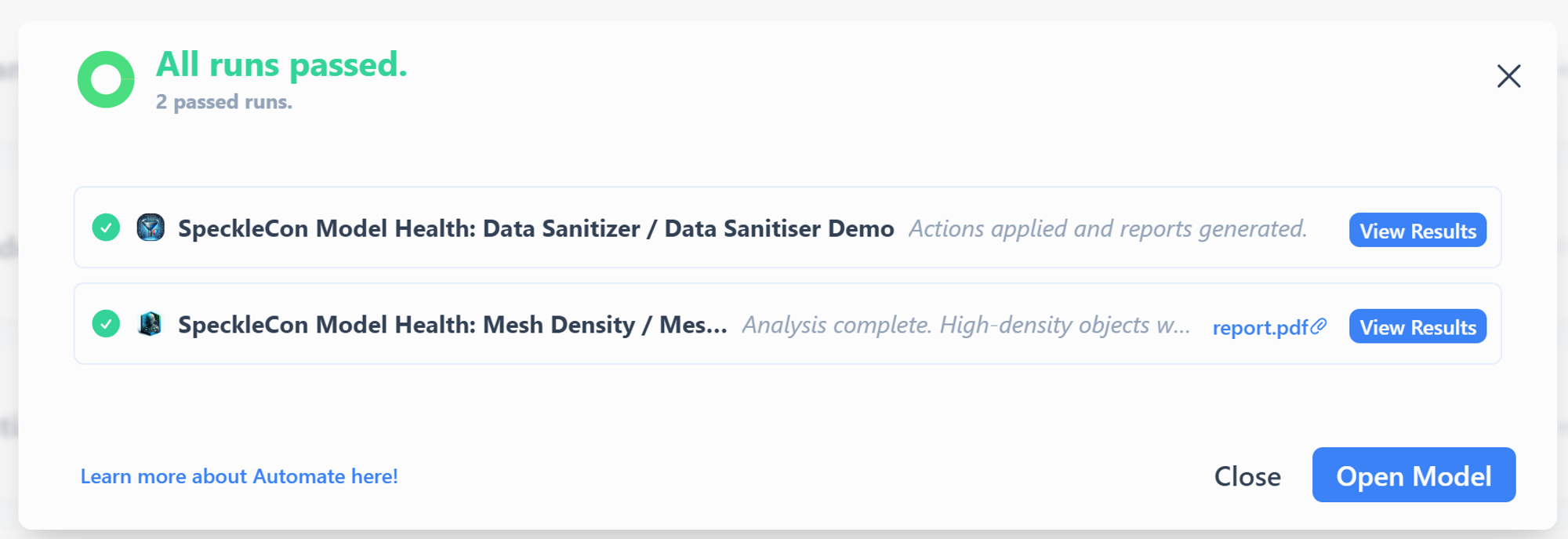 * **View Results**: Links to the relevant version and uses the results context view to include other models or objects.
* **Open Model**: Opens the model at its latest version.
* **View Artefact**: Opens the artefact in a new browser tab (e.g., images) or prompts to download (e.g., files).
* **View Results**: Links to the relevant version and uses the results context view to include other models or objects.
* **Open Model**: Opens the model at its latest version.
* **View Artefact**: Opens the artefact in a new browser tab (e.g., images) or prompts to download (e.g., files).