> ## Documentation Index
> Fetch the complete documentation index at: https://docs.speckle.systems/llms.txt
> Use this file to discover all available pages before exploring further.
# Admin Support Mode
> Enable and manage temporary admin access to workspaces for support purposes
When a workspace issue requires support, your server admin may need to inspect or fix data. Admin support mode gives them controlled access while workspace admins stay in control. Server admins can read workspace data by default; write access requires an explicit support session approved by a workspace admin.
Admin support mode is available only on Speckle Enterprise Server and is visible only to server
administrators. For deployment and feature flag configuration, see the [Enterprise Licensed Server
guide](/developers/server/deployment/enterprise-license#optional-admin-support-mode).
## Read vs write access
When admin support mode is enabled, server admins have different levels of access depending on whether a support session is active:
| Access level | Support session required? | What server admins can do |
| ------------ | --------------------------------- | ------------------------------------------------------------------- |
| **Read** | No | View workspace projects, models, and versions to investigate issues |
| **Write** | Yes (approved by workspace admin) | Edit projects, modify data, and make changes within the workspace |
For self-hosted deployments: when resources (projects and everything under them) are not tied to a
workspace, server admins have full read and write access without a support session. If you
self-host without an Enterprise license, there are no workspaces — server admins have full access
in that case.
## How support sessions work
Support sessions follow a request-and-approve lifecycle:
1. **Pending** — Server admin requests access; workspace admins are notified by email
2. **Active** — Workspace admin approves; server admin gains write access
3. **Expired** — Session passes its expiration time and access is automatically removed
4. **Revoked** — Either party manually ends the session
Multiple concurrent sessions are possible. A server admin can have active sessions for different workspaces, and a workspace can have active sessions from multiple server admins.
## As a workspace admin
### Approve a support request
Open the email notification link, or go to **Workspace Settings > Support** for the relevant workspace. You see the sessions table with pending, active, and past sessions.
Find the pending request you want to review in the sessions table.
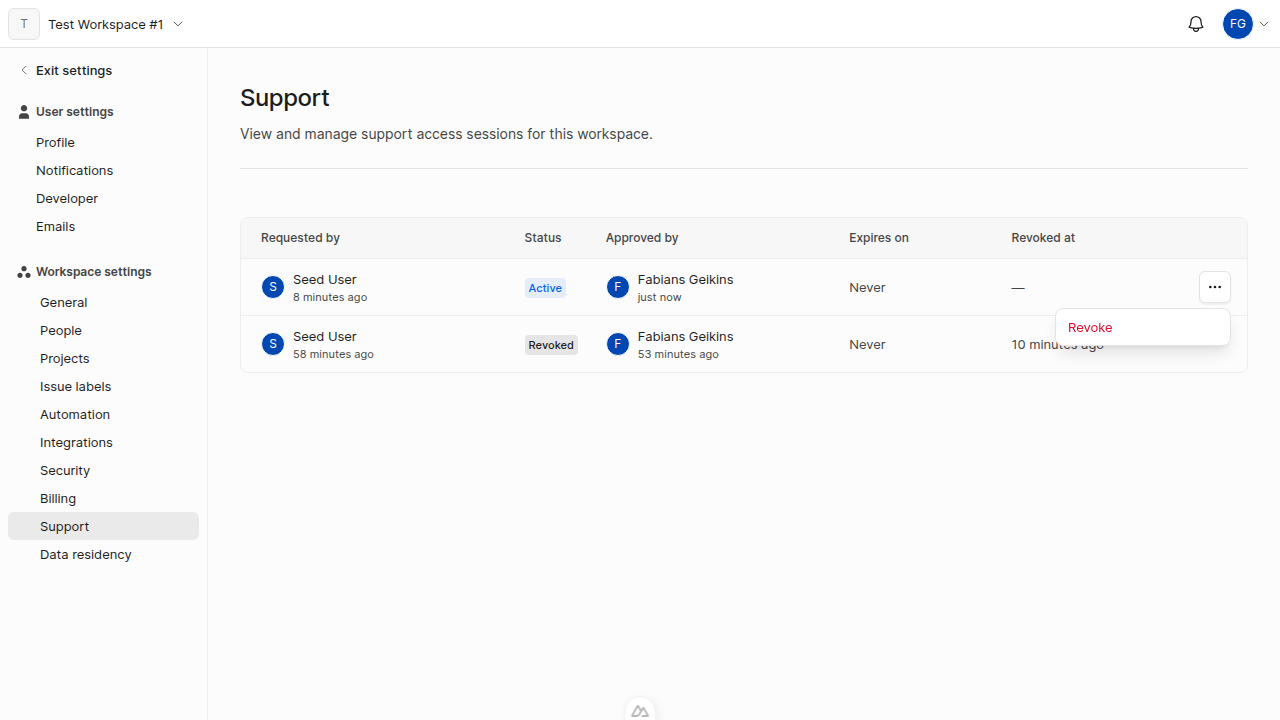
Click the actions menu (**...**) on the session row and select **Approve**. The session status changes to **Active** and the server admin receives an email confirmation and gains write access.
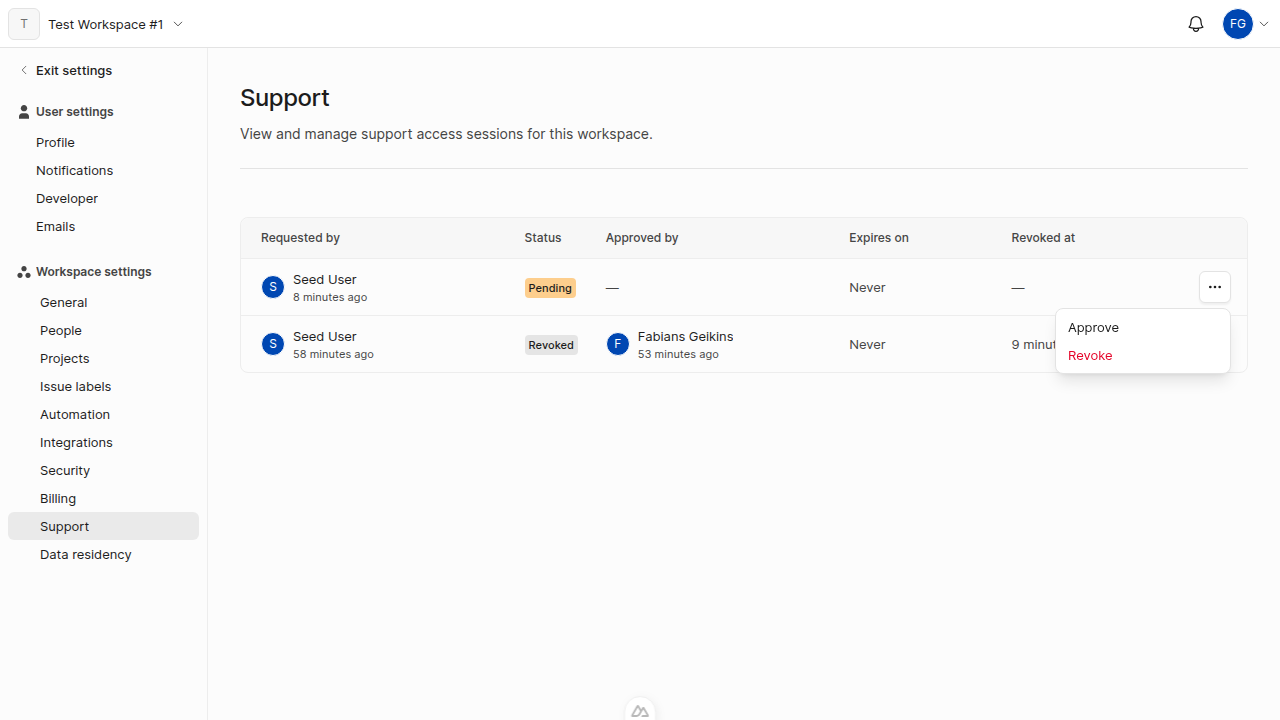 You should see the session status change to **Active** and the server admin receive an email confirmation.
 ### Revoke a session
Click the actions menu (**...**) on the session row in **Workspace Settings > Support** and select **Revoke**. Expired sessions appear with an **Expired** status in the sessions table.
## As a server admin
Admin support mode is available only on Speckle Enterprise Server and is visible only to server
administrators. For deployment and feature flag configuration, see the [Enterprise Licensed Server
guide](/developers/server/deployment/enterprise-license#optional-admin-support-mode).
### Request support access
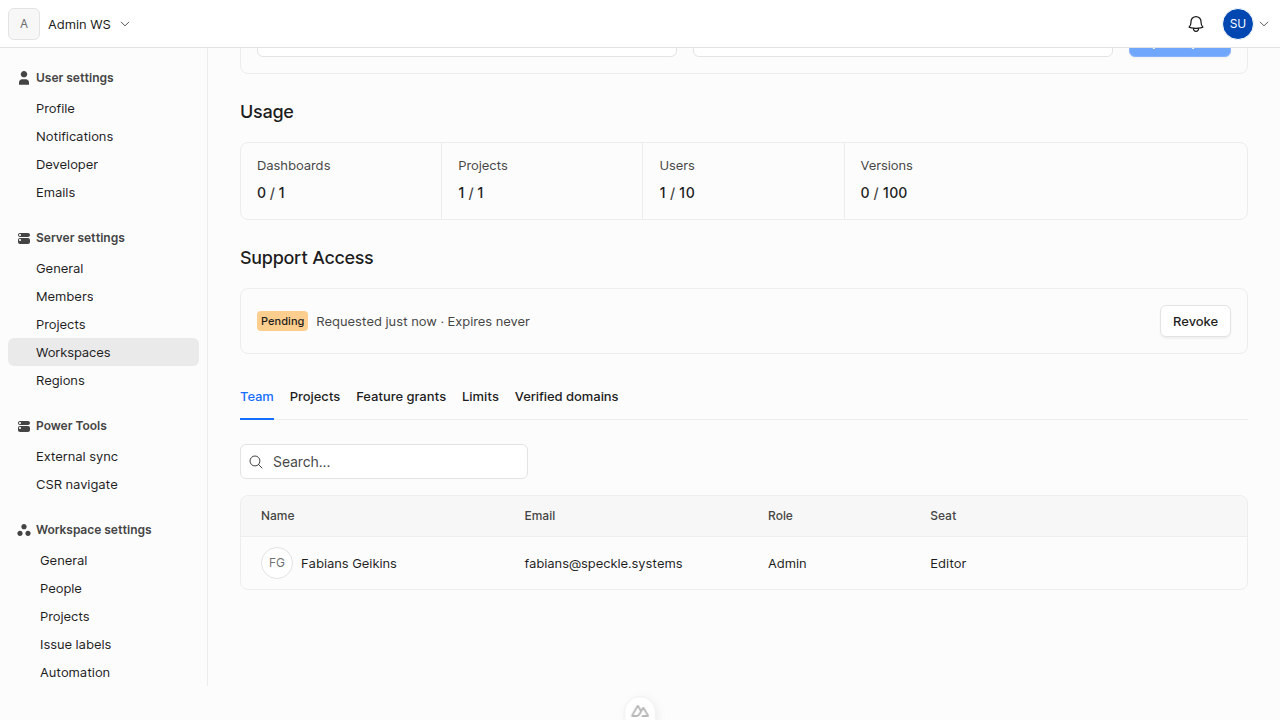
Go to **Server Settings > Workspaces** and select the workspace you need to access. You see the workspace details page with the Support Access section.
In the **Support Access** section, click **Request Support Access**. The Request Support Access dialog opens.
In the dialog, optionally set an expiration date and time. The minimum is 10 minutes from now. If left empty, the session will not expire and must be revoked manually.
Click **Request Access**. The request status shows **Pending** in the Support Access section and all workspace admins receive an email notification with a link to review the request.
### Revoke a session
Click the actions menu (**...**) on the session row in **Workspace Settings > Support** and select **Revoke**. Expired sessions appear with an **Expired** status in the sessions table.
## As a server admin
Admin support mode is available only on Speckle Enterprise Server and is visible only to server
administrators. For deployment and feature flag configuration, see the [Enterprise Licensed Server
guide](/developers/server/deployment/enterprise-license#optional-admin-support-mode).
### Request support access
Go to **Server Settings > Workspaces** and select the workspace you need to access. You see the workspace details page with the Support Access section.
In the **Support Access** section, click **Request Support Access**. The Request Support Access dialog opens.
In the dialog, optionally set an expiration date and time. The minimum is 10 minutes from now. If left empty, the session will not expire and must be revoked manually.
Click **Request Access**. The request status shows **Pending** in the Support Access section and all workspace admins receive an email notification with a link to review the request.
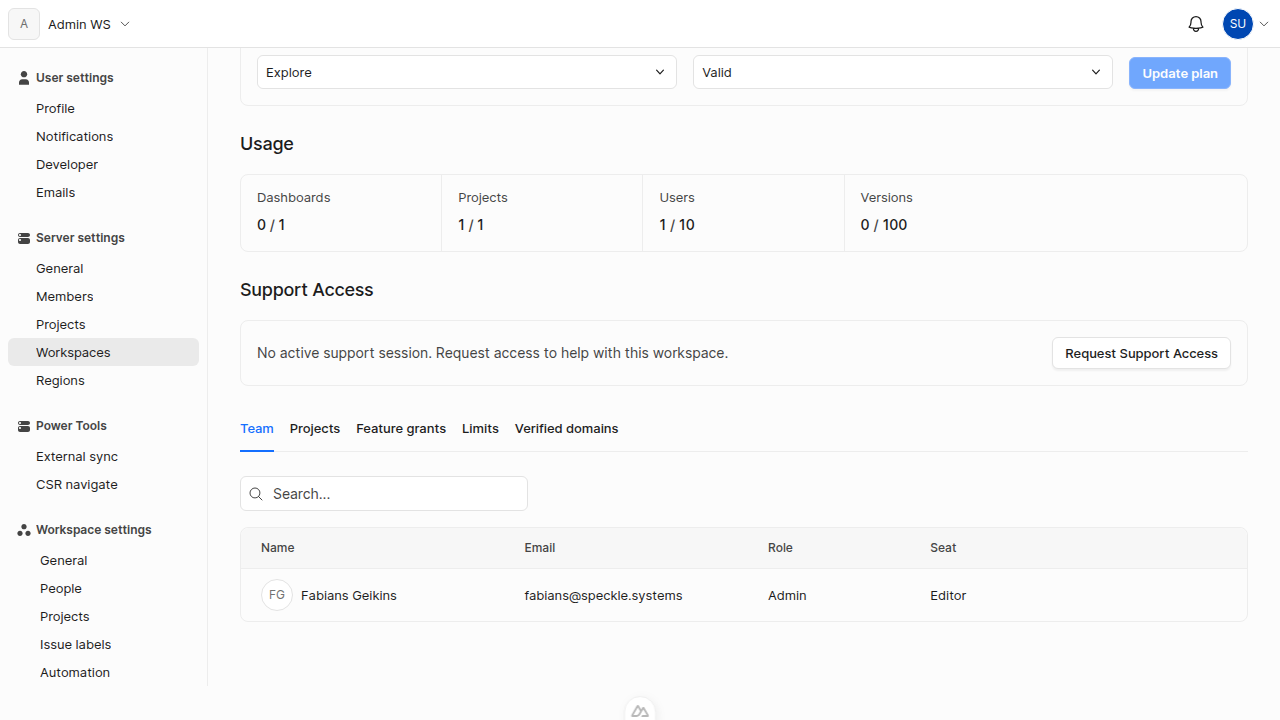
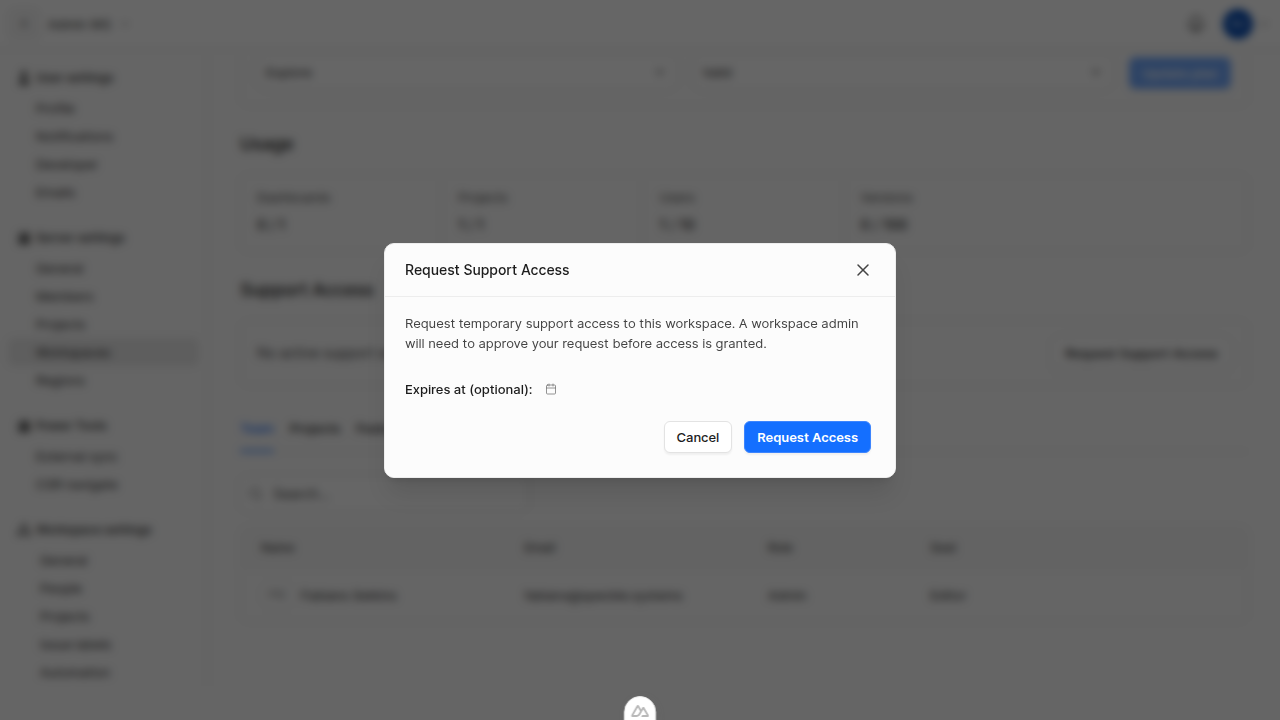 You should see the request status as **Pending** in the Support Access section until a workspace admin approves or you revoke it.
 ### Working in support mode
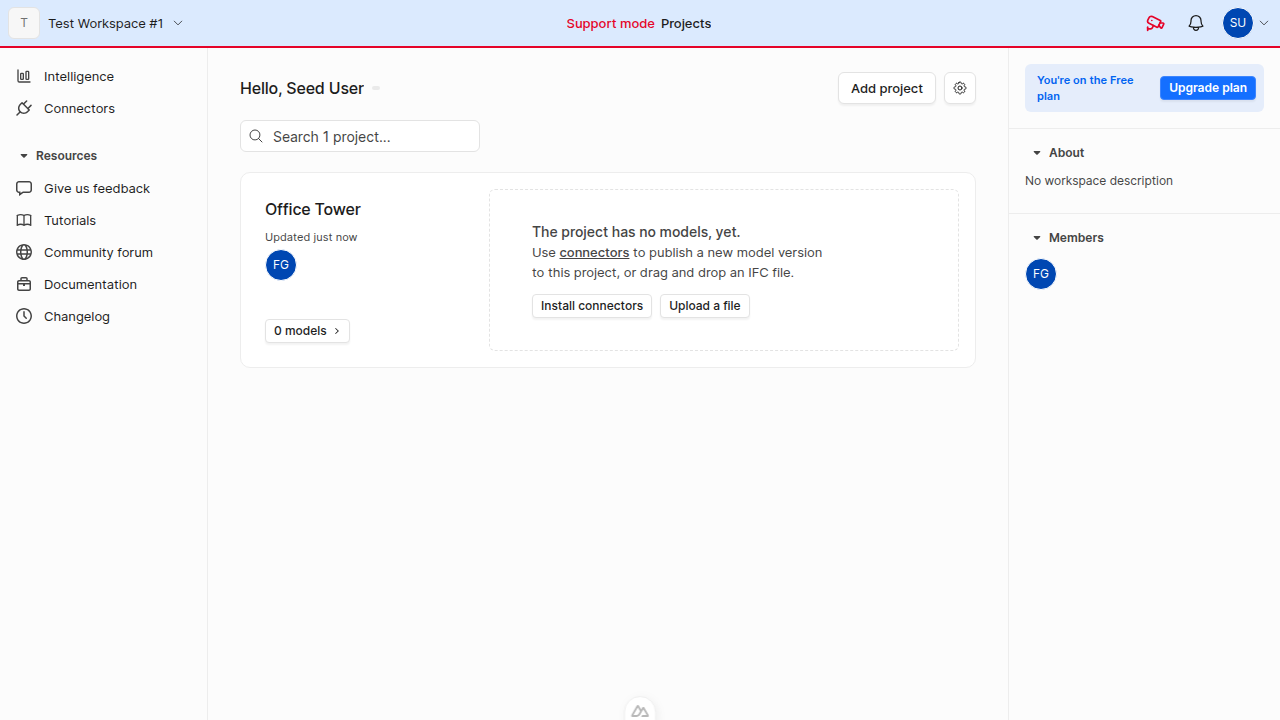
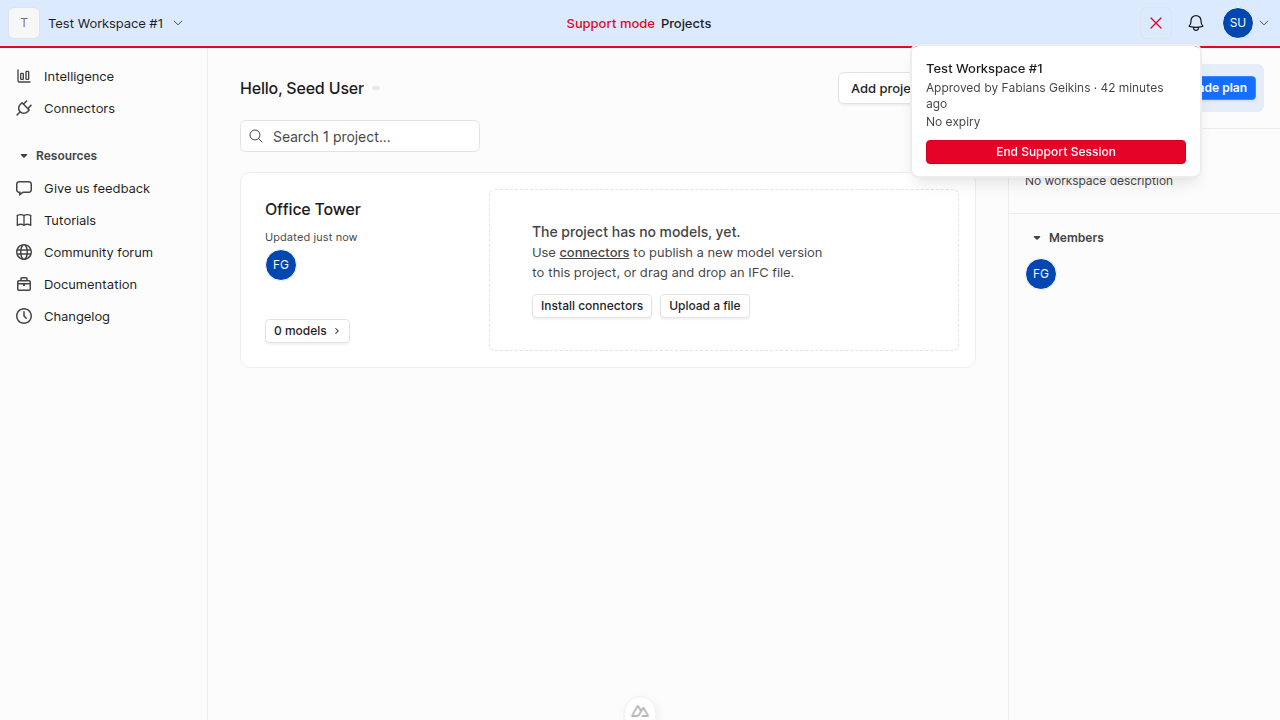
When you have an active support session and navigate to the supported workspace, the interface changes to indicate support mode:
* The navigation bar shows a red border and a red **Support mode** label
* A session details icon appears in the navbar; clicking it shows the workspace name, who approved the session, the expiration, and an **End Support Session** button
### Working in support mode
When you have an active support session and navigate to the supported workspace, the interface changes to indicate support mode:
* The navigation bar shows a red border and a red **Support mode** label
* A session details icon appears in the navbar; clicking it shows the workspace name, who approved the session, the expiration, and an **End Support Session** button
 Support sessions apply to all authentication tokens for the server admin, including connector sessions (Revit, Rhino, etc.).
### End or revoke a session
Click **Revoke** in the Support Access section on the workspace's server settings page, or click **End Support Session** in the navbar dropdown while in support mode. Sessions also end automatically when the expiration time passes.
## FAQ
The server admin loses write access immediately. The session appears as **Expired** in the sessions table. The admin retains read-only access (no session required). To regain write access, the admin must request a new session.
Yes. Multiple server admins can have concurrent active sessions for the same workspace, and a
single server admin can have active sessions across different workspaces.
Yes. Support sessions are tied to the user, not to a specific token or application. Any authenticated session for the server admin (including connectors like Revit, Rhino, and Archicad) will have support access while the session is active.
Support sessions apply to all authentication tokens for the server admin, including connector sessions (Revit, Rhino, etc.).
### End or revoke a session
Click **Revoke** in the Support Access section on the workspace's server settings page, or click **End Support Session** in the navbar dropdown while in support mode. Sessions also end automatically when the expiration time passes.
## FAQ
The server admin loses write access immediately. The session appears as **Expired** in the sessions table. The admin retains read-only access (no session required). To regain write access, the admin must request a new session.
Yes. Multiple server admins can have concurrent active sessions for the same workspace, and a
single server admin can have active sessions across different workspaces.
Yes. Support sessions are tied to the user, not to a specific token or application. Any authenticated session for the server admin (including connectors like Revit, Rhino, and Archicad) will have support access while the session is active.