> ## Documentation Index
> Fetch the complete documentation index at: https://docs.speckle.systems/llms.txt
> Use this file to discover all available pages before exploring further.
# Archive and unarchive projects
> Hide inactive projects without deleting their data
Use project archiving to remove inactive projects from day-to-day lists while keeping their data.
Project archiving is available on the Enterprise plan.
Archiving removes the project from active workflows. It is excluded from portfolio analysis and
can affect any shared links, presentations, version comparisons, dashboards, and automations that
depend on it. You also cannot upload new versions while the project is archived.
## Why archive instead of delete
Archiving is useful when a project is inactive but still important to keep.
* It avoids permanent data loss from deleting old projects.
* It keeps project lists focused on active work.
* It preserves project history so you can restore it later.
* It frees project slots while keeping retained versions available.
## What happens when you archive a project
When you archive a project:
* It is hidden from normal project lists.
* It becomes read-only and cannot be modified.
* It no longer counts toward your workspace project limit.
* Its existing versions still count toward your workspace version limit.
## Archive a project
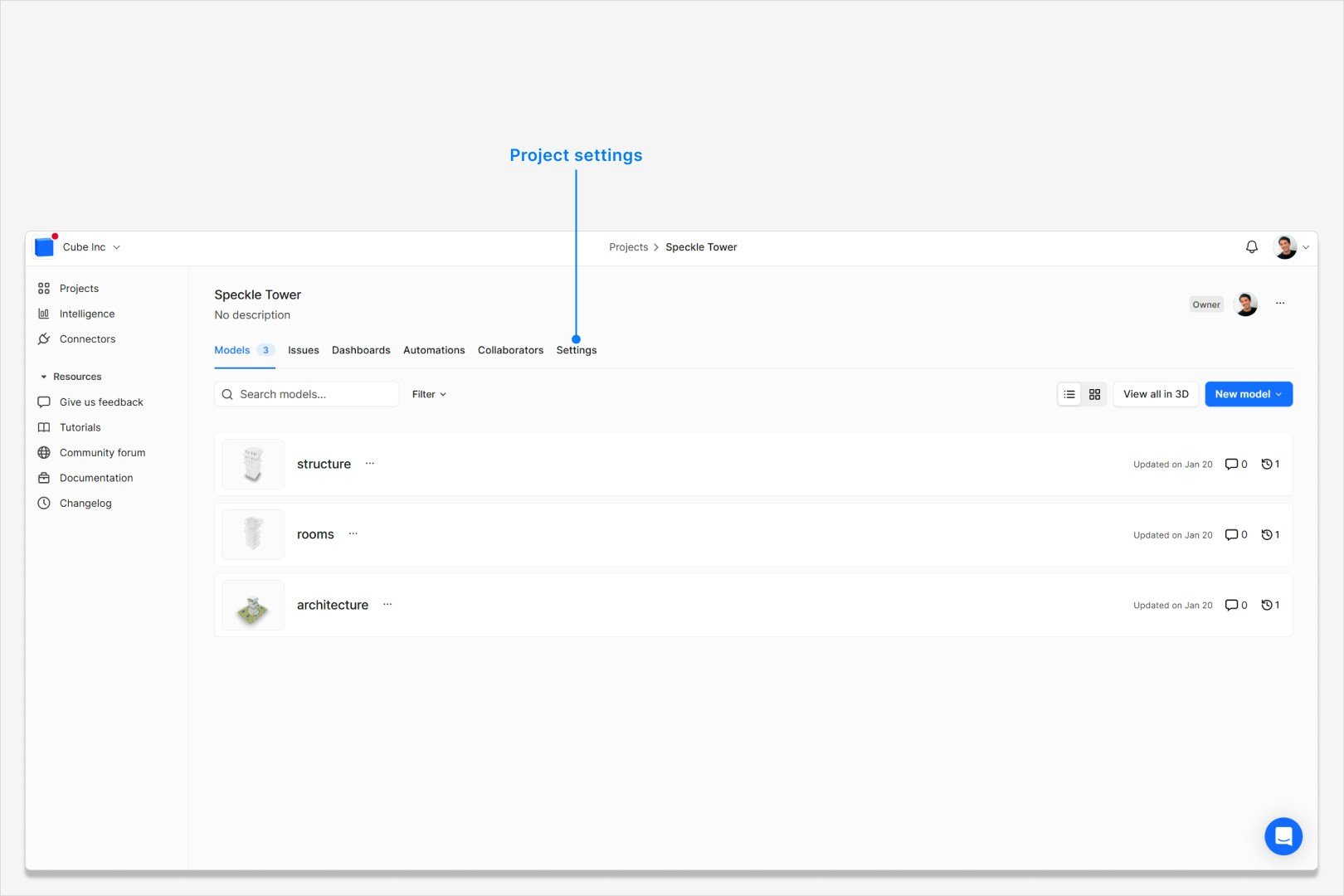
Go to the project you want to archive, then open **Project settings** and find **Archive
project**. You should see the archive warning panel.
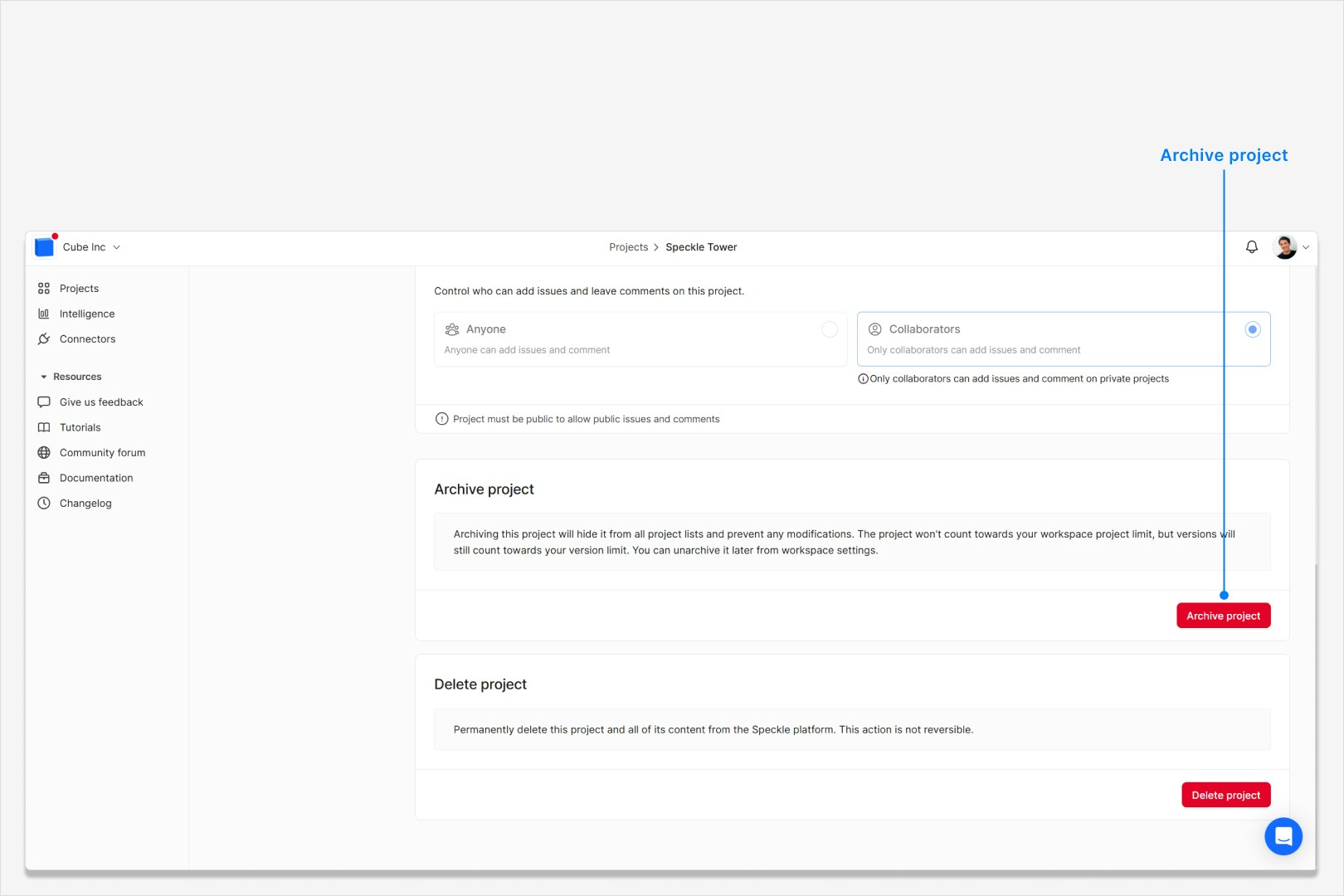
 Click **Archive project**, review the confirmation dialog, then click **Archive**. The project
is archived and removed from normal project lists.
Click **Archive project**, review the confirmation dialog, then click **Archive**. The project
is archived and removed from normal project lists.
 ## Unarchive a project
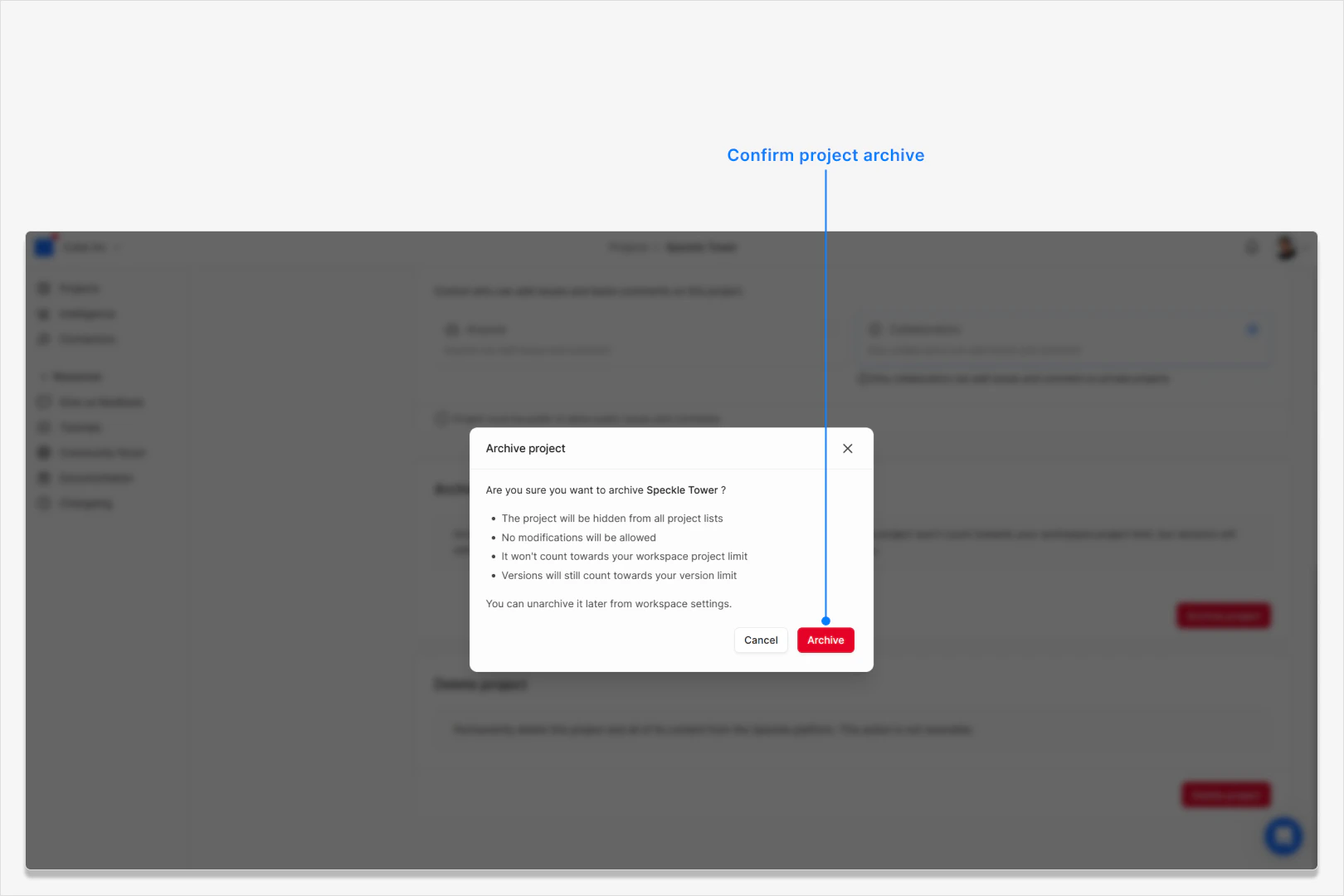
Go to **Workspace settings** and open **Projects**. You should see archived
projects marked with an **Archived** badge.
## Unarchive a project
Go to **Workspace settings** and open **Projects**. You should see archived
projects marked with an **Archived** badge.
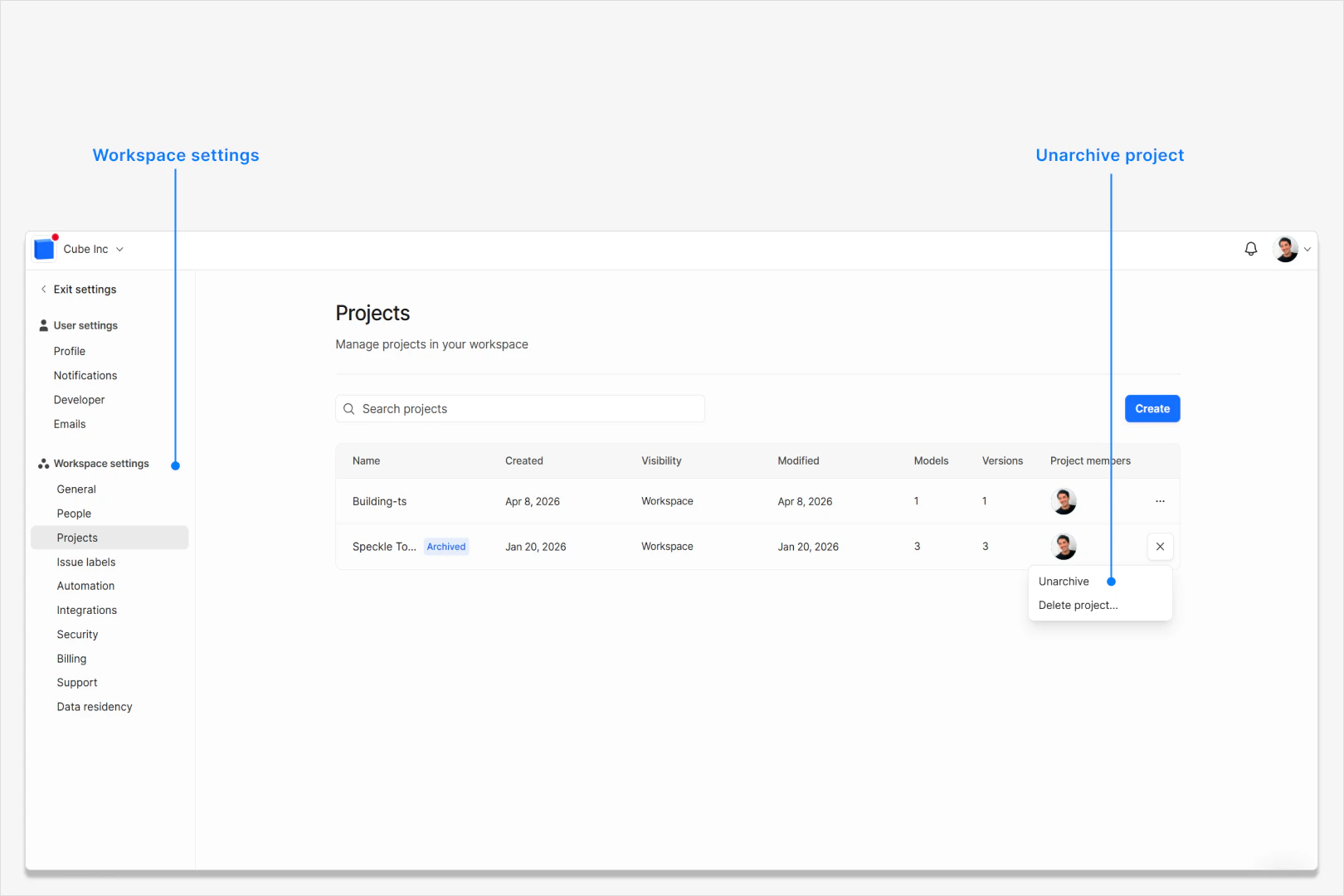
 Open the project row menu and choose **Unarchive**. The project returns to
normal project lists and can be edited again.
Open the project row menu and choose **Unarchive**. The project returns to
normal project lists and can be edited again.
 If your workspace is already at its project limit, unarchiving is blocked until you free up
capacity.
## Verify it worked
After archiving, the project should no longer appear in standard project lists and
direct project links should show an archived/not found page. After unarchiving, the
project should be visible in lists again and accessible normally.
## FAQ
No. Archiving hides the project and prevents edits, but it does not delete
the project's existing models or versions.
Project archiving is available only on the Enterprise plan. If your
workspace is on Explore or Team, you will not see **Archive project**. You
may also be missing the role permission required to archive projects.
No. Archived projects stop counting toward project limits, but their
versions still count toward workspace version limits.
No. Archived projects are hidden from normal project lists, and direct links
to the project show an archived or not found state until the project is
unarchived. Shared embedded views, shared presentations, and saved viewpoints
that depend on that project will not continue to show content while the
project is archived.
Shared dashboards can still be opened, but any data sourced from the
archived project becomes inaccessible until the project is unarchived.
Unarchiving is blocked when your workspace is already at its project limit.
Free one project slot first, then unarchive the project.
Yes. Archiving does not delete models or versions. When you unarchive, the
project returns with its existing data and becomes editable again.
If your workspace is already at its project limit, unarchiving is blocked until you free up
capacity.
## Verify it worked
After archiving, the project should no longer appear in standard project lists and
direct project links should show an archived/not found page. After unarchiving, the
project should be visible in lists again and accessible normally.
## FAQ
No. Archiving hides the project and prevents edits, but it does not delete
the project's existing models or versions.
Project archiving is available only on the Enterprise plan. If your
workspace is on Explore or Team, you will not see **Archive project**. You
may also be missing the role permission required to archive projects.
No. Archived projects stop counting toward project limits, but their
versions still count toward workspace version limits.
No. Archived projects are hidden from normal project lists, and direct links
to the project show an archived or not found state until the project is
unarchived. Shared embedded views, shared presentations, and saved viewpoints
that depend on that project will not continue to show content while the
project is archived.
Shared dashboards can still be opened, but any data sourced from the
archived project becomes inaccessible until the project is unarchived.
Unarchiving is blocked when your workspace is already at its project limit.
Free one project slot first, then unarchive the project.
Yes. Archiving does not delete models or versions. When you unarchive, the
project returns with its existing data and becomes editable again.