> ## Documentation Index
> Fetch the complete documentation index at: https://docs.speckle.systems/llms.txt
> Use this file to discover all available pages before exploring further.
# Organize teams and projects
> A secure hub for your team and projects in Speckle.
## What is a workspace?
A workspace is your team's operating area in Speckle.
Use it to manage projects, assign access, and keep delivery work under one shared security model.
Use this page as a quick map of where to go next.
## Start on the workspace home page
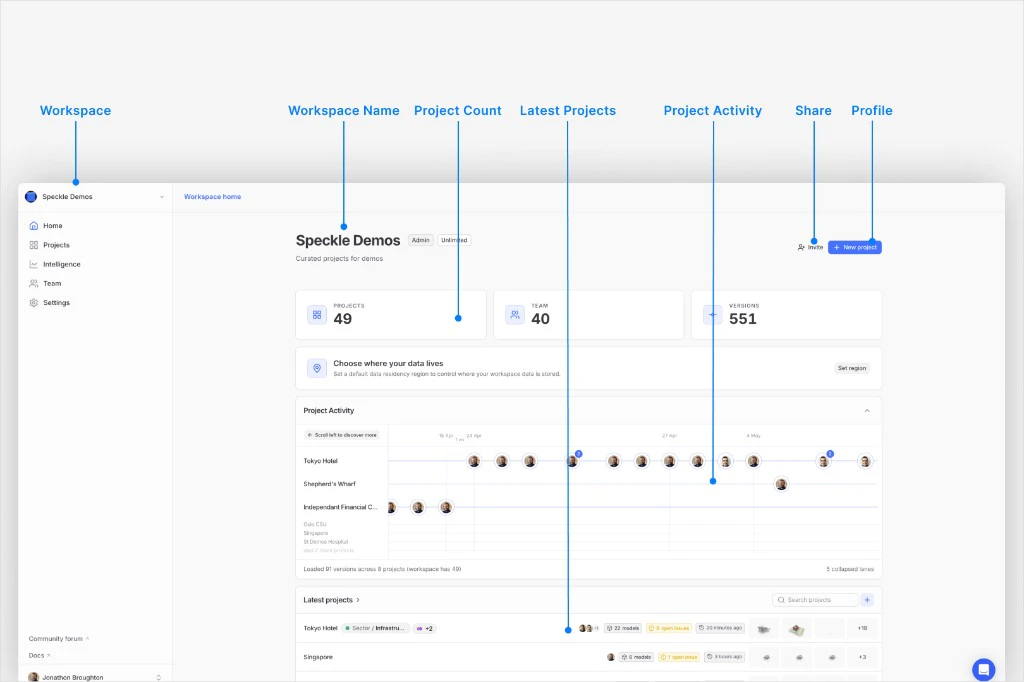
 Use the workspace home page to check activity and open the main workspace areas.
## Navigate the main areas
From the workspace home page:
Quick status view for recent activity across the workspace.
Create and manage project containers and access boundaries.
Open workspace-level reporting and dashboard views.
Manage workspace users, invites, and access posture.
Manage security, access rules, and workspace settings.
The workspace home page gives a fast health check through summary cards and recent activity surfaces.
Use it as a quick check page, not a full management page.
Workspace members can view settings pages, but only workspace admins can change workspace-level controls.
For support-session workflows on self-hosted enterprise deployments, see [Admin Support Mode](/workspaces/admin-support).
## Choose where to go next
Use the page that matches your next decision:
Access boundaries and project-level collaboration.
Workspace and project settings map.
Model structure and publishing organization.
Workspace and project access control.
Use the workspace home page to check activity and open the main workspace areas.
## Navigate the main areas
From the workspace home page:
Quick status view for recent activity across the workspace.
Create and manage project containers and access boundaries.
Open workspace-level reporting and dashboard views.
Manage workspace users, invites, and access posture.
Manage security, access rules, and workspace settings.
The workspace home page gives a fast health check through summary cards and recent activity surfaces.
Use it as a quick check page, not a full management page.
Workspace members can view settings pages, but only workspace admins can change workspace-level controls.
For support-session workflows on self-hosted enterprise deployments, see [Admin Support Mode](/workspaces/admin-support).
## Choose where to go next
Use the page that matches your next decision:
Access boundaries and project-level collaboration.
Workspace and project settings map.
Model structure and publishing organization.
Workspace and project access control.