> ## Documentation Index
> Fetch the complete documentation index at: https://docs.speckle.systems/llms.txt
> Use this file to discover all available pages before exploring further.
# Projects
> Organising your data in Speckle
## What are projects?
A project is the main container for shared work in a workspace.
Use projects to define collaboration boundaries, access rules, and delivery ownership.
This page is for workspace admins and discipline leads defining project structure, but it's also for anyone needing to find and access relevant work. The projects list helps organisational users navigate to the right project, while each project homepage is for that project's collaborators to coordinate, manage, and contribute to their shared work.
### What can a project contain?
A project contains models and their versions.
Use models to separate technical content inside that project boundary.
## Why project structure matters
Project structure affects security, navigation, and reporting quality.
If unrelated teams share one project, permissions and issue workflows become hard to manage.
If work is split too aggressively, teams lose shared context.
Use separate projects when any of these are true:
* different teams need different member access
* different clients or contracts need separate rules
* deliverables need separate issue tracking or review schedules
## What you can do on the projects listing page
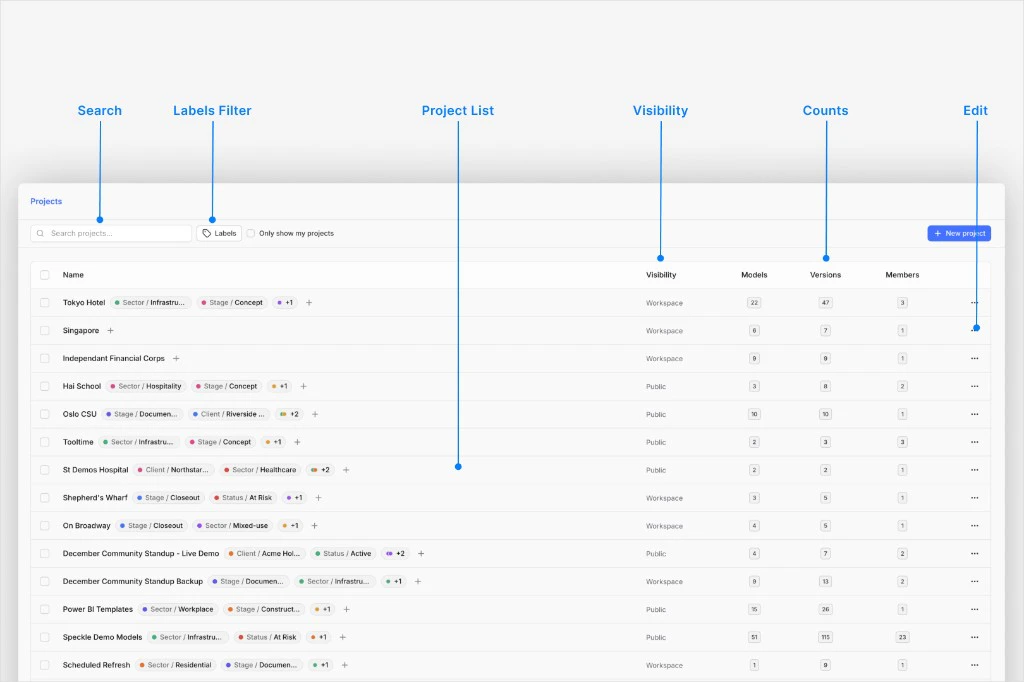 The workspace **Projects** page is your operations surface for project administration.
It lists every project visible to the current user in that workspace.
Search by name and filter by labels to locate active work fast.
Manage visibility, labels, archive state, and collaborator access.
Select multiple rows to set labels, archive, or delete in one action.
Use the row menu for per-project actions and settings.
Open a project by clicking its name.
### Search and filter
* Use **Search projects...** when you know the project name.
* Use the **Labels** filter for category-driven browsing.
* Click label chips in rows for quick filtering.
### Manage labels from the list
* Use the **+** button in the **Labels** column to assign or remove labels.
* If a row has many labels, open the `+N` chip to view and manage overflow labels.
### Create and act on projects
* Use **New project** when you need a new collaboration boundary.
* Use the row **...** menu for per-project actions such as archive and delete (permission dependent).
* Archive from the list when a project should stay recoverable but leave active workflows.
* For archive details, see [Archive and unarchive projects](/workspaces/archived-projects).
* For visibility, collaborators, share tokens, and automations, see [Configuration](/workspaces/configuration#project-configuration).
### Run bulk actions
Select projects with row checkboxes, or click project rows to select them.
The bulk action bar supports:
* **Set labels**
* **Archive**
* **Delete**
Bulk actions are available only when your permissions allow edits on the selected projects.
## Project labels
Project labels help you organize workspace projects in a shared, consistent way.
Teams usually label by stage, sector, client, office, or delivery status so anyone can filter quickly without memorizing naming conventions.
### Apply labels to a project
The workspace **Projects** page is your operations surface for project administration.
It lists every project visible to the current user in that workspace.
Search by name and filter by labels to locate active work fast.
Manage visibility, labels, archive state, and collaborator access.
Select multiple rows to set labels, archive, or delete in one action.
Use the row menu for per-project actions and settings.
Open a project by clicking its name.
### Search and filter
* Use **Search projects...** when you know the project name.
* Use the **Labels** filter for category-driven browsing.
* Click label chips in rows for quick filtering.
### Manage labels from the list
* Use the **+** button in the **Labels** column to assign or remove labels.
* If a row has many labels, open the `+N` chip to view and manage overflow labels.
### Create and act on projects
* Use **New project** when you need a new collaboration boundary.
* Use the row **...** menu for per-project actions such as archive and delete (permission dependent).
* Archive from the list when a project should stay recoverable but leave active workflows.
* For archive details, see [Archive and unarchive projects](/workspaces/archived-projects).
* For visibility, collaborators, share tokens, and automations, see [Configuration](/workspaces/configuration#project-configuration).
### Run bulk actions
Select projects with row checkboxes, or click project rows to select them.
The bulk action bar supports:
* **Set labels**
* **Archive**
* **Delete**
Bulk actions are available only when your permissions allow edits on the selected projects.
## Project labels
Project labels help you organize workspace projects in a shared, consistent way.
Teams usually label by stage, sector, client, office, or delivery status so anyone can filter quickly without memorizing naming conventions.
### Apply labels to a project
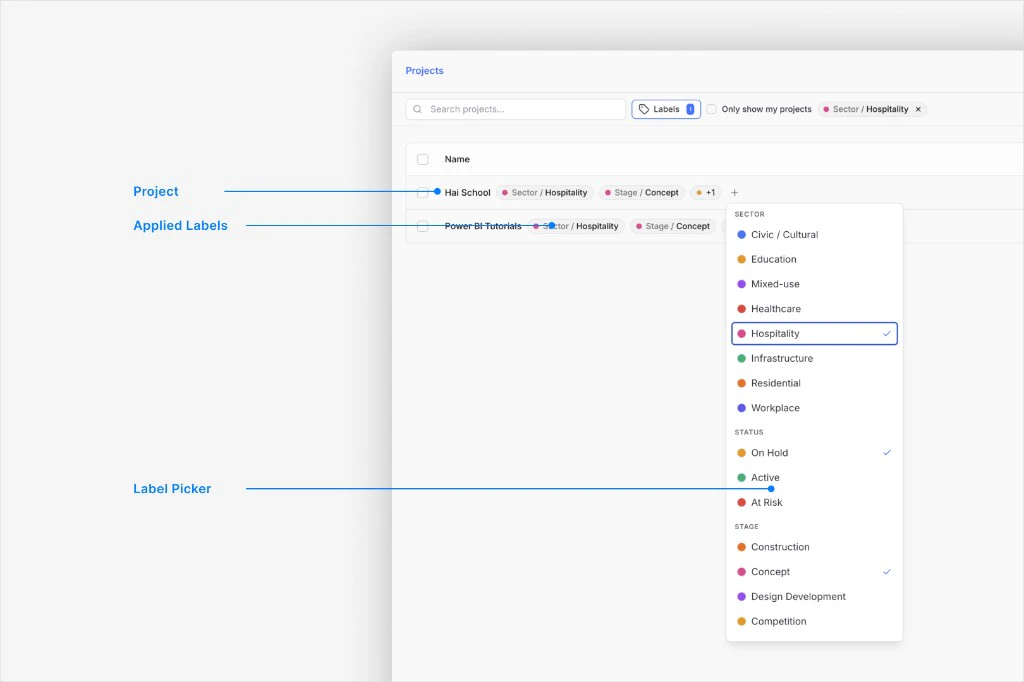 Open the workspace **Projects** page.
In the project row, select the **+** button in the **Labels** column.
Toggle labels on or off in the picker. Changes save immediately.
You can set labels only on projects you can edit.
### Label many projects at once
Select projects with row checkboxes, or select project rows directly.
In the bulk action bar, click **Set labels**.
Toggle labels to add or remove them across selected projects.
Bulk **Set labels** is available only when the selected projects are editable.
### Filter projects by label
Use the **Labels** filter at the top of the projects list, or select label chips in project rows.
When multiple labels are selected, the list shows projects matching any selected label.
Workspace admins can create and edit available project labels in{' '}
Settings → Project labels. Issue labels are managed separately in{' '}
Settings → Issue labels. For more details, see{' '}
Workspace configuration.
Only workspace admins can change the set of available project labels. Other members can use
labels on projects they can edit, but cannot modify the list of available labels.
No—project labels are shared across the entire workspace. Workspace admins create a single
set of available project labels for all projects in the workspace.
## Project home
After you open a project from the workspace **Projects** list, you land on **Home**
for that project. The page scrolls top to bottom: masthead, model activity, models,
metadata, issues, validation, syncs, and dashboards. Deeper work lives in
[sidebar navigation](#sidebar-navigation) below.
A **Collaborators** tab on the project is where project access is visible and
editable when your permissions allow it.
### Masthead, activity, and models
Open the workspace **Projects** page.
In the project row, select the **+** button in the **Labels** column.
Toggle labels on or off in the picker. Changes save immediately.
You can set labels only on projects you can edit.
### Label many projects at once
Select projects with row checkboxes, or select project rows directly.
In the bulk action bar, click **Set labels**.
Toggle labels to add or remove them across selected projects.
Bulk **Set labels** is available only when the selected projects are editable.
### Filter projects by label
Use the **Labels** filter at the top of the projects list, or select label chips in project rows.
When multiple labels are selected, the list shows projects matching any selected label.
Workspace admins can create and edit available project labels in{' '}
Settings → Project labels. Issue labels are managed separately in{' '}
Settings → Issue labels. For more details, see{' '}
Workspace configuration.
Only workspace admins can change the set of available project labels. Other members can use
labels on projects they can edit, but cannot modify the list of available labels.
No—project labels are shared across the entire workspace. Workspace admins create a single
set of available project labels for all projects in the workspace.
## Project home
After you open a project from the workspace **Projects** list, you land on **Home**
for that project. The page scrolls top to bottom: masthead, model activity, models,
metadata, issues, validation, syncs, and dashboards. Deeper work lives in
[sidebar navigation](#sidebar-navigation) below.
A **Collaborators** tab on the project is where project access is visible and
editable when your permissions allow it.
### Masthead, activity, and models
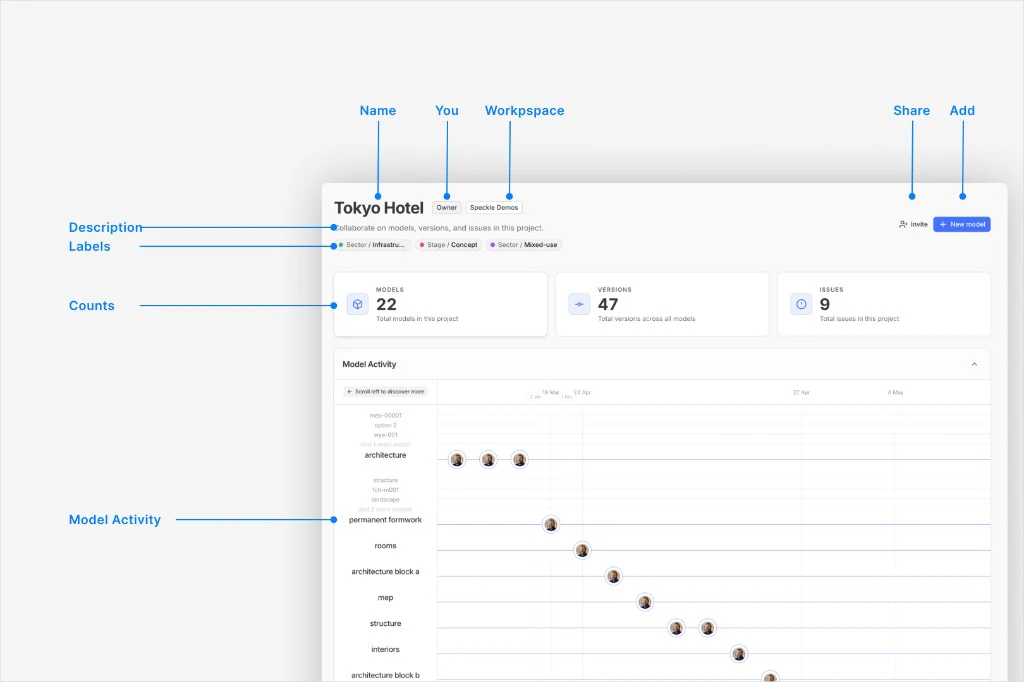 The masthead shows the project name, workspace badge, summary text, and project
labels. Summary cards report **Models**, **Versions**, and **Issues** totals.
**Model Activity** is a scrubbable timeline of publishes and events per model in the
project.
Below the timeline, the **Models** card lists recent models in this project. The
header links to the full [Models](#models) list and shows the total count (for
example **46 total**). Search the list, use **+** to add a model, and open any row
to go to that model. Rows show name, path, last published time, and version count.
### Metadata
Project metadata is an **Enterprise** feature in active development. **Today**, it mainly powers
the **Metadata** card on project **Home**. We are seeking feedback on how you want to use it
next—for example **user-facing project filters**, **context for automations**, or **reference
bounds for Speckle Intelligence** chat responses. Share feedback on [Speckle
Community](https://speckle.community). Template setup: [Project
metadata](/workspaces/configuration/project-metadata).
On wide layouts, **Metadata** appears in the column beside **Models** when your workspace has a metadata template configured. If there is no template, **Issues** takes that column instead ([Issues summary](#issues-summary) below). Metadata is not a sidebar item.
The masthead shows the project name, workspace badge, summary text, and project
labels. Summary cards report **Models**, **Versions**, and **Issues** totals.
**Model Activity** is a scrubbable timeline of publishes and events per model in the
project.
Below the timeline, the **Models** card lists recent models in this project. The
header links to the full [Models](#models) list and shows the total count (for
example **46 total**). Search the list, use **+** to add a model, and open any row
to go to that model. Rows show name, path, last published time, and version count.
### Metadata
Project metadata is an **Enterprise** feature in active development. **Today**, it mainly powers
the **Metadata** card on project **Home**. We are seeking feedback on how you want to use it
next—for example **user-facing project filters**, **context for automations**, or **reference
bounds for Speckle Intelligence** chat responses. Share feedback on [Speckle
Community](https://speckle.community). Template setup: [Project
metadata](/workspaces/configuration/project-metadata).
On wide layouts, **Metadata** appears in the column beside **Models** when your workspace has a metadata template configured. If there is no template, **Issues** takes that column instead ([Issues summary](#issues-summary) below). Metadata is not a sidebar item.
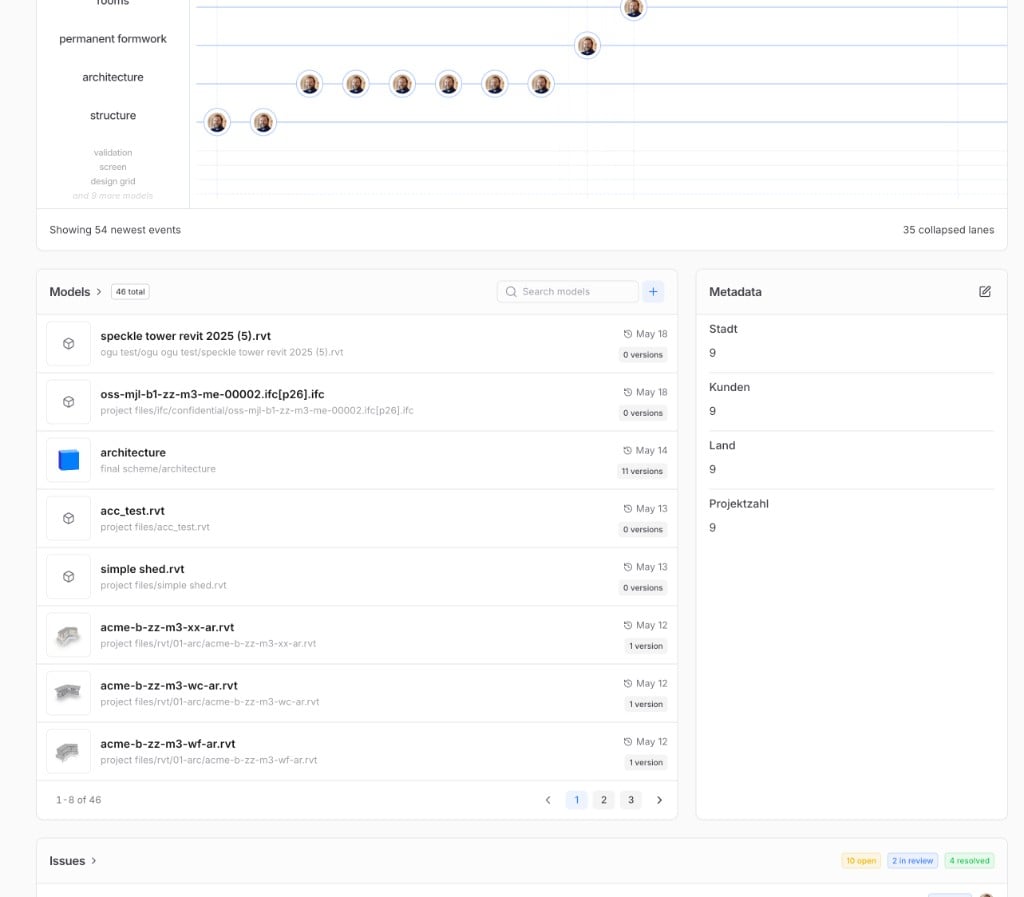 Anyone who can open the project sees the **Metadata** card with template fields. Project members, reviewers, and contributors see read-only values with no edit controls and no drift warnings.
Project owners and workspace admins can **Fill out metadata**, edit a field inline, or use **Edit all**. **N problem(s)** drift warnings appear only to owners and admins when stored values no longer match the workspace template (empty required field, wrong type, or broken rules). Fix warnings from the card header popover or by editing fields until the badge clears.
Deleting the workspace template in **Settings → Project metadata** is irreversible and removes all stored values—see [Delete schema](/workspaces/configuration/project-metadata#delete-schema).
### Issues summary
When metadata is configured, **Issues** spans the full width below **Models** and
**Metadata**. Otherwise it shares the row beside **Models**.
Anyone who can open the project sees the **Metadata** card with template fields. Project members, reviewers, and contributors see read-only values with no edit controls and no drift warnings.
Project owners and workspace admins can **Fill out metadata**, edit a field inline, or use **Edit all**. **N problem(s)** drift warnings appear only to owners and admins when stored values no longer match the workspace template (empty required field, wrong type, or broken rules). Fix warnings from the card header popover or by editing fields until the badge clears.
Deleting the workspace template in **Settings → Project metadata** is irreversible and removes all stored values—see [Delete schema](/workspaces/configuration/project-metadata#delete-schema).
### Issues summary
When metadata is configured, **Issues** spans the full width below **Models** and
**Metadata**. Otherwise it shares the row beside **Models**.
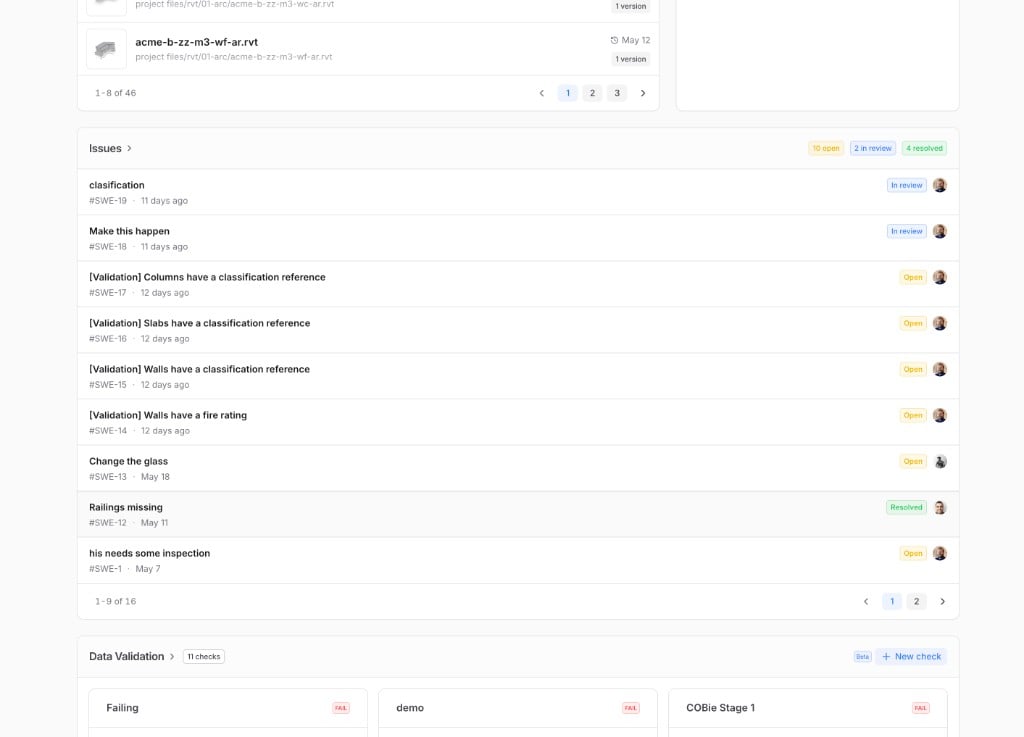 Status chips summarize **open**, **in review**, and **resolved** work. The card
lists recent issues with title, ID, age, status, and assignee. **Issues >** opens
the full [Issues](#issues) list.
### Data validation
**Data Validation** appears below **Issues** when the feature is enabled. The header
links to the full validation area, shows how many checks exist (for example **11
checks**), and carries a **Beta** badge.
Status chips summarize **open**, **in review**, and **resolved** work. The card
lists recent issues with title, ID, age, status, and assignee. **Issues >** opens
the full [Issues](#issues) list.
### Data validation
**Data Validation** appears below **Issues** when the feature is enabled. The header
links to the full validation area, shows how many checks exist (for example **11
checks**), and carries a **Beta** badge.
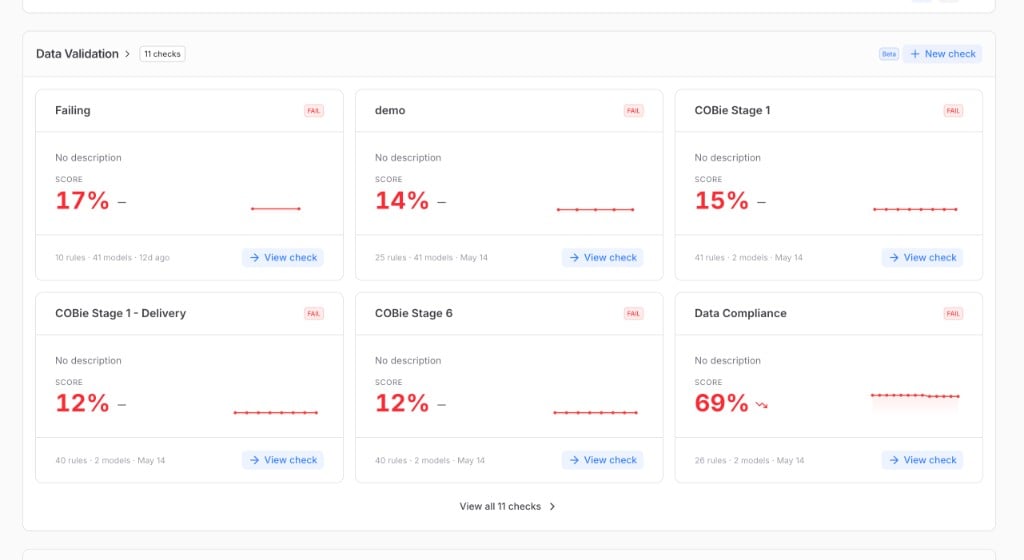 Each check card shows name, pass/fail status, score, trend, and scope (for example
**10 rules · 41 models**). Use **View check** for results, **New check** to add one,
or **View all N checks** when the project has more than fit on the card. An empty
project shows onboarding and **Create your first check**.
For the full validation workspace, open **Data Validation** in the sidebar:
**Run check**, **Checks**, and **Project standards** (Enterprise). See [Data
Validation Overview](/analytics/data-validation/overview), [Checks](/analytics/data-validation/checks),
and [Viewing Results](/analytics/data-validation/viewing-results).
### Live syncs
**Live Syncs** lists recent cloud integration activity when syncs exist.
Each check card shows name, pass/fail status, score, trend, and scope (for example
**10 rules · 41 models**). Use **View check** for results, **New check** to add one,
or **View all N checks** when the project has more than fit on the card. An empty
project shows onboarding and **Create your first check**.
For the full validation workspace, open **Data Validation** in the sidebar:
**Run check**, **Checks**, and **Project standards** (Enterprise). See [Data
Validation Overview](/analytics/data-validation/overview), [Checks](/analytics/data-validation/checks),
and [Viewing Results](/analytics/data-validation/viewing-results).
### Live syncs
**Live Syncs** lists recent cloud integration activity when syncs exist.
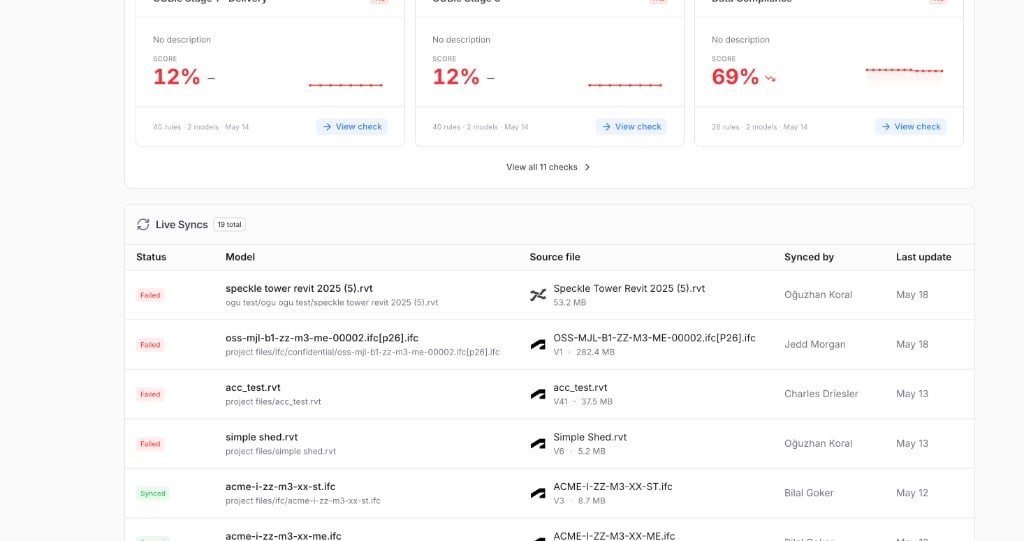 The header shows the total count (for example **19 total**). Rows include status,
model, source file, who synced, and last update. Follow the link at the bottom when
more syncs exist than shown here.
### Dashboards
**Latest dashboards** lists Intelligence dashboards for this project.
The header shows the total count (for example **19 total**). Rows include status,
model, source file, who synced, and last update. Follow the link at the bottom when
more syncs exist than shown here.
### Dashboards
**Latest dashboards** lists Intelligence dashboards for this project.
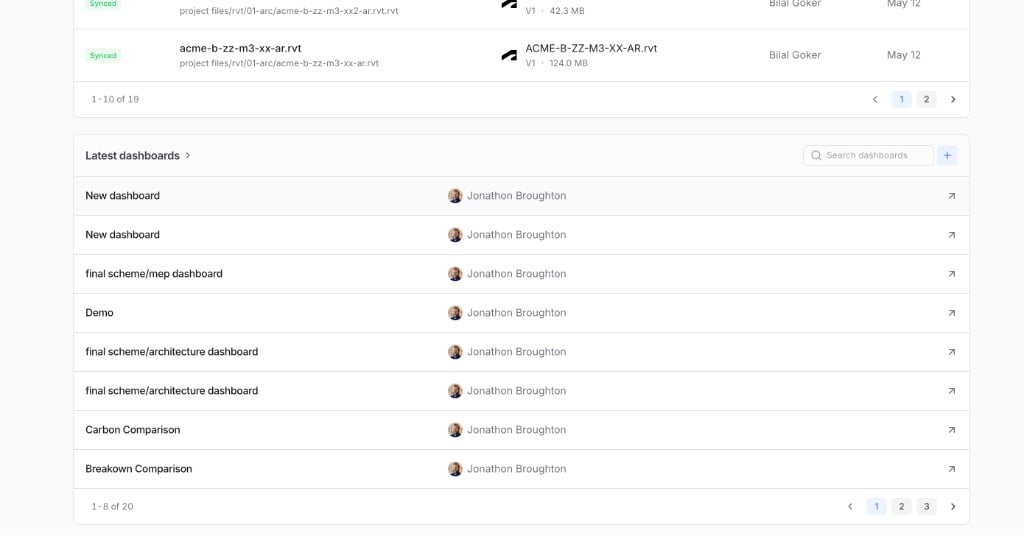 Search, add with **+**, and open dashboards from the list. **Latest dashboards >**
opens the full [Intelligence](#intelligence) list. See [Intelligence
Dashboards](/analytics/intelligence-dashboards),
[Layout](/analytics/dashboards/layout), [Sharing](/analytics/dashboards/sharing), and
[Common workflows](/analytics/dashboards/common-workflows).
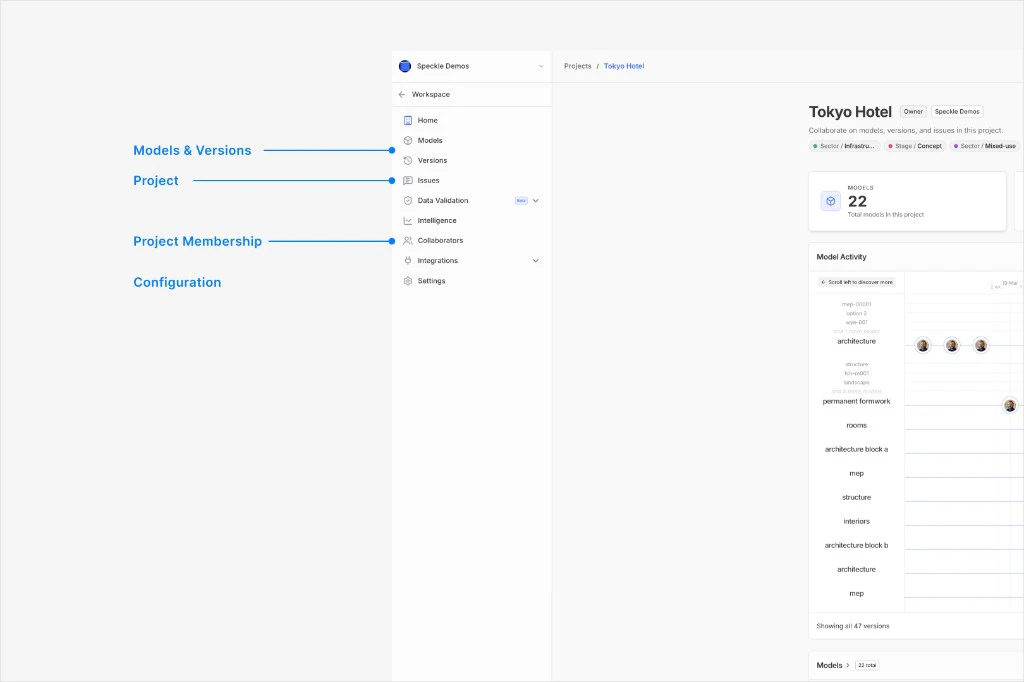
## Sidebar navigation
The cards on **Home** are summaries. Use the left sidebar for full lists, settings,
and workflows.
Search, add with **+**, and open dashboards from the list. **Latest dashboards >**
opens the full [Intelligence](#intelligence) list. See [Intelligence
Dashboards](/analytics/intelligence-dashboards),
[Layout](/analytics/dashboards/layout), [Sharing](/analytics/dashboards/sharing), and
[Common workflows](/analytics/dashboards/common-workflows).
## Sidebar navigation
The cards on **Home** are summaries. Use the left sidebar for full lists, settings,
and workflows.
 ### Models
Open **Models** in the sidebar to browse every model container in the project.
The models list supports nested structure using `/` in model names as a quasi-folder path.
For example, `Building A/Floor 01/Architecture` appears in a nested tree view.
You can expand or collapse nested groups, then click a model row to open that model.
### Versions
Open **Versions** in the sidebar to review published versions in that project.
The versions list supports:
* **Search versions...** to quickly find specific versions.
* A table view with key fields such as **Version**, **Model**, **Author**, **Created**, and **Issues**.
* Row-level actions from the **...** menu for version-specific workflows.
You can click a version row to open version details, or click the model name in the row to move to that model.
For version behavior and history, see [Versions](/workspaces/versions).
### Issues
Open **Issues** in the sidebar to manage issue tracking in that project.
The issues list supports:
* List and detail split view, with issue details opening on the right when you select an issue.
* Filters such as **Status**, **Priority**, **Assignee**, **Labels**, **Model**, and **Overdue**.
* A **New issue** action for creating new issues in the project.
When an issue is selected, the detail panel shows status, assignment, due date,
labels, and discussion details.
Issue labels used in project issues come from workspace-level label configuration under **Settings -> Issue labels**.
### Intelligence
Open **Intelligence** in the sidebar to review dashboards with content for the current project.
The intelligence list supports:
* A searchable dashboard list for this project.
* Quick access to create dashboards with **Add dashboard**.
* Row-level actions from the **...** menu for dashboard-specific workflows.
For dashboard setup and usage details, see [Intelligence Dashboards](/analytics/intelligence-dashboards), [Layout](/analytics/dashboards/layout), [Sharing](/analytics/dashboards/sharing), and [Common workflows](/analytics/dashboards/common-workflows).
### Cloud integrations (ACC)
Open **ACC** (Autodesk Forma Data Management; sidebar labels may still say ACC) in the project sidebar to explore connected hubs and systems you can
access from this project.
Use this area to select source locations and set up syncs into the project.
Synced data is then available as Speckle models in the project, alongside models created through connector publishing.
Keep detailed setup, permissions, and sync-step guidance in the dedicated Forma Data Management documentation.
For setup details, see [Autodesk Forma Data Management (ACC)](/connectors/cloud-integrations/acc).
Together, activity, quality, issue, integration, and reporting surfaces give an at-a-glance view of project pulse.
These signals are surfaced on the project home page so teams can assess project pulse without digging through multiple pages.
From project home, you can click through to a model home page from either **Model Activity** or the models list.
Use this distinction when navigating:
* Workspace **Projects** page: all projects visible to you in the workspace.
* Project home page: one selected project and its internal activity.
## Project settings and access
Use [Configuration](/workspaces/configuration#project-configuration) when you need to:
* Change project visibility.
* Manage project collaborators.
* Create or revoke share tokens.
* Review project automations.
* Maintain project and issue labels in workspace settings.
## FAQ
Create a new project when access boundaries, client context, or governance rules differ. Use
models when work belongs to same project boundary.
There is **no one template** that fits every team. A good structure is one your team can
**explain to newcomers**, align with **access rules**, and **publish to consistently** without
constant rework. Start from [Why project structure matters](#why-project-structure-matters) for
when to split **projects**, then read [Models](/workspaces/models) for when to split **models**
inside a project (ownership, discipline, release timing, naming with `/`). Warning signs include
one project where unrelated teams fight over permissions, or so many tiny models that nobody
knows where to publish.
Usually **no**. Seeding a project with **dozens of empty nested models** looks organized but
becomes **admin noise**: people cannot see where real versions land. A shelf of **empty
folders** mostly consumes list and sidebar space for little gain beyond legacy filing habits.
Prefer **creating models when work starts**, use **predictable model naming** (for example
grouped paths with `/` as in [Models](/workspaces/models)) instead of a deep empty tree, and
agree **conventions** with the team rather than chasing a perfect taxonomy up front. **Project
labels** apply to rows on the workspace **Projects** list; they do **not** classify individual
models inside a project.
You can **publish the same authoring work** into **more than one** Speckle project. Each
destination is its own Speckle **model** with its own version history. Those copies are **not
linked**: Speckle does not treat them as one logical model across projects. That still fits [Why
project structure matters](#why-project-structure-matters) when permission boundaries are strict
enough to justify separate containers. The tradeoff is **operational**: updates must be
published in **every** project that should stay aligned.
When boundaries are looser, prefer **one** Speckle model history and control exposure with
project **visibility**, **collaborators**, and **share tokens** instead of parallel publishes.
Use **two projects** with duplicate publishes only when separation is non-negotiable for
governance. **Project labels** help organize the workspace **Projects** list only; they do
**not** tag models inside a project and do **not** hide data, so do not use them as an access
boundary for model content.
Users with sufficient project ownership permissions can change visibility in project settings.
No. **Project labels** and **issue labels** are for organization and filtering only. Permissions
are controlled by workspace role, project role, and project visibility.
No. Archive removes it from active workflows but keeps data recoverable. For details, see
[Archive and unarchive projects](/workspaces/archived-projects).
### Models
Open **Models** in the sidebar to browse every model container in the project.
The models list supports nested structure using `/` in model names as a quasi-folder path.
For example, `Building A/Floor 01/Architecture` appears in a nested tree view.
You can expand or collapse nested groups, then click a model row to open that model.
### Versions
Open **Versions** in the sidebar to review published versions in that project.
The versions list supports:
* **Search versions...** to quickly find specific versions.
* A table view with key fields such as **Version**, **Model**, **Author**, **Created**, and **Issues**.
* Row-level actions from the **...** menu for version-specific workflows.
You can click a version row to open version details, or click the model name in the row to move to that model.
For version behavior and history, see [Versions](/workspaces/versions).
### Issues
Open **Issues** in the sidebar to manage issue tracking in that project.
The issues list supports:
* List and detail split view, with issue details opening on the right when you select an issue.
* Filters such as **Status**, **Priority**, **Assignee**, **Labels**, **Model**, and **Overdue**.
* A **New issue** action for creating new issues in the project.
When an issue is selected, the detail panel shows status, assignment, due date,
labels, and discussion details.
Issue labels used in project issues come from workspace-level label configuration under **Settings -> Issue labels**.
### Intelligence
Open **Intelligence** in the sidebar to review dashboards with content for the current project.
The intelligence list supports:
* A searchable dashboard list for this project.
* Quick access to create dashboards with **Add dashboard**.
* Row-level actions from the **...** menu for dashboard-specific workflows.
For dashboard setup and usage details, see [Intelligence Dashboards](/analytics/intelligence-dashboards), [Layout](/analytics/dashboards/layout), [Sharing](/analytics/dashboards/sharing), and [Common workflows](/analytics/dashboards/common-workflows).
### Cloud integrations (ACC)
Open **ACC** (Autodesk Forma Data Management; sidebar labels may still say ACC) in the project sidebar to explore connected hubs and systems you can
access from this project.
Use this area to select source locations and set up syncs into the project.
Synced data is then available as Speckle models in the project, alongside models created through connector publishing.
Keep detailed setup, permissions, and sync-step guidance in the dedicated Forma Data Management documentation.
For setup details, see [Autodesk Forma Data Management (ACC)](/connectors/cloud-integrations/acc).
Together, activity, quality, issue, integration, and reporting surfaces give an at-a-glance view of project pulse.
These signals are surfaced on the project home page so teams can assess project pulse without digging through multiple pages.
From project home, you can click through to a model home page from either **Model Activity** or the models list.
Use this distinction when navigating:
* Workspace **Projects** page: all projects visible to you in the workspace.
* Project home page: one selected project and its internal activity.
## Project settings and access
Use [Configuration](/workspaces/configuration#project-configuration) when you need to:
* Change project visibility.
* Manage project collaborators.
* Create or revoke share tokens.
* Review project automations.
* Maintain project and issue labels in workspace settings.
## FAQ
Create a new project when access boundaries, client context, or governance rules differ. Use
models when work belongs to same project boundary.
There is **no one template** that fits every team. A good structure is one your team can
**explain to newcomers**, align with **access rules**, and **publish to consistently** without
constant rework. Start from [Why project structure matters](#why-project-structure-matters) for
when to split **projects**, then read [Models](/workspaces/models) for when to split **models**
inside a project (ownership, discipline, release timing, naming with `/`). Warning signs include
one project where unrelated teams fight over permissions, or so many tiny models that nobody
knows where to publish.
Usually **no**. Seeding a project with **dozens of empty nested models** looks organized but
becomes **admin noise**: people cannot see where real versions land. A shelf of **empty
folders** mostly consumes list and sidebar space for little gain beyond legacy filing habits.
Prefer **creating models when work starts**, use **predictable model naming** (for example
grouped paths with `/` as in [Models](/workspaces/models)) instead of a deep empty tree, and
agree **conventions** with the team rather than chasing a perfect taxonomy up front. **Project
labels** apply to rows on the workspace **Projects** list; they do **not** classify individual
models inside a project.
You can **publish the same authoring work** into **more than one** Speckle project. Each
destination is its own Speckle **model** with its own version history. Those copies are **not
linked**: Speckle does not treat them as one logical model across projects. That still fits [Why
project structure matters](#why-project-structure-matters) when permission boundaries are strict
enough to justify separate containers. The tradeoff is **operational**: updates must be
published in **every** project that should stay aligned.
When boundaries are looser, prefer **one** Speckle model history and control exposure with
project **visibility**, **collaborators**, and **share tokens** instead of parallel publishes.
Use **two projects** with duplicate publishes only when separation is non-negotiable for
governance. **Project labels** help organize the workspace **Projects** list only; they do
**not** tag models inside a project and do **not** hide data, so do not use them as an access
boundary for model content.
Users with sufficient project ownership permissions can change visibility in project settings.
No. **Project labels** and **issue labels** are for organization and filtering only. Permissions
are controlled by workspace role, project role, and project visibility.
No. Archive removes it from active workflows but keeps data recoverable. For details, see
[Archive and unarchive projects](/workspaces/archived-projects).