> ## Documentation Index
> Fetch the complete documentation index at: https://docs.speckle.systems/llms.txt
> Use this file to discover all available pages before exploring further.
# User provisioning (SCIM)
> Sync workspace members from your identity provider
When someone joins or leaves your team, your identity provider (Okta, Azure AD, Authentik, etc.) can push that change directly to Speckle. Speckle's SCIM 2.0 endpoint creates new workspace members, keeps their emails and display name in sync, and removes them from the workspace when they're deprovisioned upstream — no manual invite or cleanup required.
SCIM is available on Speckle Cloud and is currently rolling out per workspace. [Contact
us](mailto:support@speckle.systems) to enable it on yours.
## Set up SSO first
We strongly recommend setting up [SSO](/workspaces/sso) before enabling SCIM. SSO and SCIM are independent features that solve different problems:
* **SSO** handles *login* — members sign in to Speckle through your identity provider.
* **SCIM** handles *lifecycle* — your identity provider creates, updates, and removes workspace members.
SCIM provisions accounts but does not give them a way to log in. Without SSO, every SCIM-provisioned user has to go through Speckle's password reset flow before they can access the workspace for the first time — a friction point you can avoid entirely by enabling SSO. With SSO in place, provisioned users sign in directly through your identity provider on first access.
SCIM does not technically require SSO, but pairing them is the experience your users will thank you for.
## Prerequisites
* [SSO](/workspaces/sso) configured on the workspace (strongly recommended — see above).
* Workspace admin role.
* At least one [verified workspace domain](/workspaces/domain-protection). SCIM only syncs emails on verified domains.
* The Speckle team has enabled SCIM on your workspace.
## Enable SCIM
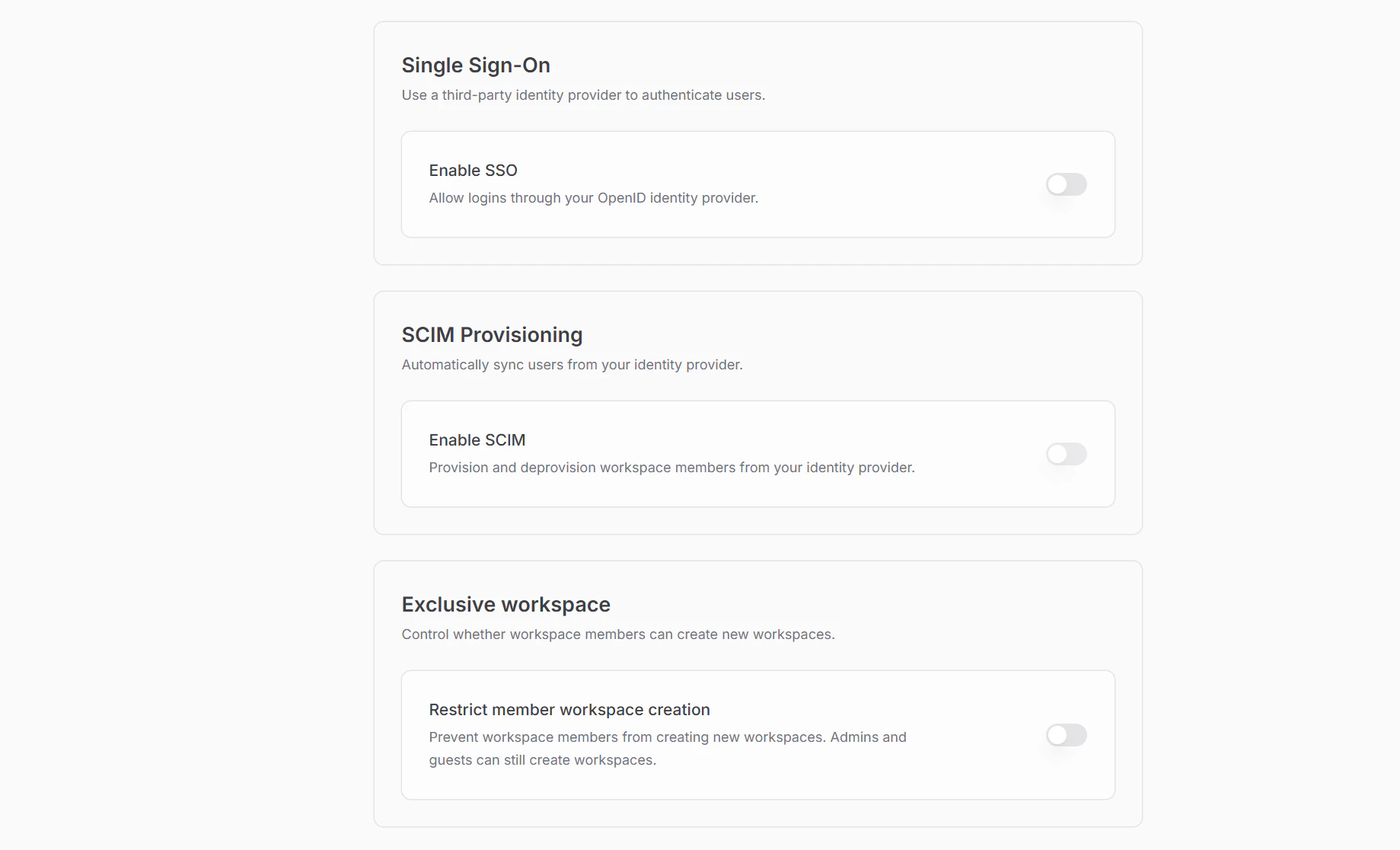
Configure SCIM under **Settings -> Security**.
Workspace members can see this section, but only workspace admins can change these controls.
SCIM is shown in the Security page only when SCIM is enabled for the workspace.
 If you haven't configured [SSO](/workspaces/sso) yet, do it before enabling SCIM. Provisioned
users without SSO have to use the password reset flow on first login.
Click **Enable SCIM**. Speckle generates a workspace-scoped bearer token and shows it once in a reveal dialog. Copy the token and the **SCIM base URL** before closing.
If you haven't configured [SSO](/workspaces/sso) yet, do it before enabling SCIM. Provisioned
users without SSO have to use the password reset flow on first login.
Click **Enable SCIM**. Speckle generates a workspace-scoped bearer token and shows it once in a reveal dialog. Copy the token and the **SCIM base URL** before closing.
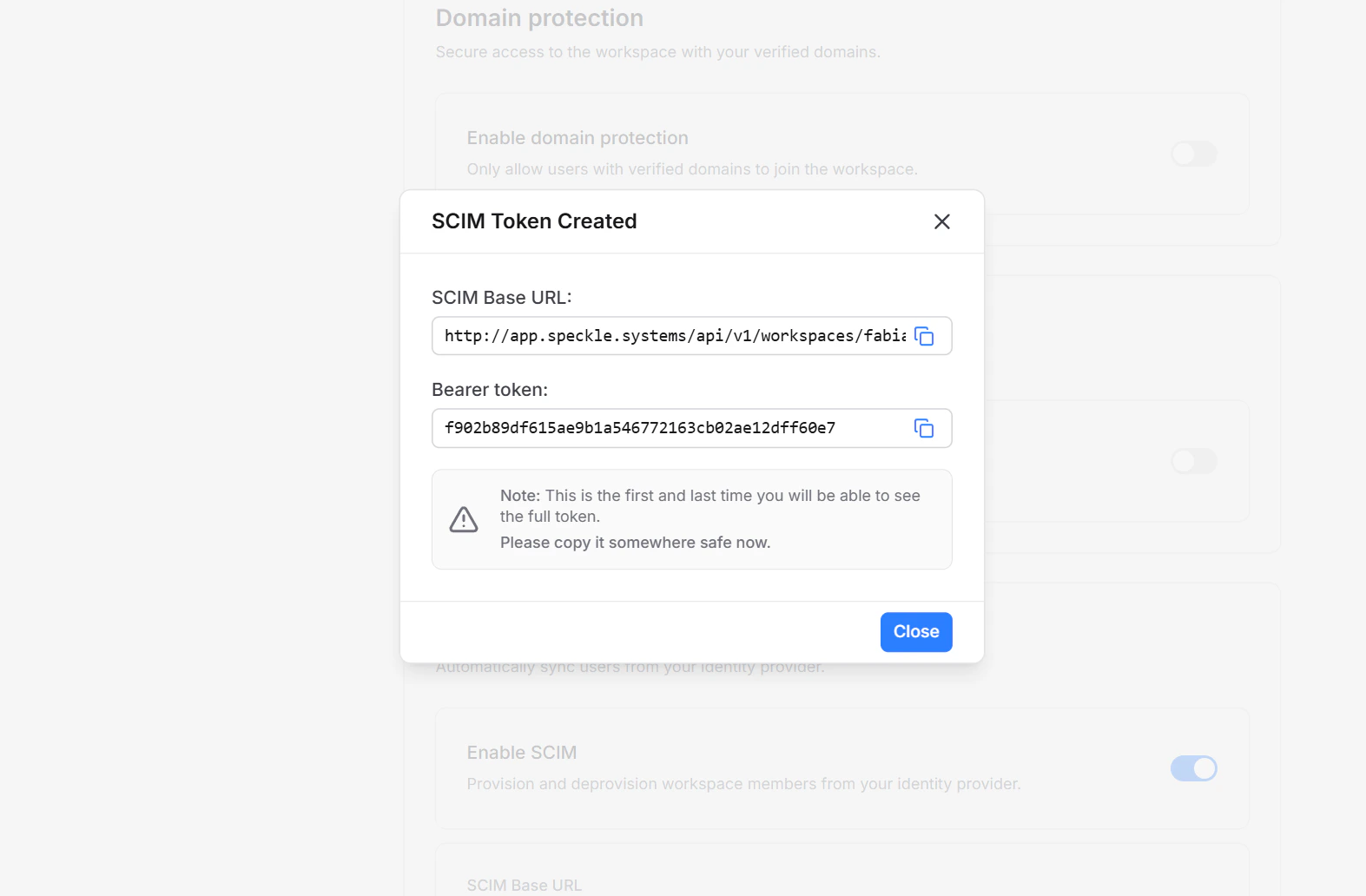 The token is shown only once. Copy it somewhere safe — you cannot recover it later. If you lose it, rotate the token to generate a new one.
In your identity provider, create a new SCIM 2.0 application pointing at:
* **SCIM endpoint**: the base URL from the previous step, e.g. `https://app.speckle.systems/api/v1/workspaces/{workspace-slug}/scim/v2`
* **Authentication**: bearer token (paste the token you copied)
Filter the identity provider push to the users you want in the workspace.
Provisioned users join with the workspace's default project-access setting
and the `member` workspace role.
The token is shown only once. Copy it somewhere safe — you cannot recover it later. If you lose it, rotate the token to generate a new one.
In your identity provider, create a new SCIM 2.0 application pointing at:
* **SCIM endpoint**: the base URL from the previous step, e.g. `https://app.speckle.systems/api/v1/workspaces/{workspace-slug}/scim/v2`
* **Authentication**: bearer token (paste the token you copied)
Filter the identity provider push to the users you want in the workspace.
Provisioned users join with the workspace's default project-access setting
and the `member` workspace role.
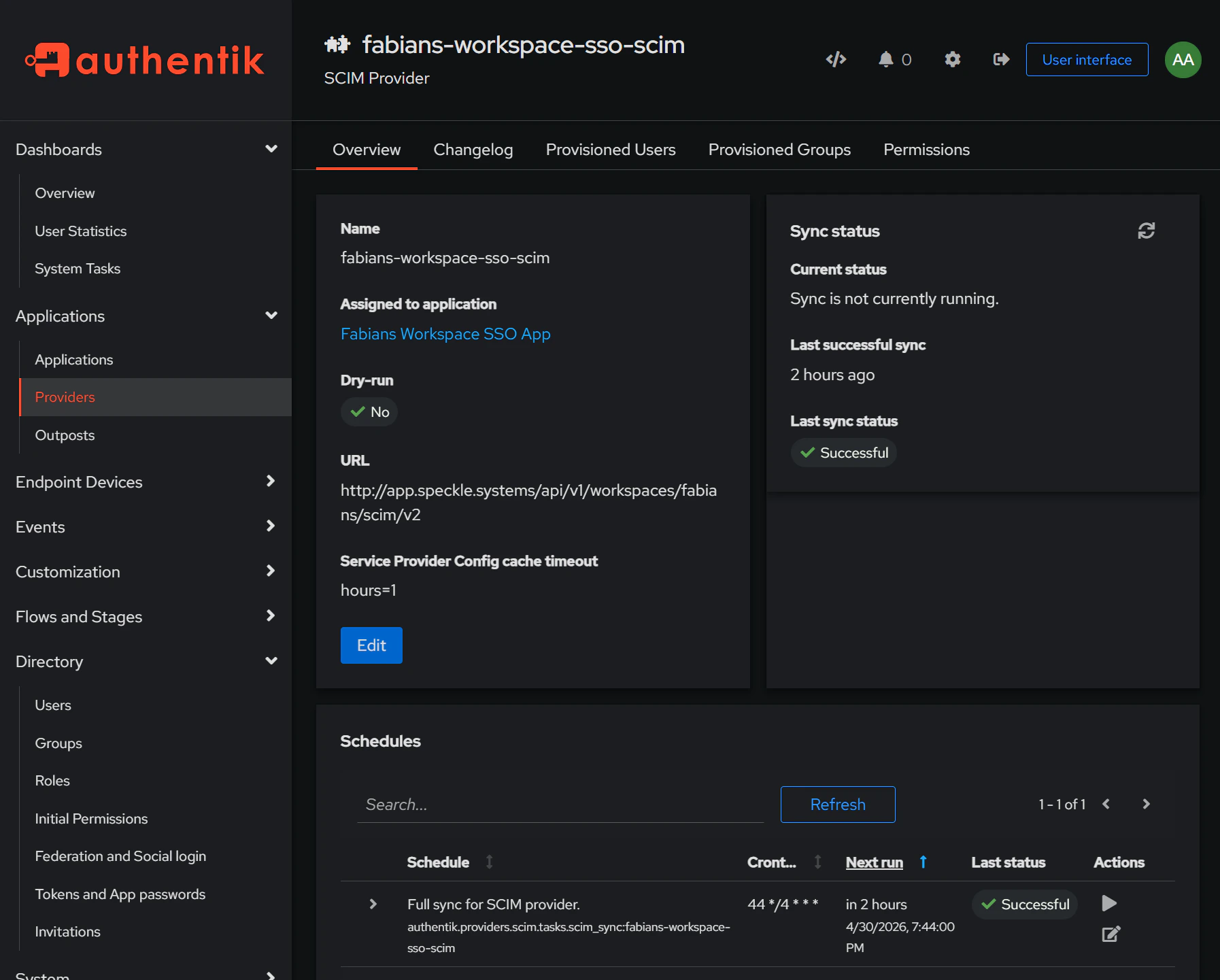 Trigger a test sync from your identity provider. The SCIM card updates
**Last sync** and **Provisioned users** within seconds, and the test user
appears under workspace **Members** with the default project-access setting.
## What SCIM syncs
### When a user is provisioned
* A Speckle account is created if one doesn't exist for the user's primary email.
* An existing Speckle account is matched and linked when the email belongs to a verified workspace domain.
* The user joins the workspace as a `member` with the default project-access
setting.
* The user's display name and emails are synced from the identity provider.
### When a user is updated
* Display name and given/family name updates flow through to the Speckle profile.
* Email changes on a verified workspace domain are synced. The identity provider's primary email becomes the Speckle primary email.
* Secondary emails added in the identity provider are added in Speckle; secondary emails removed there are removed in Speckle.
* An unverified Speckle email matching the identity provider push is marked verified — Speckle trusts the identity provider as authoritative for its own domains.
Email sync is restricted to verified workspace domains. Personal emails (e.g. `@gmail.com`) pushed
from the identity provider are ignored.
### When a user is deprovisioned
* The user is removed from the workspace.
* Their Speckle account, projects, and other workspace memberships are untouched.
* Reactivating the user in the identity provider later restores their workspace
membership with the default project-access setting and `member` role.
SCIM cannot remove the last admin from a workspace. Promote another admin first, then deprovision
in your identity provider.
## Rotate or disable
Open the SCIM card menu:
* **Rotate token** — generates a new token and revokes the old one. Update the token in your identity provider, otherwise the next sync returns 401.
* **Disable SCIM** — revokes the token and stops syncing. Existing workspace members are kept; manage them manually until SCIM is re-enabled.
Rotate the token if you suspect it has leaked, when the admin who created it leaves the team, or
on your normal credential-rotation cadence.
## SCIM endpoint reference
All requests use `Authorization: Bearer {token}` and the `application/scim+json` content type. Pagination uses `startIndex` (1-based) and `count`.
| Endpoint | Methods | Purpose |
| ---------------------------- | ------------------------ | --------------------------------------------------------- |
| `/ServiceProviderConfig` | GET | Capability advertisement |
| `/ResourceTypes`, `/Schemas` | GET | Schema discovery |
| `/Users` | GET, POST | List (filter by `userName eq` or `externalId eq`), create |
| `/Users/{id}` | GET, PATCH, PUT, DELETE | Read, update, deprovision |
| `/Groups`, `/Groups/{id}` | GET (empty), other → 501 | Group provisioning is not implemented |
## FAQ
Not strictly, but it is strongly recommended. SCIM provisions accounts but
does not handle login. Without SSO, every provisioned user must complete
Speckle's password reset flow on first access. With SSO enabled first,
provisioned users sign in directly through your identity provider — no
password reset, no friction. Set up [SSO](/workspaces/sso) before enabling
SCIM whenever possible.
SCIM returns a 409 conflict. Ask the user to verify their email in Speckle
(or remove the email from their account), then retry the sync from your
identity provider. SCIM never silently links unverified accounts.
No. SCIM never touches passwords — users authenticate through SSO
(recommended) or via Speckle's password reset flow if SSO is not configured.
SCIM also only manages membership in the SCIM-enabled workspace; the user's
other workspace memberships are untouched.
No. SCIM manages workspace-level user lifecycle (create, update, remove)
within the SCIM-enabled workspace. Project collaborator membership and
project-level roles are managed separately in project settings.
No. A user can only be SCIM-managed in one workspace at a time. Provisioning
a user who is already SCIM-active in another workspace returns a 409
conflict — deprovision them in the first workspace before provisioning
elsewhere.
Tokens cannot be recovered. Open **Settings -> Security**, rotate
the token, and update your identity provider with the new value.
No. SCIM creates members using the workspace defaults. It does not promote
users to admin or elevate project permissions automatically.
Trigger a test sync from your identity provider. The SCIM card updates
**Last sync** and **Provisioned users** within seconds, and the test user
appears under workspace **Members** with the default project-access setting.
## What SCIM syncs
### When a user is provisioned
* A Speckle account is created if one doesn't exist for the user's primary email.
* An existing Speckle account is matched and linked when the email belongs to a verified workspace domain.
* The user joins the workspace as a `member` with the default project-access
setting.
* The user's display name and emails are synced from the identity provider.
### When a user is updated
* Display name and given/family name updates flow through to the Speckle profile.
* Email changes on a verified workspace domain are synced. The identity provider's primary email becomes the Speckle primary email.
* Secondary emails added in the identity provider are added in Speckle; secondary emails removed there are removed in Speckle.
* An unverified Speckle email matching the identity provider push is marked verified — Speckle trusts the identity provider as authoritative for its own domains.
Email sync is restricted to verified workspace domains. Personal emails (e.g. `@gmail.com`) pushed
from the identity provider are ignored.
### When a user is deprovisioned
* The user is removed from the workspace.
* Their Speckle account, projects, and other workspace memberships are untouched.
* Reactivating the user in the identity provider later restores their workspace
membership with the default project-access setting and `member` role.
SCIM cannot remove the last admin from a workspace. Promote another admin first, then deprovision
in your identity provider.
## Rotate or disable
Open the SCIM card menu:
* **Rotate token** — generates a new token and revokes the old one. Update the token in your identity provider, otherwise the next sync returns 401.
* **Disable SCIM** — revokes the token and stops syncing. Existing workspace members are kept; manage them manually until SCIM is re-enabled.
Rotate the token if you suspect it has leaked, when the admin who created it leaves the team, or
on your normal credential-rotation cadence.
## SCIM endpoint reference
All requests use `Authorization: Bearer {token}` and the `application/scim+json` content type. Pagination uses `startIndex` (1-based) and `count`.
| Endpoint | Methods | Purpose |
| ---------------------------- | ------------------------ | --------------------------------------------------------- |
| `/ServiceProviderConfig` | GET | Capability advertisement |
| `/ResourceTypes`, `/Schemas` | GET | Schema discovery |
| `/Users` | GET, POST | List (filter by `userName eq` or `externalId eq`), create |
| `/Users/{id}` | GET, PATCH, PUT, DELETE | Read, update, deprovision |
| `/Groups`, `/Groups/{id}` | GET (empty), other → 501 | Group provisioning is not implemented |
## FAQ
Not strictly, but it is strongly recommended. SCIM provisions accounts but
does not handle login. Without SSO, every provisioned user must complete
Speckle's password reset flow on first access. With SSO enabled first,
provisioned users sign in directly through your identity provider — no
password reset, no friction. Set up [SSO](/workspaces/sso) before enabling
SCIM whenever possible.
SCIM returns a 409 conflict. Ask the user to verify their email in Speckle
(or remove the email from their account), then retry the sync from your
identity provider. SCIM never silently links unverified accounts.
No. SCIM never touches passwords — users authenticate through SSO
(recommended) or via Speckle's password reset flow if SSO is not configured.
SCIM also only manages membership in the SCIM-enabled workspace; the user's
other workspace memberships are untouched.
No. SCIM manages workspace-level user lifecycle (create, update, remove)
within the SCIM-enabled workspace. Project collaborator membership and
project-level roles are managed separately in project settings.
No. A user can only be SCIM-managed in one workspace at a time. Provisioning
a user who is already SCIM-active in another workspace returns a 409
conflict — deprovision them in the first workspace before provisioning
elsewhere.
Tokens cannot be recovered. Open **Settings -> Security**, rotate
the token, and update your identity provider with the new value.
No. SCIM creates members using the workspace defaults. It does not promote
users to admin or elevate project permissions automatically.