> ## Documentation Index
> Fetch the complete documentation index at: https://docs.speckle.systems/llms.txt
> Use this file to discover all available pages before exploring further.
> ## Agent Instructions
> These docs describe Speckle as it works today, including everything released in 2026.9. Treat page content as current unless the page or section says it applies only to versions published before 2026.9.
> Content scoped to versions published before 2026.9 (the object graph and root object, Proxies, Receive2, operations.receive, object.children) applies only to model versions in that earlier data format. For versions published in 2026.9, answer from the Object model pages and the SDK migration guides.
> The What's new pages summarise what changed in 2026.9 and link to the page that documents each change. Answer from the linked page rather than from the summary. Legacy (v2) connectors are retired; send questions about them to the community help forum.
> Match guidance to the customer's deployment, model data format, connector, plan and permissions. Self-hosted servers on a release before 2026.9 and compatibility-mode workflows follow the Compatibility mode page. If an unknown version or data format changes the answer, ask one focused question; do not infer the deployment version from the date alone.
# Check workspace activity, plan limits, and AI spend
> Use workspace Settings → Usage to see which projects and people are active, where versions come from, how much of the plan is used, and where AI credit goes.
Workspace **Settings → Usage** shows activity, plan limits, and AI spend for one workspace. Use it as
a workspace admin to see which projects and people are active, and how close the workspace is to its
plan limits.
If **Usage** is missing from Settings, you do not have that permission or the plan does not include
it. For the rest of Settings, see [Configuration](/workspaces/configuration#workspace-settings).
## Open Usage
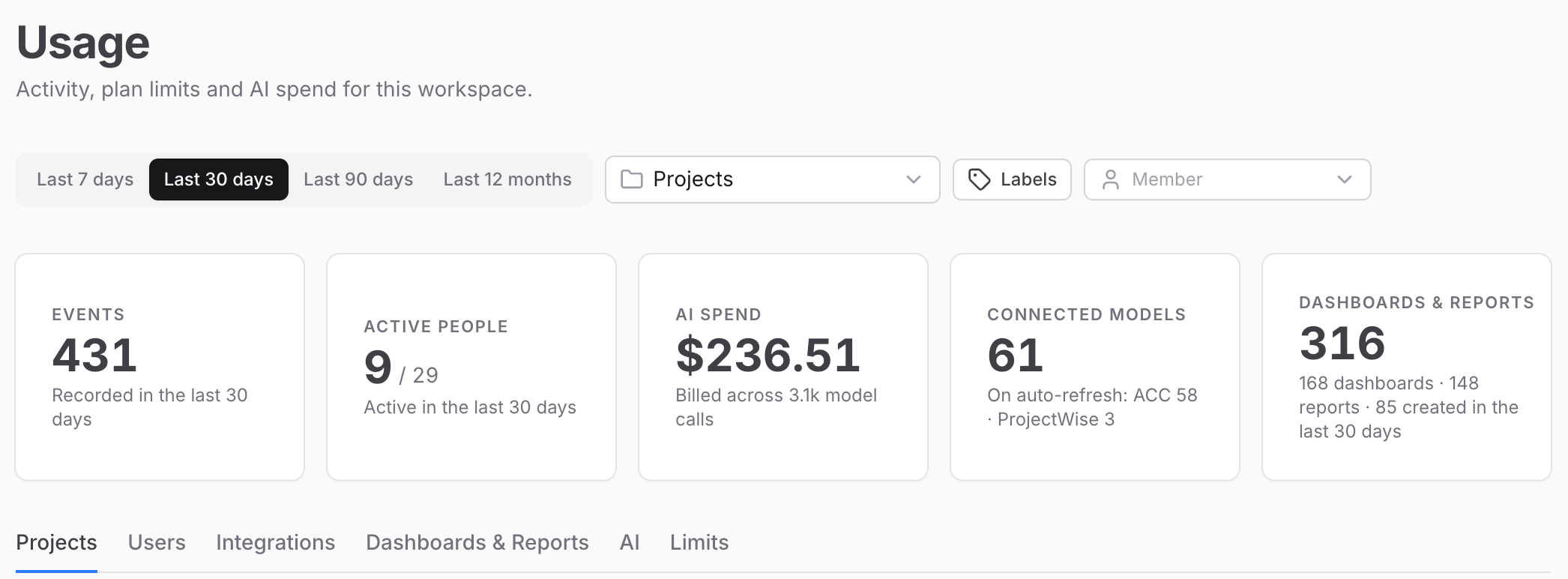 Sign in, open the workspace, then select **Settings**. You should see **General** at the top of
the Settings list.
Under **Plan & billing**, select **Usage**. The page reads "Activity, plan limits and AI spend
for this workspace." You should see a filter bar and section tabs.
## Filter and export
The filter bar applies to the activity sections, not to **Limits**.
* Range: **Last 7 days**, **Last 30 days**, **Last 90 days**, or **Last 12 months**.
* **Projects**, project labels, and **Member** narrow the scope. **Clear** removes that scope.
* Charts and tables include **Download CSV** when there are rows to export.
**Limits** is workspace-wide. Changing the filters does not change that tab.
## Sections
Sign in, open the workspace, then select **Settings**. You should see **General** at the top of
the Settings list.
Under **Plan & billing**, select **Usage**. The page reads "Activity, plan limits and AI spend
for this workspace." You should see a filter bar and section tabs.
## Filter and export
The filter bar applies to the activity sections, not to **Limits**.
* Range: **Last 7 days**, **Last 30 days**, **Last 90 days**, or **Last 12 months**.
* **Projects**, project labels, and **Member** narrow the scope. **Clear** removes that scope.
* Charts and tables include **Download CSV** when there are rows to export.
**Limits** is workspace-wide. Changing the filters does not change that tab.
## Sections
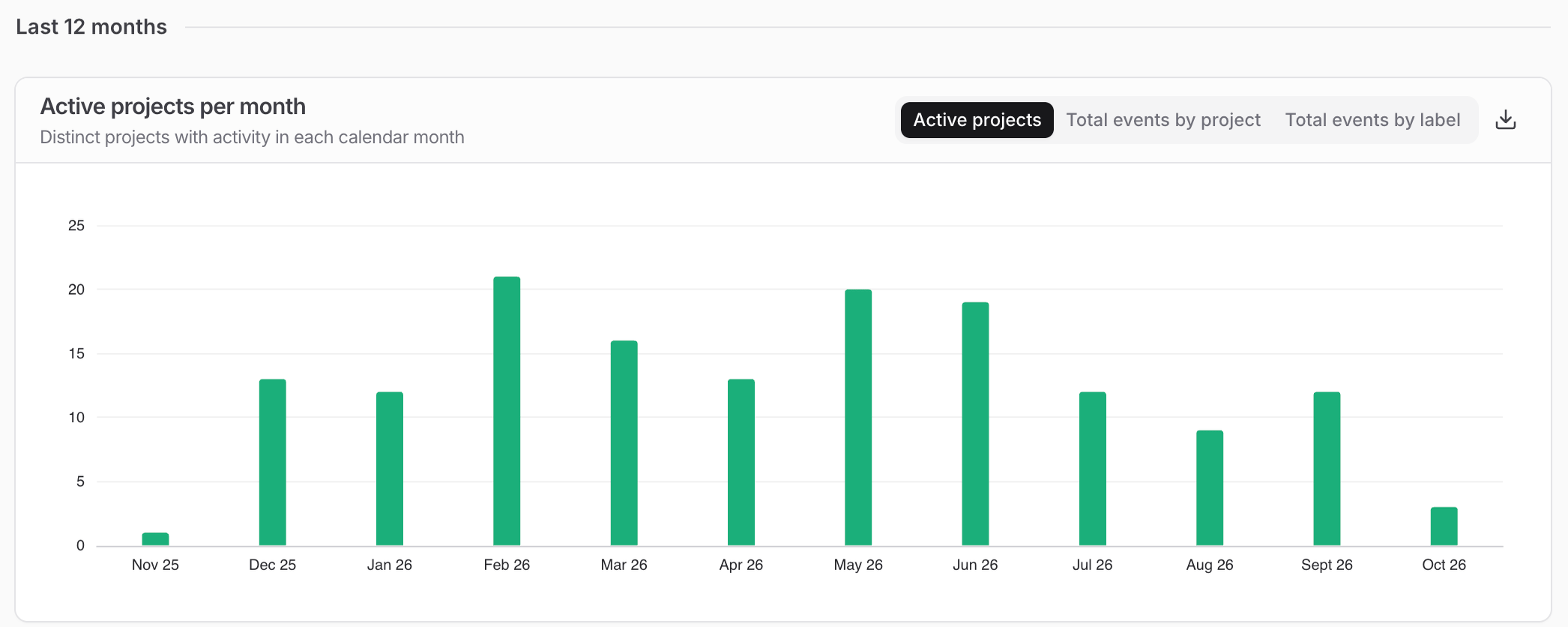 * **Projects**: which projects see the most activity, and how many are active month to month.
* **Users**: the most active people, and how many are active month to month.
* **Integrations**: where versions come from, and which ACC and ProjectWise files are set to
auto-refresh.
* **Dashboards & Reports**: which projects every dashboard and report is attached to, and who owns
it.
* **AI**: token spend by user, project, purpose, and tool. This tab appears when the workspace
includes Speckle Intelligence Chat. Under a project scope, workspace-level chats drop out.
* **Limits**: what the plan includes and how much of it is used. **Manage plan** opens **Billing
and plans**. See [Billing](/workspaces/billing).
Empty activity sections show "No usage data available" until people start working in the workspace.
If a load fails, the page shows "Couldn't load usage data" and **Try again**.
On a self-hosted Speckle Enterprise Server, your server administrator turns on Intelligence and
connects it to your organisation's AI provider. See [Enable
Intelligence](/developers/server/deployment/enterprise-license#enable-intelligence).
## FAQ
**Limits** is workspace-wide. The filters apply to Projects, Users, Integrations, Dashboards &
Reports, and AI. Use **Manage plan** on the Limits tab to open **Billing and plans**.
**AI** appears when the workspace includes Speckle Intelligence Chat. The other tabs stay. Chat
itself is documented on [Ask questions about your models with Speckle
Intelligence](/analytics/intelligence).
This documentation is built and hosted on [Mintlify](https://mintlify.com), a developer documentation platform.
* **Projects**: which projects see the most activity, and how many are active month to month.
* **Users**: the most active people, and how many are active month to month.
* **Integrations**: where versions come from, and which ACC and ProjectWise files are set to
auto-refresh.
* **Dashboards & Reports**: which projects every dashboard and report is attached to, and who owns
it.
* **AI**: token spend by user, project, purpose, and tool. This tab appears when the workspace
includes Speckle Intelligence Chat. Under a project scope, workspace-level chats drop out.
* **Limits**: what the plan includes and how much of it is used. **Manage plan** opens **Billing
and plans**. See [Billing](/workspaces/billing).
Empty activity sections show "No usage data available" until people start working in the workspace.
If a load fails, the page shows "Couldn't load usage data" and **Try again**.
On a self-hosted Speckle Enterprise Server, your server administrator turns on Intelligence and
connects it to your organisation's AI provider. See [Enable
Intelligence](/developers/server/deployment/enterprise-license#enable-intelligence).
## FAQ
**Limits** is workspace-wide. The filters apply to Projects, Users, Integrations, Dashboards &
Reports, and AI. Use **Manage plan** on the Limits tab to open **Billing and plans**.
**AI** appears when the workspace includes Speckle Intelligence Chat. The other tabs stay. Chat
itself is documented on [Ask questions about your models with Speckle
Intelligence](/analytics/intelligence).
This documentation is built and hosted on [Mintlify](https://mintlify.com), a developer documentation platform.