

Project archiving is available on the Enterprise plan.
Why archive instead of delete
Archiving is useful when a project is inactive but still important to keep.- It avoids permanent data loss from deleting old projects.
- It keeps project lists focused on active work.
- It preserves project history so you can restore it later.
- It frees project slots while keeping retained versions available.
What happens when you archive a project
When you archive a project:- It is hidden from normal project lists.
- It becomes read-only and cannot be modified.
- It no longer counts toward your workspace project limit.
- Its existing versions still count toward your workspace version limit.
Archive a project
1
Open project settings
Go to the project you want to archive, then open Project settings and find Archive
project. You should see the archive warning panel.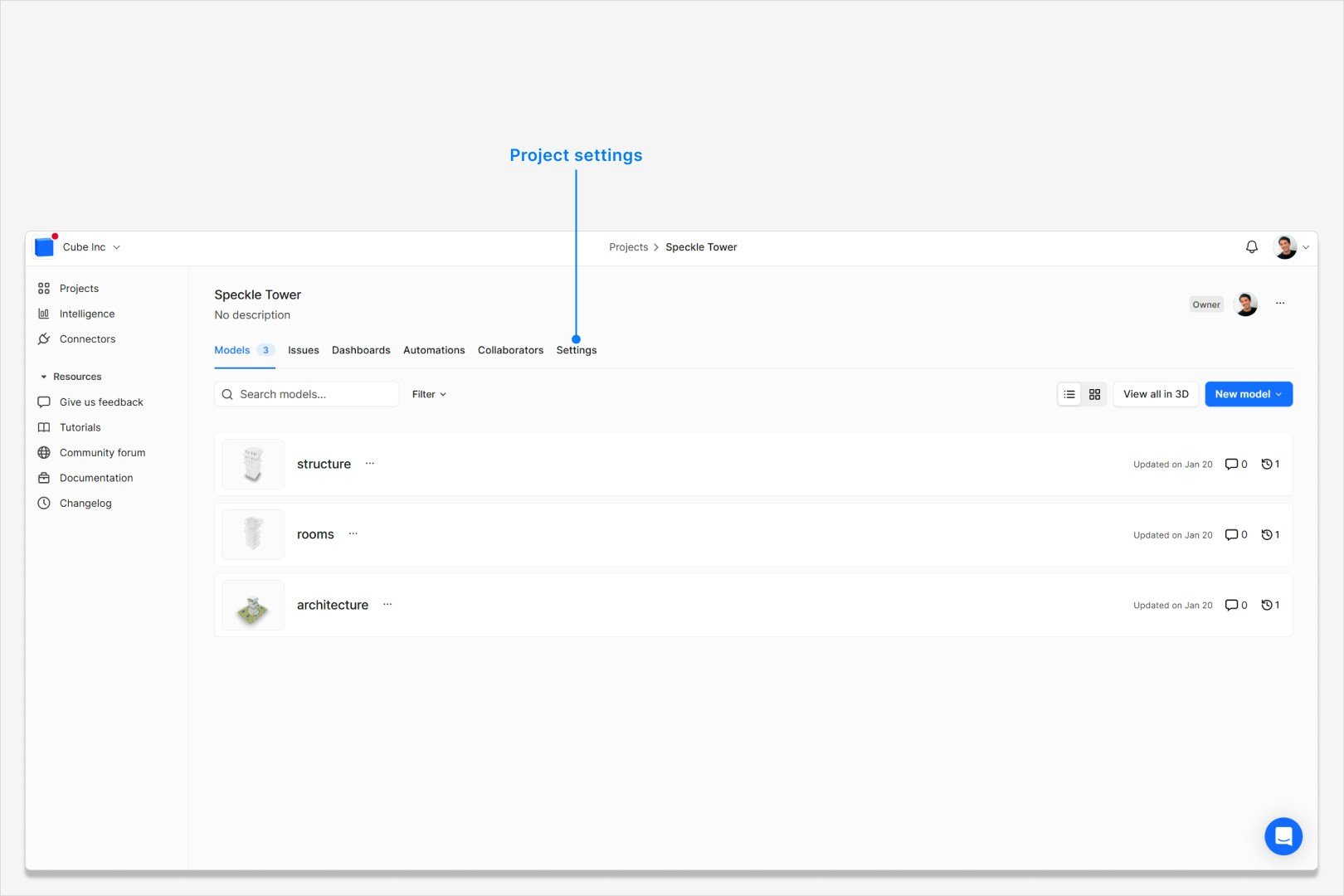
2
Confirm the archive action
Click Archive project, review the confirmation dialog, then click Archive. The project
is archived and removed from normal project lists.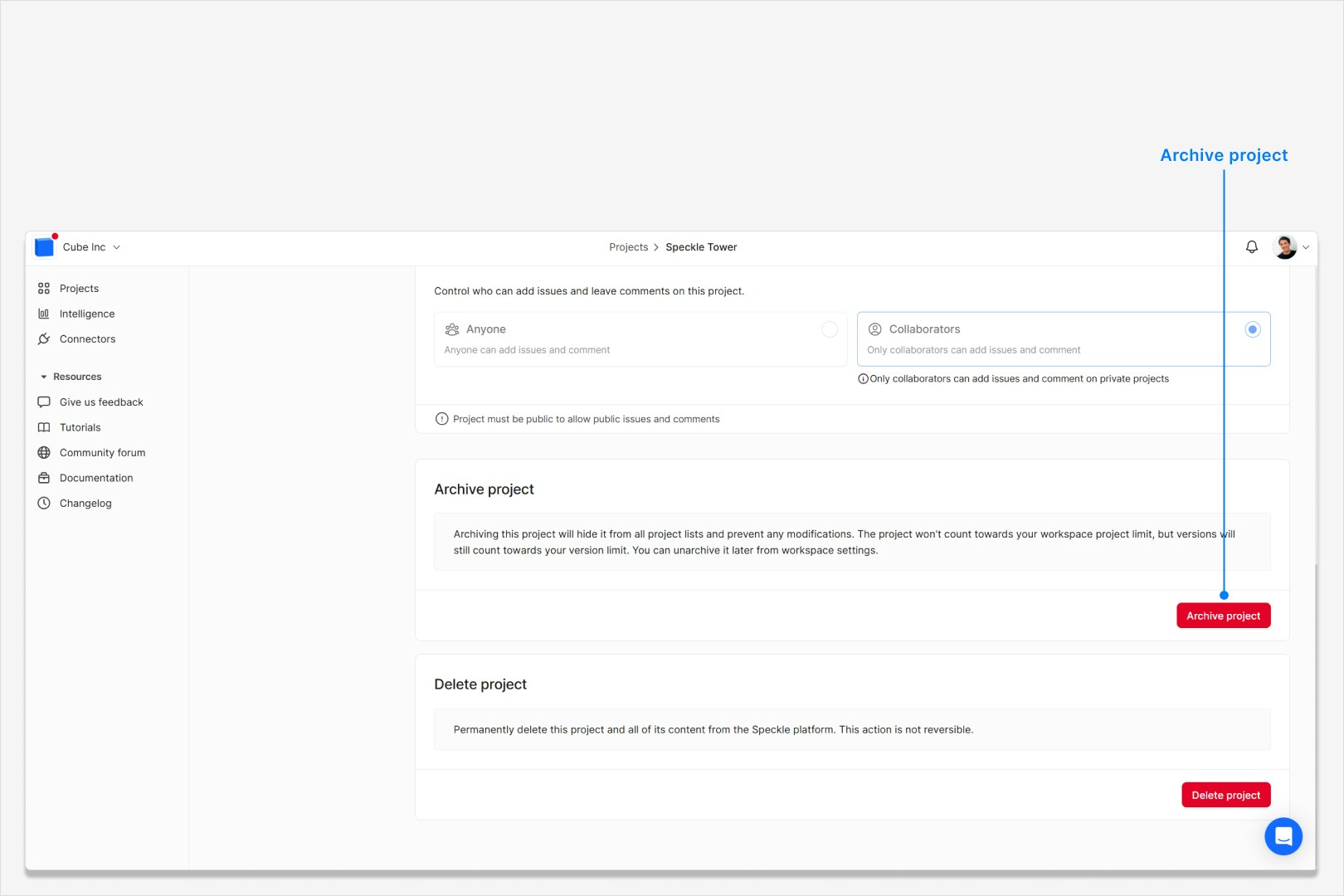
Unarchive a project
1
Open workspace project settings
Go to Workspace settings and open Projects. You should see archived
projects marked with an Archived badge.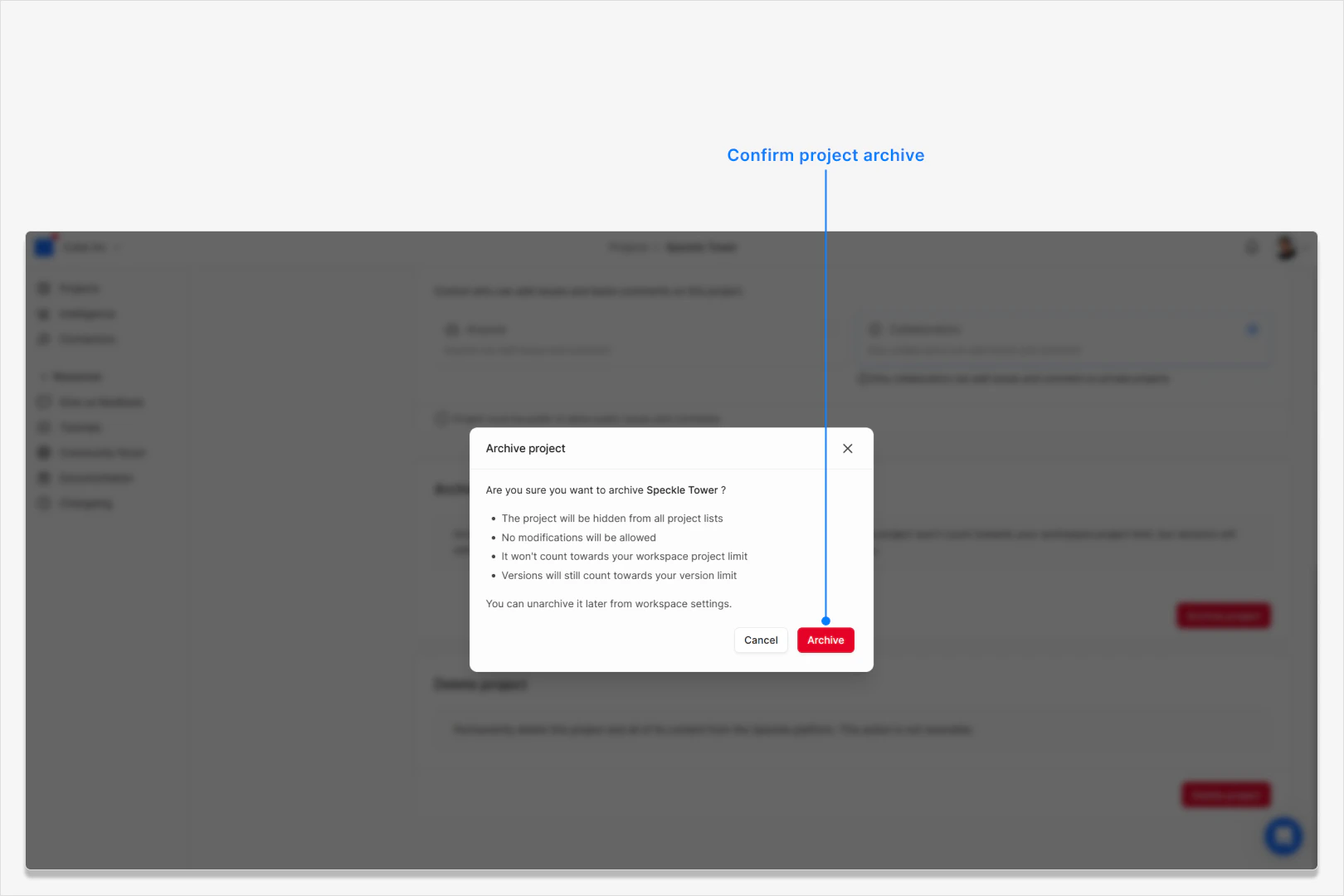
2
Run unarchive from the project menu
Open the project row menu and choose Unarchive. The project returns to
normal project lists and can be edited again.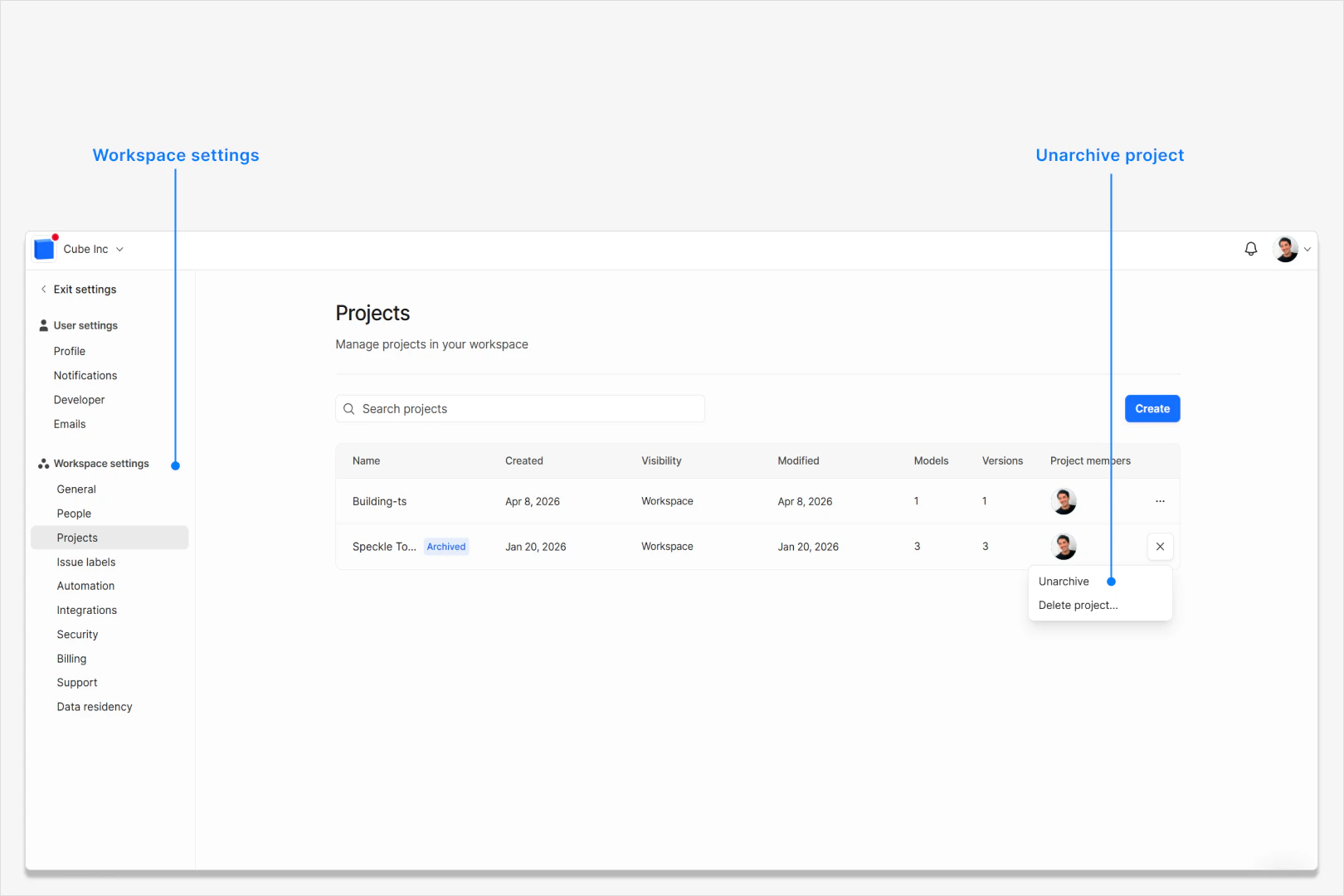
Verify it worked
After archiving, the project should no longer appear in standard project lists and direct project links should show an archived/not found page. After unarchiving, the project should be visible in lists again and accessible normally.FAQ
Will archiving delete project data?
Will archiving delete project data?
No. Archiving hides the project and prevents edits, but it does not delete
the project’s existing models or versions.
Why can't I see the Archive project option?
Why can't I see the Archive project option?
Project archiving is available only on the Enterprise plan. If your
workspace is on Explore or Team, you will not see Archive project. You
may also be missing the role permission required to archive projects.
Does archiving reduce version usage?
Does archiving reduce version usage?
No. Archived projects stop counting toward project limits, but their
versions still count toward workspace version limits.
Can people still open an archived project link?
Can people still open an archived project link?
No. Archived projects are hidden from normal project lists, and direct links
to the project show an archived or not found state until the project is
unarchived. Shared embedded views, shared presentations, and saved viewpoints
that depend on that project will not continue to show content while the
project is archived.Shared dashboards can still be opened, but any data sourced from the
archived project becomes inaccessible until the project is unarchived.
What if we are at the project limit and need to unarchive?
What if we are at the project limit and need to unarchive?
Unarchiving is blocked when your workspace is already at its project limit.
Free one project slot first, then unarchive the project.
Does unarchiving restore the same project data?
Does unarchiving restore the same project data?
Yes. Archiving does not delete models or versions. When you unarchive, the
project returns with its existing data and becomes editable again.