

Admin support mode is available only on Speckle Enterprise Server and is visible only to server
administrators. For deployment and feature flag configuration, see the Enterprise Licensed Server
guide.
Read vs write access
When admin support mode is enabled, server admins have different levels of access depending on whether a support session is active:For self-hosted deployments: when resources (projects and everything under them) are not tied to a
workspace, server admins have full read and write access without a support session. If you
self-host without an Enterprise license, there are no workspaces — server admins have full access
in that case.
How support sessions work
Support sessions follow a request-and-approve lifecycle:- Pending — Server admin requests access; workspace admins are notified by email
- Active — Workspace admin approves; server admin gains write access
- Expired — Session passes its expiration time and access is automatically removed
- Revoked — Either party manually ends the session
As a workspace admin
Approve a support request
1
Open the Support settings page
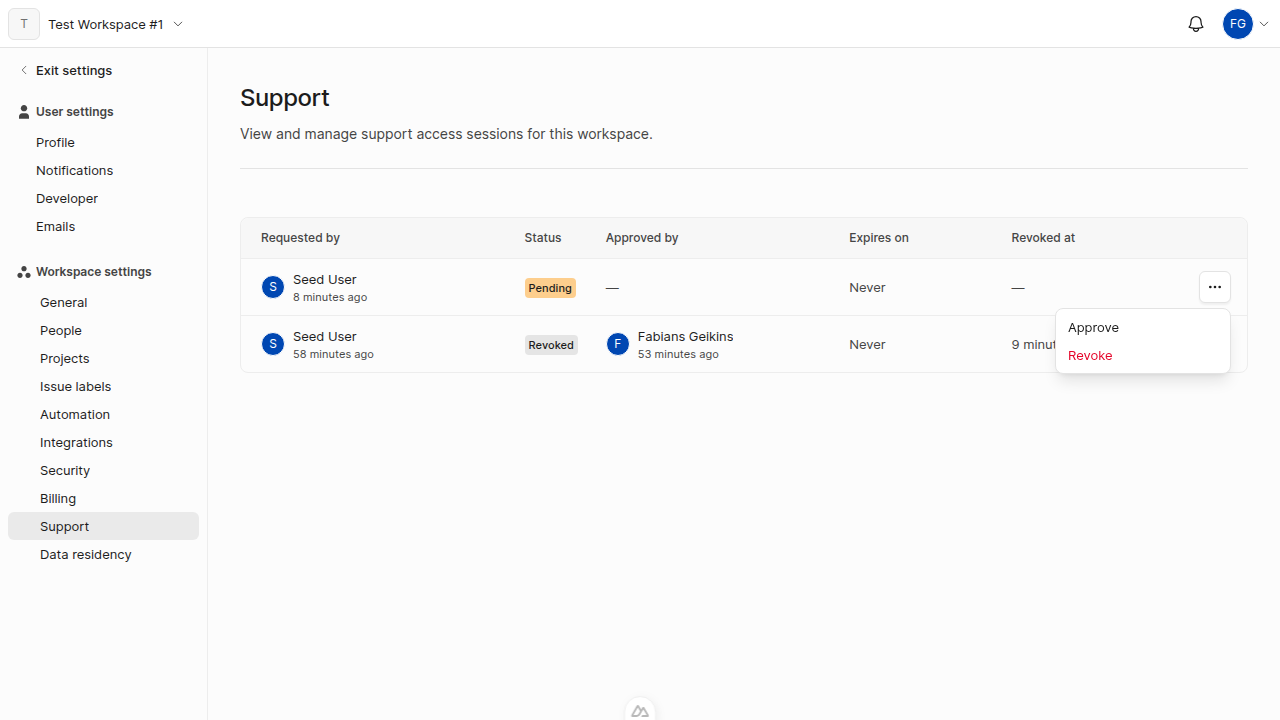
Open the email notification link, or go to Workspace Settings > Support for the relevant workspace. You see the sessions table with pending, active, and past sessions.
2
Review the pending request
Find the pending request you want to review in the sessions table.
3
Approve the request
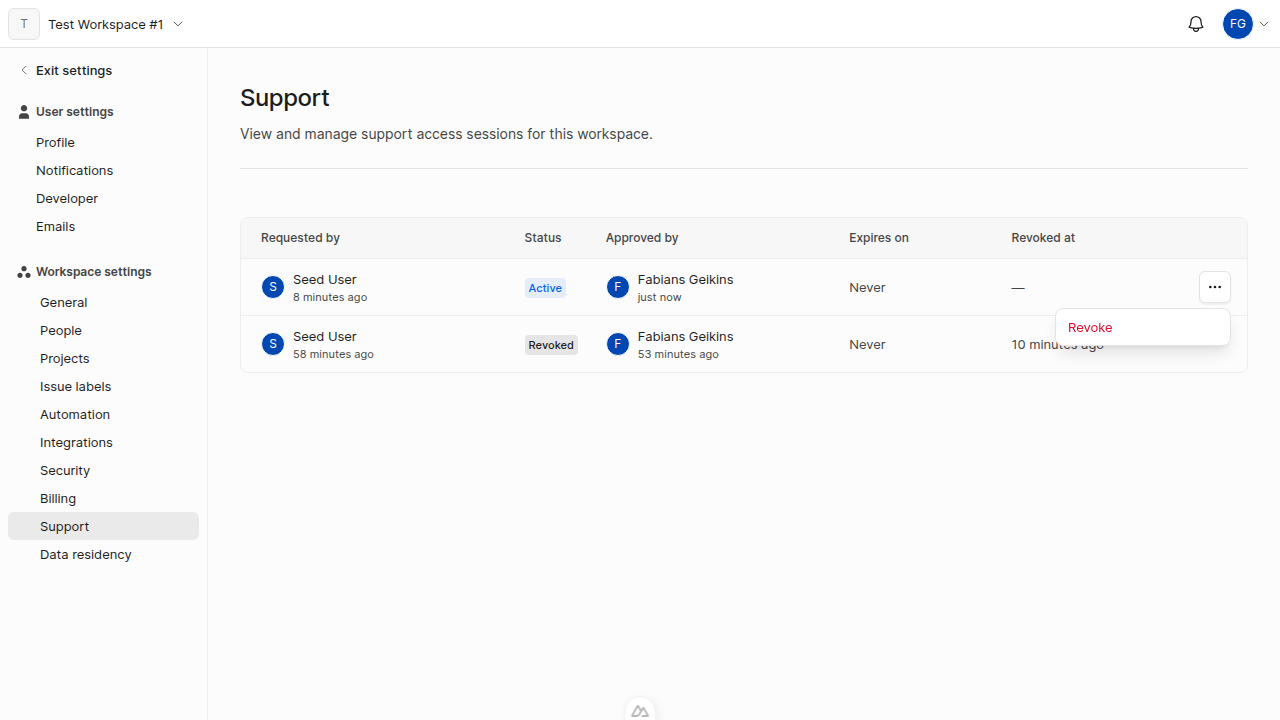
Click the actions menu (…) on the session row and select Approve. The session status changes to Active and the server admin receives an email confirmation and gains write access.
Revoke a session
Click the actions menu (…) on the session row in Workspace Settings > Support and select Revoke. Expired sessions appear with an Expired status in the sessions table.As a server admin
Admin support mode is available only on Speckle Enterprise Server and is visible only to server
administrators. For deployment and feature flag configuration, see the Enterprise Licensed Server
guide.
Request support access
1
Open workspace details
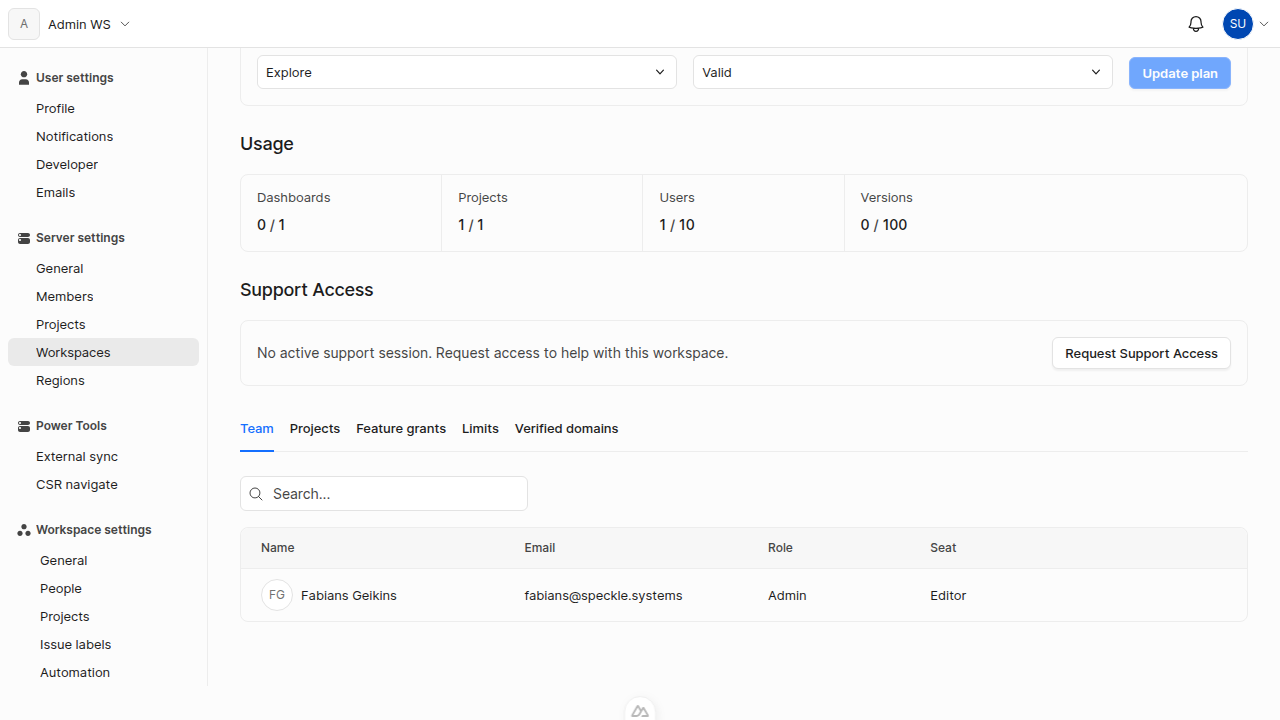
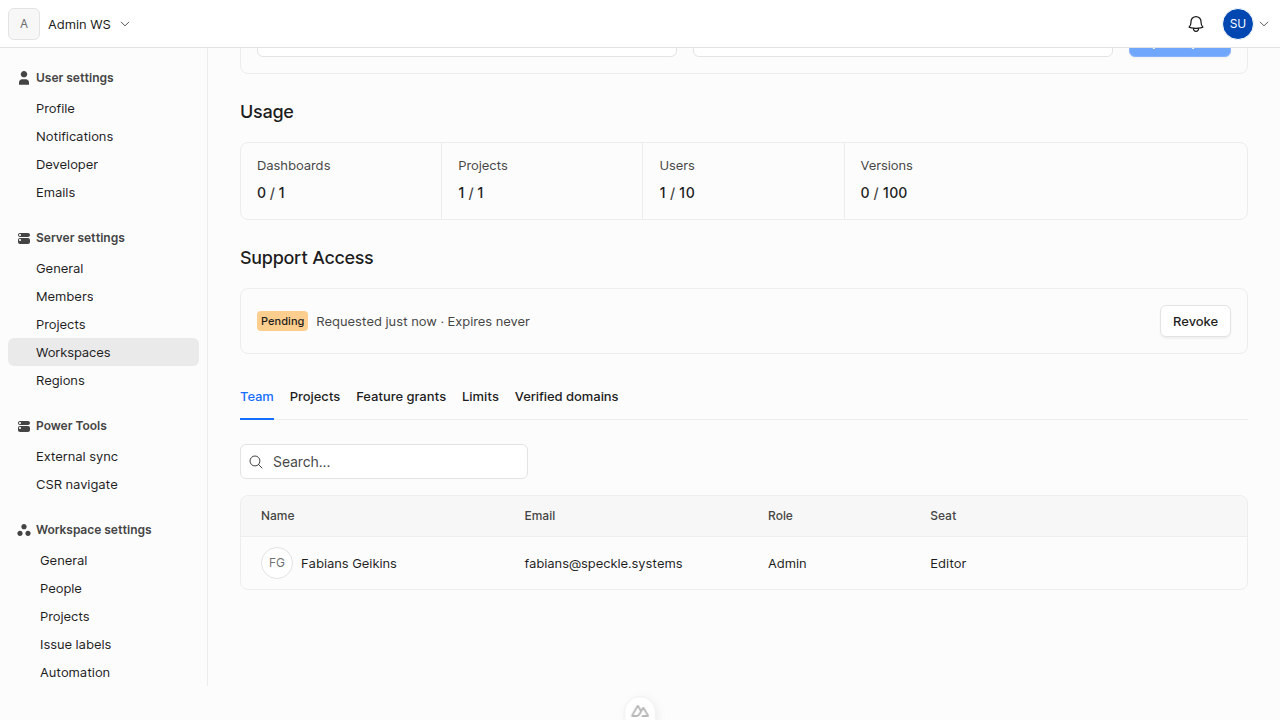
Go to Server Settings > Workspaces and select the workspace you need to access. You see the workspace details page with the Support Access section.
2
Request access
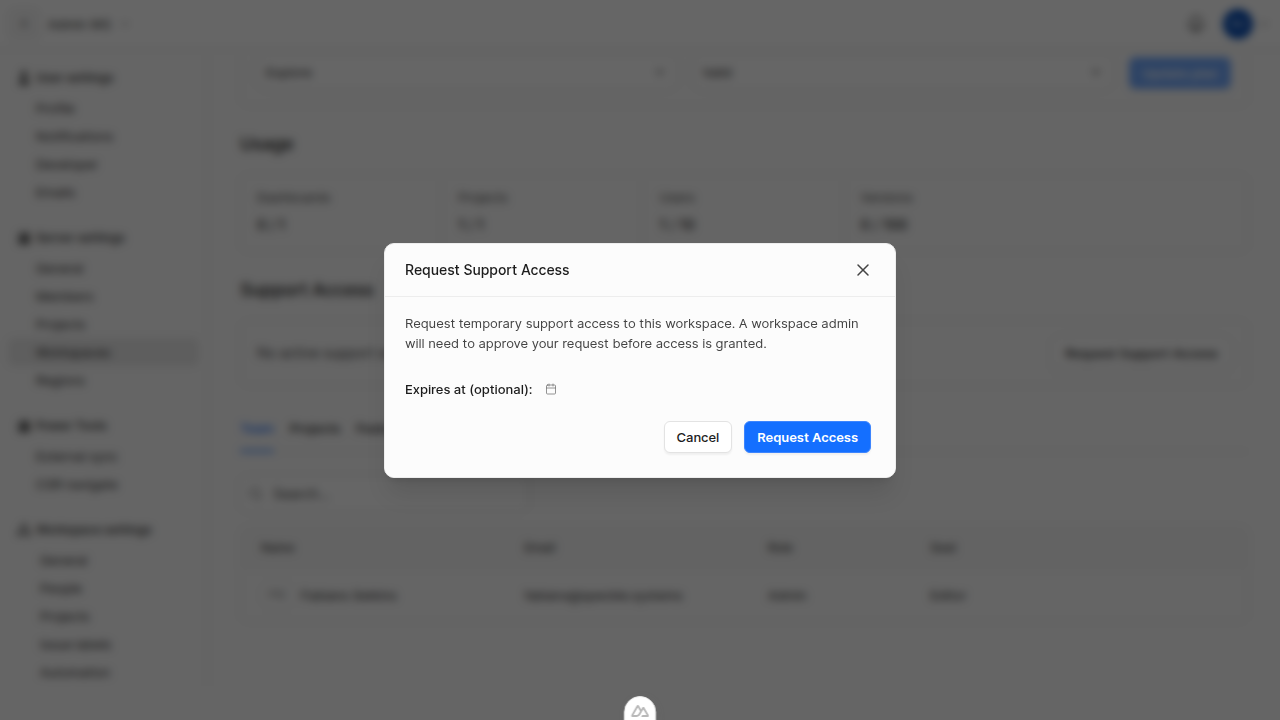
In the Support Access section, click Request Support Access. The Request Support Access dialog opens.
3
Set an expiration (optional)
In the dialog, optionally set an expiration date and time. The minimum is 10 minutes from now. If left empty, the session will not expire and must be revoked manually.
4
Submit the request
Click Request Access. The request status shows Pending in the Support Access section and all workspace admins receive an email notification with a link to review the request.
Working in support mode
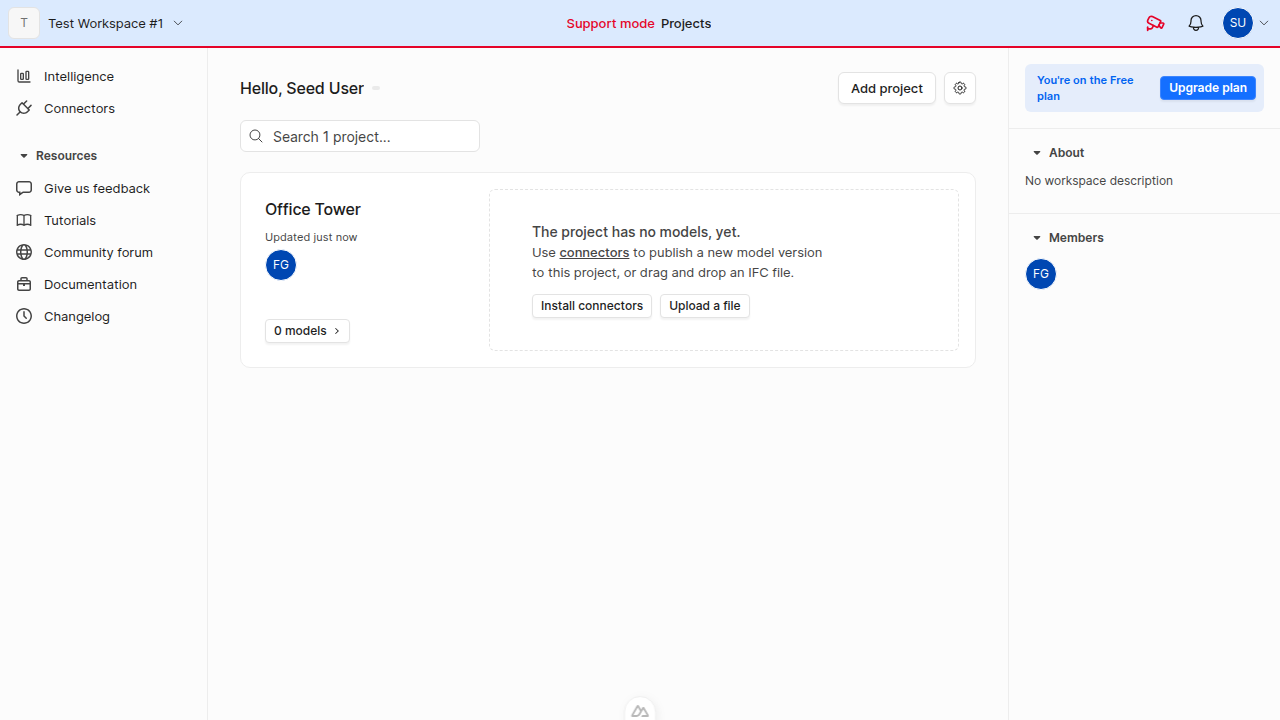
When you have an active support session and navigate to the supported workspace, the interface changes to indicate support mode:- The navigation bar shows a red border and a red Support mode label
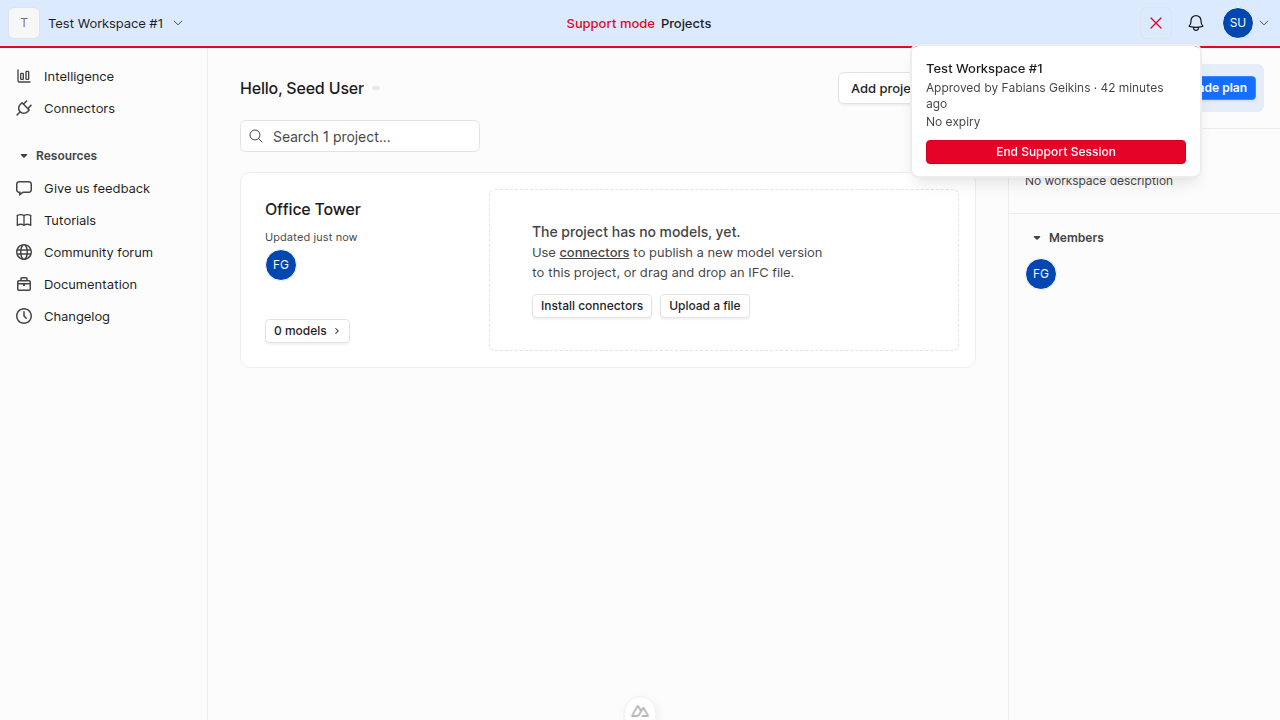
- A session details icon appears in the navbar; clicking it shows the workspace name, who approved the session, the expiration, and an End Support Session button
End or revoke a session
Click Revoke in the Support Access section on the workspace’s server settings page, or click End Support Session in the navbar dropdown while in support mode. Sessions also end automatically when the expiration time passes.FAQ
What happens when a session expires?
What happens when a session expires?
The server admin loses write access immediately. The session appears as Expired in the sessions table. The admin retains read-only access (no session required). To regain write access, the admin must request a new session.
Can multiple server admins have active sessions for the same workspace?
Can multiple server admins have active sessions for the same workspace?
Yes. Multiple server admins can have concurrent active sessions for the same workspace, and a
single server admin can have active sessions across different workspaces.
Do support sessions work with connectors?
Do support sessions work with connectors?
Yes. Support sessions are tied to the user, not to a specific token or application. Any authenticated session for the server admin (including connectors like Revit, Rhino, and Archicad) will have support access while the session is active.