

The Snowflake integration is in Beta and is enabled per workspace. If you don’t see Snowflake
under your project’s Integrations, submit the beta access request
form.
TYPE = SERVICE). The Snowflake grants you assign to that user define exactly what Speckle can read — grant only the databases, schemas, tables, and views you want to expose.
Prepare the service user and grants
1
Generate an RSA key pair
On your local machine, generate a PKCS8 RSA private key and matching public key:The private key (Then copy the public key as a single line for the Snowflake SQL in the next step:
Generate Snowflake key-pair credentials
rsa_key.p8) goes into Speckle. Keep it secret. The public key (rsa_key.pub) goes into Snowflake.Verify that the private key is in the expected PKCS8 format:2
Create a service user and read-only role
In Snowsight, open a worksheet and run the script below. Replace the warehouse, database, and public key values with your own. The example grants read access to all current and future tables and views in one database; narrow these grants if you only want to expose specific schemas, tables, or views.The service user can now read only the databases, schemas, tables, and views you granted.
Create a Snowflake service user for Speckle
3
Copy your account identifier
Account admins can find the account identifier in Snowsight from Profile > Account > View account details.You can also run this in any Snowsight worksheet:Copy the value exactly. Speckle uses Snowflake’s modern 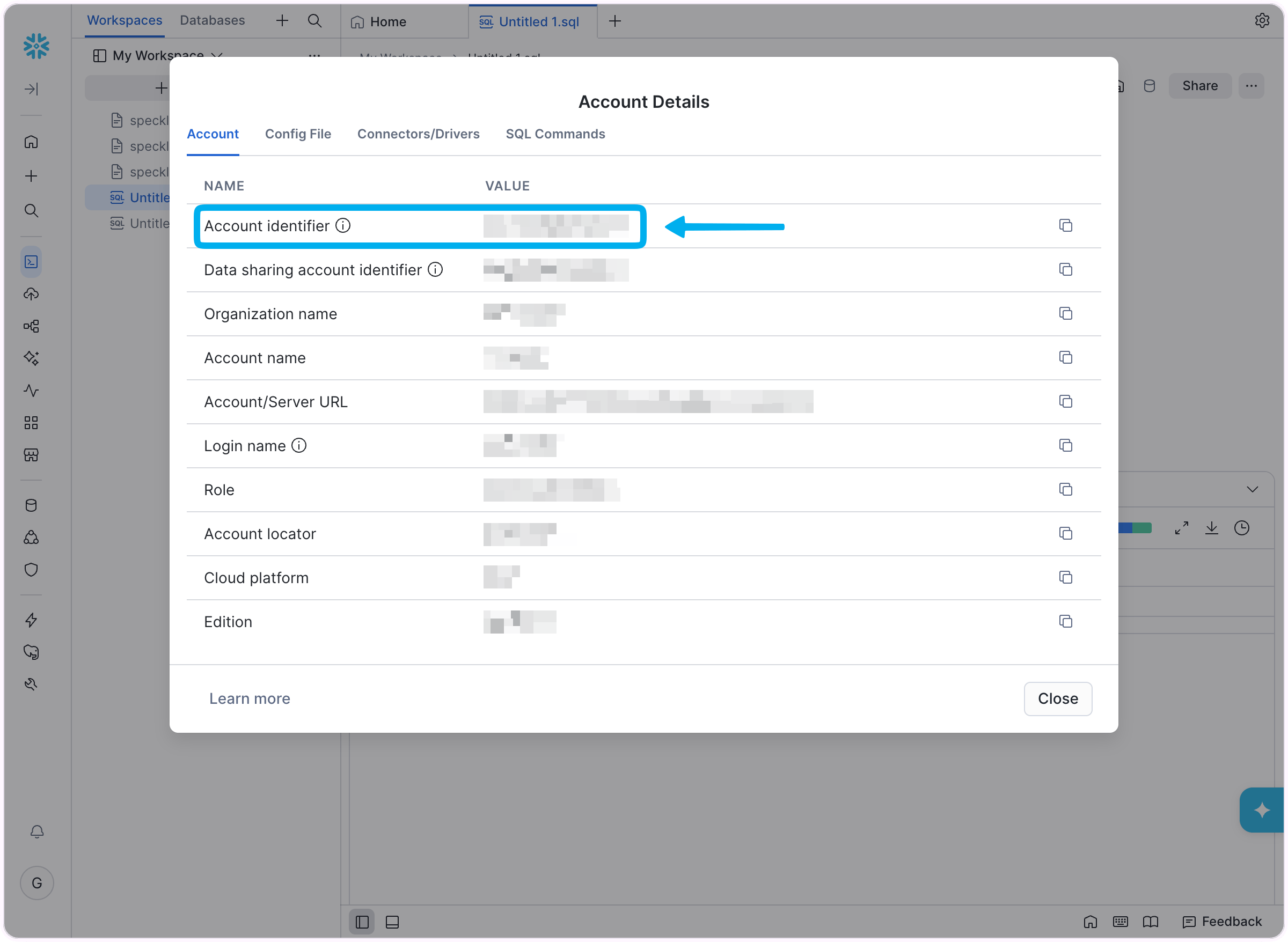
Get the Snowflake account identifier
orgname-account_name account identifier, so you do not need a separate region field.Using Snowflake CoCo. If Snowflake’s AI assistant is available in your
account, you can ask it to generate the RSA key pair, create the service user,
role, grants, and return the connection details you need for Speckle.
Paste that prompt into CoCo, then copy the returned values into Speckle.
Prompt for Snowflake CoCo
Prompt for Snowflake CoCo
Connect the warehouse in Speckle
1
Open the Snowflake integration
In Speckle, open your project’s Integrations > Snowflake and select Connect to Snowflake.
2
Enter your warehouse details
Fill in: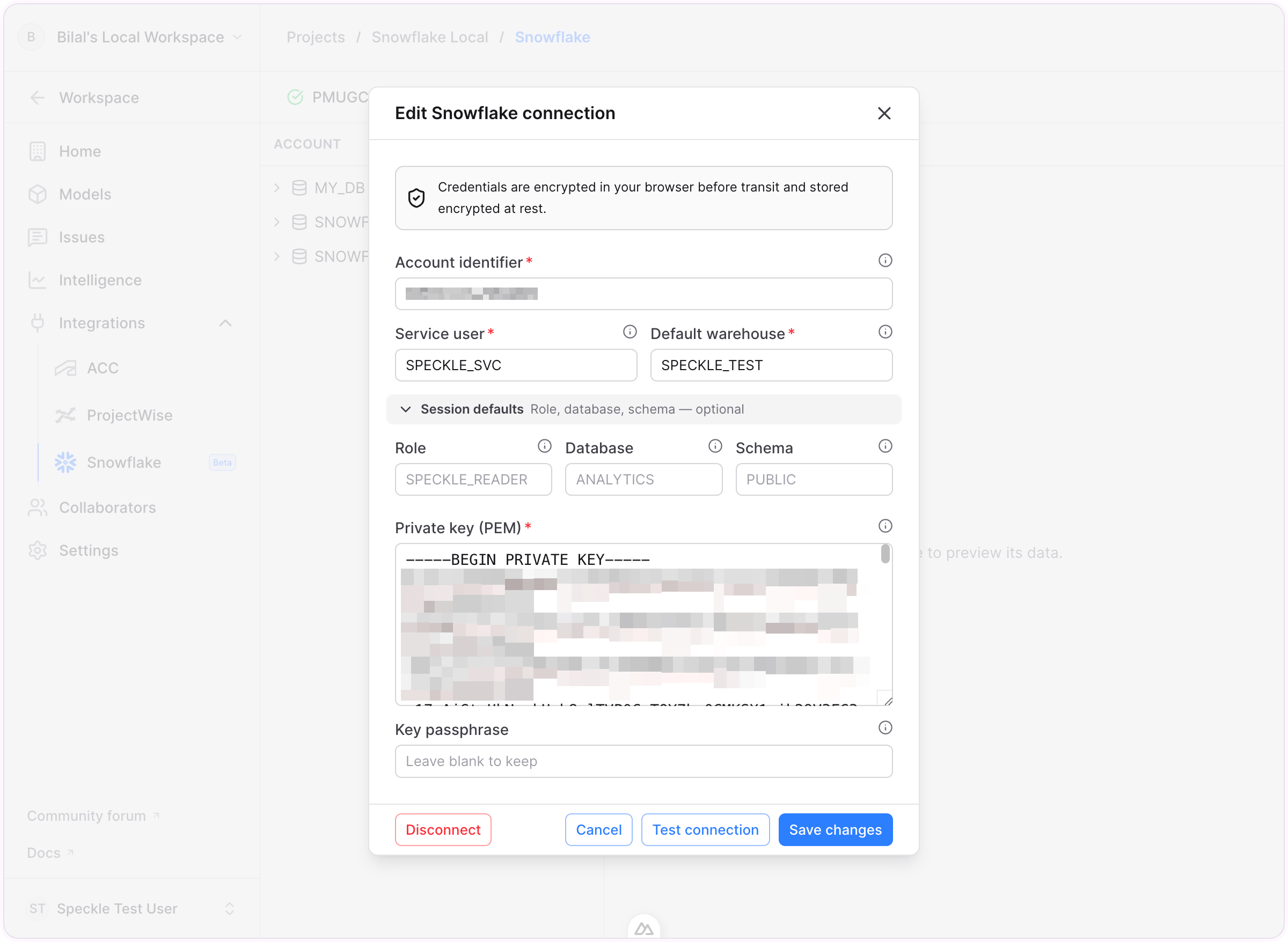
- Account identifier — e.g.
myorg-account_name. - Service user — e.g.
SPECKLE_SVC. - Default warehouse — e.g.
COMPUTE_WHor the warehouse you granted to the service user. - Session defaults — optional Role, Database, and Schema values. Setting the role to your read-only role, such as
SPECKLE_READER, is recommended. - Private key (PEM) — the full contents of
rsa_key.p8, including theBEGINandENDmarkers. - Key passphrase — leave blank unless you generated an encrypted private key.
3
Test the connection
Select Test connection. Speckle runs a
SELECT 1 round-trip against your warehouse. Auto-suspended warehouses can take a few seconds to resume on the first query — if the test times out on a cold warehouse, try again once it’s running.You should see a success message with the response time, or an error explaining what failed.4
Save
Select Connect. The connection is now stored for your workspace and you can browse it.
FAQ
Can Speckle modify or write to my warehouse?
Can Speckle modify or write to my warehouse?
No. Speckle is read-only in Snowflake. It only runs
SELECT, SHOW, and DESCRIBE queries
against objects users browse or register and never writes, alters, or deletes data in your
warehouse.What controls which Snowflake data Speckle can read?
What controls which Snowflake data Speckle can read?
Snowflake grants define the boundary. Speckle can only read databases, schemas, tables, and
views you explicitly granted to the service user — nothing more.
How are Snowflake connection secrets protected?
How are Snowflake connection secrets protected?
Connection secrets are encrypted in your browser before they are sent, stored encrypted at rest,
and never shown again after you save the connection.