

The Snowflake integration is in Beta and is enabled per workspace. Before you can register
tables or views, an IT administrator must prepare Snowflake and connect the warehouse in Speckle.
If your project’s Integrations does not show Snowflake, ask your IT administrator to follow
Enable Snowflake integration.
Setup
These steps assume an IT administrator has already connected a Snowflake warehouse in Speckle. If it hasn’t, your IT administrator must complete Enable Snowflake integration first.1
Browse to your table or view
In Speckle, open your project’s Integrations > Snowflake, expand database > schema, and find the table or view you want. Only databases, schemas, tables, and views your IT administrator has granted access to will appear. Select a table or view to preview its rows.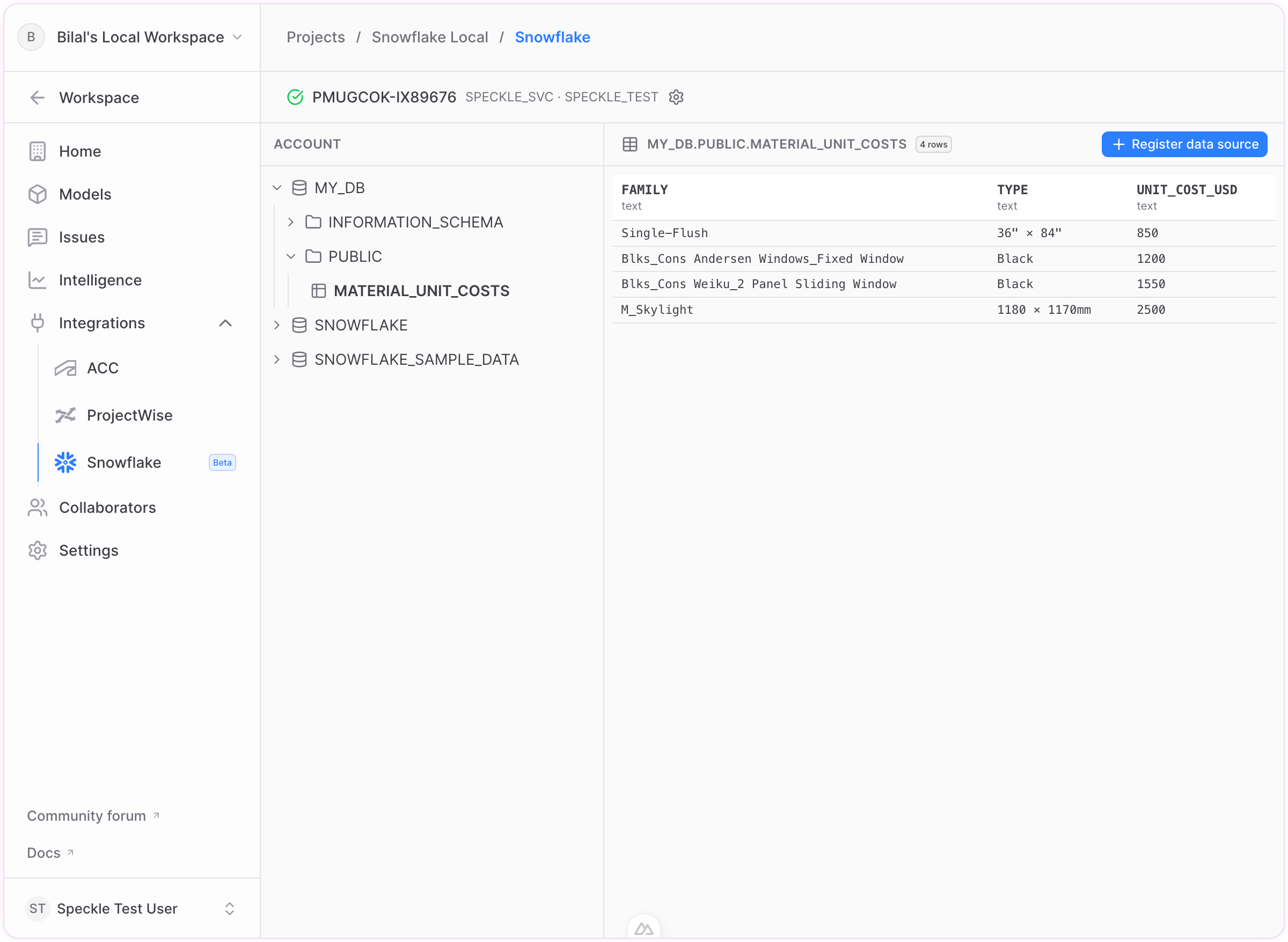
2
Choose the columns and register
Select Register data source, pick the columns to include — only the columns you choose are ever read or cached — then choose a short Name for the data source. You can also adjust the Snapshot TTL (time to live) if the default freshness window does not fit your workflow. The TTL controls how long Speckle reuses the cached snapshot before it is considered stale. Select Register data source to finish. Speckle validates access and the table now appears as a registered data source.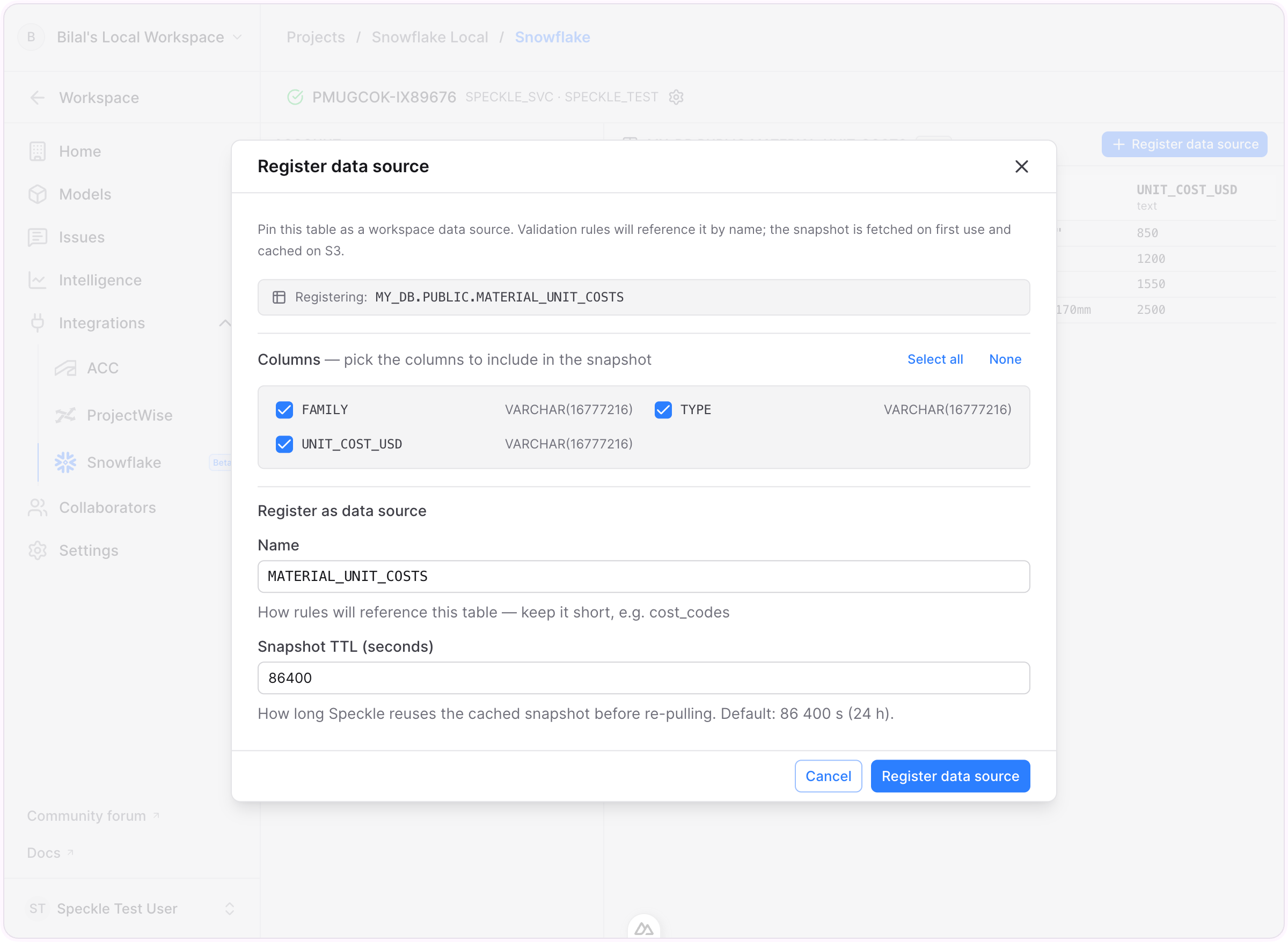
How snapshots are stored and refreshed
When you register a table or view, Speckle stores the selected columns as a cached snapshot in your workspace’s object storage. Tools query the snapshot rather than your live warehouse.- Snapshot TTL. TTL means time to live. It is the freshness window for the cached snapshot. The default is 24 hours.
- Automatic refresh. After the TTL expires, the snapshot is marked stale. Speckle rebuilds it from Snowflake the next time a tool uses that registered data source.
- Manual refresh. You can force an immediate refresh from the registered table’s controls — useful right after the source data changes.
- Disconnecting. If your IT administrator removes the Snowflake connection, registered sources keep serving their last snapshot read-only. Reconnecting the same warehouse relinks them and resumes refreshing.
FAQ
Which columns does Speckle read?
Which columns does Speckle read?
Only the columns you select when registering a table or view. Columns you don’t include are
never queried or cached.
Is the data live or cached?
Is the data live or cached?
Speckle stores a snapshot of your registered columns and refreshes it on a schedule. See How
snapshots are stored and refreshed.
What does Snapshot TTL mean?
What does Snapshot TTL mean?
TTL means time to live. It controls how long Speckle treats the cached snapshot as fresh.
After that time passes, Speckle refreshes the snapshot from Snowflake the next time it is used.
What happens if the Snowflake connection is removed?
What happens if the Snowflake connection is removed?
Your registered sources keep serving their last cached snapshot read-only, so existing tools
don’t break. If your IT administrator reconnects the same warehouse, refreshing resumes.
Can Speckle modify or write to my warehouse?
Can Speckle modify or write to my warehouse?
No. The integration is read-only — Speckle issues read-only queries only and never writes,
updates, or deletes data in Snowflake.