

During the beta, Speckle turns on SharePoint sync for each workspace that takes part. To take
part, contact sales.
SharePoint sync runs on Speckle’s hosted service only. It is not available on self-hosted servers.
How SharePoint sync works
- A Microsoft admin approves Speckle once. Until an admin in your organization approves Speckle’s app, nobody in your organization can sign in to SharePoint from Speckle. Send your admin Approve Speckle for SharePoint. During the beta, your Speckle contact can also arrange the approval.
- You browse as yourself. You sign in with your own Microsoft 365 work account, so you see only the sites and files you can open in SharePoint.
- Speckle checks for changes every 5 minutes. Speckle reads each synced file in the background and creates a version when the file’s published content changes.
Before you start
- Your workspace takes part in the SharePoint beta.
- A Microsoft admin in your organization has approved Speckle.
- You are a project Owner or Contributor. Any workspace member can sign in and browse, but only these roles can create syncs.
- You can open the file in SharePoint with your Microsoft 365 work account.
Create a sync
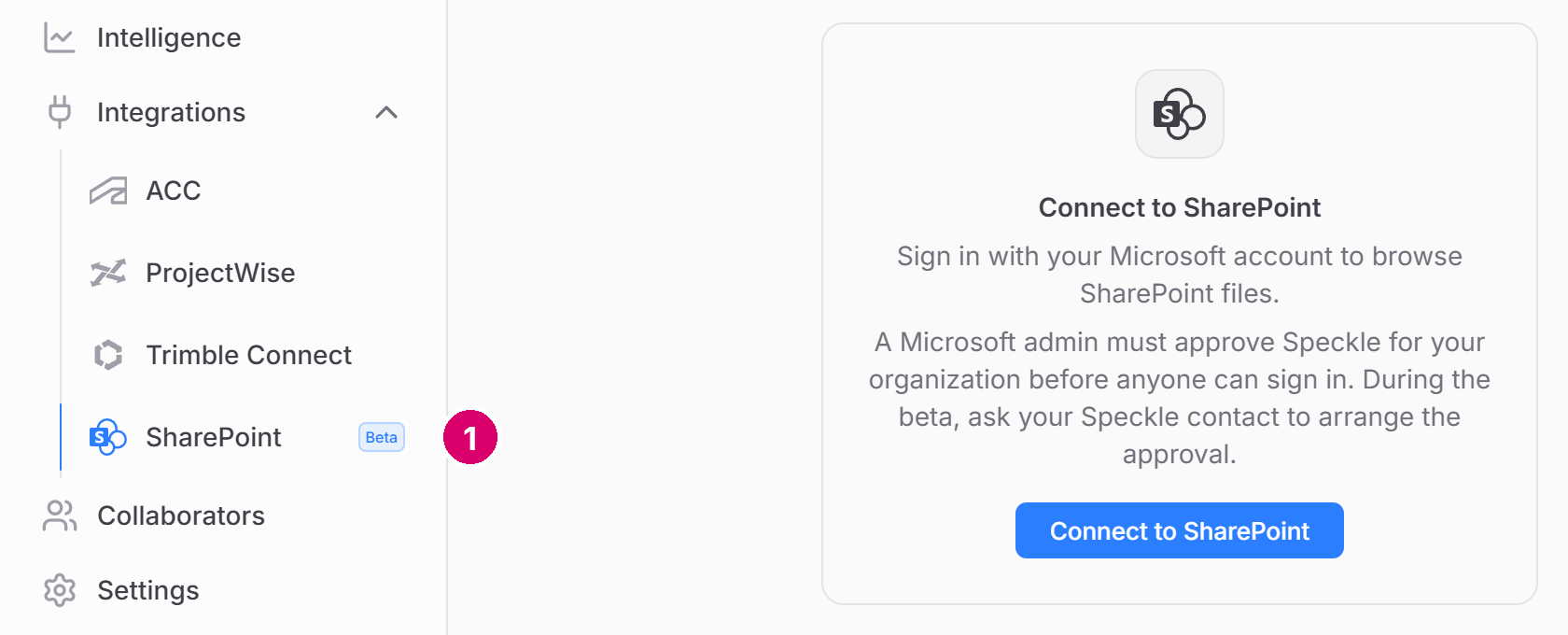
1 SharePoint under Integrations
1
Open SharePoint in your project
In the project sidebar, go to Integrations → SharePoint. You see the Connect to
SharePoint card.
2
Sign in to Microsoft
Select Connect to SharePoint and sign in with your Microsoft 365 work account. You return to
Speckle, and the header shows Signed in as with your name.
3
Choose a site and a library
Choose a site from Select a SharePoint site…, then a document library from Library.
The list holds every site you can open. Next time, it opens on the site you used last.
4
Select the files
In the Folders column, open a folder. Then select files in the list beside it. They appear
under Selected.
5
Create the sync
Select Create sync. Speckle creates a model for each file and imports the file’s latest
published version.
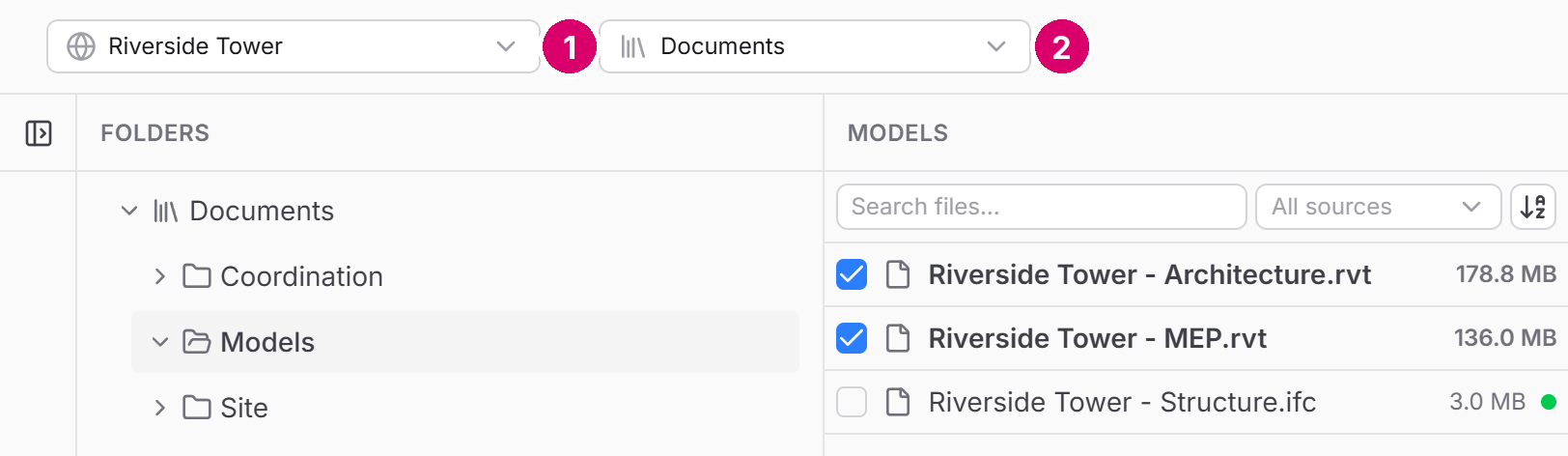
1 Select a SharePoint site · 2 Library
Revit and Navisworks options
For a Revit file, expand it under Selected, then set Reference point and Publish method before you create the sync. Publish method is Entire model, By View, or By Category. For a Navisworks file, set Reference point. These options work as they do for ACC. See Revit options.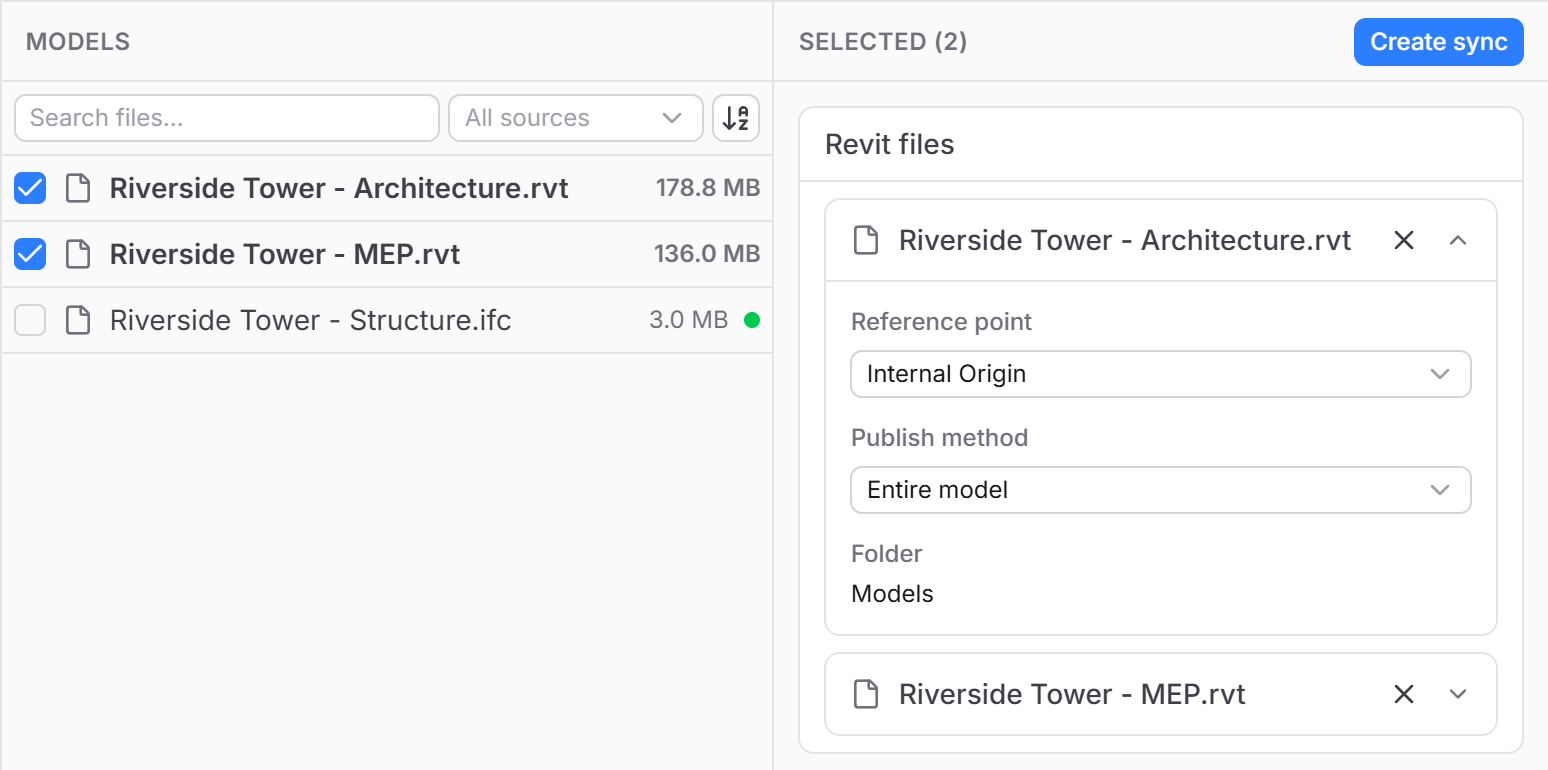
What creates a new version
Speckle syncs published content only. A change that does not publish new content creates nothing.SharePoint raises its version number for renames and column edits too. Consecutive Speckle
versions can skip SharePoint version numbers.
Keep models in sync
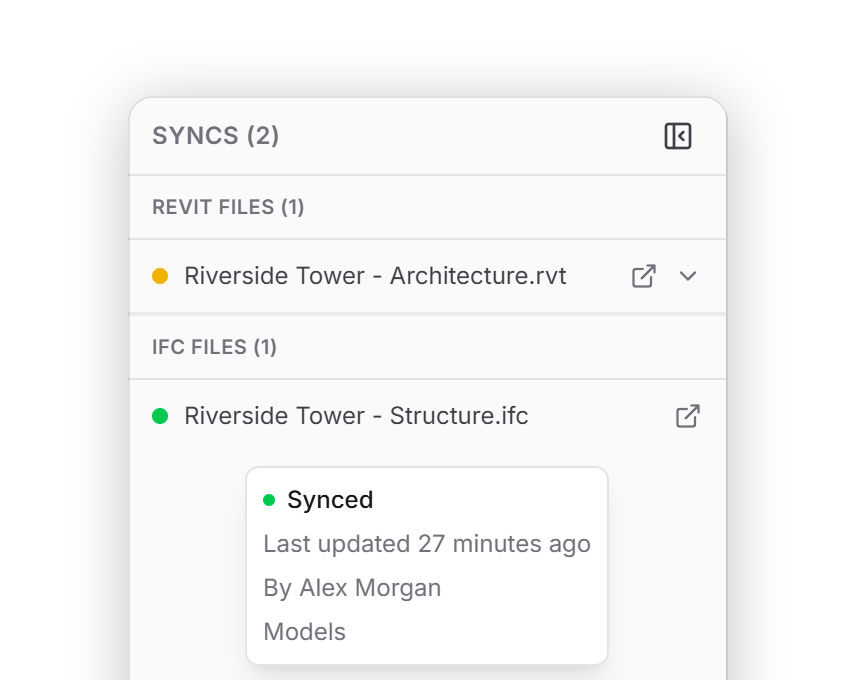
- Speckle checks each synced file every 5 minutes. A published change appears as a new Speckle version within about 5 minutes, plus the time it takes to convert the file.
- The Syncs panel lists every SharePoint sync in the project. The dot beside each file shows its status. Green means Synced, amber means Paused or Queued, blue means Processing, and red means Failed. Hover over a row to see its status, when it last updated, who last changed the file, and the file’s folder. Select the link icon on a row to open the model’s versions.
- For a Revit file, select its row to open the sync’s settings. There you can Pause the sync, Resume it, or select Trigger now to sync the file’s published content at once. For other file types, the row opens the model’s versions.
- Speckle does not check a paused sync. After you resume it, the next check syncs the file’s current content. Speckle skips any earlier changes published during the pause. See Sync guarantees.
When Speckle pauses a sync
Speckle pauses a sync and emails the person who created it in two cases:- Speckle cannot read the file for three checks in a row, about 15 minutes. This happens when the file was deleted or moved to another library or site, when it has no approved version left, or when access to its site was restricted. Fix it in SharePoint and resume the sync, or create a new sync at the file’s new location.
- Your Microsoft admin removed Speckle’s approval. Speckle pauses every SharePoint sync from your organization, and each sync’s creator gets one email. A Microsoft admin must approve Speckle again before you can resume them.
FAQ
Why does Speckle say my organization hasn't approved Speckle yet?
Why does Speckle say my organization hasn't approved Speckle yet?
A Microsoft admin in your organization must approve Speckle’s app before anyone can browse or
sync. Send your admin Approve Speckle for SharePoint. Then
select Sign out and connect again.
I saved the file, but no new version appeared. Why?
I saved the file, but no new version appeared. Why?
Speckle syncs published content only. If your library keeps drafts, publish a major version. If
the file is checked out, check it in. If neither applies, wait for the next check, up to 5
minutes, plus conversion time.
Why does Trigger now say there is nothing published to sync?
Why does Trigger now say there is nothing published to sync?
The file’s current content is a draft, or the file is empty. Speckle does not run the sync and
does not save settings you changed in the same step. The sync picks up the next published
version.
Why can't I create a sync on this file?
Why can't I create a sync on this file?
If Speckle says it cannot read the file, the file was never checked in or has no approved
version. Check it in or approve it in SharePoint, then try again. If Speckle says your Microsoft
account cannot open the file, ask the site owner for access.
Is the connection read-only?
Is the connection read-only?
Yes. Speckle only reads and downloads files from SharePoint. It never changes, uploads, or
deletes anything in SharePoint.
Can I sync the same file into several Speckle projects?
Can I sync the same file into several Speckle projects?
Yes. Create a sync for the file in each project. Each sync runs on its own.
Does deleting a Speckle model stop the sync?
Does deleting a Speckle model stop the sync?
Yes. Deleting the model deletes its sync. The file in SharePoint does not change.