

Install separately for each version: Repeat these steps for each application version you want
to use with Speckle.
Windows Installation
Install for a single user
- Extract the downloaded ZIP file.
- Copy both the
speckle_connector_3folder andspeckle_connector_3.rbfile to%AppData%\SketchUp\SketchUp {VERSION}\SketchUp\Plugins\- Replace
{VERSION}with your SketchUp version (example:2025) - Create the Plugins directory if it doesn’t exist
- Replace
Install for all users
Use%ProgramData% instead of %AppData% in all file paths above.
Update the connector
To update to a new version, download the latest ZIP file and repeat the installation steps above. The new files will replace the existing ones.Uninstall the connector
Delete thespeckle_connector_3 folder and the speckle_connector_3.rb file from your installation location.
To remove all Speckle products, delete the %AppData%\Speckle\ folder.
macOS Installation
Installing the connector
- Extract the downloaded ZIP file.
- Copy both the
speckle_connector_3folder andspeckle_connector_3.rbfile to~/Library/Application Support/SketchUp {VERSION}/SketchUp/Plugins/- Replace
{VERSION}with your SketchUp version (example:2025) - Create the Plugins directory if it doesn’t exist
- Replace
Fix macOS security warning for sqlite3_32.bundle
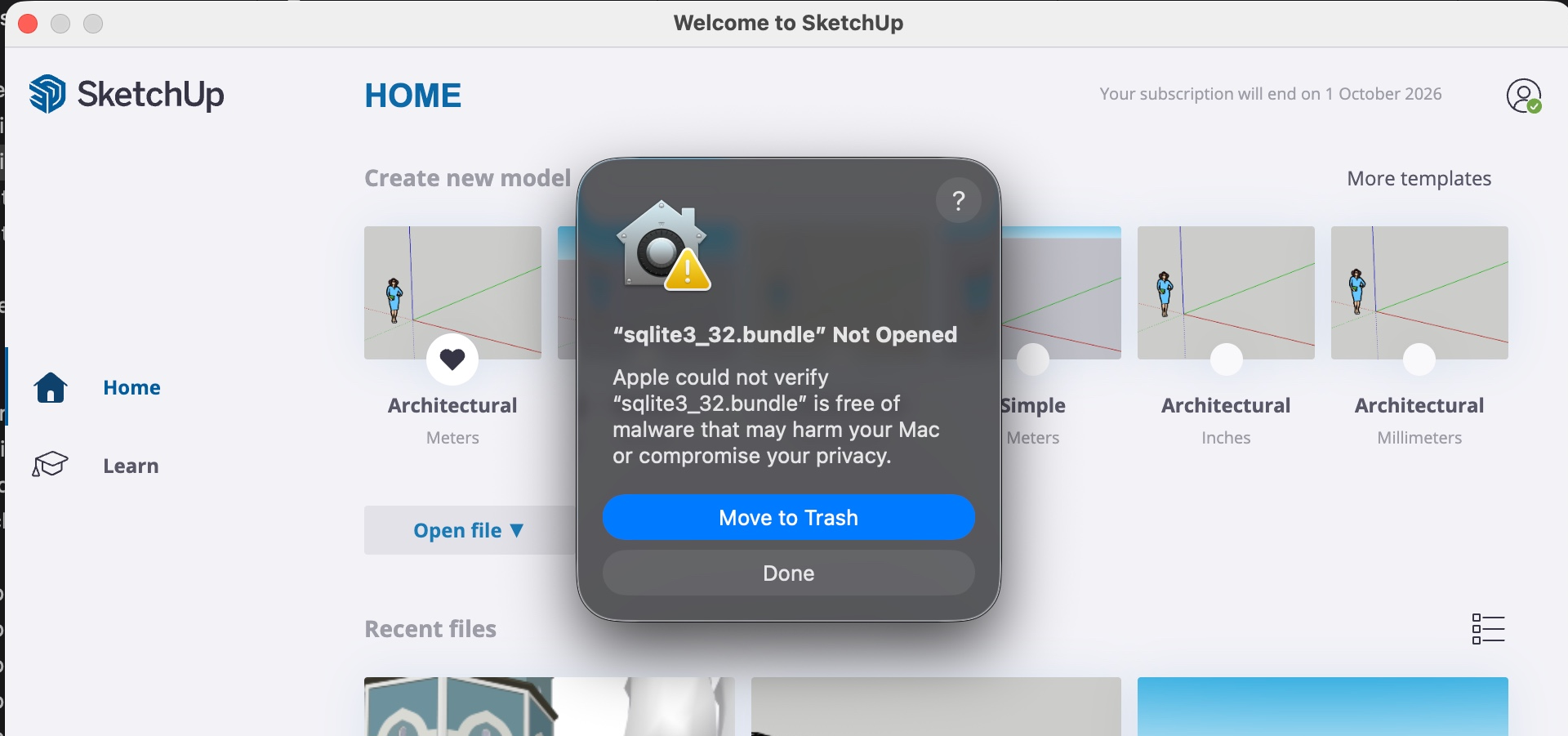
macOS Gatekeeper might blocksqlite3_32.bundle the first time you open SketchUp after installing the connector.
- In SketchUp, when the “sqlite3_32.bundle Not Opened” dialog appears, choose Done.
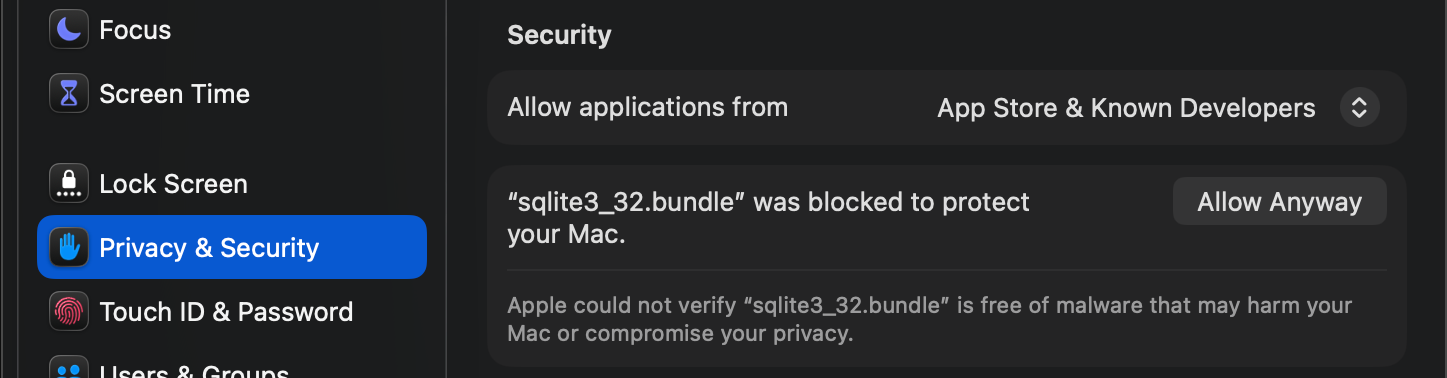
- Open System Settings → Privacy & Security and scroll down to the Security section.
- Next to “sqlite3_32.bundle” was blocked to protect your Mac, select Allow Anyway.
- Open SketchUp again. When the warning appears with an Open Anyway button, select Open Anyway to allow the plugin to run.
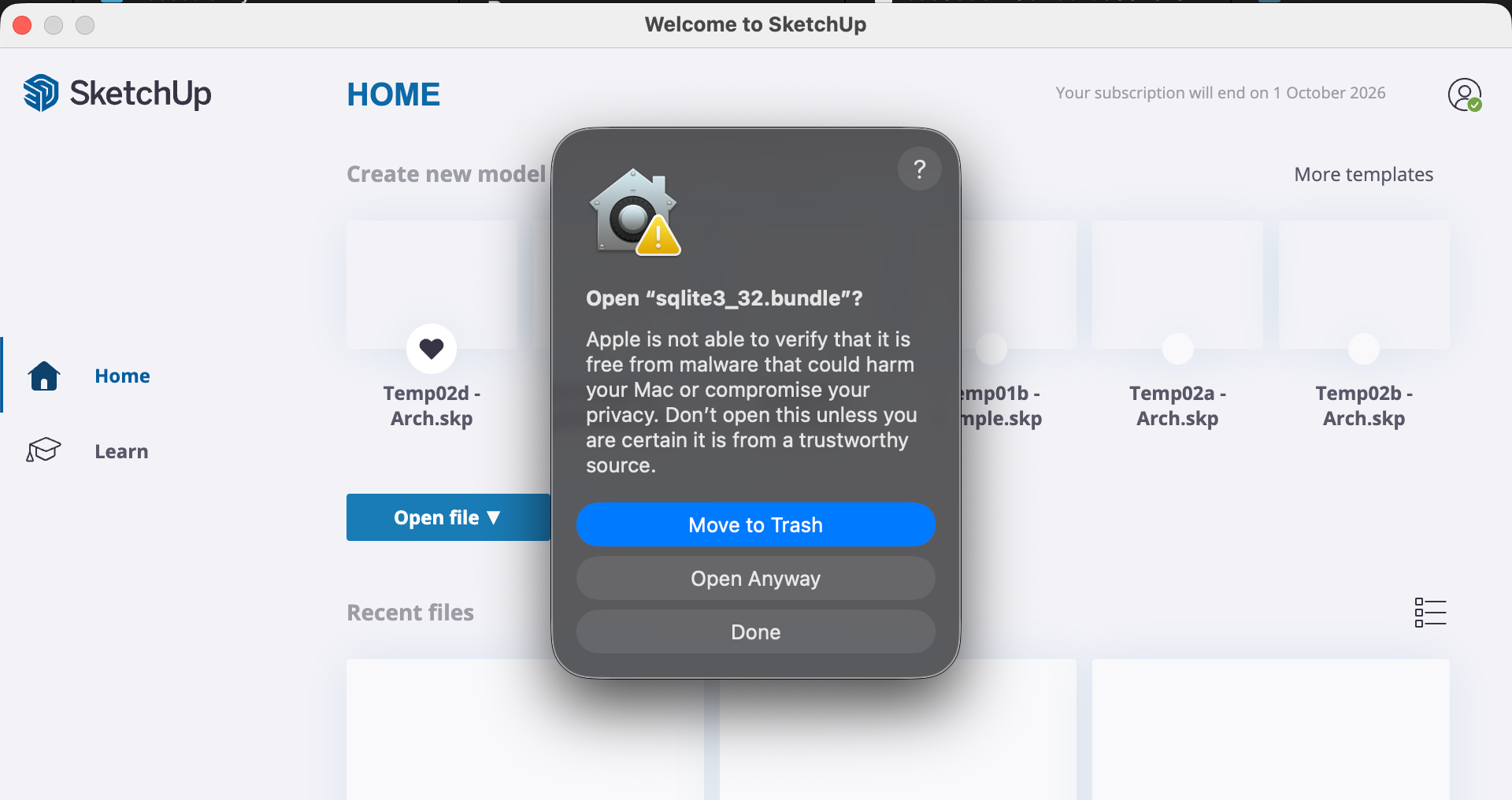
You only need to allow
sqlite3_32.bundle once per SketchUp version on each Mac.Update the connector
To update to a new version, download the latest ZIP file and repeat the installation steps above. The new files will replace the existing ones.Uninstall the connector
Delete thespeckle_connector_3 folder and the speckle_connector_3.rb file from your installation location.
To remove all Speckle products, also delete the ~/Library/Application Support/Speckle/ folder.
Disable update notifications
To prevent update checks, contact [email protected] for more information.Back to manual installation overview
Return to connector selection