

Documentation Index
Fetch the complete documentation index at: https://docs.speckle.systems/llms.txt
Use this file to discover all available pages before exploring further.
Models panel
The Models panel lets you navigate your 3D model using a familiar tree view:- Hierarchy view: See models organized by levels, categories, or custom groups.
- Visibility controls: Show, hide, or isolate individual objects or groups with a single click.
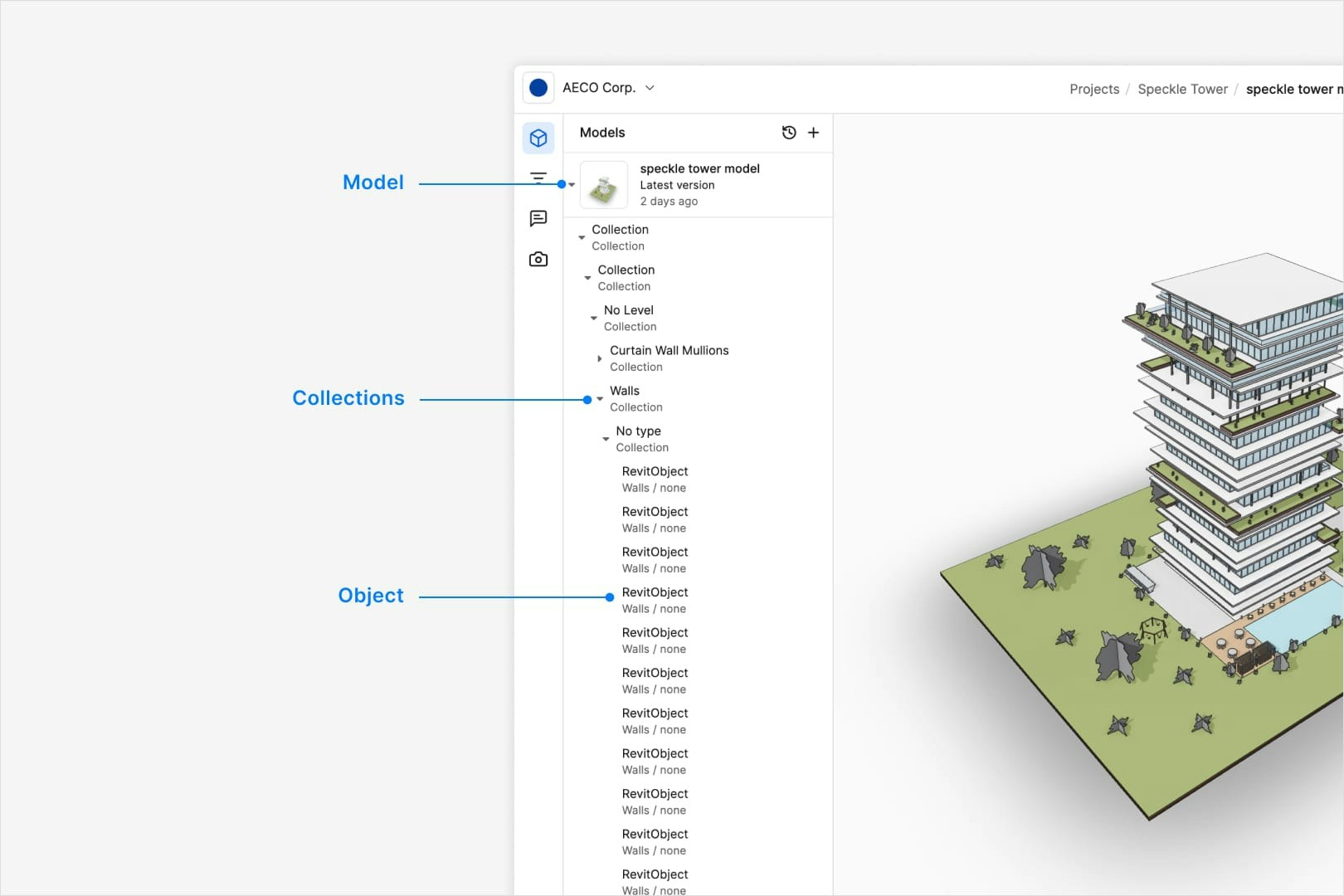
The model hierarchy displayed is as it is exported from the source
application. There are some differences between each connector that reflects
the typical workflows of users in that application.
Can I show the hierarchy in a different order?
Can I show the hierarchy in a different order?
No, the hierarchy is as it is exported from the source application. Our
developer documentation has more information on how to work with the
underlying data that could achieve this.
Filter and color by property data
Speckle’s filtering tools let you quickly find, highlight, color-code, and analyze parts of your model based on any property or parameter: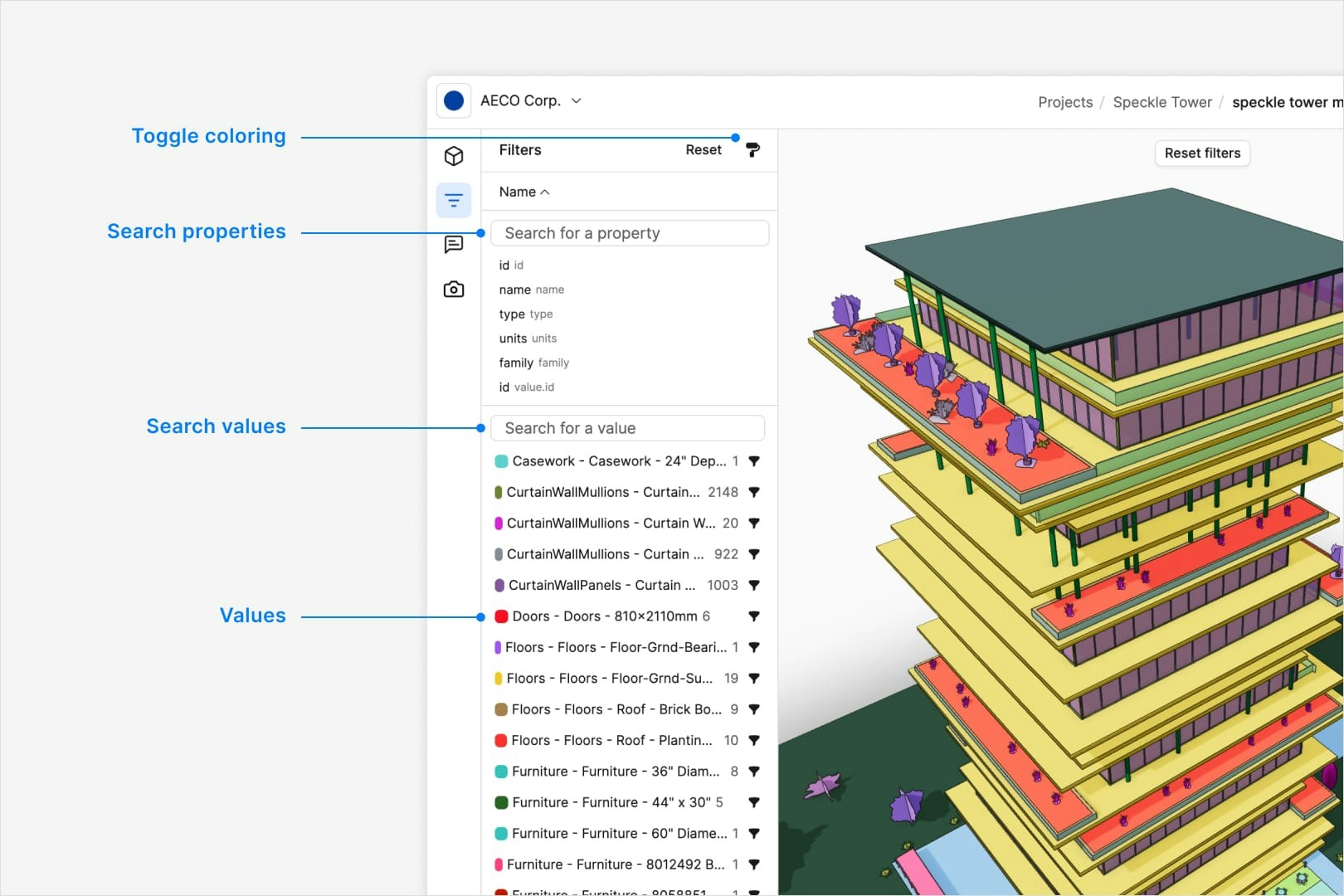
- Open the filter panel and choose any property from your model (e.g., category, level, tag).
- Type or select values to narrow down the list of objects.
- Click the brush icon on the top right corner of the panel to color-code values for that property.
- Query specific values. Use the search box to look for a particular value within the filtered property (e.g., all “category” Walls with “FireRating = 2”).
You can also start a filtering session from the Selection info panel. Select
an object, then use any property there to open Filters with that context.
How do I filter by a custom property?
How do I filter by a custom property?
Any property in the model can be filtered on, and you can also color-code by
that same property using the brush icon.
Can I filter by a property that doesn't exist?
Can I filter by a property that doesn't exist?
No, the property must exist in the model. However you could use the Model
Checker premade automation to add a test for a property and its results can
be used as a filter.
How can I know what properties are available?
How can I know what properties are available?
As you type in either the property search bar or the value search bar,
Speckle will show a list of properties that match the text you’ve typed.
Can I bookmark or favourite particular properties?
Can I bookmark or favourite particular properties?
Yes. In Selection info, use Pin property on a property value to add it
to your favourites, so it is easier to find when reviewing selected objects.
Dev(eloper) mode
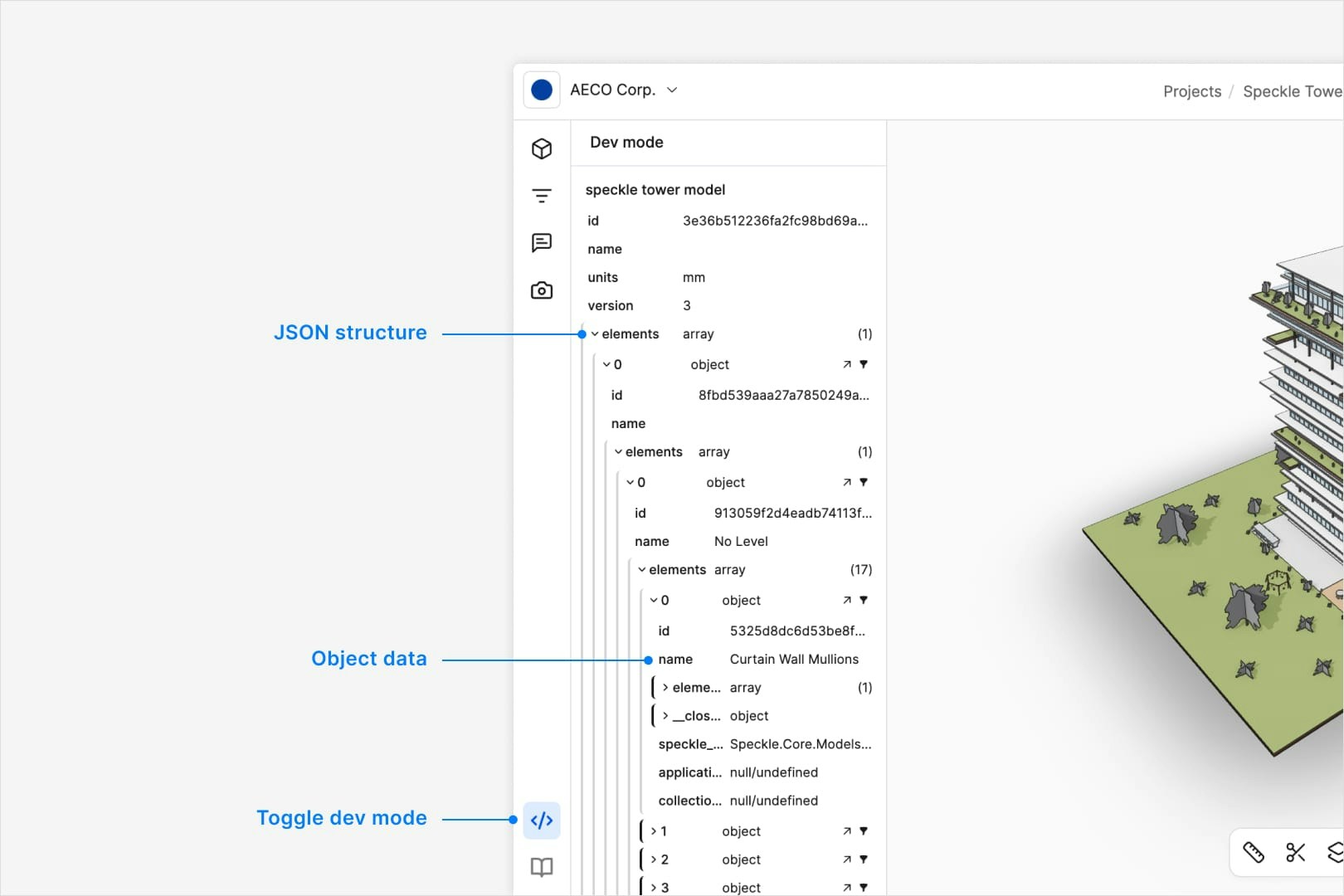
Dev mode gives you a deeper look into your model’s data structure:- Full hierarchy view. See every object, list, and parameter exactly as Speckle stores it.
- Raw JSON inspection. View and copy the underlying JSON data for any item; perfect for developers or power users.
How do I enable Dev mode?
How do I enable Dev mode?
Dev mode is enabled by default for all Speckle users.
How do see the data for a single object?
How do see the data for a single object?
Click on an object in the hierarchy view to see the data for that object
above the overall hierarchy view.
Can I see the raw JSON data for a property?
Can I see the raw JSON data for a property?
Dev mode visualises the JSON structure. Our developer docs have more
information on how to access and use the raw data view.
Measure
Use the Measure tool to verify dimensions, check clearances, and validate design details without leaving the viewer.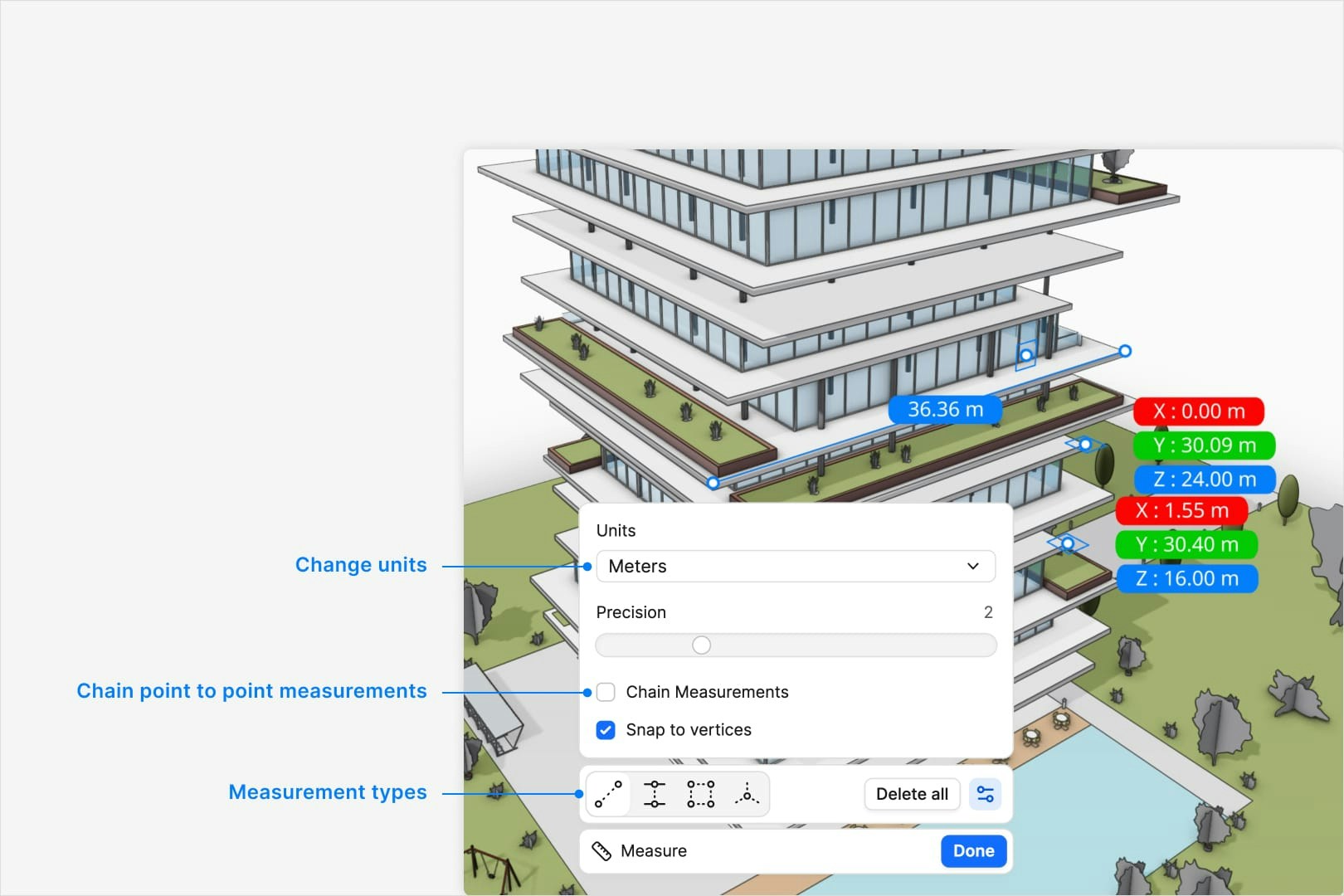
Measurement types
- Point-to-point measurement. Click two points in the model to get the straight-line distance.
- Perpendicular measurement. Measure the shortest distance from a point to a line or plane.
- Area measurement. Measure the area of a polygon or closed polyline.
- Point coordinates. Get the exact XYZ coordinates at any point in the model.
Measurement settings
- Snap to vertices: Toggle snapping to the nearest vertex on the model.
- Chain measurements: Toggle chaining measurements for point-to-point measurements.
- Units: Switch to your preferred unit display from standard length units (mm, m, ft, in) in imperial or metric.
- Precision: Adjust the decimal precision to suit your needs.
- Delete measurements: Delete all measurements from the model.
How do I cancel a measurement?
How do I cancel a measurement?
Press the
Escape key on your keyboard to stop chaining measurment points,
or conclude the area measurement.Can I measure the area of a slope?
Can I measure the area of a slope?
Yes, your first measurement point will be both a start point and also define
the plane of the area measurement.
Can I add multiple areas to gain a sum total?
Can I add multiple areas to gain a sum total?
No, Each area measurement is it’s own entity. For more complex area
measurements you can add the Room and Area Scheduler premade automation to
your model.