

Speckle automatically tracks every change you make to your models. Each time you send data, a new version is created. This allows you to review the entire history of your model, compare changes over time, and revert to earlier versions if needed.Documentation Index
Fetch the complete documentation index at: https://docs.speckle.systems/llms.txt
Use this file to discover all available pages before exploring further.
How does version tracking work?
How does version tracking work?
Whenever you send data from a Speckle-enabled application (like Revit, Rhino, or Grasshopper), Speckle stores that data as a new version. Each version is:
- Timestamped
- Tagged with metadata (e.g. message, source application, sender)
- Linked to previous versions, allowing for complete traceability and version comparison
Learn more about versions here.
How to compare two versions
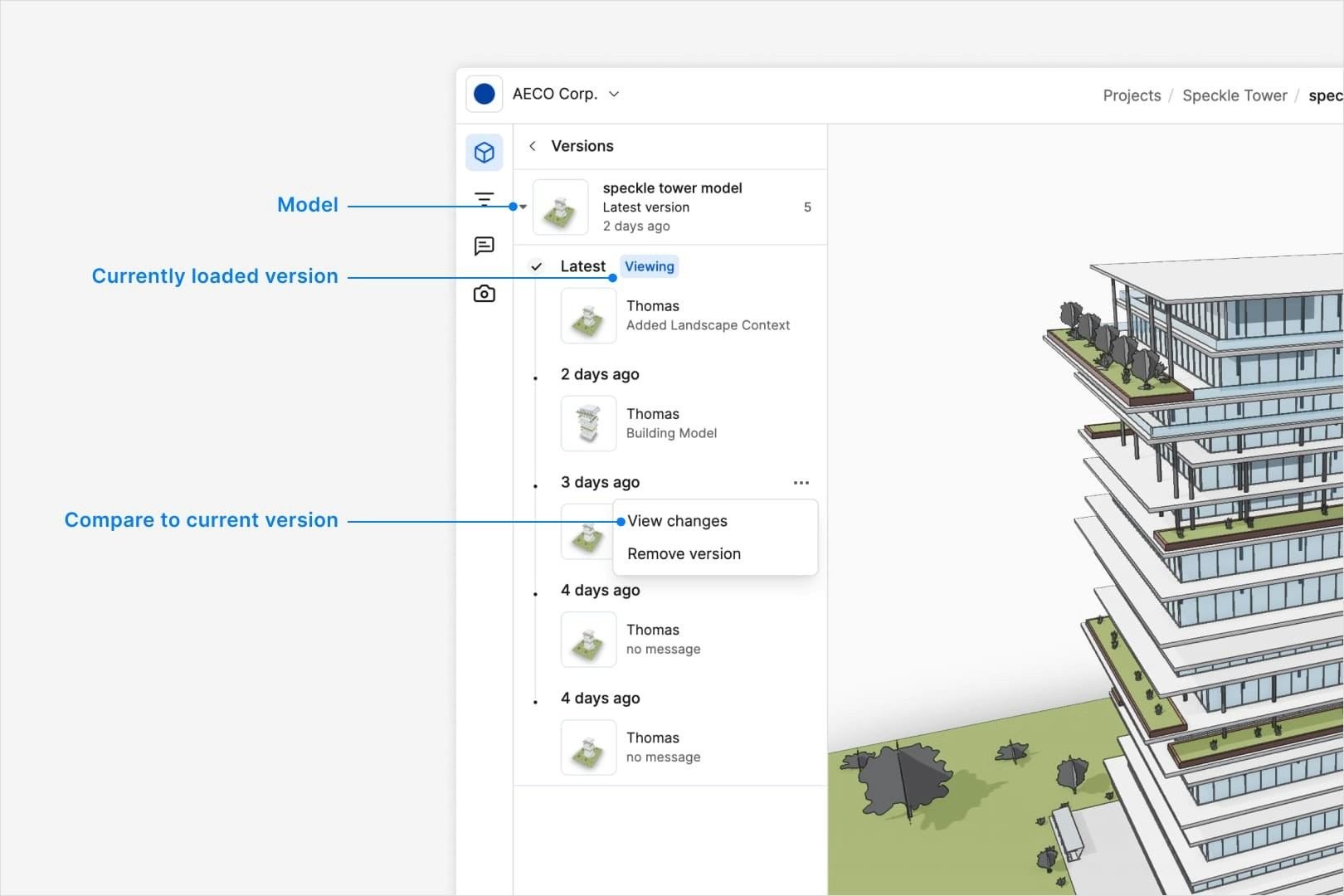
- Open the Models panel on the left side and click the versions button in the top.
- Browse previous model versions and identify the version you want to compare.
- Click View changes in the ··· menu to see a detailed comparison.
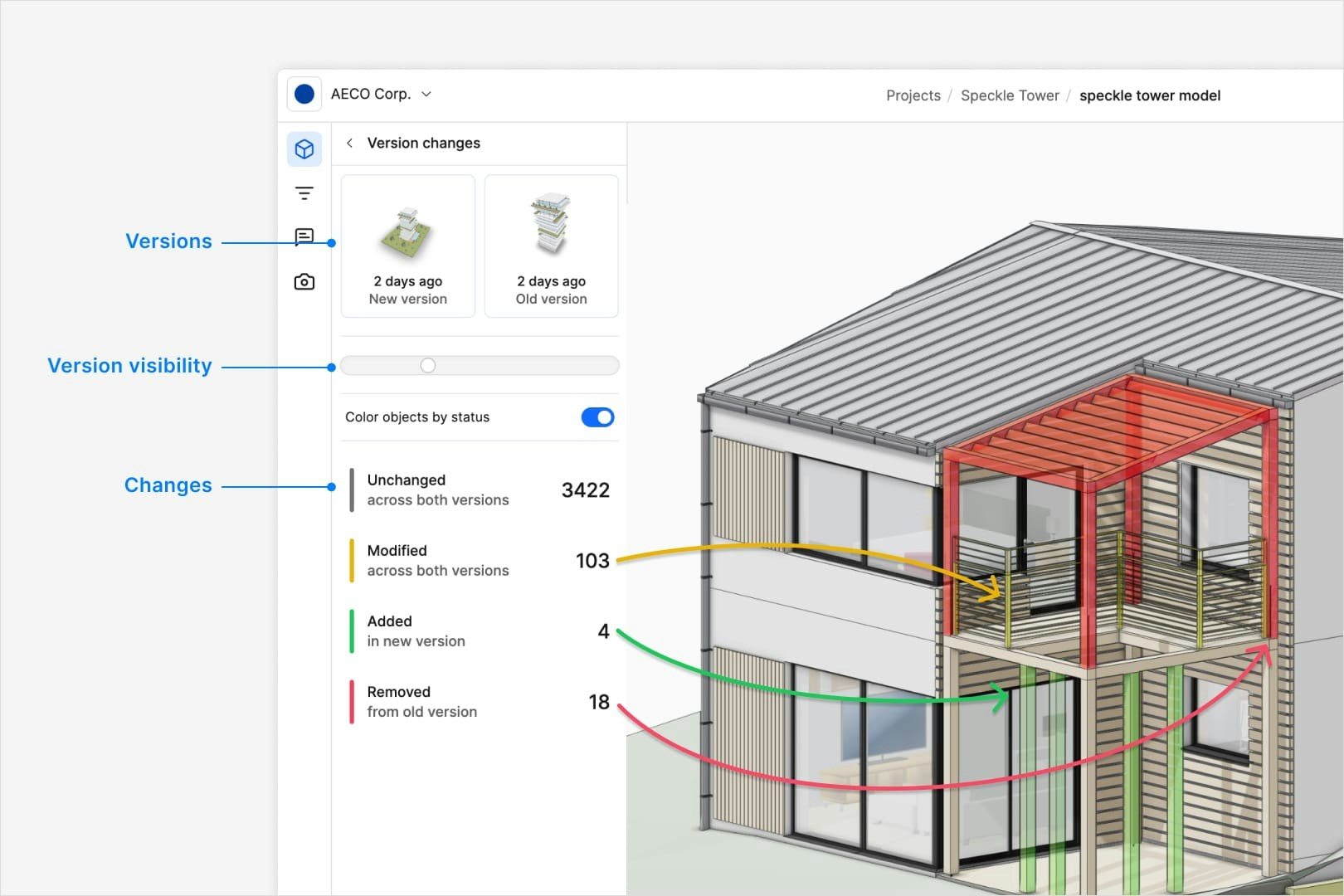
Benefits
- Change Awareness: Understand how your model has evolved over time.
- Design Iteration: Explore different design options across models without overwriting previous work.
- Collaboration: See who made what changes and when, helping teams stay in sync.
- Recovery: Roll back to a previous version if something goes wrong.