

Autodesk Forma Data Management is the current name for Autodesk Construction Cloud (ACC). Labels and URLs in Autodesk admin may still use ACC naming.
If Custom Integrations is not visible in the Account Admin panel, the account may not have the required role. Contact your Autodesk administrator.
Add a custom integration in Autodesk admin
- Go to Autodesk Account Admin — URL still uses acc. — or acc.autodesk.eu for the European region.
- In the Account Admin panel, select Custom Integrations.
- Select Add custom integrations.
-
Enter the integration details (copy the Client ID exactly, with no extra spaces):
- Client ID:
5Y2LzxsL3usaD1xAMyElBY8mcN6XKyfHfulZDV3up0jfhN5Y - Name:
Speckle
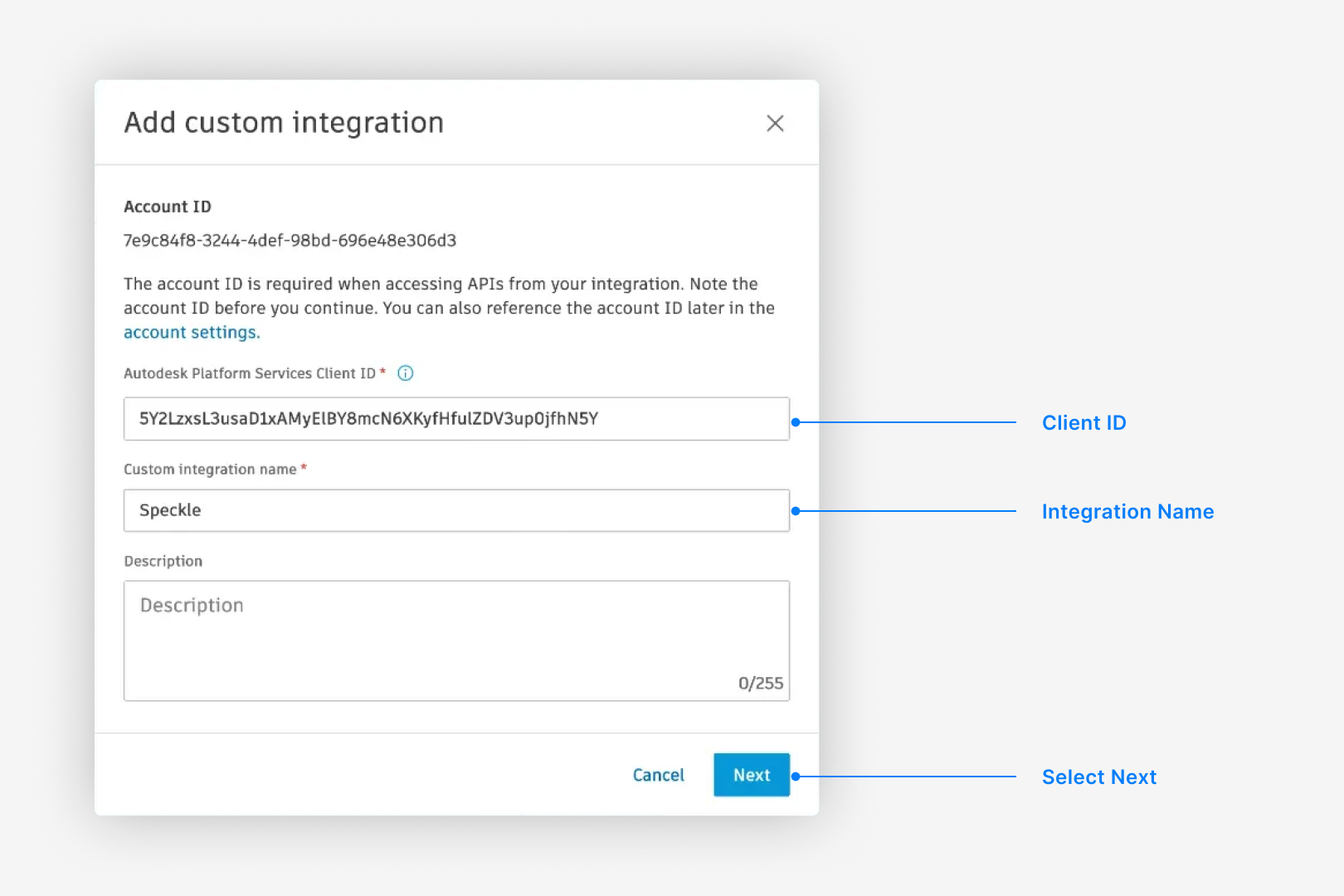
- Client ID:
- Select Next.
-
On the permission warning, select Proceed Anyway.
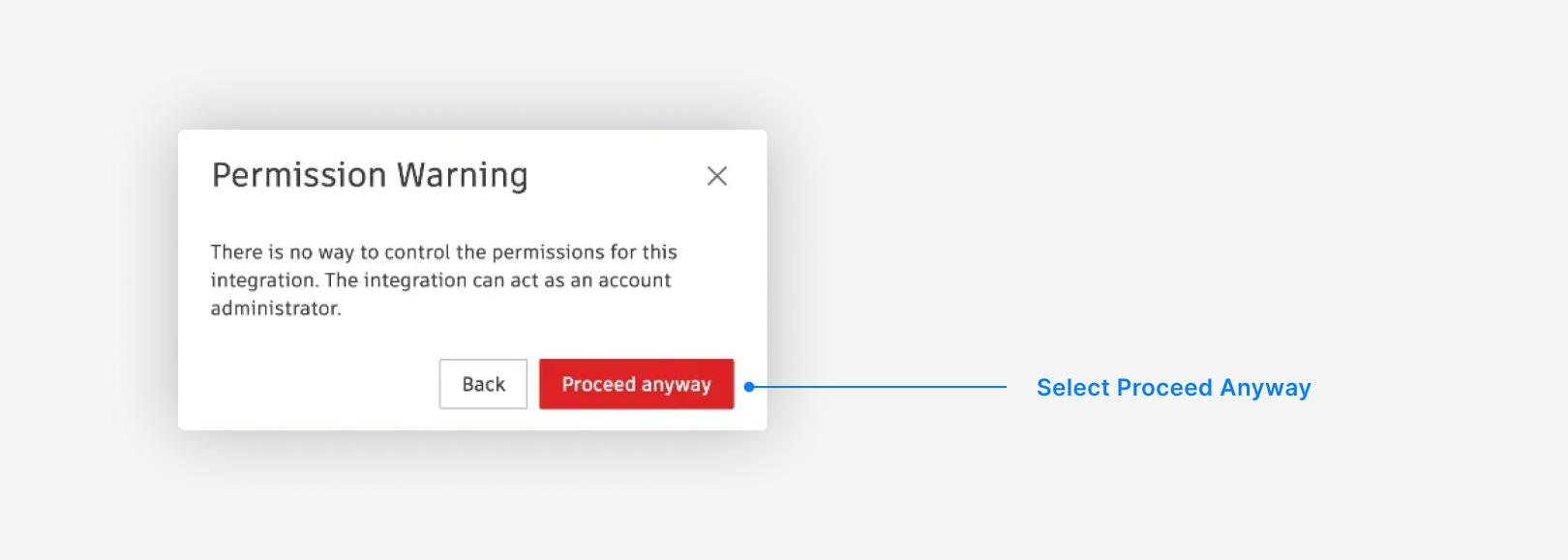
The warning comes from Autodesk, not Speckle. Autodesk does not offer granular permission controls for Custom Integrations, so the dialog cannot show the actual scope.Speckle requests only read-only scopes (
account:read, user-profile:read, data:read, data:search, bucket:read, viewables:read, openid) to reach files and metadata for conversion. See Autodesk scope definitions for details.Speckle inherits each user’s existing permissions in Autodesk Forma Data Management (ACC). Users can see only hubs, projects, and folders they already have access to in Autodesk.For tighter control, create a dedicated Autodesk account with limited access to selected projects or folders and use it for Speckle syncs.