

What is project metadata?
Project metadata is structured information attached to each project in a workspace: client name, project code, location, sector, phase, or business IDs you need for reporting and integrations. Two layers work together:- Workspace schema — admins define which fields exist, their types, and constraints.
- Project values — filled in per project on the project home Metadata widget. Anyone who can open the project can view the fields; project owners (and workspace admins) edit them.
Project metadata is in active development. Today, it mainly powers the Metadata card on
each project Home. We are seeking feedback on how you want to use it next—for example
user-facing project filters, context for automations, or reference bounds for Speckle
Intelligence chat responses. Share feedback on Speckle Community.
Project metadata is available on the Enterprise plan. If you do not see Settings → Project
metadata, your workspace may be on a different plan—contact your Speckle administrator or
billing contact.
Roles and permissions
Project members who are not owners (and not workspace admins) see the same fields and values but cannot edit. Drift warnings (N problem(s)) appear only to owners and admins, because they are the people who can fix them.
Common workflows
1
Create a new metadata template
As a workspace admin, open Settings → Project metadata, add the fields your workspace should
collect on every project, and save. After the first save, internal field identifiers are fixed;
you can still change display names. Existing projects show empty fields until owners fill them
in.
2
Add a field to an existing template
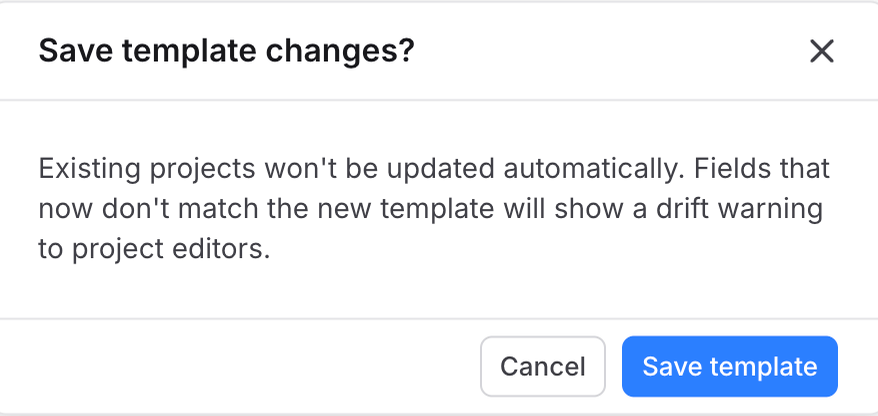
Add a new field and save. Confirm the dialog: existing projects are not updated automatically.
New fields appear empty on all projects until owners enter values.
3
Rename a field
You cannot rename the internal field identifier after the first save. Add a new field, ask
owners to copy values if needed, then remove the old field from the template.
4
Remove a field
Remove the field from the template and save. The field no longer appears in the web app. Past
values may still exist until cleared or until you delete the entire template.
5
Correct drift
Project owners (and workspace admins) resolve drift on project Home—see Metadata on
Projects. As an admin, you can fix values the same way when
needed.
6
Delete entire template
From Settings → Project metadata, delete the template. This is irreversible and removes the
template and all project metadata on every project in the workspace. Use only when retiring
the feature.
Define the workspace template
Workspace admins open Settings → Project metadata to decide what information every project in the workspace should capture. You design one template for the whole workspace; the same fields then appear on each project home Metadata card for owners to fill in and for project members to read. Use a template when your organisation needs the same facts on every project, for example:- A client or contract name for portfolio reporting
- A project code that matches finance or ERP systems
- Sector, phase, or location labels for filters and dashboards
- Integration IDs (ACC, carbon registry, or internal tools) that automations can read
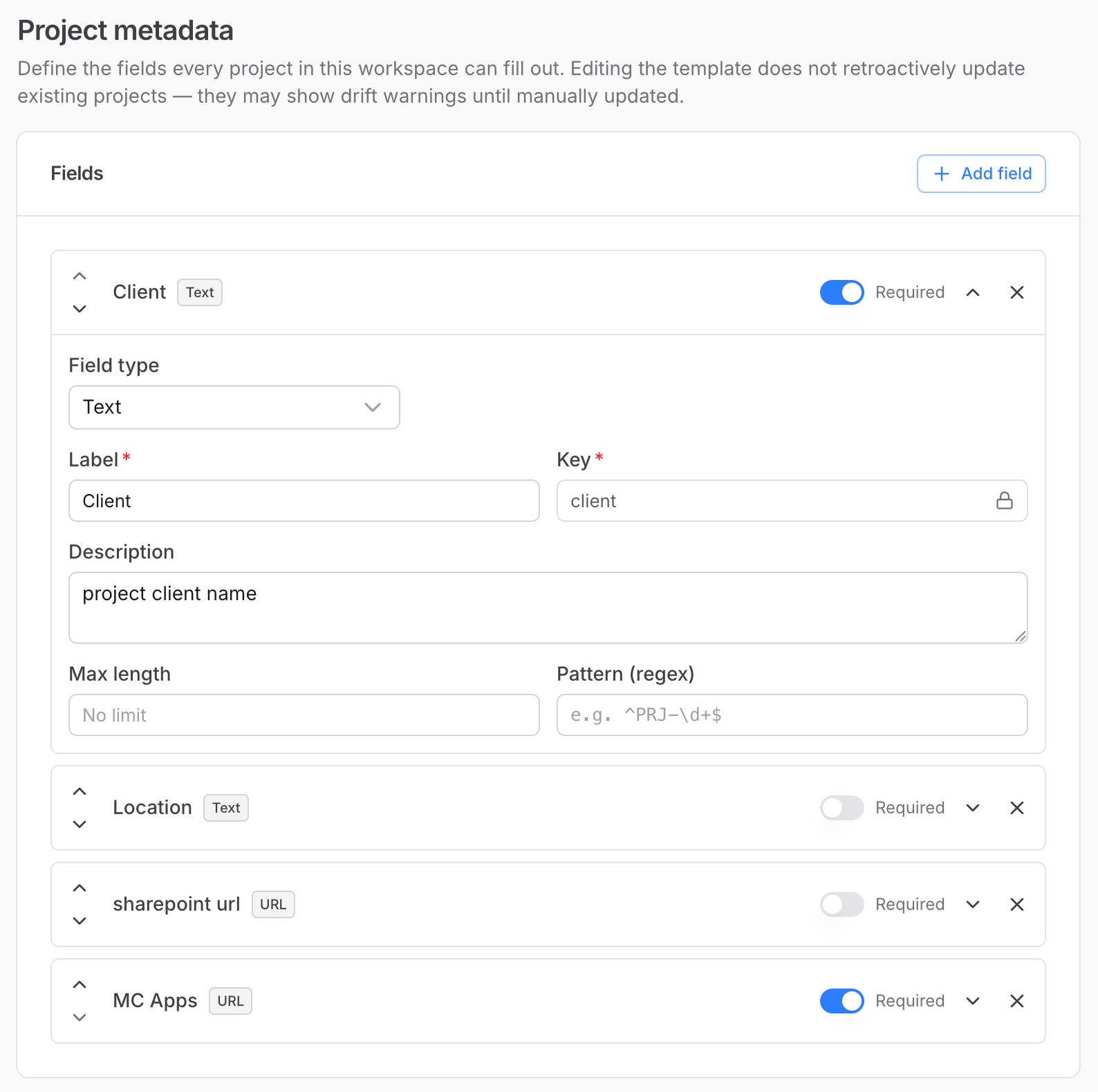
propertyOrder in the schema and controls how fields appear on project Home.
Mark fields required so owners are prompted to fill them in. Incomplete projects can still be saved; owners may see drift warnings instead.
After the first save, the internal field identifier is locked. You can change the display name, type-specific rules, or Required, but not the identifier itself.
Field types
Settings → Project metadata offers six field types:
Nested objects, lists of values, and multi-select dropdowns are not supported.
Delete schema
Prefer adding fields over renaming. Template changes do not rewrite data on existing projects.Values on project home
Owners and members fill in metadata on project Home, not in project settings. Layout, viewing vs editing, drift warnings, and edit actions are documented on the Projects page under Metadata. Workspace admins can edit values on a project the same way owners can. You do not configure the per-project widget on this settings page. After you save template changes, project owners may see new empty fields, N problem(s) drift warnings, or fields that no longer appear in the list. Project members continue to see read-only values and do not see drift warnings. If you add a required flag or tighten rules, owners must update values until warnings clear. If you replace one field with another (for example City with Stadt), ask owners to fill the new field. Values for removed fields may still exist in the API until cleared. Integrators and advanced schema rules: Project metadata.FAQ
Can I rename a field?
Can I rename a field?
You can change the display name anytime. The internal identifier is locked after the first save.
To replace a field, add a new one and remove the old one from the template.
Do template changes update all projects?
Do template changes update all projects?
No. Changes apply to the template only. Projects keep existing values; new or stricter rules may
trigger drift warnings for owners.
What happens when I delete the template?
What happens when I delete the template?
The template and all metadata on every project in the workspace are permanently deleted. This
cannot be undone.
Who can see metadata on a project?
Who can see metadata on a project?
Anyone who can open the project in the web app sees the Metadata widget on project home, as
long as the workspace has a template configured. You do not need owner rights to view fields and
values.
Who can edit metadata on a project?
Who can edit metadata on a project?
Project owners and workspace admins. Other project members and collaborators see the same
information read-only.
Why do I see N problems?
Why do I see N problems?
Owners and workspace admins see this when stored values no longer match the template (empty
required field, wrong type, or constraint). Update values on project Home until the badge
clears. Project members do not see drift warnings.
I removed a field from the template but owners still had data?
I removed a field from the template but owners still had data?
Removed fields no longer appear in the web app. Past values may still exist for integrations
until cleared. They do not show as drift warnings.
Is project metadata the same as properties on a model?
Is project metadata the same as properties on a model?
No. Project metadata is information about the project itself (client, code, phase, and so on).
Properties on committed model objects are a separate topic in Data
schema.