

- Filter levels — Page-level vs widget-level
- How page-level filters interact — OR within a chip, AND across chips
- Operators and data types — Text, number, list, and special operators
- Properties and the data model — Nested properties, type coercion, and edge cases
Page-level filters
When you apply a filter from a widget (for example by clicking a value in a chart), it becomes a page-level filter that affects all widgets on the dashboard.- Multiple filters can be active at once
- Active filters appear at the top of the dashboard as chips; click the X on a chip to remove it
- Individual widgets can opt out of page-level filters in their settings
In a Model Viewer that loads multiple models, you can mark one as a context model so
dashboard filters do not isolate or hide it in the 3D view. See Context
models on the Dashboards overview.
Widget-level filters
Many widgets have local filters that affect only that widget. Use them to focus a single widget on a subset of data without changing the rest of the dashboard.Filter levels
Page-level (data-source-level) filters affect what data is used across the dashboard. They apply to all widgets unless a widget opts out. Use page-level filters when you want the whole dashboard to focus on the same subset (e.g. one category, one floor). Widget-level filters affect only the displayed results in that widget. They do not change the data sent to other widgets or the model viewer. Use widget-level filters when one chart or table should show a different slice of the same data.How page-level filters interact
Clicking a value in a chart or table adds a page-level filter (shown as a chip at the top of the dashboard). How filters combine:- Within one filter (one chip): If you select multiple values for the same property (e.g. Category = Walls and Floors), they combine as OR—objects matching any of those values are included.
- Across filters (multiple chips): Each chip is a separate filter (e.g. one for Category, one for Level). Multiple chips combine as AND—only objects that match every active filter are included.
When should I use widget filters vs page filters?
When should I use widget filters vs page filters?
Use page filters when you want to focus the entire dashboard on specific data. Use widget
filters when you want one widget to show different data than the rest of the dashboard.
Can I save filter combinations?
Can I save filter combinations?
Yes. Use Scenarios to name snapshots of page-level
filters, issue filters, and colour-by, then apply or merge them later — including in
presentation mode (view mode / shared mode). Active filters are also part of the dashboard state
when you share the dashboard.
Why isn't a filter affecting a widget?
Why isn't a filter affecting a widget?
The widget may be set to opt out of page-level filters. Check the widget settings for “Apply
page filters.”
Can I filter by properties that don't exist in all models?
Can I filter by properties that don't exist in all models?
Yes. The filter applies only to objects that have that property; objects without it are
excluded.
Can I define a negative or exclusive filter?
Can I define a negative or exclusive filter?
Yes, but only via the filter UI, not by clicking a chart. Use Does not contain, Does not
equal, or Is not one of in a widget’s filter settings to exclude values (e.g. “Category
Does not equal Walls”). Chart-triggered filters (clicking a value in a chart to add a chip)
are always inclusive—they restrict to the clicked value(s). You cannot click a chart slice to
exclude it; use the filter UI for “show everything except X.”
Can I clear all page-level filters at once?
Can I clear all page-level filters at once?
No. Remove each filter chip with the X on the chip. There is no “clear all” action for
page-level filters in the current UI.
Operators and data types
The predicate menu is the same in dashboard filters and in validation rules (Property Checker and Model Validation). Which predicates appear depends on the property type (text, number, or boolean). Use the filter or rule UI to choose a property first; invalid predicates for that type are not offered.Text (string) properties
For string properties, the picker groups predicates like this: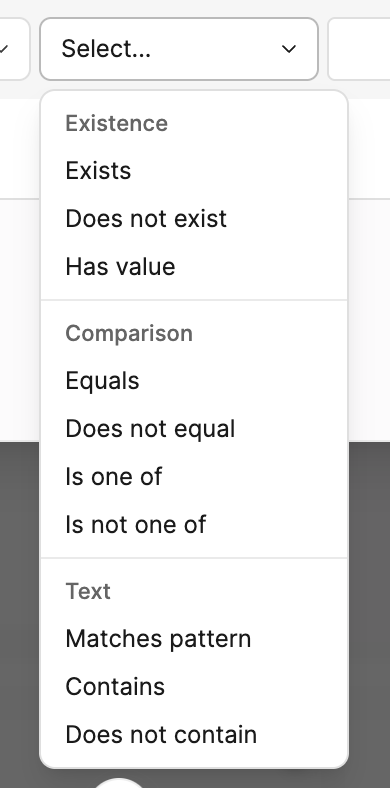
Ruleset TSV is a legacy interchange format; Speckle is moving away from it. If you still use
TSV files, their Predicate column uses different wording than the UI (for example
equal to
instead of Equals, in list instead of Is one of, is like instead of Matches
pattern). See Checks.Numeric properties
For number properties, the picker groups predicates like this: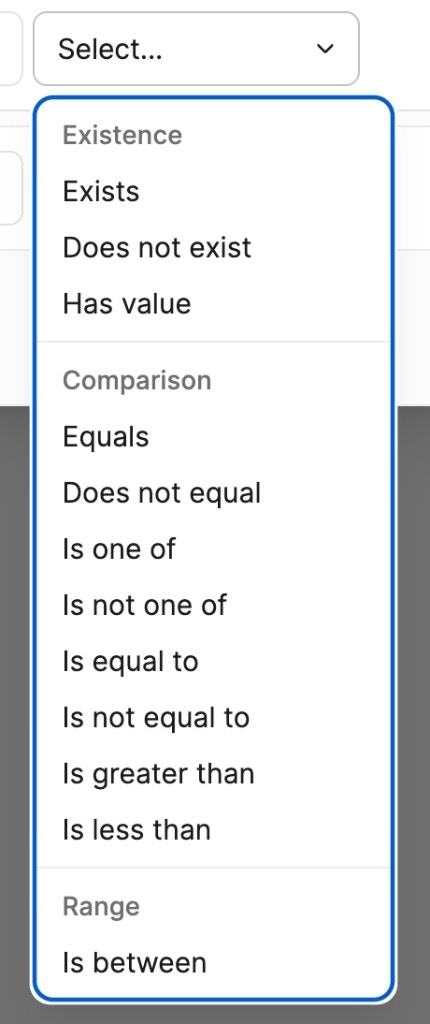
For numbers, the menu lists both Equals / Does not equal and Is equal to / Is not
equal to. All are equality-style checks; use the option that matches how the UI asks for values
for your rule or filter.
Boolean properties
For boolean properties, use Is true or Is false.Matches pattern
Matches pattern supports two modes: wildcard matching and regex matching. In TSV ruleset files, the same predicate is written asis like in the Predicate column.
Wildcard mode (default)
Use SQL-style wildcards for simple pattern matching:%— matches any sequence of characters (including none)_— matches a single character (when supported)
door%— matches “door_01”, “door_a”, “doorway”%window%— matches any value containing “window”Wall%— matches values that start with “Wall”
Regex mode
Wrap your pattern in forward slashes to use regular expression matching:/pattern/— treats the content between slashes as a regular expression
^(Wall|Door) matches only the
exact strings “Wall” and “Door”. To match values that start with those prefixes, add a trailing
.*.
Examples:
/^D\d{3}$/— matches “D001” and “D123” (exactly D followed by three digits)/^(Wall|Door).*/— matches values that start with “Wall” or “Door”, including “Wall_01” and “Door-a”/^\d{4}-\d{2}-\d{2}$/— matches a value that is exactly a date in YYYY-MM-DD format
To use regex mode, the pattern value must start and end with
/. Without the slashes, the value
is treated as a wildcard pattern with % and _ placeholders.Quick reference by property type
- Text: Existence (Exists, Does not exist, Has value), comparison (Equals, Does not equal, Is one of, Is not one of), and text (Matches pattern, Contains, Does not contain)
- Number: Existence (same labels as text), Comparison (equality, list-style options, Is greater than, Is less than), and Range (Is between)
- Boolean: Is true, Is false
Properties and the data model
Nested properties: You can filter on nested or computed fields when the widget exposes them (e.g. a path likeelement.material.name). Select the property from the widget’s filter dropdown; the exact path depends on how the
model and widget expose properties. If a property does not exist on some objects, those objects are excluded when the
filter is applied.
Type coercion: Values are compared using the property type. If a number is stored as a string, the filter may treat
it as text (for example Contains or Equals). For numeric comparisons (Is greater than, Is less than,
Is between), the value is interpreted as a number when possible. Boolean properties use Is true and Is false.
Multi-value comparison: Is one of and Is not one of let you choose multiple values for the same property.
They apply to that property only. Add multiple filter rules if you need to combine conditions across properties.
When filtering becomes rules: If you need reusable rules, pass/fail checks, or rulesets (e.g.
“all doors must have a fire rating”), use the Property Checker or Model Validation widgets
and define rules in the widget or in a ruleset. For rule syntax, rulesets, and automated
validation, see Data Validation.