Use this guide when you want a repeatable way to check model data quality in Speckle using Intelligence dashboards. All validation in this workflow is dashboard‑based: Property Checker and Model Validation widgets, with results in the dashboard, 3D viewer, and connectors. For BIM coordinators and modellers who define and run quality rules.
This workflow documents the dashboard-based validation widget path. For Web app Data
Validation (checks and standards), use Data Validation
Overview. Before you start: You need a Speckle project with at least one model and access to
Intelligence dashboards. Open your project and click Intelligence in the project
navigation to reach the dashboard editor.
Choose Your Validation Approach
When to use: Before setting up any widgets or rules.
Decide what you need to validate
List the questions you need to answer, such as “Do all doors have fire rating?”, “Are floor
names following our naming standard?”, or “Are all elements on valid levels?”. Group them by
discipline or project phase.
Pick between quick checks and full rulesets
Use Property Checker for one‑off or exploratory checks on a single property. Use Model
Validation when you want a reusable ruleset that checks many properties at once. See
Validation overview for capabilities and limits. Plan where results will be consumed
Decide whether people will mainly see validation results in dashboards, in the 3D viewer, or in
desktop connectors. This affects which approaches you prioritise and how much detail you include
in rule messages.
Run Quick Checks With Property Checker
When to use: You want to test a single property or rule quickly, or explore model health without building a full ruleset.
Create or open an Intelligence dashboard
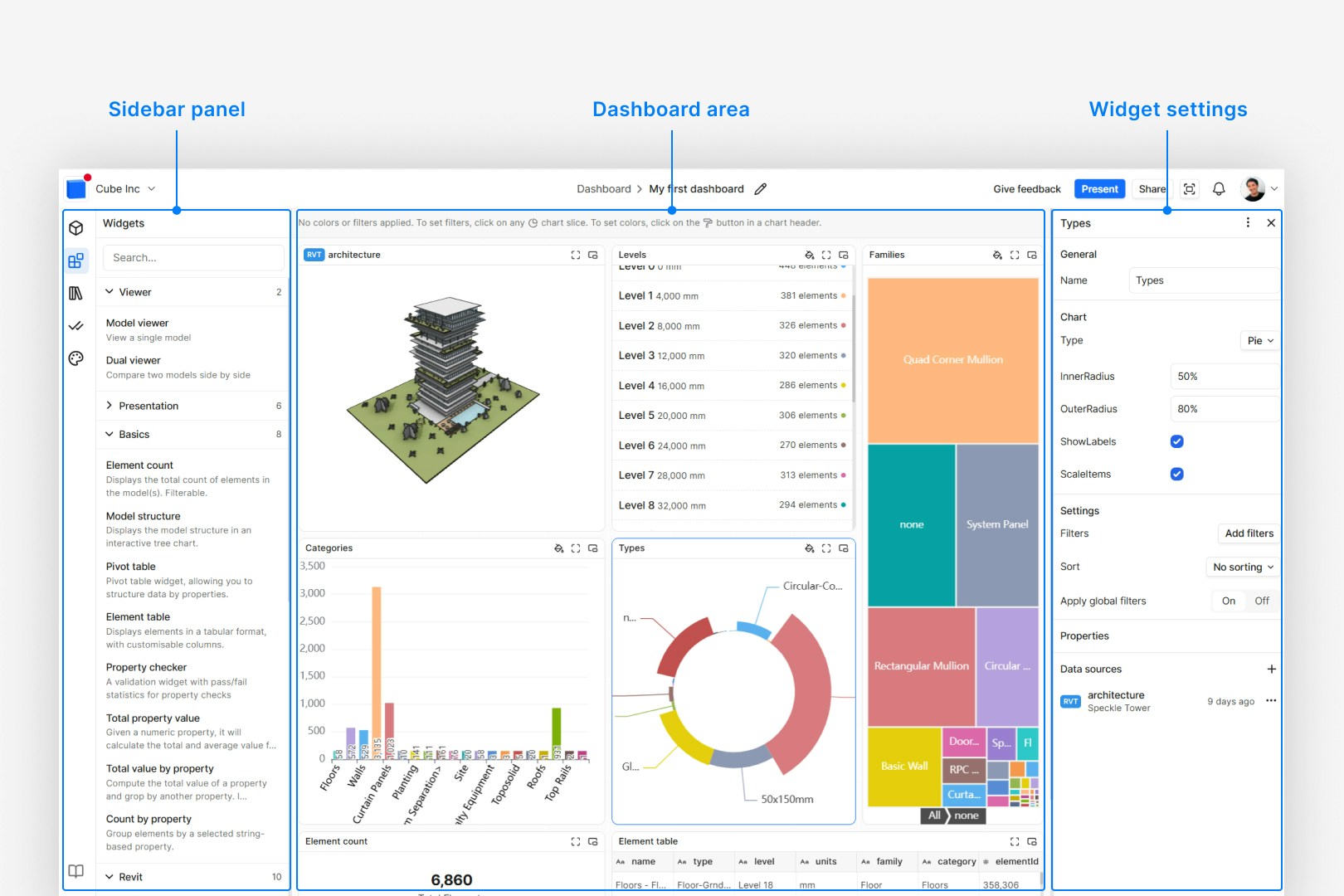
In your Speckle project, click Intelligence in the project navigation, then create a new dashboard or open an existing one. Ensure the dashboard has a Model Viewer widget with your target model. See
Dashboards for setup details. Add a Property Checker widget
In the dashboard editor, open the widget panel (left sidebar) and add Property checker. Connect it to the Model Viewer or data sources that contain the elements you want to validate.
Define the property and rule
In the Property Checker settings, choose the property to check (e.g. fireRating, Level, Type Name) and the predicate (e.g. Exists, Equals, Matches pattern). Set the reference value where
required. See Checks
for the full list. Interpret the results and colorize the model
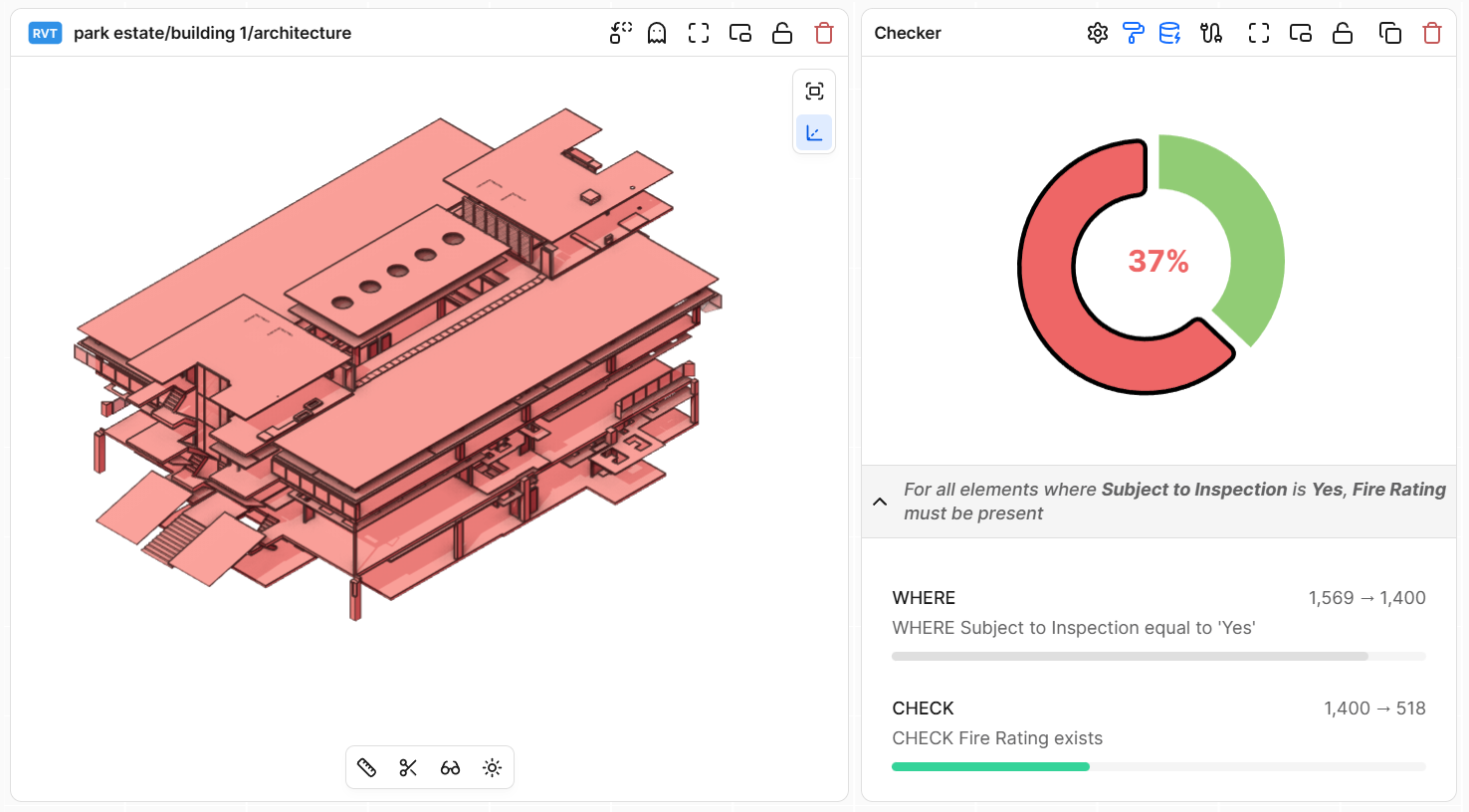
The widget shows pass/fail counts and percentages. Enable colorization to see passing and failing elements in the 3D viewer. Click on segments of the chart to highlight subsets of elements. Decide whether this rule belongs in a ruleset
If the quick check proves useful, note the rule logic (property, predicate, value, severity, and message). You will reuse it when building a full ruleset in Model Validation.
Build A Ruleset With Model Validation
When to use: You want a reusable set of rules that can be applied consistently to one model.
Add a Model Validation widget to your dashboard
In the dashboard editor, add a Model Validation widget from the widget panel and connect it to a Model Viewer that loads the model you want to validate. This widget will show the status of a whole ruleset for that model.
Create or select a ruleset
Open the ruleset configuration from the widget (e.g. via the widget’s settings or menu). Create a new ruleset for this project or select an existing one. Give it a descriptive name and description so others know what it checks (e.g. “Fire
strategy – core and escape routes”).
Define rules using WHERE, AND, and CHECK
For each validation requirement, add one or more rules. Use WHERE conditions to select the elements to consider (e.g. all doors), AND conditions to refine that set, and CHECK conditions to assert
what must be true (e.g. fire rating exists and meets a threshold). See
Checks for rule structure and examples. Set severity and messages
For each rule, set a severity (ERROR, WARNING, INFO) that matches its impact. Use clear, actionable messages so that someone fixing the model understands what to do when they see a failure.
Save and run the ruleset
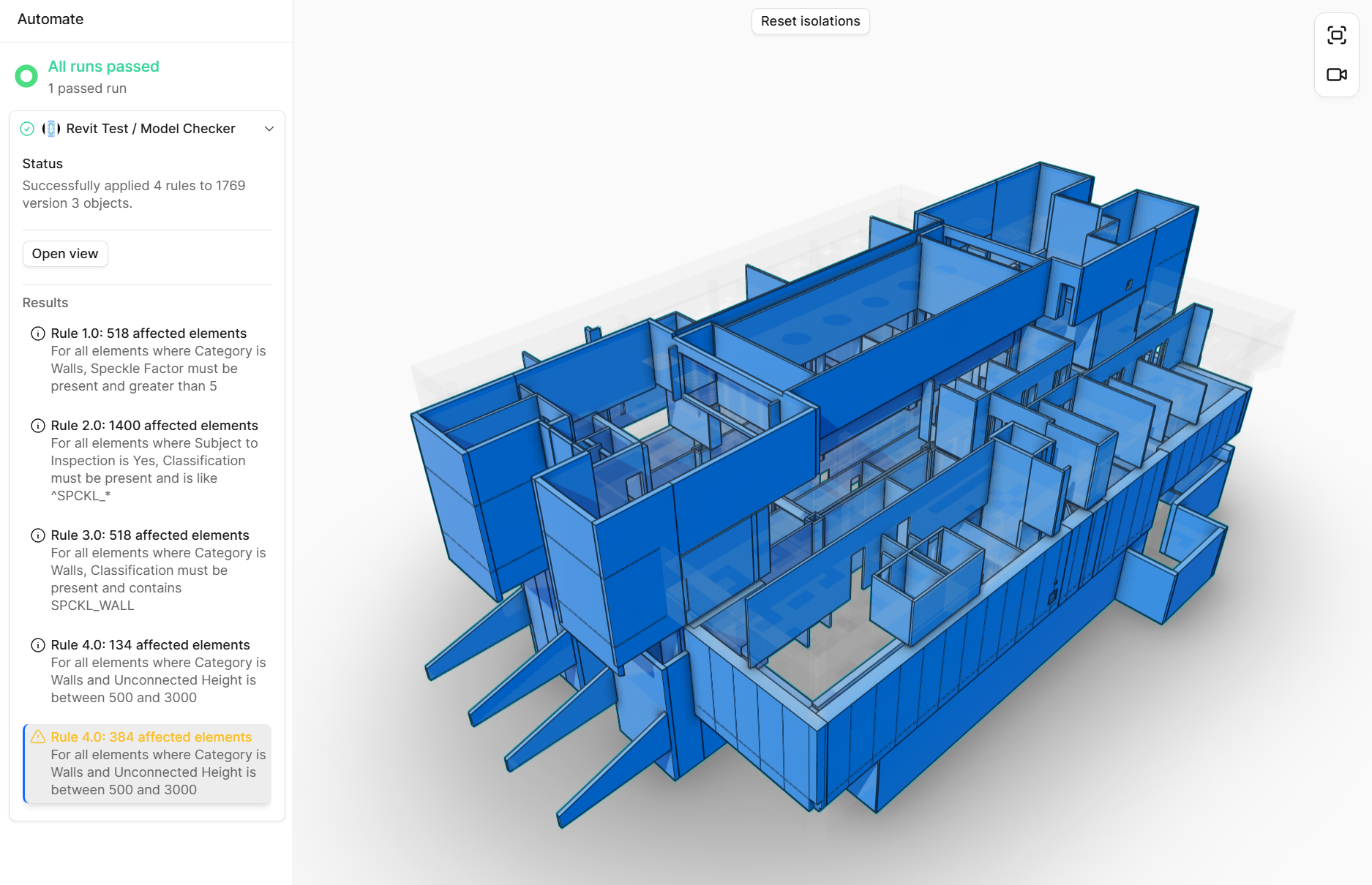
Save your changes and run the ruleset against the model. The Model Validation widget will update to show how many elements passed, failed, or were not applicable for each rule. Understand And Explore Validation Results
When to use: After running a ruleset and before asking model authors to fix anything.
Use the breakdown view for an overview
In the Model Validation widget, start with the breakdown or overview tab to see passes, failures, and not‑applied counts per rule. Identify which rules cause the most failures or affect the most
elements. See Viewing results for more details. Drill into individual rules
Select a rule to see which elements failed and why. Use filters in the widget or dashboard to slice by level, category, or other properties. Check that failures match your expectations and that the rule
logic is correct.
Inspect failing elements in the 3D viewer
Click through failing rows or categories and use colorization to highlight them in the 3D viewer. Confirm that they are genuinely problematic and not edge cases or intentional exceptions. Refine rules if the logic is off
If you see many false positives or negatives, adjust the WHERE/AND/CHECK conditions, severity, or messages. Rerun the ruleset until the failures reflect meaningful issues rather than noise.
Fix Issues And Iterate On Validation
When to use: Once you trust the ruleset and want to improve the model.
Share results with model authors
Share the dashboard and explain which rules need attention. Point authors to the most critical
rules first and confirm which projects, models, and versions are in scope for the current
validation round.
Use connectors to find and fix failing elements
In desktop applications such as Revit or Rhino, use the Speckle connectors to locate elements
that failed validation. Where available, use validation‑related filters and highlighting to
focus on problem areas. Fix properties, naming, and assignments directly in the authoring tool.
Publish updated versions and re-run validation
After making changes, publish new model versions to Speckle. Re‑run the Model Validation ruleset
or refresh the dashboard to see updated pass/fail counts. Verify that previously failing
elements now pass and that no new failures were introduced.
Repeat until the ruleset passes at an acceptable level
Continue iterating until failure counts are within acceptable limits for the current phase of
work. You may decide that some warnings are acceptable if they represent known exceptions.
Manage And Share Rulesets
When to use: You want to reuse rules across projects or keep a durable record of them.
Organise rulesets by purpose and scope
Create separate rulesets for different purposes (e.g. “Fire safety”, “Naming conventions”,
“Level assignments”) and, if needed, for different model types or disciplines. Use names that
make scope obvious.
Export and import rulesets as TSV
When you need a backup or want to move rules between workspaces, export a ruleset as a TSV file.
Store these in version‑controlled repositories alongside your project documentation. See
Standards for import and reuse guidance. Share rules across projects
If multiple projects share the same standards, either reuse the same ruleset where appropriate
or import from a canonical TSV that your team maintains as the source of truth.
Update rulesets safely
When you change rules, communicate what is changing and why. Prefer adding new rules or
adjusting messages and severities over deleting rules, so historical results remain
interpretable.
Best Practices
- Start small: Begin with a few high‑value rules and add more as teams build confidence, rather than starting with an exhaustive but noisy ruleset.
- Separate checks by intent: Group rules into rulesets that share a goal, such as safety, naming, or documentation; this keeps results easier to interpret.
- Treat rules as living standards: Update rules as your standards evolve, but communicate changes clearly so teams understand new failures.
- Use severity consistently: Reserve ERROR for blocking issues, WARNING for problems that should be fixed, and INFO for helpful hints.
- Document assumptions: When a rule encodes an assumption (e.g. level naming or parameter usage), capture that assumption in the message text.
FAQ
When should I use Property Checker instead of Model Validation?
Use Property Checker when you want to explore one property quickly or test a new idea without
managing a full ruleset. Use Model Validation when the rule is stable, important, and should be
reused across versions or projects.
Can one ruleset be used across multiple projects?
Yes, as long as the models share similar structure and properties. For shared standards,
maintain a central ruleset or TSV file and import it where needed. Adjust only where
project‑specific differences require it.
What happens if I change a rule in a ruleset?
Future validations use the updated rule, but past results reflect the logic at the time they
were run. If you need a clear break, create a new ruleset version and reference it separately in
your dashboards.
How do I handle exceptions without changing the rule?
Use labels or comments in authoring tools to mark intentional exceptions, and adjust your WHERE
conditions to exclude them where practical. For rare exceptions, you may decide to tolerate
specific failures instead of weakening the rule.
Can I validate across multiple models at once?
Model Validation checks one model at a time, but dashboards can aggregate results from multiple
models. Use multiple widgets or dashboards to see how rulesets perform across a project or
portfolio.
How do I know if a rule is too strict?
If a rule produces many failures that are not actionable or realistic to fix, revisit its scope
and severity. Consider splitting it into smaller rules or downgrading severity so teams can
focus on the most important issues.
How can I track validation trends over time?
Use dashboards to compare failure counts per rule and per version. You can also connect
dashboard or project data to external tools such as Power BI to chart trends; see Intelligence
Dashboards for data and sharing options. Who should own rulesets in a large organisation?
Typically, BIM managers, information managers, or discipline leads own rulesets. They coordinate
changes, review new rules, and ensure that project teams understand how validation fits into
their workflows.
See Also
Last modified on July 18, 2026