

Open Usage
1
Open workspace Settings
Sign in, open the workspace, then select Settings. You should see General at the top of
the Settings list.
2
Open Usage
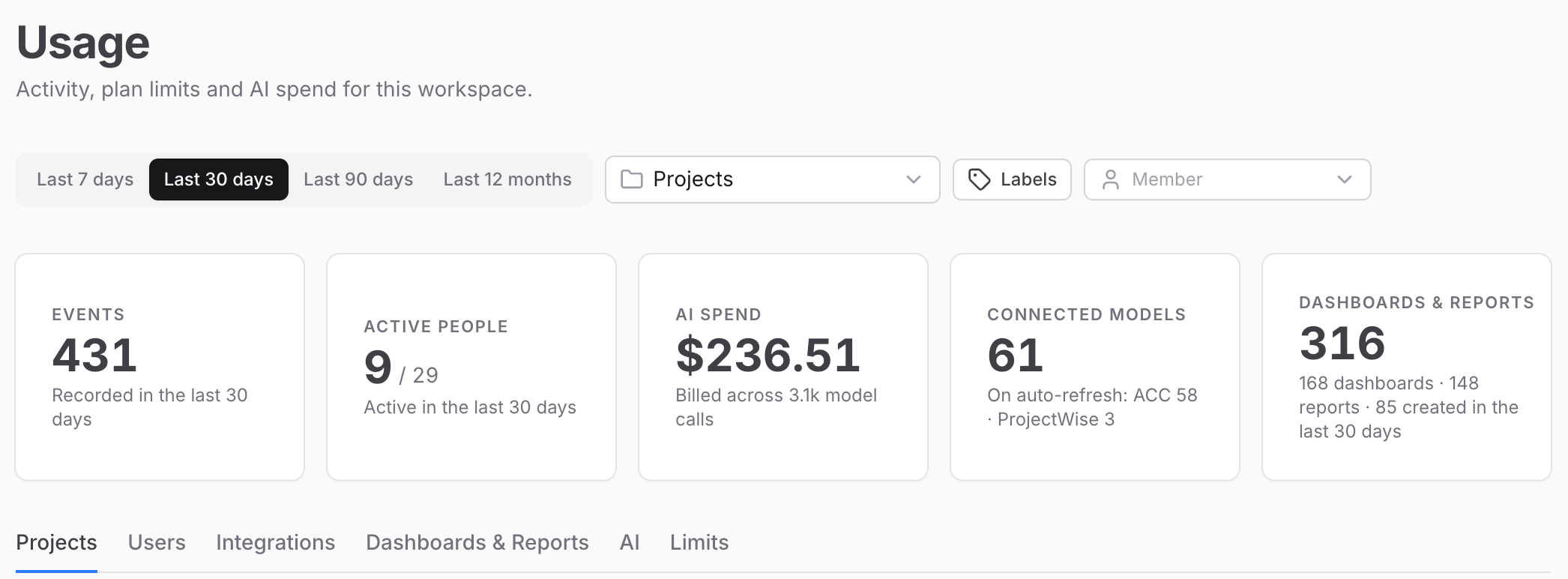
Under Plan & billing, select Usage. The page reads “Activity, plan limits and AI spend
for this workspace.” You should see a filter bar and section tabs.
Filter and export
The filter bar applies to the activity sections, not to Limits.- Range: Last 7 days, Last 30 days, Last 90 days, or Last 12 months.
- Projects, project labels, and Member narrow the scope. Clear removes that scope.
- Charts and tables include Download CSV when there are rows to export.
Sections
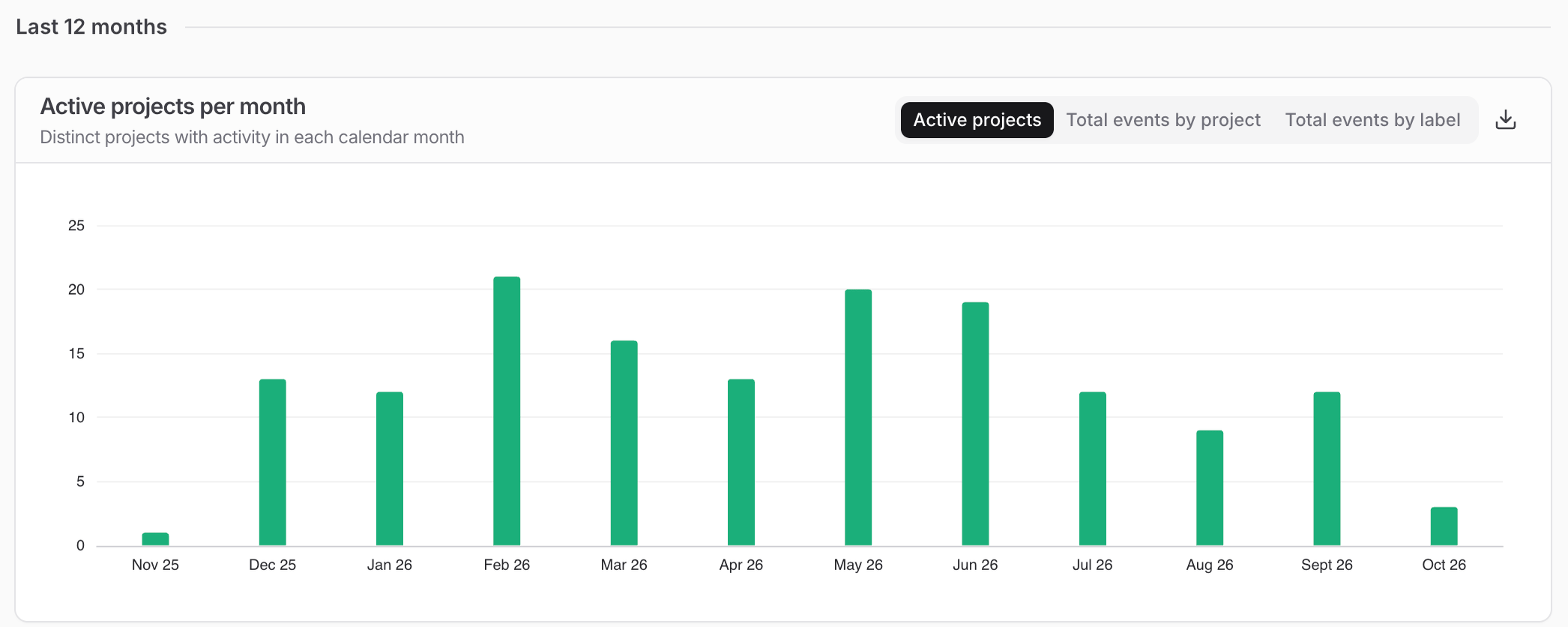
- Projects: which projects see the most activity, and how many are active month to month.
- Users: the most active people, and how many are active month to month.
- Integrations: where versions come from, and which ACC and ProjectWise files are set to auto-refresh.
- Dashboards & Reports: which projects every dashboard and report is attached to, and who owns it.
- AI: token spend by user, project, purpose, and tool. This tab appears when the workspace includes Speckle Intelligence Chat. Under a project scope, workspace-level chats drop out.
- Limits: what the plan includes and how much of it is used. Manage plan opens Billing and plans. See Billing.
On a self-hosted Speckle Enterprise Server, your server administrator turns on Intelligence and
connects it to your organisation’s AI provider. See Enable
Intelligence.
FAQ
Why don't the filters change Limits?
Why don't the filters change Limits?
Limits is workspace-wide. The filters apply to Projects, Users, Integrations, Dashboards &
Reports, and AI. Use Manage plan on the Limits tab to open Billing and plans.
What happens if the AI tab is missing?
What happens if the AI tab is missing?
AI appears when the workspace includes Speckle Intelligence Chat. The other tabs stay. Chat
itself is documented on Ask questions about your models with Speckle
Intelligence.