Sync workspace members from your identity provider
When someone joins or leaves your team, your identity provider (Okta, Azure AD, Authentik, etc.) can push that change directly to Speckle. Speckle’s SCIM 2.0 endpoint creates new workspace members, keeps their emails and display name in sync, and removes them from the workspace when they’re deprovisioned upstream — no manual invite or cleanup required.
SCIM is available on Speckle Cloud and is currently rolling out per workspace. Contact
us to enable it on yours.
We strongly recommend setting up SSO before enabling SCIM. SSO and SCIM are independent features that solve different problems:
SSO handles login — members sign in to Speckle through your identity provider.
SCIM handles lifecycle — your identity provider creates, updates, and removes workspace members.
SCIM provisions accounts but does not give them a way to log in. Without SSO, every SCIM-provisioned user has to go through Speckle’s password reset flow before they can access the workspace for the first time — a friction point you can avoid entirely by enabling SSO. With SSO in place, provisioned users sign in directly through your identity provider on first access.SCIM does not technically require SSO, but pairing them is the experience your users will thank you for.
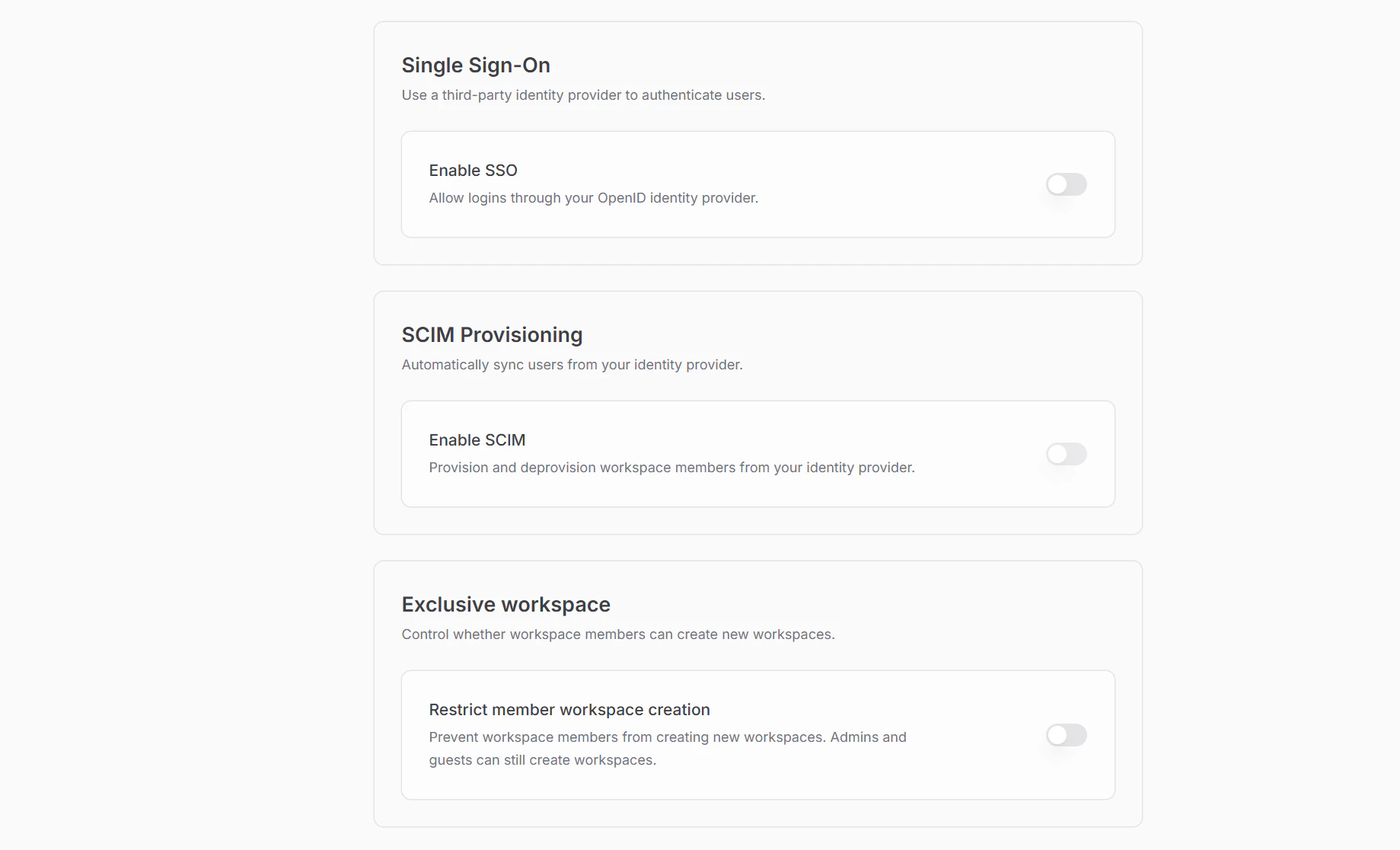
Configure SCIM under Settings -> Security.
Workspace members can see this section, but only workspace admins can change these controls.
SCIM is shown in the Security page only when SCIM is enabled for the workspace.
SCIM card under Settings -> Security
If you haven’t configured SSO yet, do it before enabling SCIM. Provisioned
users without SSO have to use the password reset flow on first login.
1
Generate a SCIM token
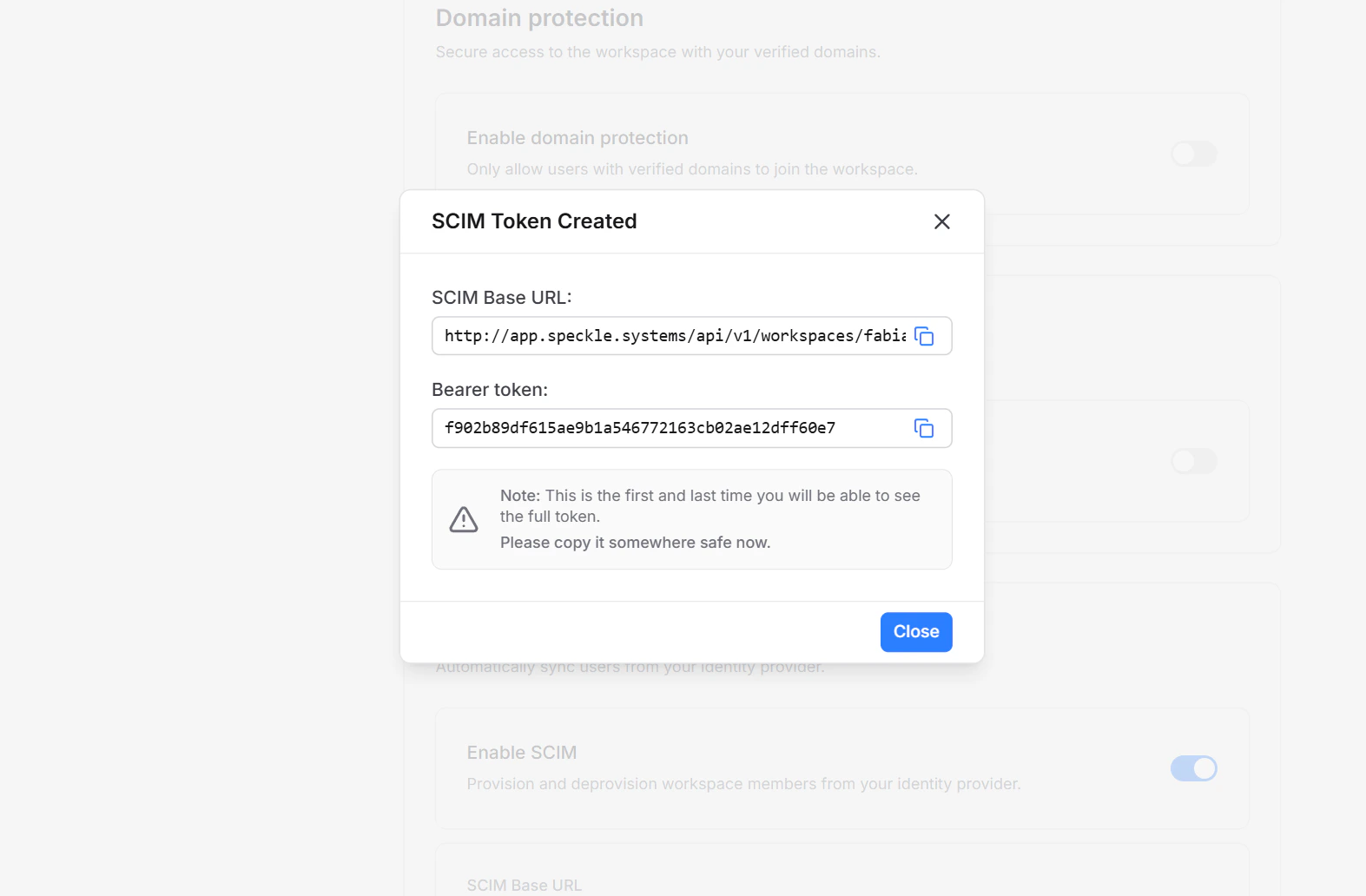
Click Enable SCIM. Speckle generates a workspace-scoped bearer token and shows it once in a reveal dialog. Copy the token and the SCIM base URL before closing.
Token reveal dialog. Copy the token before closing.
The token is shown only once. Copy it somewhere safe — you cannot recover it later. If you lose it, rotate the token to generate a new one.
2
Configure your identity provider
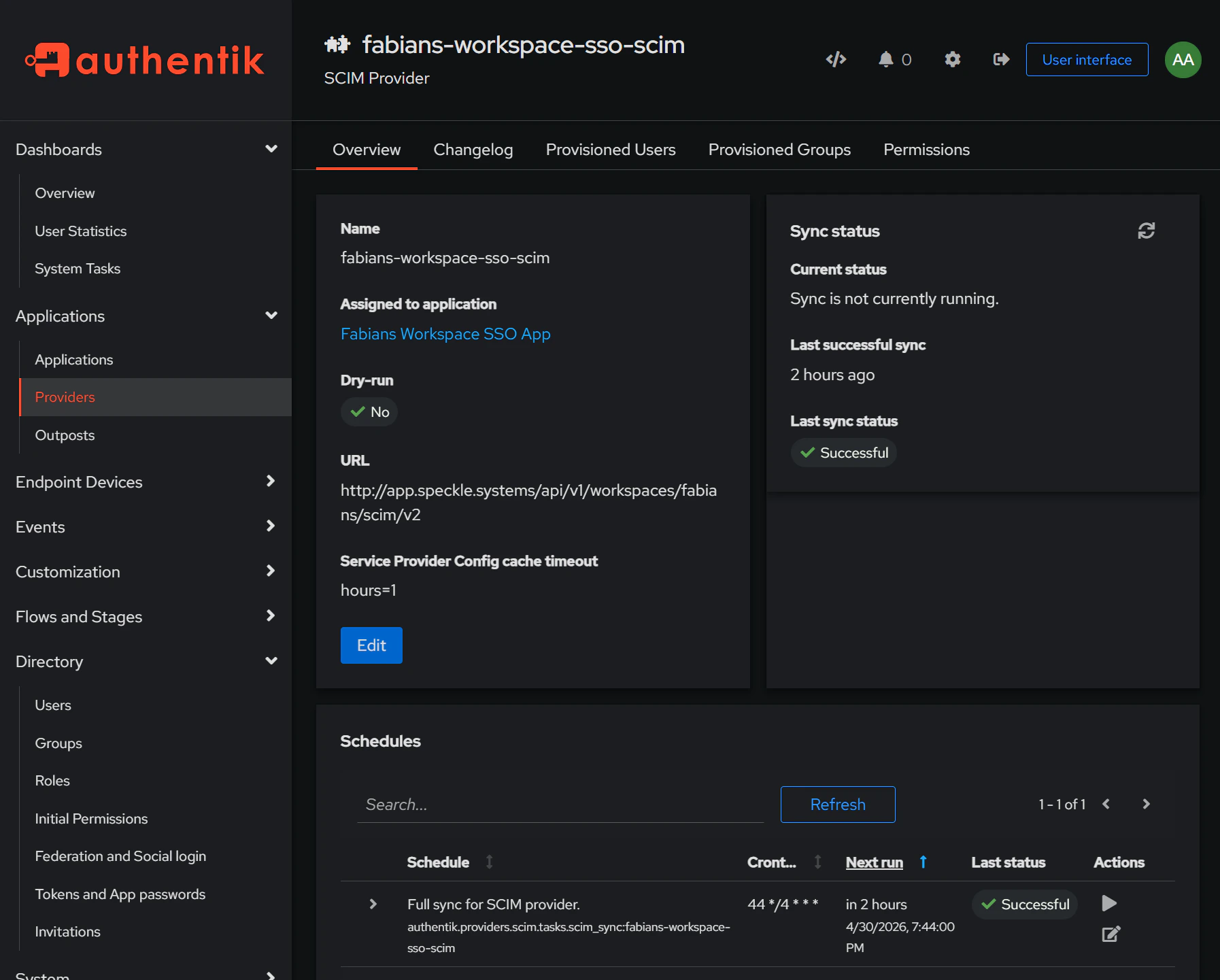
In your identity provider, create a new SCIM 2.0 application pointing at:
SCIM endpoint: the base URL from the previous step, e.g. https://app.speckle.systems/api/v1/workspaces/{workspace-slug}/scim/v2
Authentication: bearer token (paste the token you copied)
Filter the identity provider push to the users you want in the workspace.
Provisioned users join with the workspace’s default project-access setting
and the member workspace role.
Example SCIM application configuration in your identity provider
3
Trigger the first sync
Trigger a test sync from your identity provider. The SCIM card updates
Last sync and Provisioned users within seconds, and the test user
appears under workspace Members with the default project-access setting.
Display name and given/family name updates flow through to the Speckle profile.
Email changes on a verified workspace domain are synced. The identity provider’s primary email becomes the Speckle primary email.
Secondary emails added in the identity provider are added in Speckle; secondary emails removed there are removed in Speckle.
An unverified Speckle email matching the identity provider push is marked verified — Speckle trusts the identity provider as authoritative for its own domains.
Email sync is restricted to verified workspace domains. Personal emails (e.g. @gmail.com) pushed
from the identity provider are ignored.
Not strictly, but it is strongly recommended. SCIM provisions accounts but
does not handle login. Without SSO, every provisioned user must complete
Speckle’s password reset flow on first access. With SSO enabled first,
provisioned users sign in directly through your identity provider — no
password reset, no friction. Set up SSO before enabling
SCIM whenever possible.
What happens if a user's email is unverified in Speckle?
SCIM returns a 409 conflict. Ask the user to verify their email in Speckle
(or remove the email from their account), then retry the sync from your
identity provider. SCIM never silently links unverified accounts.
Can SCIM change a user's password or other workspace memberships?
No. SCIM never touches passwords — users authenticate through SSO
(recommended) or via Speckle’s password reset flow if SSO is not configured.
SCIM also only manages membership in the SCIM-enabled workspace; the user’s
other workspace memberships are untouched.
Can SCIM manage project membership?
No. SCIM manages workspace-level user lifecycle (create, update, remove)
within the SCIM-enabled workspace. Project collaborator membership and
project-level roles are managed separately in project settings.
Can the same user be SCIM-managed in multiple workspaces?
No. A user can only be SCIM-managed in one workspace at a time. Provisioning
a user who is already SCIM-active in another workspace returns a 409
conflict — deprovision them in the first workspace before provisioning
elsewhere.
What if I lose the SCIM token?
Tokens cannot be recovered. Open Settings -> Security, rotate
the token, and update your identity provider with the new value.
Does SCIM upgrade permissions above the defaults?
No. SCIM creates members using the workspace defaults. It does not promote
users to admin or elevate project permissions automatically.