

The Microsoft Fabric integration is in Beta and is enabled per workspace. Before you can
register tables or views, an IT administrator must prepare Microsoft Fabric and connect a
Warehouse or Lakehouse in Speckle. If your project’s Integrations does not show Microsoft
Fabric, ask your IT administrator to follow Enable Microsoft Fabric
integration.
Setup
These steps assume an IT administrator has already connected a Fabric Warehouse or Lakehouse in Speckle. If it hasn’t, your IT administrator must complete Enable Microsoft Fabric integration first. Browsing and registering tables is for workspace admins.1
Browse to your table or view
In Speckle, open your project’s Integrations > Microsoft Fabric. If your workspace has several connections, pick one from the list at the top of the page. Expand a Warehouse or Lakehouse, then a schema, and select a table or view to preview its rows. A connection limited to one Warehouse or Lakehouse starts at its schemas.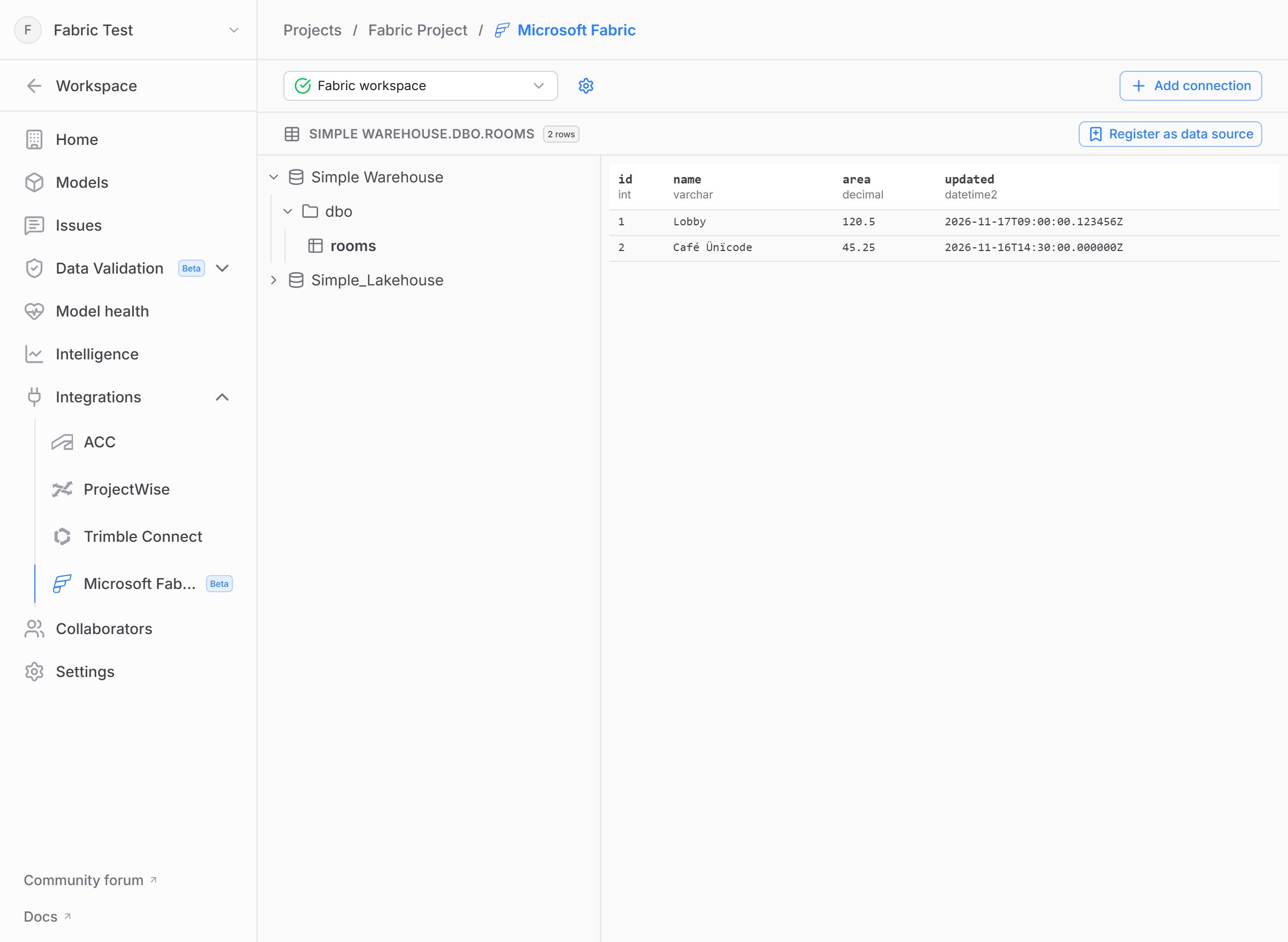
2
Choose the columns and register
Select Register as data source, pick the columns to include — only the columns you choose are ever read or cached — then choose a short Name for the data source. Use letters, numbers, and underscores, starting with a letter or an underscore. You can also adjust the Snapshot TTL (time to live) if the default freshness window does not fit your workflow. The TTL controls how long Speckle reuses the cached snapshot before it is considered stale. Select Register data source to finish.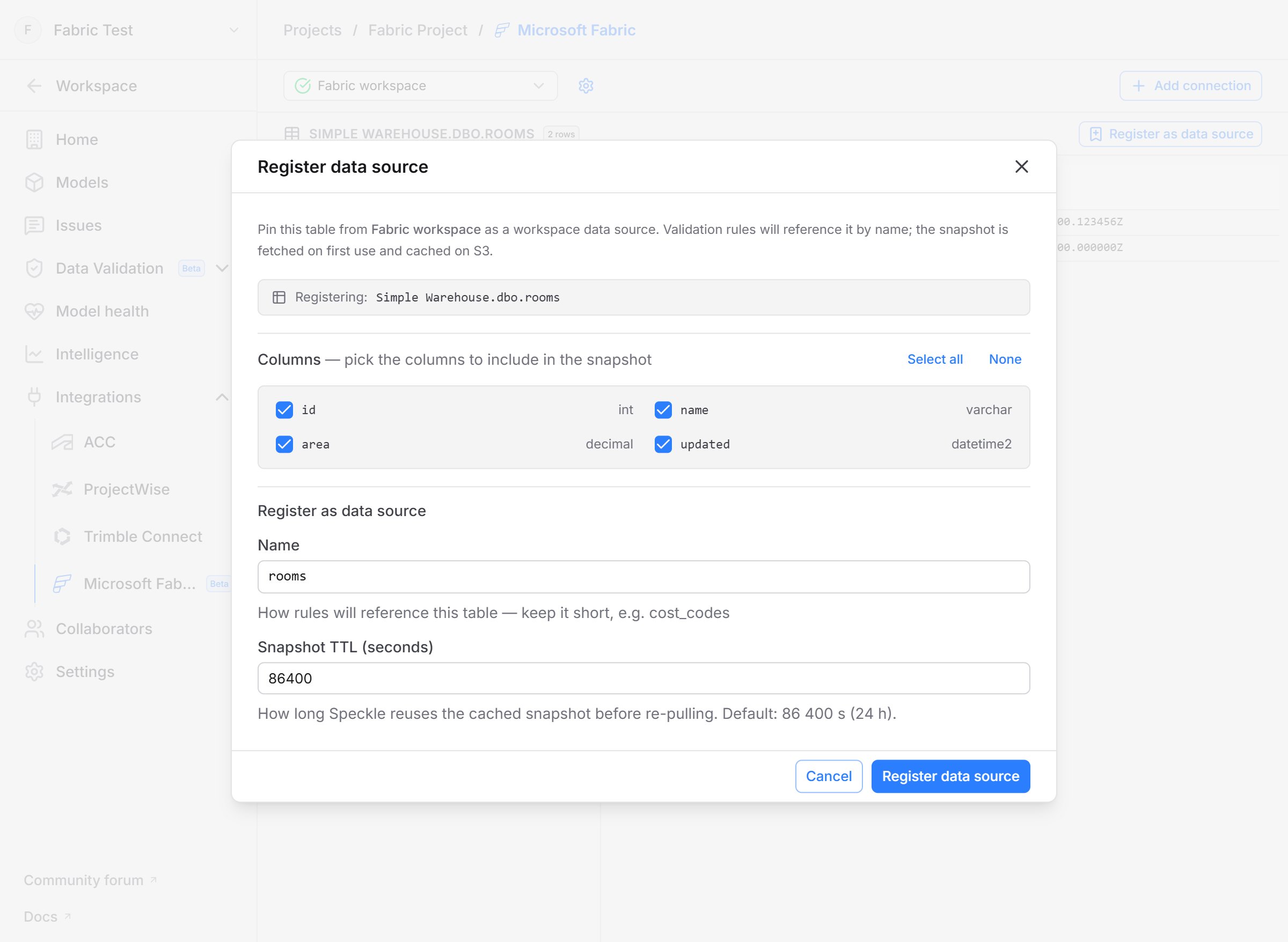
How snapshots are stored and refreshed
When you register a table or view, Speckle reads the columns you selected and stores a cached snapshot in your workspace’s object storage. Tools query the snapshot rather than your live Warehouse or Lakehouse.- Snapshot TTL. TTL means time to live. It is the freshness window for the cached snapshot. The default is 24 hours.
- Automatic refresh. After the TTL expires, the snapshot is marked stale. Speckle rebuilds it from Fabric the next time a tool uses that registered data source. If a refresh fails, Speckle keeps the last snapshot and doesn’t try again automatically for 15 minutes.
- Manual refresh. Select the registered table and then Refresh now to force an immediate refresh, for example right after the source data changes. A manual refresh runs even during those 15 minutes.
- Disconnecting. If your IT administrator disconnects the Fabric connection, registered sources keep serving their last snapshot read-only. Reconnecting the connection resumes refreshing.
FAQ
Can Speckle modify or write to my Warehouse or Lakehouse?
Can Speckle modify or write to my Warehouse or Lakehouse?
No. The integration is read-only — Speckle issues read-only queries only and never writes,
updates, or deletes data in Microsoft Fabric.
Why is a new Lakehouse table missing from the list?
Why is a new Lakehouse table missing from the list?
Speckle reads a Lakehouse through its SQL analytics endpoint, and a new table can take a short
while to appear there. Wait a moment and reload the page. If nothing at all is listed, ask your
IT administrator to check the connection. See
Troubleshooting.
Why can I not open or register a table?
Why can I not open or register a table?
Speckle reads schemas, tables, and columns whose names start with a letter or an underscore and
contain only letters, numbers, spaces, and the characters
_, $, #, and @. A table, or a
selected column, with any other character in its name cannot be registered. Create a view in
Fabric with names that fit, and register the view.Why does a manual refresh say a refresh is already running?
Why does a manual refresh say a refresh is already running?
Another refresh of the same data source started first. Speckle waits up to 60 seconds for it to
finish, then asks you to try again once it is done.