

- The Power BI connector loads your model from Speckle into Power BI tables.
- The Speckle 3D visual lets you view and color your models in 3D inside a report.
Speckle.GetByUrl, rebuild it with Get Tables: see Upgrade from 2026.8.
Setup
Install the connector
Open the Power BI connector
Why don't I see Speckle as a data source in Power BI?
Why don't I see Speckle as a data source in Power BI?
- Go to File > Options and settings > Options > Security.
- Under Data Extensions, select Allow any extension to load without validation or warning.
How can I install Power BI connector without changing security settings?
How can I install Power BI connector without changing security settings?
CDC489B709A709E3283568A9B75D75180B1355BEFor detailed instructions, see Microsoft’s Docs.Load a model
Connect to Speckle
Paste a Speckle URL
Load Objects
Object Key, Application ID, and Model Info.Choose properties and related fields
Relate the tables
Object Key. You should see your properties next to each object in a table visual.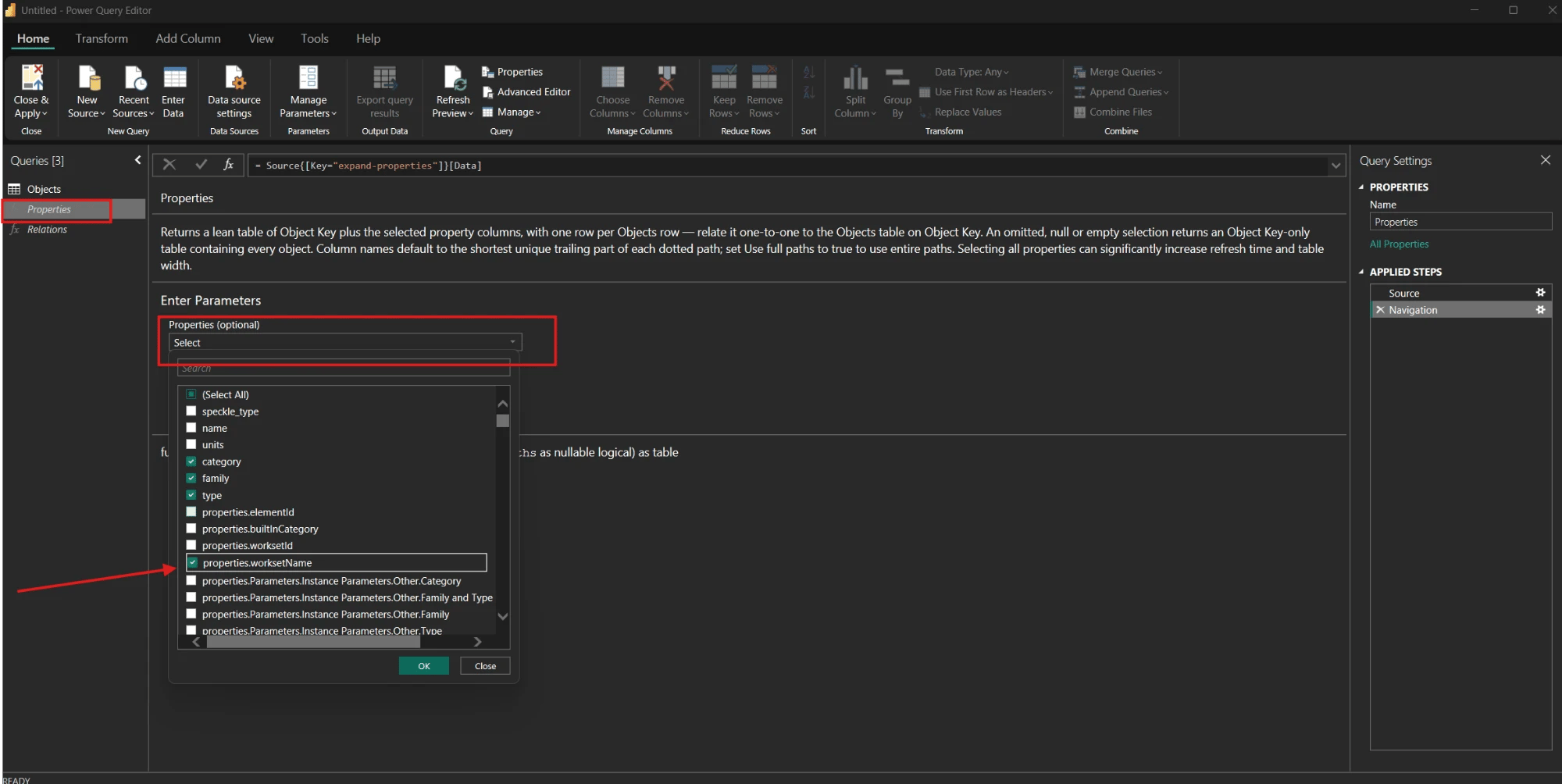
Pick properties from the list, then select OK and Invoke.
- Objects has one row per object. Its standard columns are
Object Key,Application ID, andModel Info. Federated loads also includeSource Model. - Properties is a function. Pick the properties the report needs, then load a table with
Object Keyand those property columns. - Relations is a function. Choose outgoing relations such as
ON_LEVELorIN_ROOM, then load a table withObject Keyand those relation columns.
true to use full dotted paths. If two names still collide at full depth,
the connector adds numeric suffixes such as .1 and .2. Instance values use unprefixed column
names. Type values use the Type_ prefix.View the model in 3D
The Speckle 3D visual streams geometry from Speckle, not through the Power BI dataset. It becomes interactive after the first geometry arrives, and keeps loading in the background.Import the visual
Documents/Power BI Desktop/Custom Visuals, select Speckle Power BI 3D Visual.pbiviz, and Open. You should
see the imported visual in the pane.Add the model fields
Objects[Model Info] into Model Info and
Objects[Object Key] into Object Keys. You should see the first geometry arrive, then the
rest stream in.Add tooltips and colors
Application ID also works as the object binding,
but large models then need an extra lookup that can add tens of megabytes to the load.
The visual’s Edit page supports per-category color overrides and a diagnostics mode. Color overrides
stay fixed when the report theme changes. Diagnostics show streaming statistics and recent events.
The toolbar at the bottom center has Zoom Extents and Camera. Camera includes orthographic
projection, Move camera on filter, and Top, Front, Left, Back, and Right views.
The visual uses your existing Speckle sign-in and receives a limited-scope token for each load. Your
account’s main token does not enter the report.
Share reports
You can share your Power BI reports with Speckle models in two ways:- Share the Power BI file directly: People can view the populated report, including its 3D visual, without signing in to Speckle. The visual uses the restricted share token stored with the report data and stops loading if that token is revoked or expires. Refreshing the source query is a separate connector operation and requires a Speckle account with access to the source project.
- Publish to Power BI Service: You can publish your report to Power BI web, making it accessible to others through the online platform where they can view the published report and interact with the 3D visual. If a data gateway has been configured, the Speckle connector and 3D visual support scheduled refresh, ensuring your reports reflect up-to-date data.
Set up a data gateway
For production reports that need scheduled refresh, you’ll need to set up a data gateway. This allows your Power BI reports to automatically update with the latest Speckle data without manual intervention. Set up Data Gateway →Functions
Properties and Relations are bound to the loaded model. They are not global M functions.
useFullPaths is a logical value: false uses the shortest unique suffix, and true uses the full
dotted path.
Speckle.AddProperties and Speckle.AddAllProperties take the navigation table returned by
Speckle.GetTables as source. For example, Speckle.AddProperties(Source, {"path.one", "path.two"}) returns Objects with those two property columns.
Speckle.Project.Issues
Fetch issues from a given project, model, or version.
Id, Title, Description, Status, Priority,
Assignee, Due Date, Created, Updated, Labels, Replies, and URL. Optionally, set
getReplies to true to extract replies.
- Fetch issues from a project:
Speckle.Project.Issues("https://app.speckle.systems/projects/PROJECT_ID/") - Fetch issues from a model:
Speckle.Project.Issues("https://app.speckle.systems/projects/PROJECT_ID/models/MODEL_ID/") - Fetch issues from a version:
Speckle.Project.Issues("https://app.speckle.systems/projects/PROJECT_ID/models/MODEL_ID@VERSION_ID/") - Fetch issues with replies:
Speckle.Project.Issues("https://app.speckle.systems/projects/PROJECT_ID/", true)
Upgrade from 2026.8
Speckle.GetByUrl and the earlier 3D visual are no longer supported. If a report uses them, rebuild
its queries with Connect to Speckle (Custom) and add the new 3D visual. There is no automatic
conversion, and renaming the function in the Advanced Editor is not enough.
Your data is kept: versions published before 2026.9 stay in your models.
Why GetByUrl reports fail
AGetByUrl report that points to a model URL fails on its next refresh once the model gets a
version from a 2026.9 connector, a file upload, or a cloud sync. Those versions contain only
artifact bundles, which GetByUrl cannot read, so the refresh fails with
JsonRepresentationUnavailable. Rebuild the report before that happens.
If a report has already failed and you need it working before you can rebuild, change the model
URL in the GetByUrl query to .../models/MODEL_ID@VERSION_ID, using the last version published
before 4.0. This is unsupported and temporary: the report stops following new publishes. It does
not work for a model with no pre-4.0 version, such as a new IFC upload. Rebuild with Get Tables as
soon as you can.
Rebuild the queries
Use the existing model URL, and follow Load a model from Connect to Speckle. Do not renameGetByUrl to GetTables in the Advanced Editor.
Then update every chart, measure, and slicer that references the old table. Check column names:
shortened property paths, numeric collision suffixes, and the Type_ prefix may change table
references and calculations.
Add the new 3D visual
Import the new visual
Speckle Power BI 3D Visual.pbiviz from Documents/Power BI Desktop/Custom Visuals. The new visual appears in the
pane alongside the earlier one.Add the new visual and fields
Check the report before removing the earlier visual
GetByUrl queries after no visual, measure, or relationship references them.
Superseded GetByUrl functions
These functions belong to theGetByUrl workflow, which is no longer supported. They read JSON
versions only and expect the Speckle.GetByUrl table shape, so they do not accept the tables
returned by Speckle.GetTables. Replace them when you rebuild the report.
FAQ
Loading data
How do I get one table of objects and their properties, like GetByUrl returned?
How do I get one table of objects and their properties, like GetByUrl returned?
Object Key and one column per property.
For the 3D visual, also load Objects and relate it on Object Key, because Model Info lives
there. To get it all in one table in M, use Speckle.AddProperties.Should I select all properties?
Should I select all properties?
How do I find a property in the Properties list?
How do I find a property in the Properties list?
properties.Quantities.Qto_SpaceBaseQuantities.NetFloorArea. The
resulting column uses the shortest unique end of the path, such as NetFloorArea, unless you
set Use full paths to true.Why don't I see Speckle - Get Tables in Get Data?
Why don't I see Speckle - Get Tables in Get Data?
How do I load several models into one report?
How do I load several models into one report?
Source Model column.Why doesn't my report update after a new version is published?
Why doesn't my report update after a new version is published?
@ symbol, you loaded a specific version, and the connector loads only that version.What happens if Get Tables fails on an older version?
What happens if Get Tables fails on an older version?
GetTables reads artifact bundles. This version was published before 2026.9 and has not been
converted to the 2026.9 format yet, so it contains only JSON. The error message suggests
GetByUrl, which is no longer supported. Publish a new version from an updated connector and
load that, or contact Speckle support if you need this version as it is.3D visual
Does updating the connector update visuals already in my report?
Does updating the connector update visuals already in my report?
Which browsers and environments does the 3D visual support?
Which browsers and environments does the 3D visual support?
Is ghost mode available in the 3D visual?
Is ghost mode available in the 3D visual?
Why does geometry disappear or flicker when I zoom in?
Why does geometry disappear or flicker when I zoom in?
How do I hide the Speckle logo from the 3D visual?
How do I hide the Speckle logo from the 3D visual?
Sign-in and access
How do I sign in to my Speckle account in Power BI?
How do I sign in to my Speckle account in Power BI?
- Select Get Data from the Home ribbon.
- Select Connect to Speckle (Custom).
- Paste your model URL in the text box.
- If not already signed in, an authentication dialog will appear.
- Click Sign in and sign in to your Speckle account from the browser window that opened.
- Power BI stores your credentials, so you won’t need to sign in again the next time you load a model.
Why do I get an 'Access to the resource is forbidden' error?
Why do I get an 'Access to the resource is forbidden' error?
- Go to File > Options and settings > Options > Security
- Under Authentication Browser, clear Use my default web browser
Why do I get a 'Value cannot be null. Parameter name: uriString' error?
Why do I get a 'Value cannot be null. Parameter name: uriString' error?
- Go to File > Options and settings > Options
- Select the Security tab
- Under Authentication Browser, clear Use my default web browser
- Try loading your model again
How can I switch to a different account in Power BI?
How can I switch to a different account in Power BI?
- Close Power BI Desktop completely.
- Where do I find my Power BI installation folder?
- Desktop version (.exe): Navigate to %LocalAppData%\Microsoft\Power BI Desktop (typically C:\Users[your-username]\AppData\Local\Microsoft\Power BI Desktop)
- Microsoft Store version: Navigate to C:\Users[your-username]\Microsoft\Power BI Desktop Store App
- Delete following items:
- CEF folder
- WebView2 folder
- Cache folder
- User.zip file
- Restart Power BI Desktop.
Why do I get a connection or token error when loading data?
Why do I get a connection or token error when loading data?
- Go to File > Options and settings > Data source settings
- Select https://app.speckle.systems/ or your server URL
- Select Clear Permissions
- Restart Power BI and authenticate again
Why do I get an 'Unable to connect remote server' error?
Why do I get an 'Unable to connect remote server' error?
Why do I get a 'Permission denied' error?
Why do I get a 'Permission denied' error?
-
Verify that you have been granted access to the model.
- If not, contact the project owner and request the necessary permissions.
-
If you are already added but still see the error, try re-authenticating:
- In Power BI, go to Data source settings.
- Select Global permissions, then double-click on
app.speckle.systems. - Click Edit, choose Speckle Account, and sign in again.
Can I load and visualize private projects with the Power BI connector?
Can I load and visualize private projects with the Power BI connector?
Why can I view a model in Speckle but can't load it in Power BI?
Why can I view a model in Speckle but can't load it in Power BI?
Do I need Speckle Desktop Services for the Power BI connector?
Do I need Speckle Desktop Services for the Power BI connector?
Upgrading reports
Can I keep using GetByUrl and the earlier 3D visual?
Can I keep using GetByUrl and the earlier 3D visual?
Speckle.GetByUrl and the earlier visual are no longer supported, and a
report that follows a model fails once that model gets a version published from 2026.9. If a
query calls GetByUrl, rebuild it with Connect to Speckle (Custom) and add the new visual:
see Upgrade from 2026.8. Your data is kept, and older versions stay in
your models.Why does GetByUrl still fail when I use a version URL?
Why does GetByUrl still fail when I use a version URL?
GetByUrl cannot read. The temporary recovery
step works only with a version published before 4.0 that still has JSON data. See Why GetByUrl
reports fail, then rebuild the query with Connect to Speckle
(Custom) as soon as you can.Why does GetByUrl fail with DirectDownloadFailed and status 404?
Why does GetByUrl fail with DirectDownloadFailed and status 404?
RootObjectId starts with bundle., the version contains only artifact bundles.
Some connector releases report this as DirectDownloadFailed instead of
JsonRepresentationUnavailable. The fix is the same: rebuild the query with
Speckle.GetTables.What happens if I only rename GetByUrl to GetTables in the Advanced Editor?
What happens if I only rename GetByUrl to GetTables in the Advanced Editor?
What happens if I import the new visual before I migrate the queries?
What happens if I import the new visual before I migrate the queries?
GetTables output before it can display a model; a GetByUrl table cannot supply
its required fields. Keep the earlier visual until you have loaded the new tables and checked
the report.