

Enabling blocks to families
This feature is a load setting and is off by default. To enable it:- In the Revit connector, open the model you want to load.
- Expand the Settings section at the bottom of the load dialog.
- Toggle Receive Blocks as Families on.
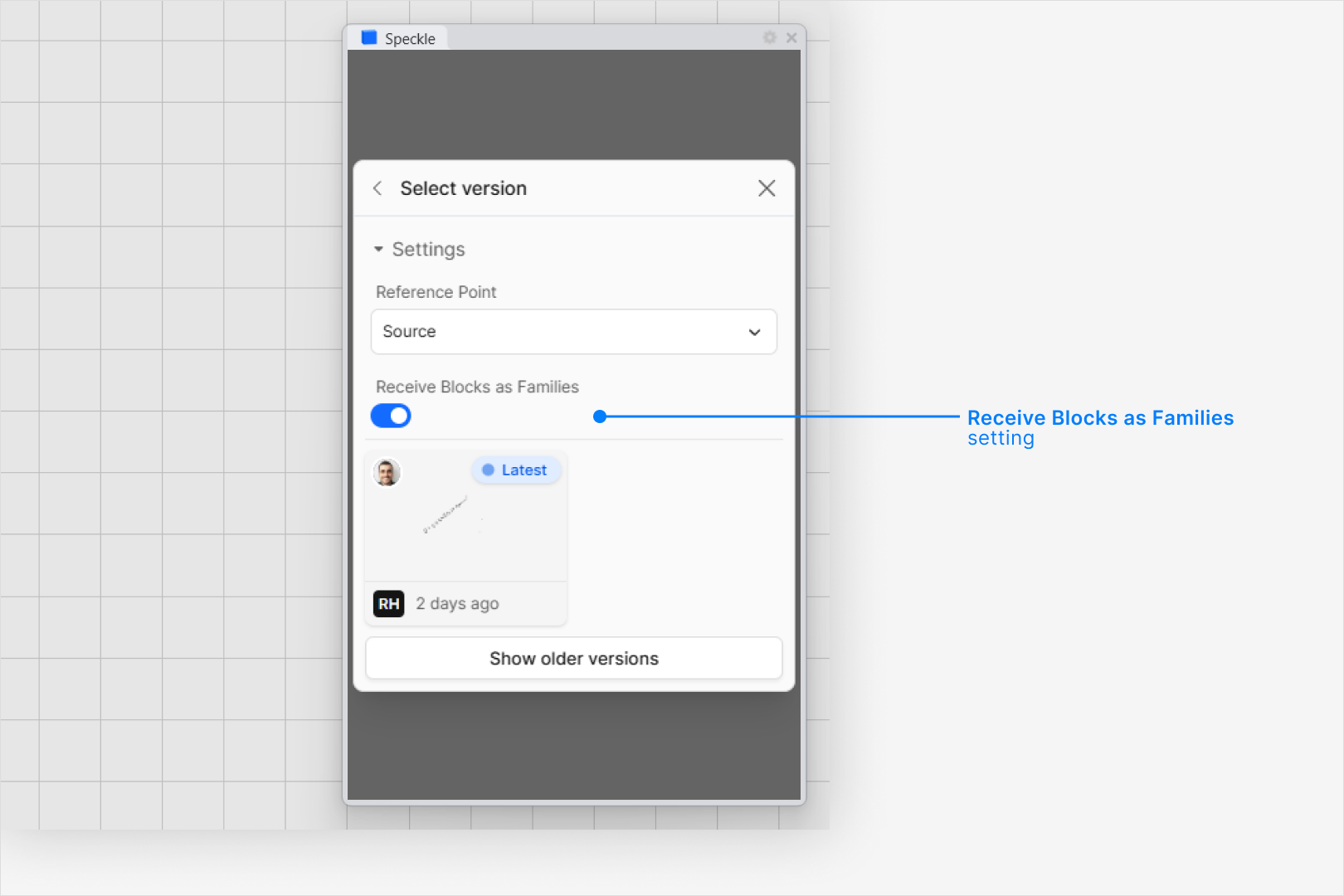
Enabling this setting only affects the current load operation. Toggle it before each load if you
want consistent results.
How blocks are converted
Each block definition from the source model becomes a Revit family. Block instances in the scene become instances of that family placed in your project.Geometry support
The following geometry types are supported. Each is converted to the most capable Revit representation available:
If creating a freeform element fails, the connector falls back to DirectShape.
Layers become subcategories
Layers assigned to geometries inside a block definition are created as subcategories within the family. This lets you control visibility per layer from Revit’s Visibility/Graphics settings.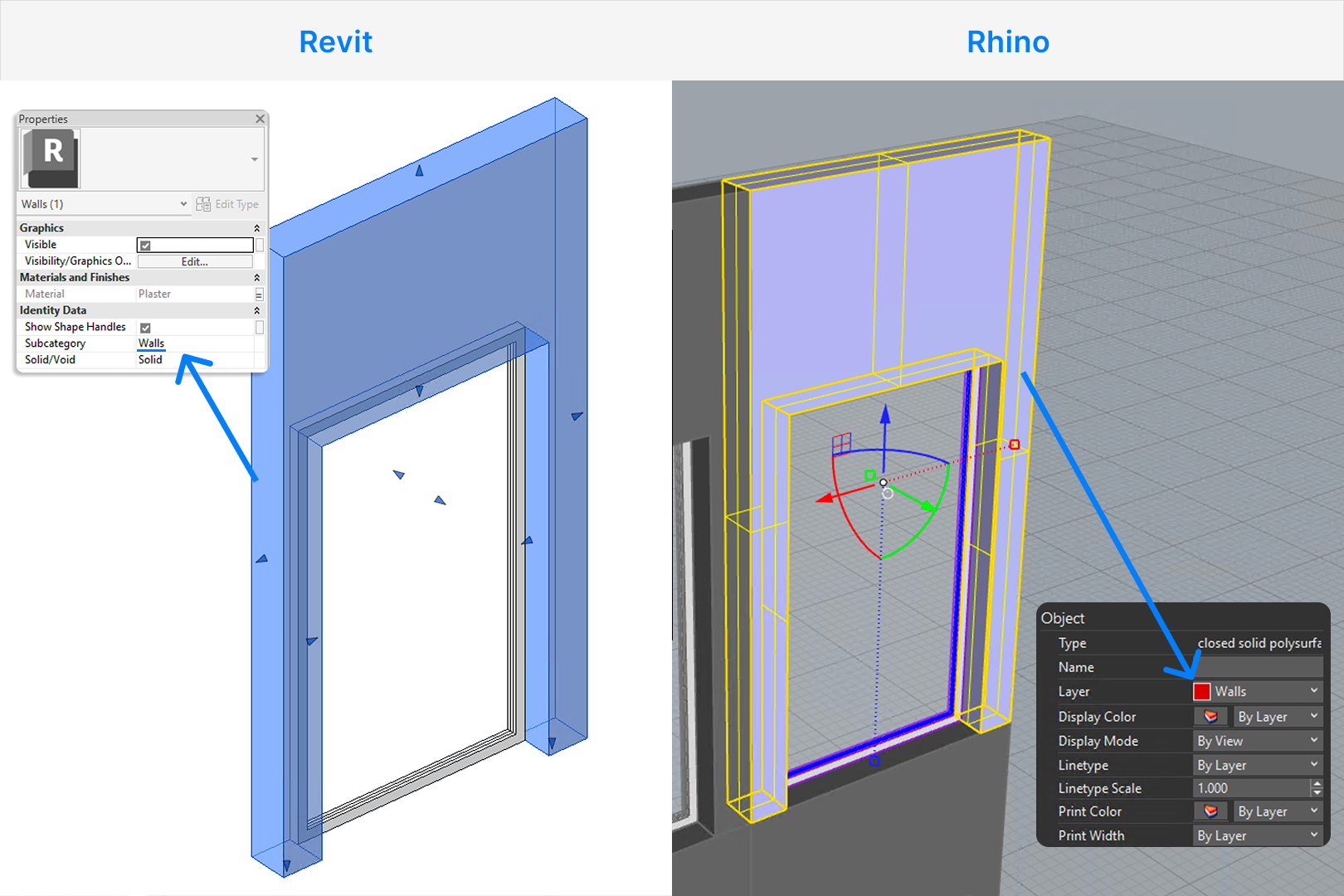
Materials
Materials from the source model are applied to the created geometry inside the family. A type parameter is also created on the family so you can override the material directly from the project without editing the family definition.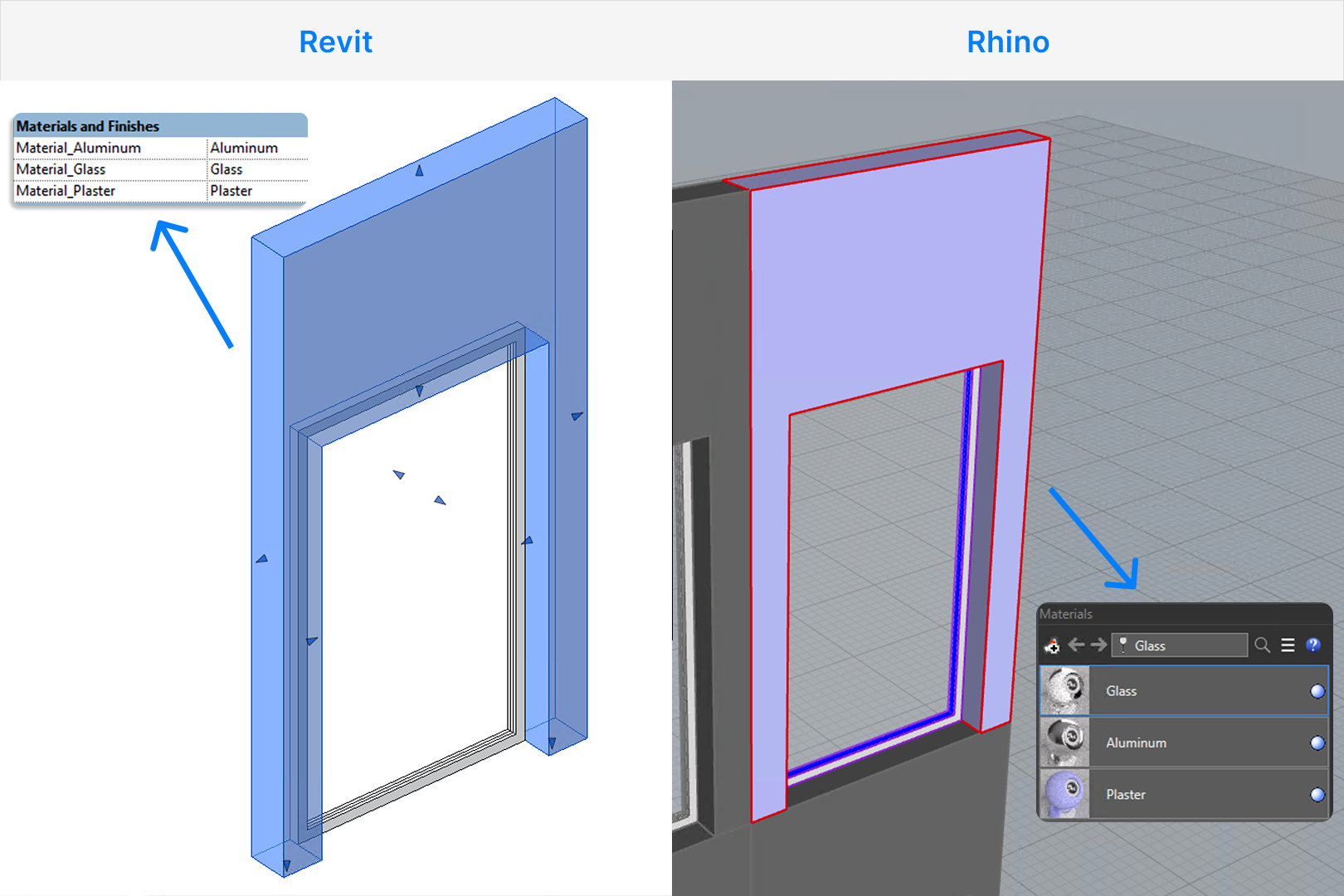
Nested blocks
Nested blocks are supported and are converted as nested families. Each level of nesting requires Revit to create an additional family file, which is an expensive operation.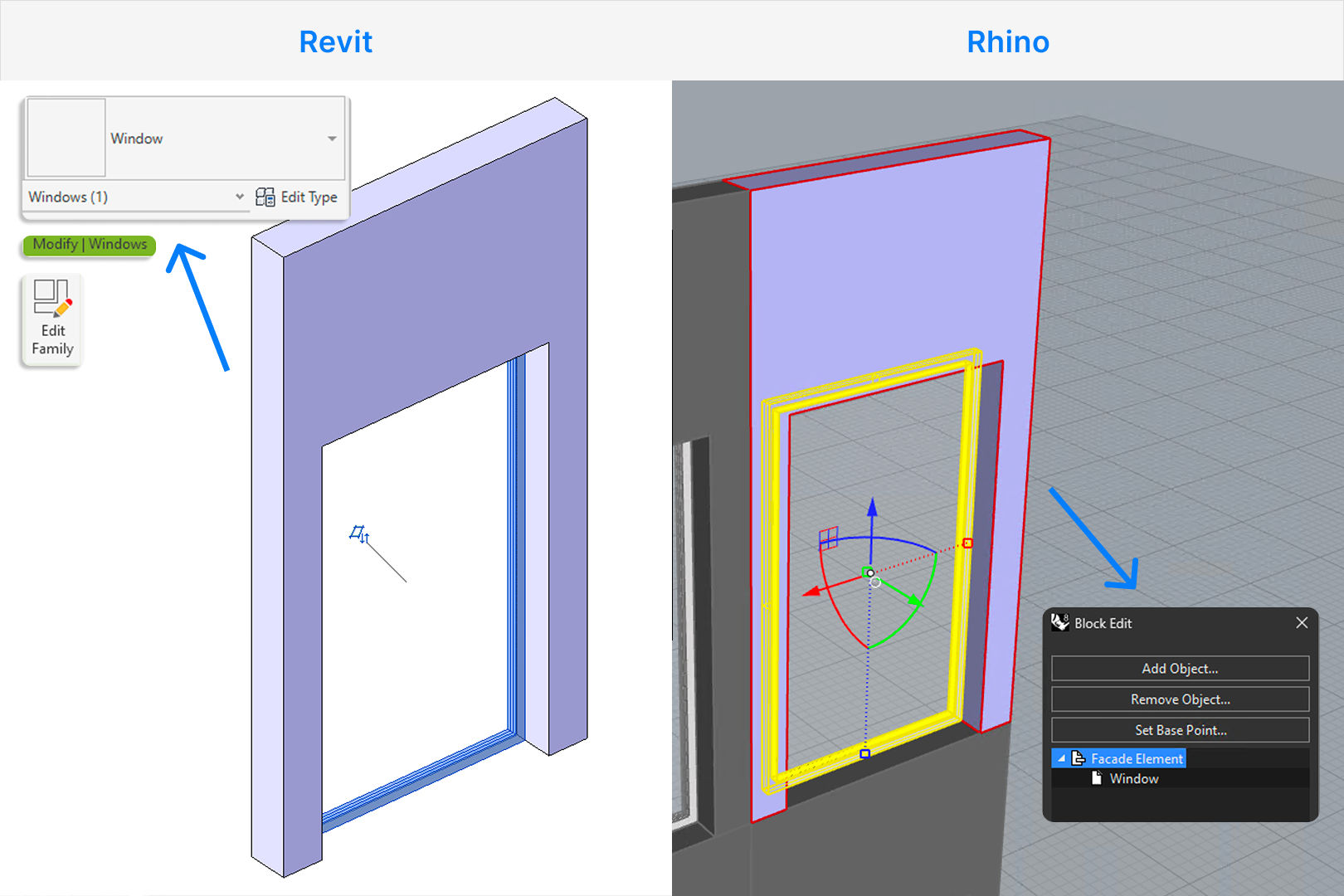
Family categories
By default, all families created from blocks are assigned to the “Generic Models” category. If you use the Revit Categorization tool to assign Revit categories to your blocks, the connector will attempt to create the family in the specified category. If the category is not supported, it will fall back to a default category.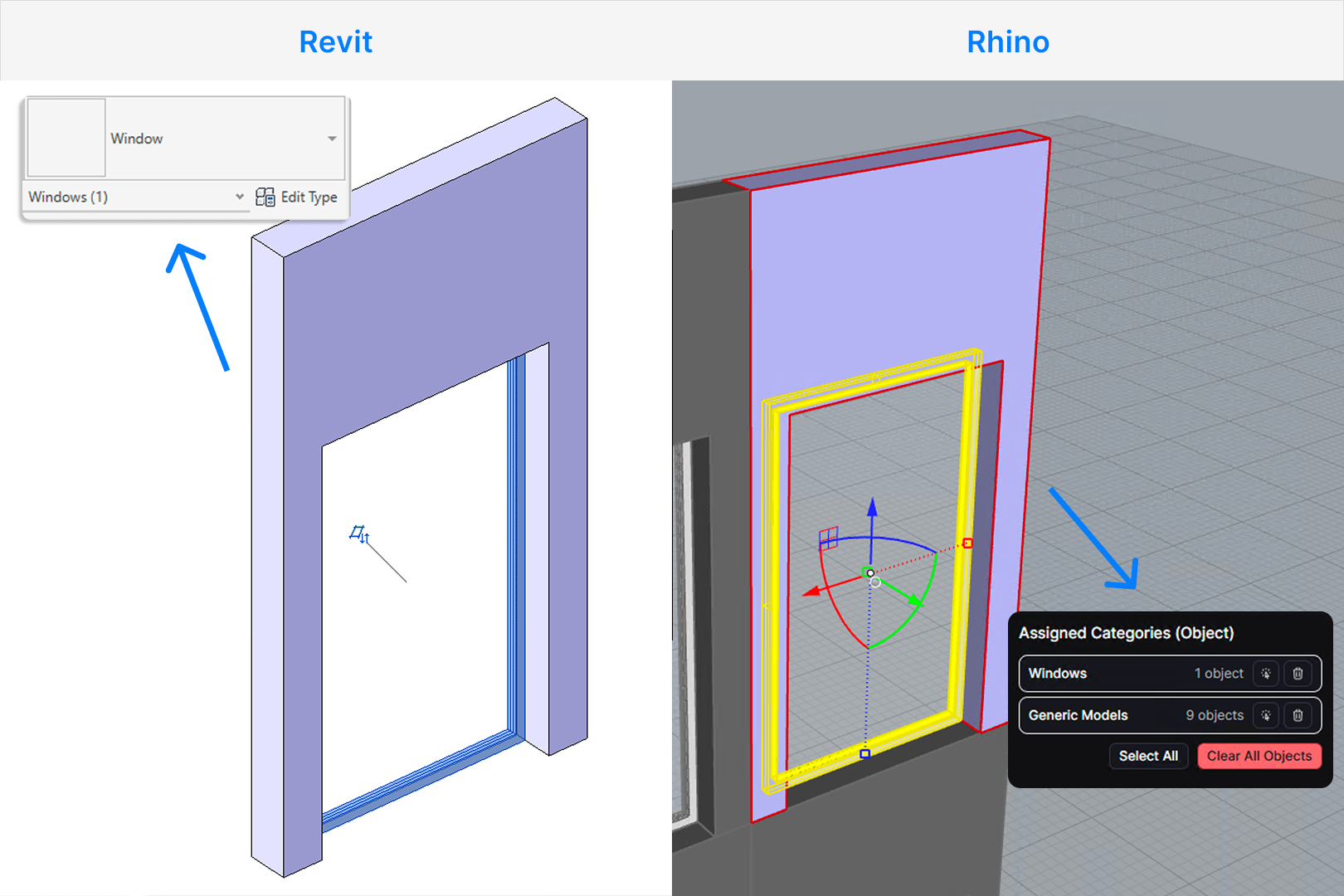
FAQ
Which applications can create blocks that work with this feature?
Which applications can create blocks that work with this feature?
Any application whose Speckle connector sends block or instance structure will work. That includes
Rhino (blocks), SketchUp (components and groups), and AutoCAD (blocks). If you publish from one of
these and your model contains block definitions with instances, the Revit connector can receive
them as families. Other connectors that support blocks in the future will work the same way.
How do blocks get into my Speckle model?
How do blocks get into my Speckle model?
Blocks come from the application you use to publish. Create blocks (or components, or groups,
depending on the app) in that application, then publish the model to Speckle. Speckle stores each
block definition once and each placement as an instance. When you load in Revit with Receive
Blocks as Families on, those definitions become Revit families and the instances become family
instances in the project.
Does this work with nested blocks?
Does this work with nested blocks?
Yes. Nested blocks are converted as nested families, preserving the original hierarchy. However,
each nesting level adds to load time because Revit must create a separate family for each unique
block definition. Deeply nested models (such as those from SketchUp) can be slow to process.
My blocks are scaled or skewed in the source model, but they look different in Revit. Why?
My blocks are scaled or skewed in the source model, but they look different in Revit. Why?
Revit’s geometry engine only supports transformations that preserve angles —
specifically, uniform scale, rotation, and reflection. Non-uniform scaling
(where X, Y, and Z scale independently) and shearing (skewing) are not supported
by the Revit API at the family instance level.When a block instance in your source model has been non-uniformly scaled or
skewed, Speckle will place the family at the correct position and rotation,
but the scaling or skew cannot be applied. The family will appear at its original undeformed proportions.To work around this, bake or explode the affected instances in the source
application before publishing to Speckle, so the geometry is already deformed and no longer relies on a transform.