

Three ways to bring in linked models
1. Sync from Forma Data Management
Select the host Revit file on the ACC page and create a sync. Linked models under the file shows how many of its links the sync converts. Select Choose to leave some out.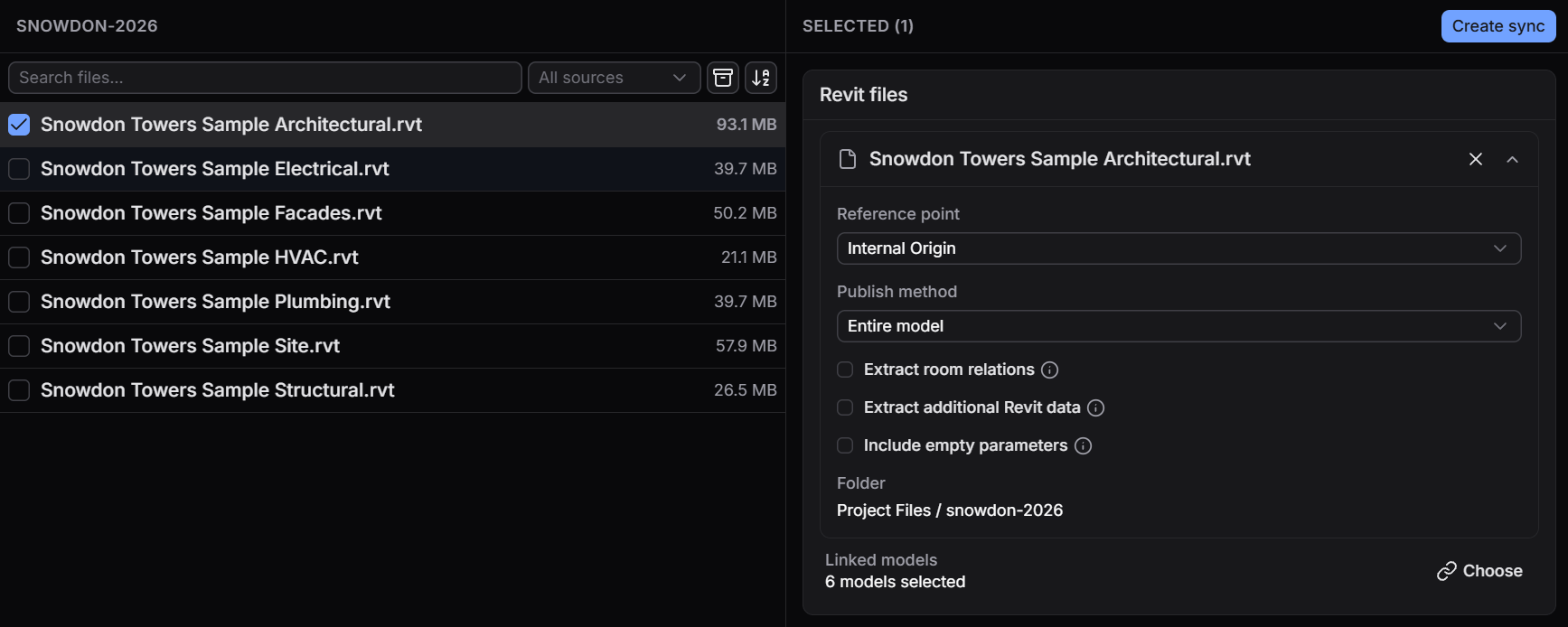
Linked models under the selected Revit file.
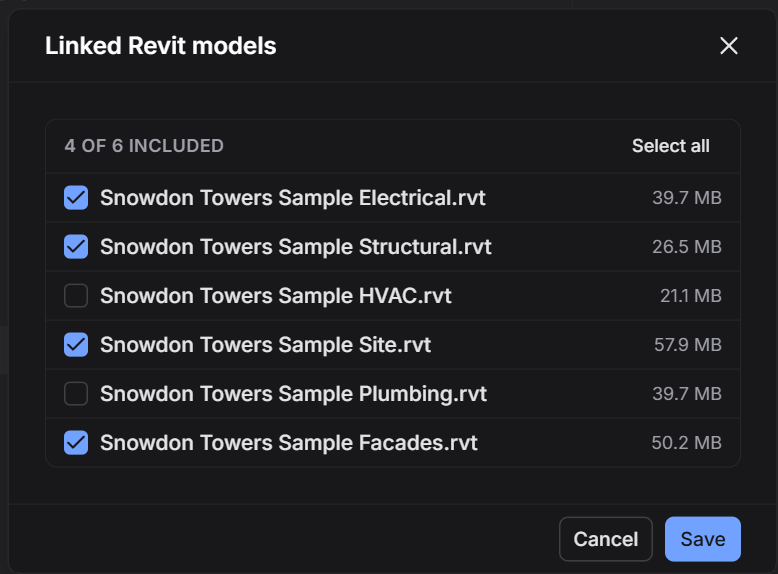
Uncheck the links to leave out.

A cloud model link in Manage Links: the Saved Path starts with Autodesk Docs://.
2. Upload with drag and drop
Drop the host.rvt and its linked .rvt files on a model together. If you drop only the host,
Speckle lists the links it needs, and you can add them in the same dialog.
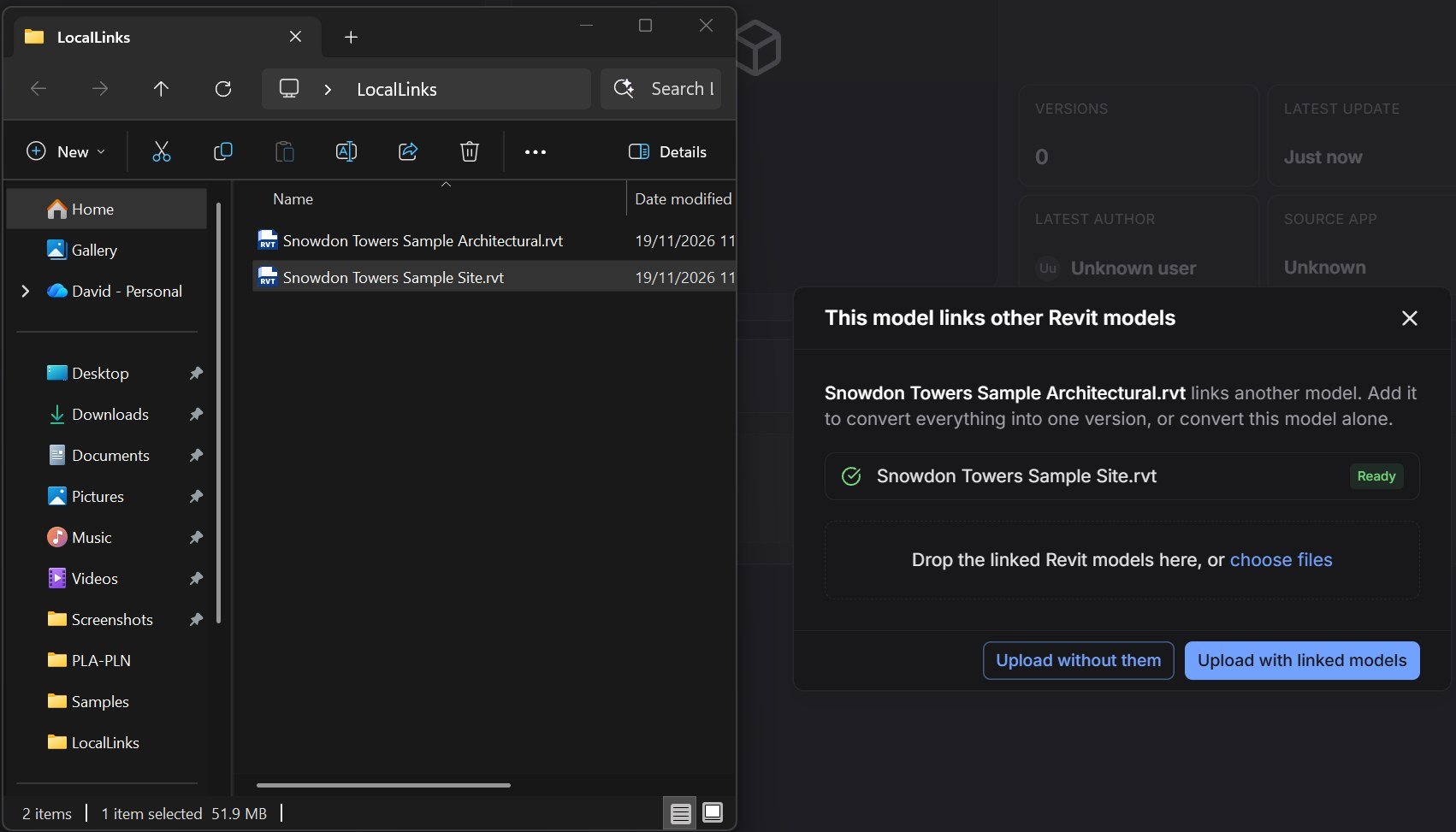
The linked model dropped together with the host is Ready.

A local link in Manage Links: the Saved Path is a drive path.
3. Publish from the Revit connector
In Revit, open the host model. In the Speckle publish card, expand Settings, check that Include Linked Models is on, and publish.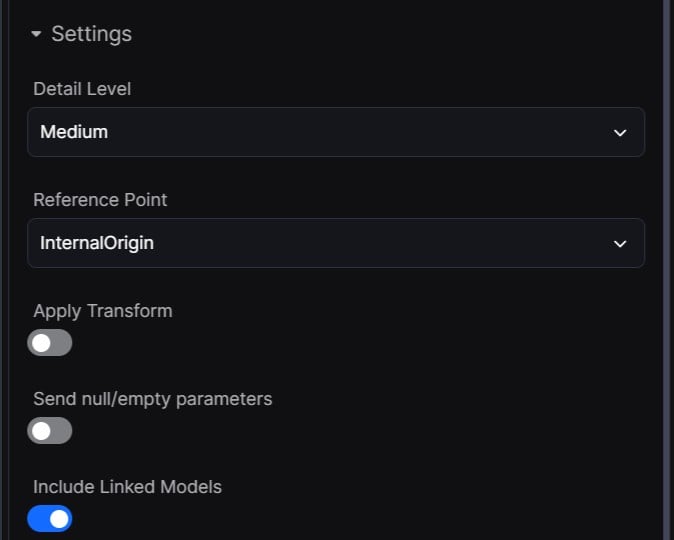
Include Linked Models in the publish settings.

A host with a cloud model link and a local link. The connector publishes both.
Syncs and uploads convert Revit (
.rvt) links only, up to 100 per version. Linked DWG, IFC, point
cloud and PDF files are left out.Sync a Revit file with its linked models
On self-hosted deployments, Forma Data Management syncs require Speckle Enterprise Server and a
license key. See ACC
integration.
Choose which linked models to convert
Under each Revit file on the ACC page, and in an existing sync’s settings, Linked models shows how many links the sync converts, such as 6 models selected. By default, every link is selected. Select Choose to open Linked Revit models. It lists the links the next run would find, all checked by default. Uncheck a link to leave it out, or select Deselect all to convert the host alone. Then select Save.- Links added later: a link added to the host after you chose is converted, unless you deselected all links.
- Over the limit: the dialog warns when more links are checked than one conversion takes.
- Existing syncs: to choose for an existing sync, open its settings from the ACC page.
Which version of a link is converted
- A link Forma Data Management records for the host converts at the version recorded with the host.
- A link Speckle finds by reading the host file converts at its latest version.
- A new version of a linked model does not run the host’s sync. The next host version picks it up, or select Trigger now on the host’s sync to bring it in sooner.
Upload a Revit model with its linked models
When you drop a Revit file on a project, Speckle reads which Revit models it links before anything is uploaded. If you dropped the linked files together with the host, the upload starts straight away. Otherwise This model links other Revit models opens and lists each link as Ready or Missing.1
Add the missing linked models
Drop the linked
.rvt files on the dialog. Each row you supply turns Ready.2
Start the upload
Select Upload with linked models. The host and the supplied links convert into one version.
- Matching: a file is matched to a link by its file name. Letter case doesn’t matter, other characters must match exactly. A dropped file the host doesn’t link is left out.
- Unloaded links aren’t asked for: only the links Revit had loaded when the file was saved.
- Models saved to Autodesk Docs: for a cloud model you downloaded, the dialog also asks for its cloud model links. Speckle reads the whole file in the browser to find them, which can take a few seconds for a large model.
Publish linked models from the Revit connector
The Revit connector converts the links Revit has loaded in the open host model. You can use both cloud model links and local links, even in the same host: Revit has already opened them, so the connector doesn’t need to find them anywhere.1
Load the links in Revit
Open the host and check in Manage Links that each link you want is Loaded. Unloaded
links are left out.
2
Turn on Include Linked Models
In the publish card, expand Settings and turn on Include Linked Models. It’s on by
default.
3
Publish
Choose the objects to publish and select Publish.
- What’s included from a link follows the publish filter: by Categories, the link’s elements in those categories; by Views, the link’s elements visible in the view; by Selection, the whole link when you select it. In Revit 2023 and earlier, a view publishes the whole link if it is visible in that view.
- In Speckle, each linked model gets its own collection, named after the linked file, next to
the host’s. A file linked more than once gets numbered collections, such as
Site_1andSite_2. - Read only: linked elements can’t be edited from Speckle, for example in the parameter editor.
- With the setting off, the links are left out and the publish report lists a warning for each one.